

DPI vs PPI: Master Image Resolution for Prints and Screens
July 18, 2026
What Is a RAW Image File Format? RAW vs JPEG, DNG, CR3, NEF & More
July 23, 2026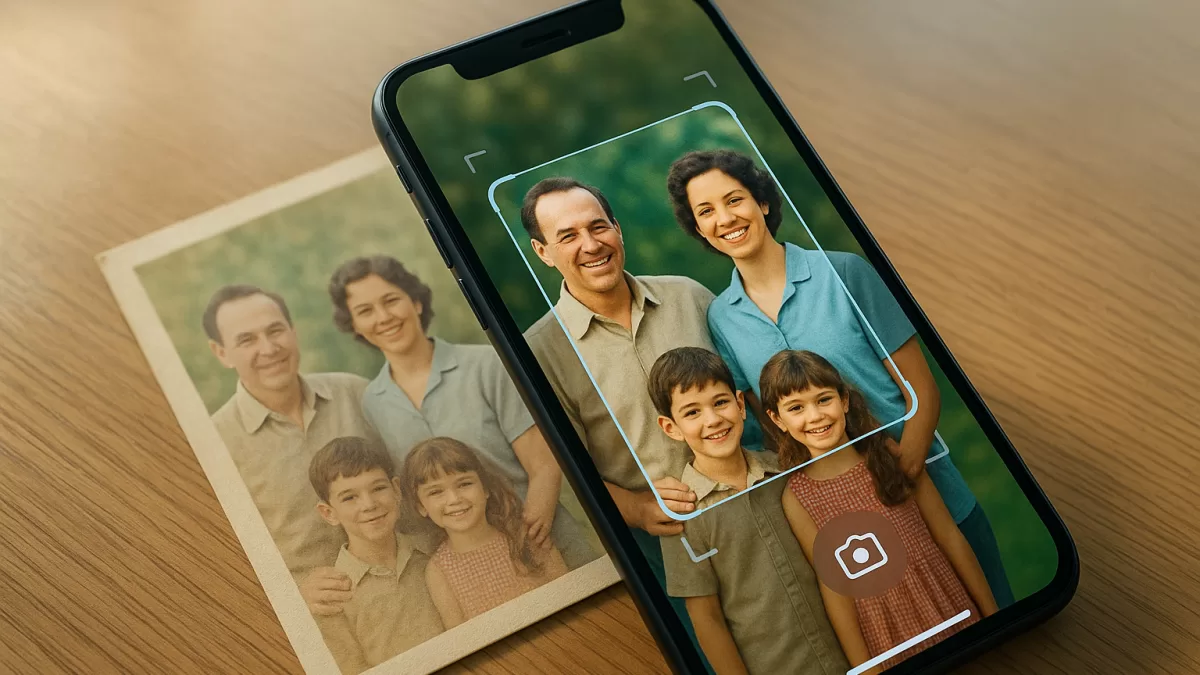
Old photographs fade a little more every year. Album pages yellow. Colors shift toward orange, edges curl, and a single spilled cup of coffee can wipe out decades of memories in seconds. That is why photo scanning apps have quietly become one of the most useful tools sitting on your smartphone — they turn a shoebox of prints into a searchable, shareable, backup-friendly digital archive in a single afternoon.
You no longer need a bulky flatbed scanner or an expensive mail-in service to preserve your grandparents’ wedding photos. The best photo scanning apps in 2026 use multi-shot capture, AI edge detection, glare removal, and even automatic colorization to deliver near-scanner quality straight from your phone camera. This guide breaks down the top choices, compares real-world quality, and helps you pick the right app for your specific project.
- Why Photo Scanning Apps Now Rival Traditional Scanners
- What to Look For Before You Download
- 1. Google PhotoScan — Best Free App for Glossy Prints
- 2. Photomyne — Best for Batch Scanning Old Albums
- 3. Adobe Scan — Best All-Rounder for Photos and Documents
- 4. Pic Scanner Gold — Best One-Time Purchase (iOS)
- 5. MyHeritage Reimagine — Best for Genealogy and Restoration
- 6. SwiftScan — Best for Cloud-Heavy Workflows
- 7. Genius Scan — Best Lightweight Free Option
- 8. vFlat — Best for Books and Curved Surfaces
- 9. Apple Notes and Google Drive — The Free Built-Ins
- Quick Comparison Table
- How to Get the Best Scans From Any Phone
- Common Problems and Quick Fixes
- Phone Scanning vs. Flatbed Scanner: The Honest Verdict
- Privacy and Cloud Storage Considerations
- Preserving Scans for the Long Haul
- When Apps Aren’t Enough: Manual Editing and Professional Help
- Frequently Asked Questions
- Final Thoughts: Which App Should You Pick?
Why Photo Scanning Apps Now Rival Traditional Scanners
Speed, Portability, and Instant Cloud Backup
Phone-based scanner apps solve a very human problem. Most people never actually digitize their old photos because pulling out a flatbed feels like a full weekend project. A phone lives in your pocket, launches in seconds, and captures a print in the time it takes to boil a kettle.
Here is where mobile apps clearly shine:
- Speed — A flatbed can take a full minute per photo, while a good app finishes in under 10 seconds.
- Batch capture — Certain apps detect multiple photos in one shot and separate them automatically.
- AI enhancement — Cropping, rotation, color correction, and glare removal happen without a single tap.
- Instant cloud sync — Most apps upload straight to Google Drive, Dropbox, or their own secure cloud.
- No new hardware — You already own the “scanner” in your pocket.
That said, a flatbed scanner still produces sharper archival-grade results at 600 DPI or higher. For genealogists preparing museum-level archives, dedicated hardware remains the gold standard — but for everyone else, a phone is faster, cheaper, and honestly good enough for prints, sharing, and daily use.
Want to boost your online sales with better product photography?
High-quality images increase conversions by up to 40%. Let us help you get there. See our editing services
What to Look For Before You Download
Not every scanning app is built the same. Some are camera-first, others focus on document OCR, and a few are engineered specifically for the quirks of old, glossy family prints. Before you install anything, weigh these five features:
- Auto edge detection — Does it crop cleanly without you dragging corners?
- Glare and reflection removal — Critical for glossy prints under any indoor light.
- Batch scanning — Can it capture two to four photos in one frame?
- Output format — JPG for photos, PDF for documents, TIFF for archival.
- Export options — Google Photos, iCloud, Dropbox, or direct email support?
Free apps often paywall the features you actually need, so read subscription terms carefully before committing. If you plan to touch up scans later, our detailed photo editing guide explains what to do after the capture step.
1. Google PhotoScan — Best Free App for Glossy Prints
Multi-Shot Glare Removal That Actually Works
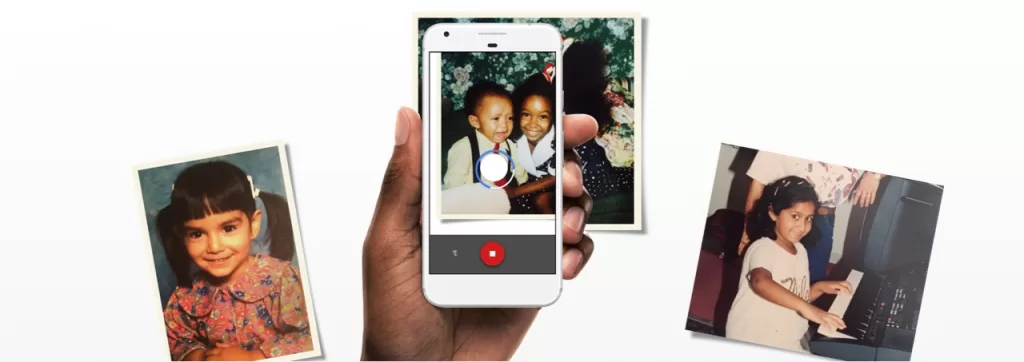
Google’s PhotoScan launched with one clever trick, and it still holds up. The app asks you to hover your phone over four white dots that appear around a print. It then stitches those four exposures together, using the darkest pixels from each frame to erase the bright glare spots that always ruin phone photos of glossy prints. This multi-angle capture is the reason PhotoScan handles laminated and framed photos better than any other free option.
What we like:
- Completely free with zero ads or watermarks
- Excellent glare handling on shiny and framed prints
- Automatic edge detection, cropping, and rotation
- Direct save to Google Photos for instant cloud backup
- Works on both iOS and Android
Where it falls short:
- One photo at a time — no batch capture
- Output stored only as JPG
- Fewer editing tools than paid competitors
- Scans can appear slightly lighter and softer than competing apps
Best for: Anyone with glossy prints, framed photos, or reflective surfaces who wants zero-cost scanning with painless cloud storage.
2. Photomyne — Best for Batch Scanning Old Albums
The Fastest Way to Digitize a Family Photo Album
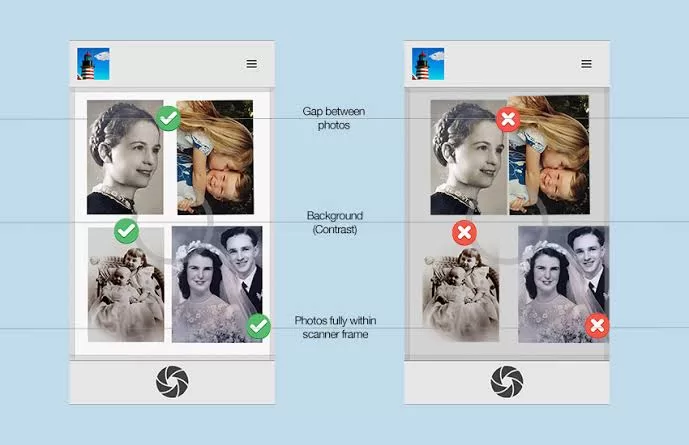
If your project involves flipping through hundred-page albums, Photomyne is the workhorse. Point your camera at an open album page, and the app instantly detects up to four separate photos, crops each one, straightens perspective, and files them into your gallery.
Independent testers at Family Tree Magazine noted that Photomyne “produced the sharpest scans of any app” in their side-by-side tests and offers the most editing tools of any scanner they reviewed — including AI colorization for black-and-white prints, face sharpening, and contrast correction.
Standout features:
- Multi-photo detection in a single frame (huge time saver)
- One-tap AI colorization for black-and-white prints
- Cloud backup with cross-device sync
- Auto-tagging by date, place, and person
- Companion apps for slides, film negatives, and documents
Trade-offs:
- Full features require a subscription (currently $14.99/month or $59.99/year in the U.S. App Store)
- Occasional auto-crop mistakes on irregular photos
- Aggressive in-app upsells
Best for: Anyone digitizing large album collections quickly, with light color enhancement built in.
Want to enhance colors and contrast without losing realism?
Trust our experts to perfect your images with our Photo Retouching Service
3. Adobe Scan — Best All-Rounder for Photos and Documents
AI OCR Meets Photo-Grade Capture
Adobe Scan is the current Wirecutter top pick for mobile scanning, and the choice makes sense. It opens straight to the camera, snaps clear scans in seconds, and its AI automatically detects edges, sharpens text, removes shadows, and corrects perspective. It also runs optical character recognition on typed text in 18 languages, which is a lifesaver if you are scanning old letters, recipes, or handwritten postcards alongside photos.
Key strengths:
- Generous free tier with unlimited scans
- Excellent auto edge detection
- Powerful OCR (25 pages per month free, 100 pages on Premium)
- Built-in highlighting, drawing, and annotation
- Exports as PDF or JPG
Weaknesses:
- Requires an Adobe account
- Default color filter can oversaturate photos — switch to “Original” for archival captures
- Handwriting OCR remains inconsistent
- Adobe Scan Premium subscription runs about $9.99/month
This is the app I hand to anyone who scans both documents and photos. If your project mixes birth certificates, deeds, and old family portraits, it handles all three formats cleanly on a single interface.
4. Pic Scanner Gold — Best One-Time Purchase (iOS)
No Subscriptions, No Ads, No Nonsense
For iPhone and iPad users who hate recurring subscription charges, Pic Scanner Gold is a rare gem. Pay once — around $9.99 on the App Store — and you own it for life. The app processes photos on-device (nothing uploads to servers), captures multiple photos in a single frame, and outputs 300 DPI JPGs suitable for reprints up to 5×7.
Why it stands out:
- One-time purchase, no ongoing fees
- On-device processing means strong privacy
- Multi-photo scanning in a single shot
- Handy caption and album-organization tools
- 300 DPI output good enough for standard reprints
Limitations:
- iOS only (no Android version)
- No dedicated restoration or AI colorization layer
- Slightly slower than Photomyne on album pages
- Interface feels older than newer AI-first apps
For a deeper look at how DPI relates to actual print sizes, this quick primer on standard photo sizes is worth bookmarking before your first scan.
5. MyHeritage Reimagine — Best for Genealogy and Restoration
AI Colorization, Repair, and Living Portraits
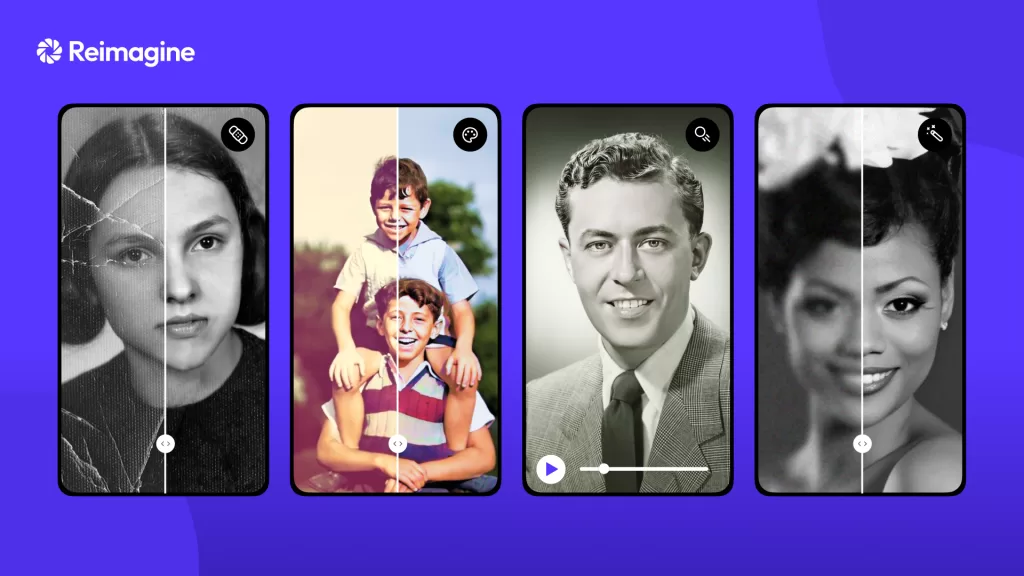
MyHeritage’s Reimagine app is not just a scanner — it is a full family-history toolkit. Scan photos in batches from an album page, then use MyHeritage’s proprietary AI to colorize black-and-white portraits, sharpen faces, repair scratches and tears, and even animate subjects in short “living memory” clips using the popular Deep Nostalgia feature.
Reviewers at Family History Daily call the restoration engine one of the most impressive uses of AI they have seen for old photos.
Highlights:
- Multi-photo batch scanning
- AI restoration for scratches and faded areas
- Colorization for black-and-white images
- Optional short-video animation feature
- Direct integration with MyHeritage family trees
Watch-outs:
- Subscription pricing after a 7-day trial ($7.99/month or $49.99/year in the U.S.)
- Heavy processing (older phones may lag)
- Overkill if you just want simple scans
Best for: Genealogy enthusiasts, family historians, and anyone with damaged black-and-white photos that need serious rehab.
6. SwiftScan — Best for Cloud-Heavy Workflows
PDF Scanning With Serious Export Options
SwiftScan (formerly Scanbot) targets professionals who bounce scans between multiple cloud services. It uploads to Google Drive, Dropbox, OneDrive, iCloud, Evernote, Slack, Box, and even your own FTP server. Its OCR handles more than 60 languages, and the scanning engine performs well in low light.
Pros:
- 15+ cloud service integrations
- Multi-language OCR
- Strong password protection and encryption
- Clean, modern interface on iOS and Android
Cons:
- Free tier is limited (two-page scans, ads on capture screen)
- Full VIP features run roughly $59.99–$69.99/year (occasional lifetime deals appear)
- Edge detection lags slightly behind Adobe Scan
- Document-first design (photos are secondary)
If you mostly scan paperwork with the occasional photo mixed in, SwiftScan is a strong all-in-one. If it is photos-first, look elsewhere.
Need your images edited faster without sacrificing quality?
Our streamlined process delivers premium results in as little as 6 hours. Explore our fast-turnaround services
7. Genius Scan — Best Lightweight Free Option
A No-Frills, Well-Designed Alternative
Genius Scan (by The Grizzly Labs) has been on the App Store for over a decade and is known for a clean interface and privacy-respecting design. The free tier handles most household scanning needs without pushing subscriptions constantly. It supports smart page detection, perspective correction, and multi-page PDF assembly.
Pros:
- Free tier is genuinely usable
- Manual OCR button (no forced background processing)
- PDF, JPG, and TXT export
- Strong offline processing
Cons:
- OCR quality is inconsistent
- Camera does not auto-open on launch
- Cloud sync and OCR sit inside the Ultra plan at $39.99/year
- Photo-mode capture is basic compared to dedicated photo scanners
Genius Scan wins on simplicity. If you scan a handful of documents a month and want to avoid subscription creep, install it and move on.
8. vFlat — Best for Books and Curved Surfaces
Flatten Curved Pages Like Magic
Most scanning apps struggle with the inside of a hardcover book — pages curl toward the spine, edges warp, and text drifts out of focus. vFlat, built by South Korean team VoyagerX, uses AI to detect the curve of an open book and mathematically flatten it in software.
Strengths:
- Removes finger shadows from page corners
- Flattens curved book pages automatically
- Fast, dual-page capture
- Free core features, with premium extras
Weaknesses:
- Book-focused (photos are secondary)
- Requires bright, even lighting for best results
- Does not sync to cloud services out of the box
For anyone scanning old yearbooks, cookbooks, or bound family journals, vFlat is close to essential. It is the one book-scanning app that consistently gets it right on the first shot.
9. Apple Notes and Google Drive — The Free Built-Ins
Sometimes the Best App Is Already on Your Phone
Do not overlook what ships with your device. Apple Notes has a built-in scanner (tap the camera icon inside a note) that automatically detects document edges, corrects perspective, and exports as PDF. Google Drive on Android does the same via the “+” button and the “Scan” option.
Why they matter:
- Zero installation, zero cost
- Perfectly acceptable for casual receipt or document scanning
- Instant sync with iCloud or Google Drive
- No third-party account required
They are not built for high-fidelity photo scanning — expect softness on old prints — but for a quick capture of a warranty card or utility bill, they cannot be beat. If you want to keep everything in one ecosystem, this guide to the best cloud storage for photos is a good next read.
Quick Comparison Table
| App | Best For | Platform | Price | Batch Scan | Glare Removal |
|---|---|---|---|---|---|
| Google PhotoScan | Glossy prints | iOS & Android | Free | ❌ | ✅ (best) |
| Photomyne | Album batches | iOS & Android | $14.99/mo or $59.99/yr | ✅ (up to 4) | Moderate |
| Adobe Scan | Docs + photos | iOS & Android | Free / $9.99 mo | ❌ | ✅ |
| Pic Scanner Gold | iOS one-time buy | iOS only | ~$9.99 once | ✅ | Moderate |
| MyHeritage Reimagine | Genealogy | iOS & Android | $7.99 mo / $49.99 yr | ✅ | ✅ |
| SwiftScan | Cloud workflows | iOS & Android | Free / ~$60 yr | ✅ | Moderate |
| Genius Scan | Simple docs | iOS & Android | Free / $39.99 yr | ❌ | Basic |
| vFlat | Books | iOS & Android | Free / Premium | ✅ (dual page) | Moderate |
How to Get the Best Scans From Any Phone
Lighting, Placement, and Post-Processing Tips
Even the best app cannot rescue a badly lit capture. A few small habits make an enormous difference:
- Wipe your lens. Fingerprints wreck sharpness — this one step lifts quality noticeably.
- Use soft, even light. North-facing window light is ideal. Skip direct sun, overhead spotlights, and phone flash.
- Add background contrast. Place prints on a matte dark surface. Auto-edge detection loves contrast.
- Brace your elbows. Micro-shake blurs fine detail. Prop your phone on books or use a small tripod.
- Scan flat, not tilted. Keep the camera parallel to the print to prevent keystoning.
- Shoot in “Original” mode. Aggressive auto-color filters bake in changes you cannot undo later.
If your final scans still look soft or noisy, you can rescue them in post. Our tutorial on fixing grainy photos walks through simple noise-reduction techniques that work beautifully on scanned prints.
Spending too much time on tedious skin cleanup in post-production?
Outsource the detail work to our fast, reliable Beauty Retouching Service and focus on shooting.
Common Problems and Quick Fixes
Solving Glare, Blur, and Color Casts
Even seasoned scanners hit the same handful of headaches. Here is how to fix them fast:
- Glare on glossy prints — Switch to Google PhotoScan or dim your room lights and use one angled indirect lamp.
- Blue or yellow color cast — Turn off auto white balance and scan under a single, consistent light source.
- Blurry scans — Bump ISO down, add more light, or use a small tripod.
- Cropped edges on scans — Place the print on a strongly contrasting background so the app finds all four corners.
- Warped, curled prints — Weigh corners down with clean glass or a heavy book overnight before scanning.
Understanding image formats also helps if you want the smallest file size without visible quality loss.
Phone Scanning vs. Flatbed Scanner: The Honest Verdict
When to Grab Your Phone — and When Not To
Let us settle the debate. A high-end phone camera captures a 4×6 print at roughly 300–350 pixels per inch under ideal conditions. A quality flatbed scanner captures the same print at 600 to 1200 DPI, plus perfect lighting, no perspective distortion, and consistent color. The difference is measurable, but not always visible on a phone screen or social feed.
Use a phone app when:
- You are digitizing casually for backup and sharing
- Speed matters (a full album in an evening)
- You are traveling or away from a scanner
Use a flatbed scanner when:
- You need 600+ DPI archival quality
- Prints are fragile, faded, or destined for a museum or genealogy society
- Color accuracy is non-negotiable
Curious how dedicated camera specs stack up more broadly? Our overview of the best cameras for photography in 2026 shows what standalone gear still does that a phone cannot.
Privacy and Cloud Storage Considerations
Where Do Your Scanned Photos Actually Go?
Every app makes different promises about your data. A quick rule of thumb:
- Google PhotoScan — Scans save to Google Photos under Google’s standard policies.
- Pic Scanner Gold — Processes on-device by default; strong privacy stance.
- Photomyne and MyHeritage — Upload to proprietary cloud for cross-device sync (opt-out available).
- Adobe Scan — Requires Adobe account, stores files in Adobe Document Cloud.
- CamScanner — Historically flagged after Kaspersky discovered a malicious ad module in 2019; many users now prefer alternatives even though the app has since been cleaned up.
If sensitive family or business scans matter to you, read each app’s privacy policy before uploading. Backing up to a separate encrypted service — or a home NAS — adds another safety layer for irreplaceable memories.
Preserving Scans for the Long Haul
File Formats, Backups, and Print-Ready Storage
Once scanned, do not stop at “it’s on my phone.” A single device failure can undo all that work. Follow the classic 3-2-1 backup rule: three copies of every scan, on two different storage types, with at least one copy stored off-site.
Practical steps to lock in your digital archive:
- Save originals as JPG at highest quality or TIFF for archival use.
- Store in at least two clouds (for example, Google Photos plus Dropbox).
- Keep an external SSD backup at home for redundancy.
- Consider printing your favorites so digital copies are not the only version.
For a full walkthrough of print options once your scans look great, this guide on the best photo printing software covers desktop and web tools worth knowing.
When Apps Aren’t Enough: Manual Editing and Professional Help
Bringing Damaged Prints Back to Life
AI restoration inside scanning apps is genuinely impressive, but it has limits. Deep creases, missing corners, mold spots, and severely faded images still benefit from human retouching. A professional editor can rebuild lost detail, match skin tones authentically, and reconstruct backgrounds no algorithm gets right on the first try.
If your family’s most important prints need real restoration — the kind you would frame and gift — talk to a specialist rather than rely on a one-tap AI filter. The result is dramatically better and lasts a lifetime.
Want your images to look professionally edited, not over-processed?
Achieve natural, high-end perfection with our skilled Photo Retouching Service
Frequently Asked Questions
1. What is the best free photo scanning app in 2026?
Google PhotoScan is the best fully free option for photos, thanks to its glare-removal engine and complete lack of ads or watermarks. Adobe Scan is the best free option if you also scan documents.
2. Can a phone app really replace a flatbed scanner?
For everyday sharing, backup, and social use — yes. For archival-grade digitization at 600+ DPI, a flatbed still wins.
3. Which app is fastest for scanning full photo albums?
Photomyne. It detects up to four photos in a single frame and separates them automatically, making it the fastest tool for large albums.
4. Are photo scanning apps safe for private family pictures?
It depends on the app. Pic Scanner Gold processes on-device. Google PhotoScan uploads to your Google Photos library. Always read each app’s privacy policy before scanning sensitive images.
5. What resolution do phone scanning apps actually produce?
Most output roughly 300–350 DPI on a 4×6 print — good enough for reprints up to 5×7 and any web use. For larger prints, a flatbed remains the smarter choice.
6. Can these apps colorize black-and-white photos?
Yes. Photomyne and MyHeritage Reimagine both include AI colorization. Results are usually convincing on portraits and less so on complex outdoor scenes.
7. Should I scan photos as JPG or PDF?
JPG for individual photos (better color, smaller size). PDF for multi-page documents or grouped albums you want to keep together.
8. How do I remove glare when scanning framed photos?
Either remove the print from its frame or use Google PhotoScan’s multi-shot glare-removal mode with your room lights dimmed and one soft indirect lamp positioned to the side.
Final Thoughts: Which App Should You Pick?
There is no single “best” photo scanning app — only the best one for your project. Match the tool to the job:
- Glossy prints and reflective surfaces → Google PhotoScan
- Album batches and speed → Photomyne
- Photos plus documents in one place → Adobe Scan
- iOS with no subscription → Pic Scanner Gold
- Genealogy and restoration → MyHeritage Reimagine
- Cloud-heavy workflows → SwiftScan
- Books and bound journals → vFlat
- Casual, occasional scanning → Apple Notes or Google Drive
Whatever you pick, the important thing is to start scanning. Prints deteriorate a little more every year. Ten minutes with a good app today saves memories that no amount of money can recreate tomorrow.