
Wedding Photography Editing Workflow: Complete Guide
September 25, 2026
What Is a Telephoto Lens? A Complete Guide for Photographers
October 1, 2026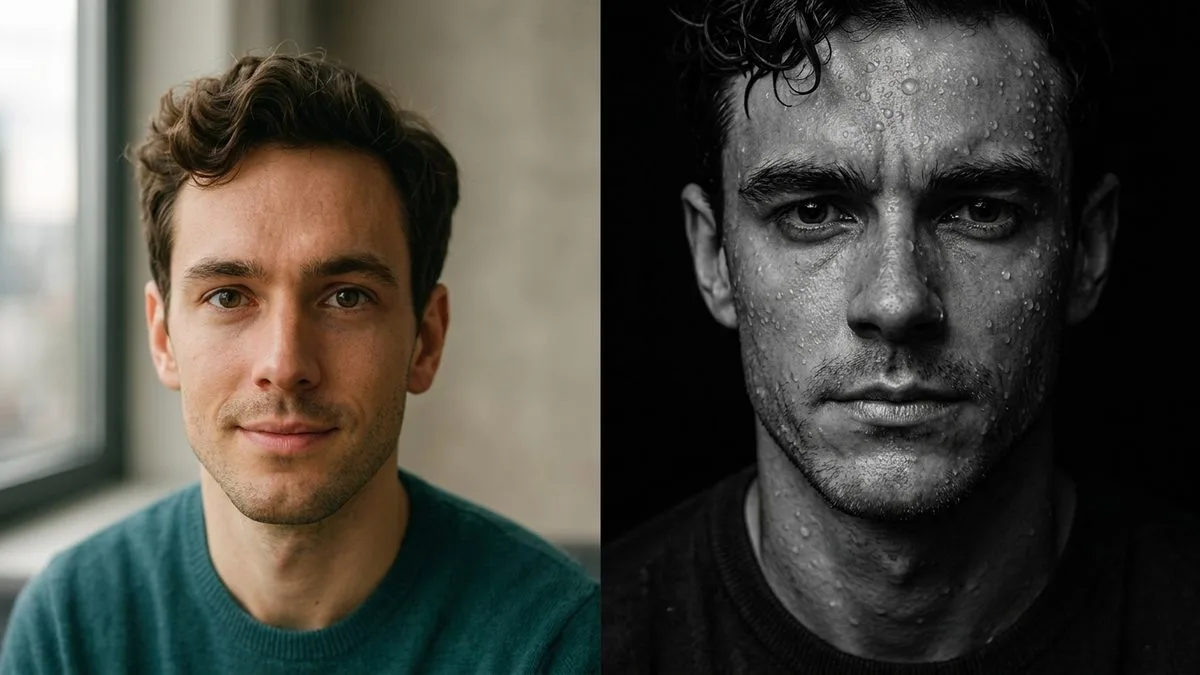
- TL;DR: The Short Answer
- What Is Grok Imagine, and Why Do Prompts Matter?
- Grok Imagine Modes: Which One to Use
- The Grok Prompt Formula That Actually Works
- Best Realistic Grok Prompts (Copy-Paste Templates)
- Grok Fade Prompt: How to Get the Fade-Out Effect
- Pose Prompts for Grok: Control the Body Language
- Negative Prompts for Grok: Use Sparingly
- How to Fix Common Grok Image Problems
- Grok "Content Moderated. Try a Different Idea": What to Do
- Grok Video Prompts (The "Ideos" People Search For)
- Pricing & Free Alternatives (Updated 2026)
- 7 Pro Tips to Make Every Grok Prompt Better
- Frequently Asked Questions
- Final Verdict
TL;DR: The Short Answer
The best Grok image prompts follow one formula: Subject + Setting + Lighting + Camera/Lens + Style + Quality modifiers. Grok Imagine runs on xAI’s Aurora architecture — an autoregressive model, not a diffusion model — which means it handles coherent scenes and text inside images better than most competitors. For photorealism, name a real camera and lens, specify the light, and explicitly ask for “visible skin texture, natural imperfections.” For a fade-out effect, write “subject gradually dissolving into a soft gradient.” For pose control, describe the pose explicitly right after the subject. And if you hit “Content moderated. Try a different idea,” rephrase artistically — don’t try to word around the block. Official Grok Imagine is no longer free (the free tier ended March 19, 2026), so budget for a paid plan or a third-party free-credit alternative.
What Is Grok Imagine, and Why Do Prompts Matter?
Grok Imagine is xAI’s text-to-image and text-to-video feature, built into the Grok chat app and available via API. Its still-image model — currently Grok Imagine Image 2.0 — runs on Aurora, xAI’s proprietary autoregressive mixture-of-experts architecture. That’s a key detail: unlike Midjourney or Stable Diffusion (which use diffusion), Aurora generates image patches sequentially, like a language model predicting the next word. The payoff is unusually coherent scene composition and strong text/logo rendering — xAI’s own Quality Mode release highlights “clean, multilingual text capabilities.” The video side, grok-imagine-video-1.5 (June 2026), generates up to 15-second clips with synchronized audio.
Prompts matter because Aurora responds to specific, photographic language. Vague words like “nice” or “beautiful” give you generic results. Words like “85mm f/1.4, golden hour backlight, Kodachrome color grading” give you images that look like they came out of a camera. If you already work with other AI image tools, our collections of Gemini prompts and ChatGPT prompts pair well with what you’ll learn here — though Grok’s prompt style leans more cinematic and photographic than either.
Grok Imagine Modes: Which One to Use
Grok Imagine offers four generation modes. Pick the right one before you write the prompt:
- Normal: Default, balanced quality and speed. Use for most work.
- Fun: Looser, more creative and stylized. Use for concepts and ideas.
- Custom: Lets you dial aspect ratio, resolution, and style references. Use for precise work.
- Spicy: Relaxes style restrictions for bolder, edgier results. It is not a content bypass — hard limits still apply.
Pro tip: start in Normal, switch to Custom once you know the composition you want, and use Spicy only when the result feels too sanitized.
The Grok Prompt Formula That Actually Works
After testing hundreds of prompts, one structure consistently produces the best results. Write in this order, from most important to least — Aurora weights the opening words most heavily:
| Order | Element | Example | Why it matters |
|---|---|---|---|
| 1 | Subject | “A female baker in her 30s” | First words carry the most weight |
| 2 | Setting/action | “kneading dough in a sunlit rustic kitchen” | Gives context and story |
| 3 | Lighting | “warm window light, soft shadows, golden hour” | Light makes or breaks realism |
| 4 | Camera/lens | “Sony A7R IV, 50mm f/1.8, shallow depth of field” | Triggers photorealistic rendering |
| 5 | Style/mood | “documentary photography, cozy atmosphere” | Sets the aesthetic |
| 6 | Quality modifiers | “ultra detailed, 8K, natural skin texture” | Pushes fidelity |
A full example: “A female baker in her 30s kneading dough in a sunlit rustic kitchen, warm window light with soft shadows, golden hour, shot on Sony A7R IV, 50mm f/1.8, shallow depth of field, documentary photography style, ultra detailed, photorealistic, natural skin texture.”
Good prompt engineering is half the battle — describe one clear scene per generation, and avoid piling on conflicting instructions.
Best Realistic Grok Prompts (Copy-Paste Templates)
Realism comes from three things: specific camera language, honest skin texture, and imperfect, natural lighting. Grok tends to over-smooth skin by default, so explicitly ask for texture.
1. Hyper-realistic portrait (the workhorse):
“Close-up portrait of a 28-year-old woman with freckles and copper hair, soft window light from the left, visible pores and natural skin texture, slight smile, shot on Canon EOS R5, 85mm f/1.4, shallow depth of field, muted background, photorealistic, 8K, National Geographic style.”
2. Candid street portrait:
“Candid portrait of an elderly fisherman with weathered face and white beard, standing on a rain-slicked dock at dusk, neon reflections in puddles, 85mm lens, bokeh background, cinematic color grade, ultra realistic, fine detail.”
3. Professional headshot:
“Professional headshot of a confident 35-year-old entrepreneur, neutral gray seamless backdrop, soft three-point studio lighting with hair light, sharp focus on eyes, shot on Sony A7R V, 85mm, photorealistic, clean corporate look.”
Want your images to look professionally edited, not over-processed?
Achieve natural, high-end perfection with our skilled Photo Retouching Service
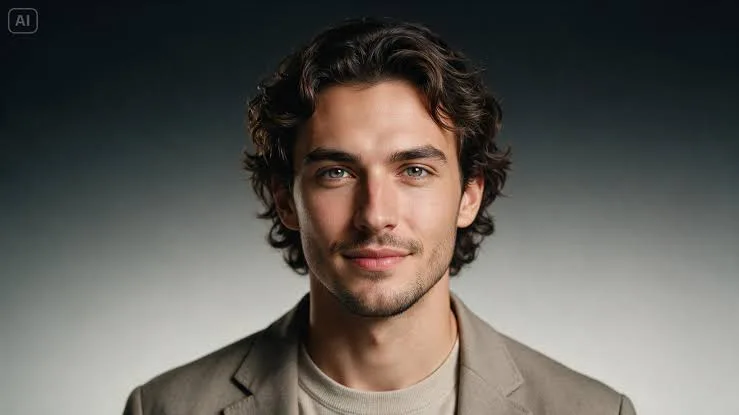
4. Golden-hour lifestyle:
“Young woman with curly hair walking through a sunlit street at golden hour, warm rim light, candid expression, Fujifilm 35mm look, Kodachrome color grading, shallow depth of field, ultra detailed, photorealistic.”
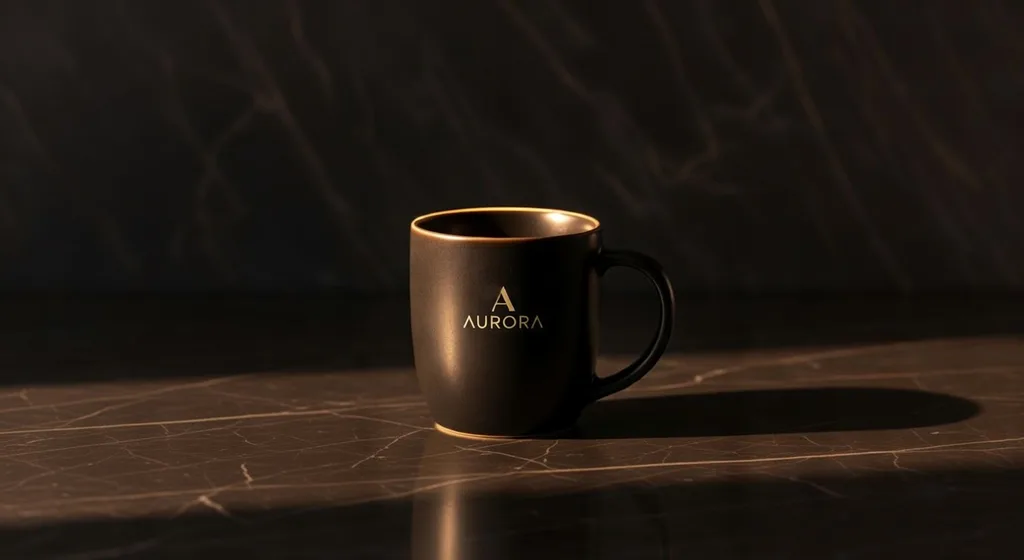
5. Ecommerce product photography:
“Product photo of a matte black coffee mug on a light oak table, soft diffused studio lighting, subtle reflection on surface, minimalist beige background, commercial advertising photography, sharp focus, 8K, photorealistic.”
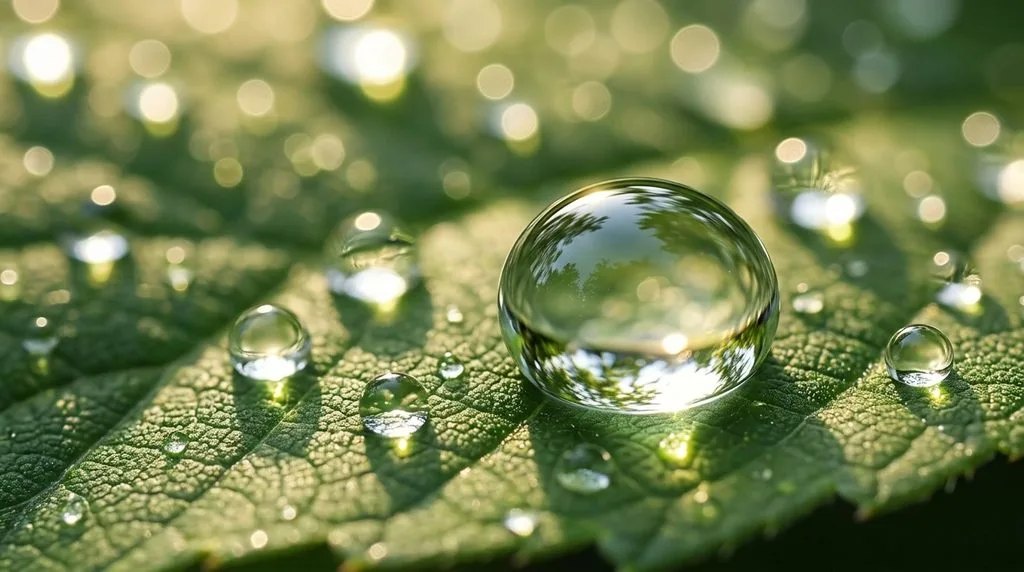
6. Macro detail shot:
“Macro photograph of water droplets on a fresh green leaf, morning light refracting through droplets, extreme detail, shot on 100mm macro lens f/2.8, natural lighting, ultra sharp, photorealistic.”
7. Fashion editorial:
“Full-body fashion editorial photo of a model in a cream linen suit, standing in a concrete parking garage with dramatic side light, Vogue style, shot on medium format film, natural pose, photorealistic, 8K.”
If your generated portrait needs final polish — smoothing skin without losing texture, fixing stray hairs, or swapping backgrounds — professional portrait retouching techniques will take it the last 10%. And for that film-look color, a solid color grading reference helps you describe exactly the palette you want.
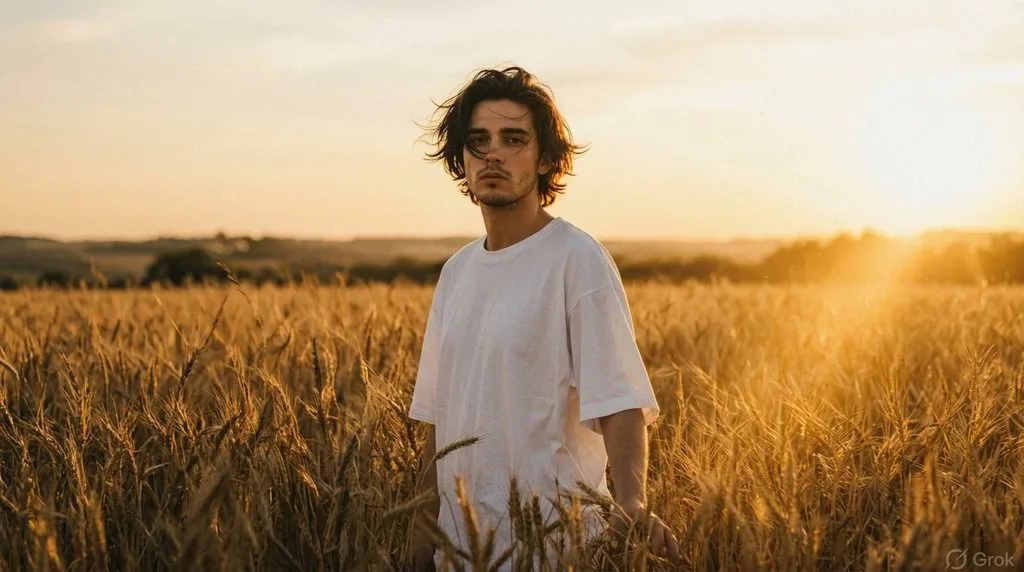
Grok Fade Prompt: How to Get the Fade-Out Effect
The “fade” or “fade out” look — where a subject dissolves softly into the background — is one of the most requested Grok effects. Grok has no dedicated fade button, so you describe the effect in the prompt. Use these phrases:
- “subject gradually fading into a soft mist”
- “lower half dissolving into a pastel color gradient”
- “edges of the figure blending into the background, low opacity”
- “double exposure portrait merging with fog”
- “silhouette fading from solid to transparent”
Copy-paste fade prompt:
“Portrait of a woman in a flowing dress, her lower body gradually fading and dissolving into a soft pink-to-blue gradient background, dreamy atmosphere, soft focus on edges, sharp focus on face, studio lighting, fine art photography, photorealistic, 8K.”
Fade to black (dramatic):
“Dramatic profile portrait of a man, face fully lit while his shoulders and torso fade smoothly into pure black background, chiaroscuro lighting, high contrast, cinematic, photorealistic, Rembrandt lighting.”
If you want the subject cut out entirely so you can build the fade yourself in Photoshop, start with a clean transparent background and apply a gradient mask in post.
Pose Prompts for Grok: Control the Body Language
AI models default to generic standing poses. To get a specific pose, describe it explicitly and early — right after the subject. Use these templates:
- Over-the-shoulder: “woman looking back over her shoulder, hair blowing, three-quarter view…”
- Candid walking: “man walking mid-stride, hands in pockets, candid street photography…”
- Seated relaxed: “woman sitting cross-legged on a windowsill, reading a book, natural pose…”
- Dynamic action: “dancer leaping mid-air, flowing fabric, motion freeze, studio strobe…”
- Power pose: “businesswoman standing with arms crossed, confident expression, low angle shot…”
Copy-paste pose prompt:
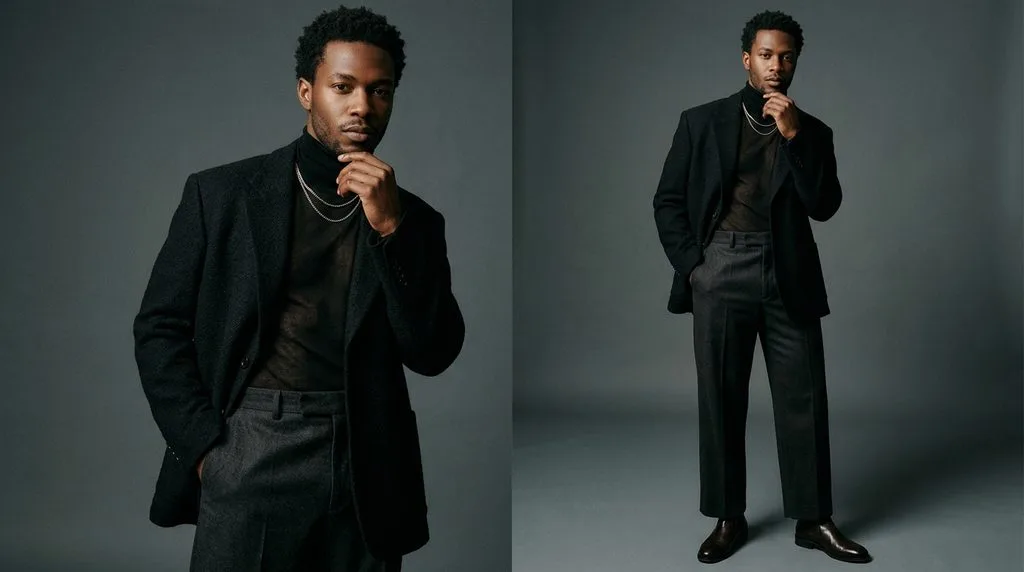
“Full-body fashion photo of a model in a beige trench coat, walking mid-stride on a city sidewalk, one hand in pocket, motion blur on background, overcast daylight, shot on 35mm film, editorial style, photorealistic, natural pose.”
Pro tip: for a very specific pose, upload a reference image and ask Grok to match it — image-to-image gives you far more control than text alone. If hands come out wrong (see below), choose a pose where hands are out of frame or in pockets.
Negative Prompts for Grok: Use Sparingly
Grok supports negative prompts, but they are a last-mile nudge, not a magic spell. If you find yourself negating twenty things, your base prompt is the problem. Use short, targeted negatives:
"no extra fingers, no distorted hands"— for anatomy"no text, no watermark, no border"— for clean images"no lens flare, no chromatic aberration"— for clean photography"no plastic skin, no over-smoothing"— to fight the AI look
Add them in a separate “Negative:” line at the end of your prompt.
How to Fix Common Grok Image Problems
Every AI generator has weak spots. Here is what goes wrong with Grok and the one fix that actually works:
| Problem | The fix that works |
|---|---|
| Extra fingers / deformed hands | Regenerate — this is not reliably promptable. Or use a mid-shot with hands in pockets / out of frame. Fix in post with Generative Fill. |
| Gibberish text / logos | Use Quality Mode (it renders text best). If still wrong, add text in Photoshop — don’t fight the model. |
| Face changes between runs | Upload a reference image and stop adding identity adjectives. |
| Stretched reference subject | Match your uploaded image’s aspect ratio to the output. |
| Over-smoothed plastic skin | Add “visible pores, natural skin texture, slight asymmetry” to every portrait prompt. |
| Too dark / too bright | Specify the light explicitly: “soft diffused window light” beats “well-lit.” |
For heavier cleanup — removing artifacts, fixing hands, swapping backgrounds — a bit of photo manipulation in post is almost always faster than regenerating twenty times. SeaArt’s Grok Imagine prompts library has more templates to experiment with.
Grok “Content Moderated. Try a Different Idea”: What to Do
Every Grok user hits this wall eventually. The moderation blocks prompts it flags as risky — often overly realistic portraits of real people, violence, or anything suggestive. You cannot bypass hard limits (minors, real-person likeness, illegal content), and you should not try. But for legitimate creative work, these fixes work:
- Rephrase artistically. Replace direct words with mood and atmosphere. Frame it as “fine art photography,” “oil painting style,” or “conceptual illustration.”
- Frame it as fiction or history. Add “fictional character,” “historical reenactment,” or “in a fantasy world.”
- Simplify the prompt. Long, complex prompts trigger moderation more often. Shorten it, then add detail in a second generation.
- Remove trigger words one at a time. Delete or swap a single word, regenerate, and find which term caused the block.
- Start from your own reference image. Use image-to-image with a photo you own — moderation applies differently to edits.
- Try a different mode. Spicy relaxes style restrictions but is not a bypass for content rules.
Media.io’s guide to Grok content moderated errors walks through the same rephrasing method with before-and-after examples. If a prompt keeps getting blocked, it is blocked for a reason — move on to a different idea.
Grok Video Prompts (The “Ideos” People Search For)
Grok Imagine also generates short video (grok-imagine-video-1.5, up to 15 seconds). For video, add motion and camera direction to your image prompt:
“A sunny city street transitioning slowly to night over 8 seconds, sunset fading gradually, street lights turning on, sky shifting from orange to deep blue, steady tripod wide shot, 24fps cinematic.”
Describe the motion, the transition, the camera movement, and the frame rate. Keep it to one continuous shot — multi-scene videos confuse the model. Video downloads are watermark-free.
Pricing & Free Alternatives (Updated 2026)
Important update: the official Grok Imagine free tier ended on March 19, 2026. Free X accounts now get text-only Grok with no image or video generation. Paid plans start around $30/month for SuperGrok Lite (the price tripled in Fall 2026), with higher tiers at $100 and $300/month. Official Grok images carry an “Aurora” watermark to indicate AI origin; removing it may violate terms. If you want to test without paying, several third-party platforms (like imagine-grok.com or createvision.ai) offer small daily free credits to try the same Aurora-based model.
Need your images edited faster without sacrificing quality?
Our streamlined process delivers premium results in as little as 6 hours. Explore our fast-turnaround services
7 Pro Tips to Make Every Grok Prompt Better
- Name a camera and lens every time. “Sony A7R IV, 85mm f/1.4” beats “professional camera” by a mile.
- Ask for imperfections. “Visible pores, slight asymmetry, natural skin texture” kills the plastic AI look.
- Specify the light direction. “Backlit,” “side-lit,” “overcast soft light” — light is 80% of realism.
- Use film stock names. “Kodachrome,” “Portra 400,” “Fujifilm Classic Chrome” give instant color character.
- One scene per prompt. Don’t ask for a beach and a city and a forest — pick one.
- Regenerate, don’t rewrite. If the composition is close but off, generate again with the same prompt before editing words.
- Touch up in post. The last 10% — background cleanup, color, skin — is often faster in an editor.
Frequently Asked Questions
What is the best prompt for realistic Grok images?
Use: subject + setting + specific lighting + camera/lens + “photorealistic, natural skin texture, 8K.” Example: “Close-up portrait of an elderly fisherman, golden hour light, shot on Canon EOS R5, 85mm f/1.4, visible skin texture, National Geographic style, photorealistic.”
How do you do a fade effect in Grok?
Describe it in the prompt: “subject gradually fading/dissolving into a soft gradient or mist, sharp focus on the face, soft low-opacity edges.” Grok has no fade button, so you must describe the effect.
Why does Grok say “content moderated, try a different idea”?
Grok blocks prompts it flags as risky. Fix it by rephrasing artistically, simplifying the prompt, removing trigger words one by one, or starting from your own reference image. Hard limits (minors, real people, illegal content) cannot be bypassed.
What architecture does Grok Imagine use?
Grok Imagine uses xAI’s Aurora — an autoregressive mixture-of-experts model, not a diffusion model. This gives it strong scene coherence and better-than-average text rendering. It is not built on FLUX.
Is Grok Imagine free in 2026?
No. The official free tier was removed March 19, 2026. Official Grok Imagine requires a paid plan (SuperGrok from ~$30/month). Third-party platforms offer limited free credits to try the model.
How do I control poses in Grok?
Describe the pose explicitly right after the subject — “walking mid-stride,” “looking over shoulder,” “sitting cross-legged.” For exact poses, upload a reference image and use image-to-image. If hands come out wrong, use a pose with hands in pockets or out of frame.
Can Grok generate uncensored images?
No model generates truly uncensored images, and Grok has content policies. Spicy mode relaxes style restrictions but is not a bypass. For legitimate artistic work, rephrase your prompt rather than trying to circumvent filters.
Does Grok render text and logos well?
Grok’s Quality Mode renders text better than most competitors, but always verify it. For critical logos or exact wording, add the text in Photoshop rather than relying on the generator.
Final Verdict
Grok Imagine is one of the strongest photorealistic image generators available, but only if you speak its language — camera specs, lighting direction, film stocks, and honest texture. Use the formula in this guide, copy-paste the templates, and tweak one variable at a time. For fade effects and poses, describe what you want literally; for moderation blocks, rephrase or move on. And always plan a light post-production pass — the best AI images still benefit from a human editor’s eye.