
Frequency Separation Retouching: Step-by-Step Photoshop Guide for Beginners
September 16, 2026
35+ Best Gemini AI Photo Prompts for 2026 (Copy-Paste, Trending & Professional)
September 19, 2026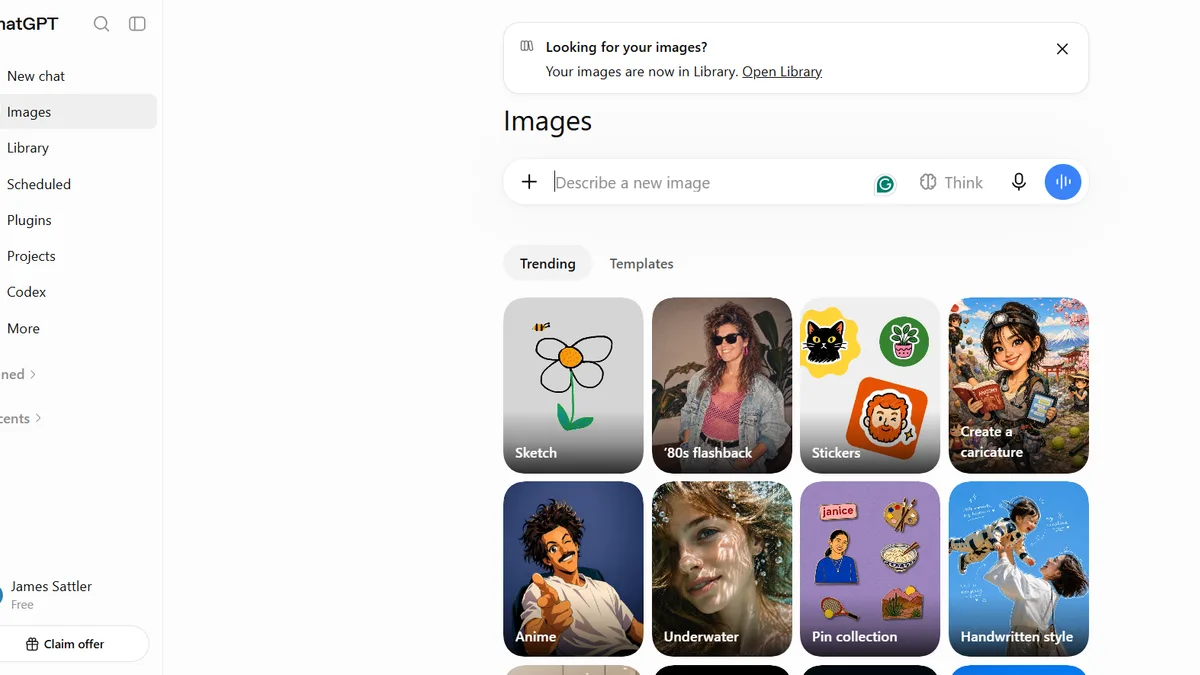
Quick answer: The best ChatGPT image prompts for photo editing follow a six-part formula — source context, specific edit, preservation clause, mood, camera specs, and output format. Since the September 2026 upgrade to ChatGPT Images 2.5 (codenamed Flare and Sunburst), the model handles text, identity preservation, and multi-object scenes far better than any previous version — but only when your prompt is structured, specific, and states what to keep before what to change.
If you have ever typed “make this photo look professional” and watched ChatGPT hand back a stranger who kind of looks like your cousin, you are not alone. I have spent months testing prompts against every ChatGPT image release from DALL·E 3 through today’s Images 2.5, and the pattern is always the same: the model is not the problem. The prompt is.
This guide gives you the exact formula I use, plus 35+ tested prompts you can copy today — grouped by task, aesthetic, and industry. Every prompt has been re-tested on the current model and cross-checked against OpenAI’s official prompting cookbook so you can trust what actually works in 2026.
- Key Takeaways
- What Is a ChatGPT Image Prompt (And Why 90% Fail)
- How ChatGPT Actually Edits Your Photos in 2026
- What Changed in ChatGPT Images 2.5
- Before You Upload: A 60-Second Pre-Flight Checklist
- The Anatomy of a Perfect ChatGPT Photo Editing Prompt
- 35+ Best ChatGPT Image Prompts (Copy, Paste, Refine)
- Prompt Keywords That Push ChatGPT Toward Pro Results
- Identity Preservation: The One Skill That Changes Everything
- How to Refine Without Starting Over
- Weak Prompt vs. Strong Prompt: A Real Comparison
- Aspect Ratios and Output Formats in 2026
- Common ChatGPT Photo Editing Mistakes (And Fixes)
- ChatGPT Images 2.5 vs. Nano Banana Pro vs. Midjourney v7
- When AI Prompts Are Not Enough
- Commercial Use of ChatGPT-Generated Images in 2026
- Pro Workflow: Studio-Grade Results in 10 Minutes
- Prompt Cheat Sheet: Want This → Use This
- Frequently Asked Questions
Key Takeaways
- The winning formula: background → subject → key details → constraints → intended use, always in that order.
- Identity drift is fixable: name specific features (freckles, scars, hairline) instead of “keep my face.”
- Iterate, don’t overload: change one variable per turn to converge on a great image faster.
- ChatGPT Images 2.5 handles up to 4K output and juggles 10–20 objects per scene — a huge leap over GPT Image 1.5.
- Commercial rights belong to you, but Amazon and Etsy both now require AI disclosure in 2026.
What Is a ChatGPT Image Prompt (And Why 90% Fail)
A ChatGPT image prompt is a plain-English instruction that tells the model what to generate or how to edit an image you upload. It sounds simple. In practice, most prompts fail for three predictable reasons.
- They describe the outcome instead of the picture. “Make it pop” means nothing to a model that thinks in pixels.
- They forget the preservation clause. Ask for a new background, and the model often gifts you a new face too.
- They stack five styles into one sentence. Cinematic-vintage-Y2K-Ghibli-cyberpunk is not a look. It is a mud puddle.
The fix is structural. OpenAI’s own engineering team recommends writing prompts in a consistent order — background/scene → subject → key details → constraints — with the intended use stated up front (ad, portrait, product listing) so the model picks the right level of polish. Break that pattern and you get chaos.
How ChatGPT Actually Edits Your Photos in 2026
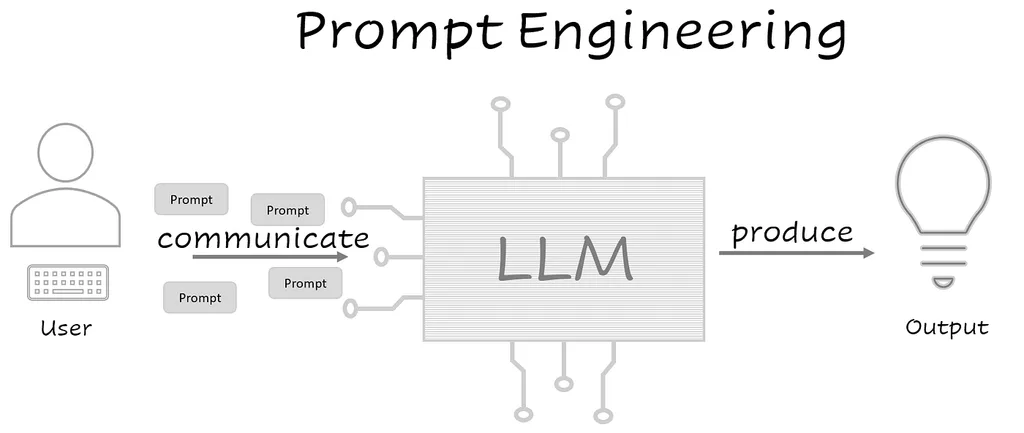
Here is the part most tutorials skip. ChatGPT does not open Photoshop under the hood. It reads your uploaded image, converts what it sees into a semantic map, and then regenerates a brand-new picture guided by your text. That is why a “small edit” can quietly reshape a jawline — the model is redrawing everything.
Three consequences follow from that reality.
- Source quality is everything. A soft, low-light selfie bakes softness into every edit.
- You must state what to preserve, every single turn. Silence equals permission to change it.
- Iteration beats overload. One clean base prompt plus tight follow-ups outperforms a wall of adjectives — a pattern OpenAI documented in the 4o launch and doubled down on with Images 2.5.
What Changed in ChatGPT Images 2.5
Released on September 8, 2026, ChatGPT Images 2.5 (internal codenames: Flare and Sunburst) is the current OpenAI image model as of this writing. Here is what actually shifted from the April 2026 Images 2.0 release:
- Sharper text rendering — captions, price tags, and product labels are now near-typographer accurate.
- Better identity preservation — faces stay recognizable across 3–5 edits before drift appears.
- 4K output — max long edge of 3840 pixels, with both edges as multiples of 16.
- Multi-image reference input — upload up to 4 photos to blend style, subject, or composition.
- ~50% lower latency than the 2.0 model on standard quality settings.
If you were writing prompts for GPT Image 1.5 last year, you can now be less defensive with preservation clauses — but not lazy. Identity drift still happens, just later in the conversation.
Before You Upload: A 60-Second Pre-Flight Checklist
Great prompts cannot rescue bad source images. Run through this list before pasting anything.
- Good lighting — shoot near a window or in even shade. Harsh shadows carry through every edit.
- High resolution — at least 1600 px on the long edge. ChatGPT does not accept RAW files.
- One clear subject — group shots with five faces produce five identity drifts.
- Full face visible — for portrait work, skip sunglasses and hard 45° profiles.
- Minimal compression — no screenshots of screenshots, no re-forwarded WhatsApp downloads.
- No heavy filters — the model has to peel filters back before editing, which hurts skin texture.
If your source needs manual help first, our guide on portrait retouching covers what to fix by hand before you hand things to AI.
The Anatomy of a Perfect ChatGPT Photo Editing Prompt
Every prompt in this article follows the same six-part skeleton. Learn it once. Use it forever.
| Part | Purpose | Example |
|---|---|---|
| 1. Source context | Tells the model what it is looking at | “Using my uploaded selfie taken indoors in tungsten light…” |
| 2. Specific edit | The one thing to change | “…swap the background for a soft-gray studio backdrop…” |
| 3. Preservation clause | What must not change | “…keep face shape, hairline, eye color, freckles, and skin texture intact…” |
| 4. Mood & lighting | Visual mood | “…add a large softbox key light from screen-left with soft fill…” |
| 5. Camera specs | Technical polish | “…as if shot on an 85 mm lens at f/2.0, shallow depth of field…” |
| 6. Output format | Delivery details | “…deliver as a 4:5 vertical PNG, photorealistic, 4K.” |
Six clauses. One clear instruction each. The model rarely misses when you give it this scaffolding. Think of it as the visual sibling of the CRISPE framework used for text prompting — clear roles, clear constraints, predictable output.
35+ Best ChatGPT Image Prompts (Copy, Paste, Refine)
The prompts below are grouped by what you actually want to do, not by aesthetic — because you usually start with a job to do, not a mood board.
Photo Cleanup and Repair Prompts
These are the workhorse edits. Nothing fancy — just fixing what is wrong.
1. Remove Background Cleanly
“Using my uploaded product photo, cut the subject out and place it on a pure white background (#FFFFFF). Preserve all edges, fine hair, and translucent details. Keep original shadows soft and natural. Deliver as a PNG with a transparent-background option.”
2. Replace a Distracting Background
“Keep my face, expression, hair, clothing, and body proportions exactly as they are. Replace only the background with a blurred outdoor café scene in late-afternoon light. Match the lighting direction of the original photo.”
3. Remove an Object or Photobomber
“Remove the person standing behind me on the left side. Reconstruct the beach and sky naturally. Do not alter my face, my pose, or the couple in the foreground.”
4. Erase Glasses Glare
“Remove the reflection on my glasses lenses. Keep the frames, my eyes, and skin texture identical. Do not smooth pores or reshape eyes.”
5. Fix a Slightly Blurry Photo
“Sharpen this photo without adding artificial texture. Recover detail in eyelashes, lips, and hair. Preserve the original color balance and film grain.”
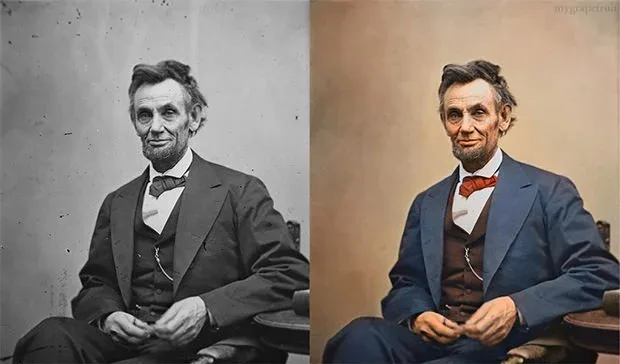
6. Colorize a Black-and-White Photo
“Colorize this 1950s family photo with historically accurate tones — warm skin, muted mid-century clothing colors, and slightly desaturated background. Keep facial features, expressions, and film grain intact.”
7. Restore a Damaged Old Photo
“Repair scratches, creases, and the torn corner. Rebuild missing edges plausibly. Do not modernize faces — keep the vintage look of the original.”
8. Upscale a Low-Resolution Image
“Upscale this 480 px image to 2000 px on the long edge. Recover realistic texture in fabric and skin. Avoid the plastic look of over-processed AI upscaling.”
Portrait and Headshot Prompts
Portraits are where identity drift hurts most. Every prompt below front-loads the “keep” list.
9. Professional LinkedIn Headshot
“Transform my uploaded selfie into a professional LinkedIn headshot. Preserve exact face shape, eye color, hairline, teeth, and skin texture. Dress the subject in a charcoal blazer over a crisp white shirt. Studio background in soft neutral gray. Corporate softbox lighting, shallow depth of field, 4:5 vertical crop.”
10. Cinematic Warm Portrait
“Turn this photo into a cinematic golden-hour portrait. Warm amber sunlight from screen-left, gentle rim light on the hair, subtle film grain, muted teal shadows. Preserve facial identity, freckles, and any visible tattoos. Shot on 85 mm at f/1.8.”
11. Studio Beauty Portrait
“Create a high-end beauty portrait using my face reference. Clean gray backdrop, large butterfly softbox from above, subtle catchlight in the eyes. Keep skin pores, eyebrow shape, and lip line untouched. Do not slim or reshape the face.”
12. Black-and-White Editorial
“Convert to a moody black-and-white editorial portrait. High contrast, deep blacks, controlled highlights. Keep my expression, gaze, and hair position exactly the same. Emulate Ilford HP5 film.”
Trending Aesthetic Prompts (2026)
These are the looks currently dominating Instagram, Pinterest, and Threads. Copy, tweak, post.
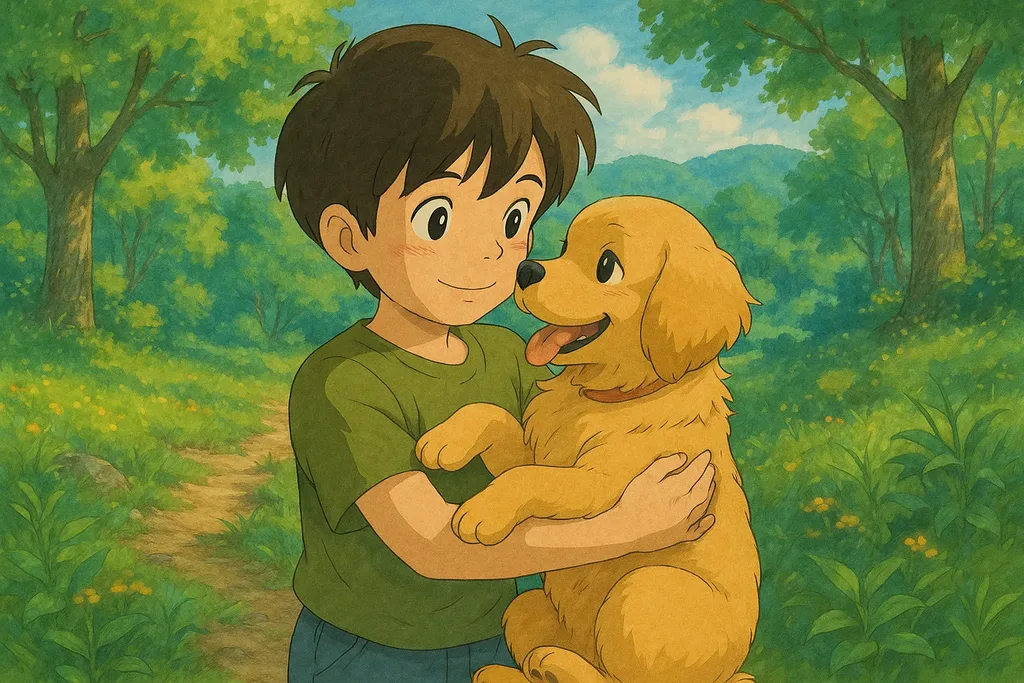
13. Studio Ghibli Style
“Convert my photo into a Studio Ghibli-inspired illustration. Hand-drawn linework, soft watercolor washes, pastel palette, warm golden lighting, painterly cloud textures in the background. Keep my recognizable features — hair color, glasses, and outfit silhouette.”
14. Y2K Flash Photography
“Recreate this photo as a Y2K nightlife shot. Hard on-camera flash, deep black background, saturated primary colors, subtle chromatic aberration on the edges, and a slight camcorder grain.”
15. Polaroid Instant-Film Look
“Present this photo as a Polaroid 600 instant print. Faded warm tones, slight vignette, thick white border with a hand-scribbled caption. Preserve my face and outfit exactly.”
16. Scrapbook Moodboard Collage
“Design a nine-panel scrapbook moodboard using my uploaded photo. Include torn paper edges, washi tape, doodled hearts, and one Polaroid frame. Warm amber tones, film grain, and a handwritten date in the corner.”
17. Neon Cyberpunk Portrait
“Reimagine this photo in a neon-lit cyberpunk alley. Cyan and magenta rim lighting, wet reflective ground, subtle motion blur in the background. Keep my facial identity 100% accurate — no beautification, no jaw reshaping.”
E-commerce and Product Photography Prompts
If you sell online, these prompts pay for themselves in a week. For deeper technique on the manual side of the workflow, our full product photo editing breakdown is worth a read.
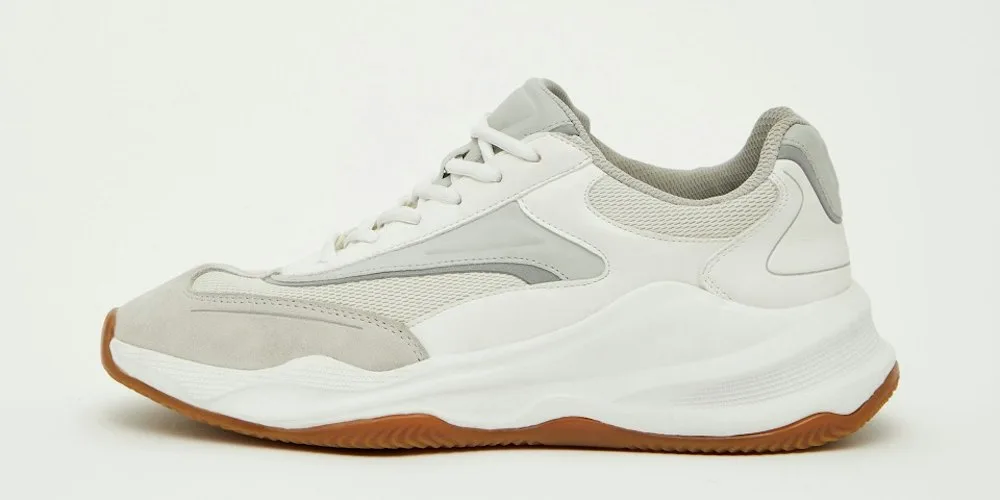
18. Amazon-Ready White Background
“Isolate the product on a pure white background (#FFFFFF). Add a soft, natural contact shadow directly beneath the object. Preserve exact product colors, label text, and material texture. Centered composition, 2000 × 2000 px, square crop.”
19. Lifestyle Kitchen Scene
“Place the uploaded product on a light oak kitchen counter beside a small plant and a folded linen napkin. Soft morning window light from the left. Do not alter the product shape, label, or color. Editorial magazine style.”
20. Ghost Mannequin Apparel Shot
“Create an invisible-mannequin product shot for this hoodie. Show the full garment from the front with a subtle hollow neck opening. Preserve fabric texture, stitching, and print artwork exactly. Pure white background, ready for a Shopify listing.”
21. Add a Realistic Contact Shadow
“Add a soft, physically accurate contact shadow beneath the product on a pure white surface. Shadow direction: top-left key light at 45°. Do not modify the product or add reflections.”
22. Consistent Four-Angle Set
“Generate four consistent product shots of the uploaded item: front, back, three-quarter, and top-down. Match lighting, shadow direction, and framing across all four. White background, same crop ratio.”
Need a truly clean cutout for one of these? Learn what a proper transparent background actually requires — AI cutouts still fail on wispy hair and glass edges.
Industry-Specific Prompts
23. Real Estate Day-to-Dusk Conversion
“Convert this daytime exterior real estate photo to a warm dusk twilight scene. Sky: gradient from soft peach to deep blue. Turn on all interior lights so windows glow warmly. Preserve architectural lines and landscaping exactly.”
24. Food Photography Overhead Flatlay
“Recreate this dish as a top-down flatlay on a matte black stone surface. Add scattered fresh herbs, a linen napkin, and a small brass fork at 10 o’clock. Soft directional light from top-left. Editorial food-magazine style.”
25. Jewelry Macro Shot
“Create a macro product shot of this ring on a neutral dove-gray velvet surface. Soft diffused key light, subtle catchlight on the metal, sharp focus on the stone. Preserve the exact stone shape and metal color. Do not add extra facets.”
26. Fashion Editorial
“Transform this outfit photo into a Vogue-style editorial. Bleached bright studio backdrop, harsh directional flash, high-contrast shadow, cropped tight at the shoulders. Keep the model’s face, hair, and outfit exactly as uploaded.”
27. Wedding Portrait Retouch
“Enhance this wedding portrait with warm romantic tones. Soft golden backlight through trees, gentle bokeh, and a film-emulation color grade. Preserve every facial feature of both people, the dress fabric detail, and the bouquet colors.”
28. Baby and Family Portrait
“Retouch this family photo for print. Even out skin tones subtly, brighten shadows on faces without flattening, remove any lens dust. Keep every freckle, every natural expression, and every strand of hair intact. No beautification.”
Creative and Style-Transfer Prompts
29. Oil Painting Portrait
“Reimagine my photo as a Renaissance oil painting. Chiaroscuro lighting, deep umber shadows, visible brushstrokes, cracked-varnish texture. Preserve my facial features and hair color; adapt only clothing to period wardrobe.”
30. Anime Character Version
“Convert my uploaded photo into a modern anime illustration. Clean linework, cel-shaded coloring, slightly enlarged eyes, natural hair flow. Keep my hair color, glasses, outfit, and facial structure recognizable.”
31. Pencil Sketch
“Convert to a detailed graphite pencil sketch on textured watercolor paper. Show cross-hatching in shadows and clean paper white in highlights. Preserve likeness precisely.”
32. Pop Art Warhol Style
“Create a four-panel Warhol-style pop-art print from my portrait. Bold flat colors — magenta, teal, canary yellow, black. Same face across all four panels; only the color palette changes.”
Text, Signage, and Layout Prompts
GPT Image 2.5 handles typography better than any previous OpenAI model, which unlocks a whole new class of prompts.
33. Add a Clean Caption Band
“Add a bottom caption band on this image. Solid black bar, 12% of image height. White sans-serif text reading ‘NEW ARRIVAL — SPRING ‘26’ in Helvetica Neue Bold, centered.”
34. Design a Simple Poster
“Design a minimalist event poster using my uploaded product photo as the hero. Title ‘GRAND OPENING’ in bold serif at top, date ‘15.03.2026’ below, address in small caps at the bottom. Cream background, warm brown typography.”
35. Translate Text in an Image
“Translate the Japanese sign in this photo into English. Preserve the same font weight, alignment, and color. Rebuild the sign realistically so no artifacts remain.”
Prompt Keywords That Push ChatGPT Toward Pro Results
Sprinkle these deliberately. Do not carpet-bomb — every extra adjective competes for the model’s attention.
Lighting modifiers
- Softbox key light, Rembrandt lighting, split lighting, rim light, golden-hour backlight
- High-key, low-key, Dutch angle, chiaroscuro
- Neon glow, tungsten, overcast diffused, gobo pattern
Camera and lens modifiers
- 35 mm f/1.4, 50 mm f/1.8, 85 mm f/1.2, macro 100 mm
- Shallow depth of field, wide-angle distortion, tilt-shift, fisheye
- Shot on Leica M11, shot on Fujifilm X-T5, medium-format film
Mood modifiers
- Cinematic, editorial, moody, ethereal, gritty, whimsical
- Cozy, industrial, minimalist, opulent, sun-drenched
Quality cues
- Photorealistic (this word alone triggers the model’s realism mode)
- 4K, ultra-detailed, sharp focus, film grain, subtle chromatic aberration
Identity Preservation: The One Skill That Changes Everything
The single biggest ChatGPT edit failure is likeness drift — you asked for a new background and got a stranger who kind of looks like you. Fix it with three habits.
- Name features, not categories. “Keep my face” is weaker than “keep the small scar above my left eyebrow, the gap in my front teeth, the freckle pattern across my nose bridge, and my exact hairline.”
- State what stays before what changes. Every prompt should list preserved traits first, then the edit. Order matters to the model.
- Repeat the preserve list on every turn. Multi-turn editing forgets. Restate identity constraints each time you refine.
A working template you can steal:
“Preserve the following exactly from my uploaded photo: face shape, eye color, eyebrow shape, hairline, skin tone, and any visible facial marks. Do not slim, smooth, or age the face. Now, [insert edit here].”
How to Refine Without Starting Over
Once you have a base image you like, resist the urge to write a fresh paragraph. Change one variable per turn:
- “Make the light warmer, keep everything else the same.”
- “Remove the extra plant on the left, keep everything else the same.”
- “Change my blazer color to navy, keep everything else the same.”
This is the workflow OpenAI actively recommends, and it converges on your target image far faster than rewriting the whole prompt.
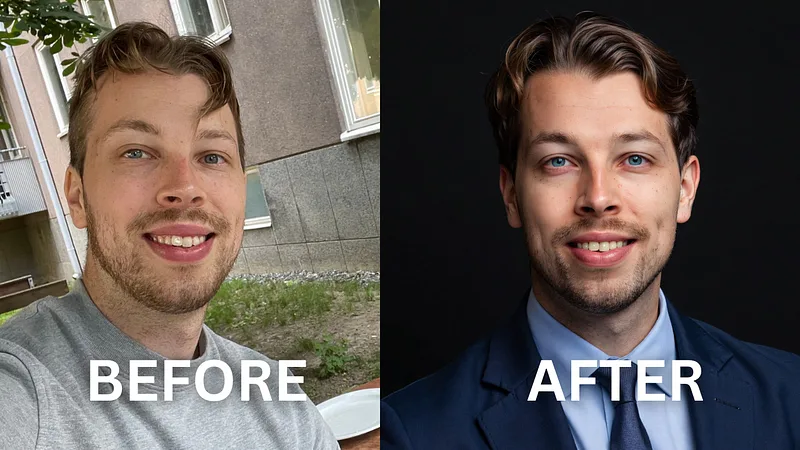
Weak Prompt vs. Strong Prompt: A Real Comparison
Weak: “Make my selfie look professional.”
Strong: “Using my uploaded selfie, transform it into a corporate LinkedIn headshot. Preserve my face shape, hairline, glasses, and eye color 100% intact. Dress the subject in a charcoal blazer over a crisp white collared shirt. Neutral gray studio background, softbox key light from the left, subtle fill from the right, gentle catchlight in eyes. Shot as if on an 85 mm lens at f/2.0, shallow depth of field. Vertical 4:5 crop, photorealistic, 4K.”
Same intent — the strong version simply gives the model six anchors instead of one wish.
Aspect Ratios and Output Formats in 2026
ChatGPT Images 2.5 supports up to 4K output (3840 px max long edge, both edges as multiples of 16). The chat interface locks you into five presets, so state your ratio in the prompt itself:
- 1:1 (square) — Instagram grid, product listings
- 3:4 (portrait) — Instagram portrait, LinkedIn posts, printed headshots
- 9:16 (story) — Stories, Reels, TikTok, Pinterest
- 4:3 (landscape) — Blog hero images, traditional photo prints
- 16:9 (widescreen) — YouTube thumbnails, banners, desktop wallpapers
Always spell it out: “deliver as a 9:16 vertical PNG, transparent background where possible.”
Common ChatGPT Photo Editing Mistakes (And Fixes)
- Face keeps changing → front-load a preservation clause with named features.
- Skin looks plastic → add “preserve skin texture, pores, and natural imperfections” and drop “smooth” and “flawless.”
- Colors drift → include exact hex codes for brand or product colors.
- Wrong aspect ratio → state it in the prompt and the interface setting.
- Text comes out garbled → keep it short, in Latin characters, and specify font weight.
- Background bleeds into subject → ask for “clean edge separation, no color spill.”
- Product proportions change → add “preserve exact product dimensions and label placement.”
ChatGPT Images 2.5 vs. Nano Banana Pro vs. Midjourney v7
Choosing the right AI tool for the job matters more than picking a favorite. Here is the honest 2026 breakdown based on my own side-by-side testing across the current flagship models.
| Task | Best tool | Why |
|---|---|---|
| First-shot photorealism | ChatGPT Images 2.5 | Highest baseline fidelity on the first output |
| Iterative single-region edits | Nano Banana Pro (Gemini 3 Pro) | Best at preserving untouched pixels across edits |
| Artistic and abstract | Midjourney v7 | Still the reigning champion for style variety |
| Text inside images | ChatGPT Images 2.5 | Best typography accuracy of the three |
| Multi-object scenes | ChatGPT Images 2.5 | Handles 10–20 objects; competitors cap around 5–8 |
| Speed | Nano Banana Pro | 2–3 seconds per edit vs. 10–15 seconds |
Independent testers at Lifehacker confirm the two lead models are effectively neck-and-neck, so the deciding factor is workflow: ChatGPT wins for chat-based iteration and text-heavy design, Nano Banana Pro wins for surgical single-pixel edits and speed.
When AI Prompts Are Not Enough
Here is the honest limit. ChatGPT still cannot:
- Perfectly reproduce a specific person’s face across many edits (drift is real).
- Handle wispy hair or transparent glass in a cutout as cleanly as a manual clipping path.
- Match brand colors with 100% pixel-perfect accuracy.
- Preserve intricate jewelry facets, embroidery, or fine typography edits at scale.
For those jobs — think 500 product listings a week for a real Shopify store — a hybrid workflow wins. Draft with ChatGPT, then hand the final pass to a specialist. If you sell high-SKU catalogs, our teams handle the last-mile polish AI still fumbles, from ghost mannequin work to shadow refinement.
Commercial Use of ChatGPT-Generated Images in 2026
Quick answer: Yes, you own the images and can use them commercially — but the platforms you sell on have their own AI rules.
Per OpenAI’s current Terms of Use, you own the output of your prompts. That has not changed. What did change in 2026 is where you can post them:
- Amazon (July 2026 policy update): AI-generated product images are allowed, but any listing image or video containing a photorealistic AI-generated person must carry specific IPTC metadata tagging that flag.
- Etsy: AI use must be disclosed in the listing description under the Creativity Standards. Sellers marketing AI outputs as human-made face enforcement action.
- Stock agencies: Most major stock sites (Getty, Shutterstock’s core library) reject AI outputs outright. Some, like Adobe Stock, accept them with disclosure.
- Journalism, real estate MLS, dating profiles: Disclose AI use — your audience reasonably expects real photographs.
For your own photo manipulation projects, transparency is the safest ethical default.
Pro Workflow: Studio-Grade Results in 10 Minutes
Here is the exact sequence I use daily.
- Minute 1 — Pick the best source image. Sharp, well-lit, one clear subject.
- Minute 2 — Write a base prompt with all six anatomy parts.
- Minute 3 — Generate. Do not touch settings yet.
- Minutes 4–7 — Refine one variable per turn: lighting → background → wardrobe → color grade.
- Minute 8 — Lock the aspect ratio and request the final export.
- Minute 9 — Download and inspect at 100% zoom. Watch for warped hands, garbled text, drifted faces.
- Minute 10 — If something is off, screenshot the flaw and ask for a targeted fix rather than regenerating from scratch.
This mirrors the iterative rhythm professional retouchers use in Photoshop — just compressed into ten minutes instead of forty.
Prompt Cheat Sheet: Want This → Use This
| Want this look | Use these words |
|---|---|
| Warm, cinematic | golden hour, warm amber sunlight, muted teal shadows, film grain |
| Studio portrait | softbox key light, gray backdrop, catchlight in eyes, shallow depth of field |
| Editorial fashion | harsh flash, bleached backdrop, high-contrast, cropped tight |
| Product hero | pure white background #FFFFFF, contact shadow, centered composition |
| Moody, dramatic | low-key lighting, deep blacks, chiaroscuro, controlled highlights |
| Dreamy, soft | high-key, diffused light, pastel palette, overcast |
Bookmark this section — it saves you rewriting the same five modifiers every time.
Frequently Asked Questions
Can ChatGPT actually edit my uploaded photo, or does it just regenerate one?
ChatGPT regenerates. It reads your image, understands what is in it, and produces a new picture guided by your prompt. That is why identity-preservation clauses matter so much — the model is redrawing, not pixel-editing. Nano Banana Pro handles surgical single-region edits more cleanly if that is what you actually need.
Why does my face keep changing when I only ask for a background swap?
Because the model interprets silence as permission to change. Add a preservation clause naming specific features (face shape, eye color, hairline, scars, freckles) before the edit instruction. Restate it every turn — the model’s short-term memory is not what you think it is.
Can ChatGPT edit multiple photos in one prompt?
Kind of. Since Images 2.5, you can upload up to 4 reference photos to blend style, subject, or composition — but only one output image is generated per turn. For true batch editing (say, 100 product photos), you either run prompts one at a time or use the API.
Does ChatGPT accept RAW files from my camera?
No. Convert RAW to JPEG or PNG first, at 1600 px or more on the long edge, with minimal compression. Screenshots of screenshots produce visibly worse output — start with the highest-quality source you have.
Are ChatGPT-generated images allowed for commercial use on Amazon, Etsy, or print-on-demand?
Yes, with disclosure. Under OpenAI’s 2026 Terms of Use, you own the output and can sell derivatives. But Amazon now requires IPTC metadata tagging for photorealistic AI-generated people in listings (as of July 2026), and Etsy requires AI disclosure in every listing description. Always check the marketplace policy before uploading.
Why does the text inside my AI image come out garbled?
Long text, mixed languages, and non-Latin scripts still trip up even ChatGPT Images 2.5. Keep on-image text under six words, use standard fonts, and specify font weight explicitly. For longer copy, add text in a design tool like Canva or Photoshop after generation.
What is the difference between ChatGPT Images 2.5 and DALL·E 3?
ChatGPT Images 2.5 is natively multimodal — it understands the chat context and your uploaded images together, handles 10–20 objects per scene, and renders text far more accurately than DALL·E 3. DALL·E 3 is now considered legacy for photo editing tasks and has been sunset in the ChatGPT interface.
Can ChatGPT create truly transparent backgrounds?
Yes, when you request PNG output and specify “transparent background” in the prompt. Clarity depends on subject complexity — hair, glass, and fur still fail. For production-grade cutouts, a manual clipping path or one of the leading background remover tools still beats AI-only output.