


Video Editing Tips & Techniques: Pro Guide for 2026
July 1, 2026
How to Fix Grainy Photos: The Complete 2026 Guide to Clean, Sharp Images
July 4, 2026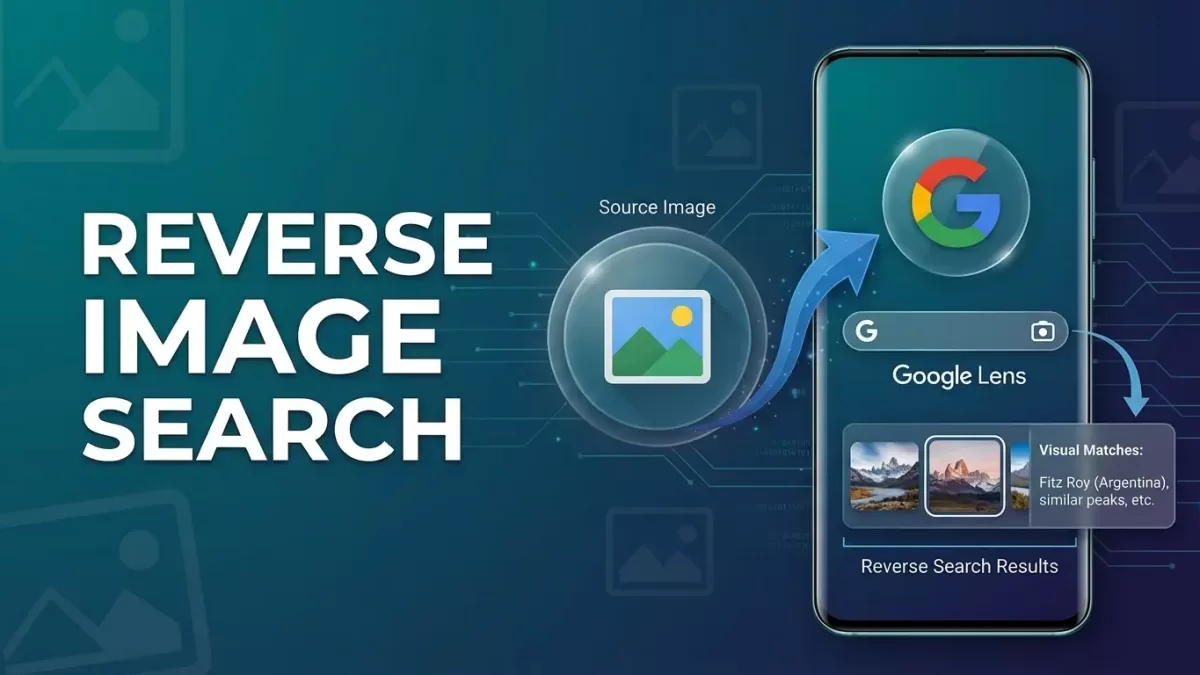
You spot a jaw-dropping photo on Instagram and wonder where it originally came from. Someone matches with you on a dating app, but their profile picture feels a little too polished. A supplier sends you a “professional” product shot that looks suspiciously familiar. In each of these moments, one skill saves the day — the ability to run a reverse image search directly from your phone.
Reverse image search flips traditional Google-style searching on its head. Instead of typing words to find pictures, you hand a picture to a search engine and ask it to find matches, sources, and lookalikes across the web. Modern engines like Google, Bing, Yandex, and TinEye compare shapes, colors, textures, and pixel patterns against billions of indexed images, then return the closest results in seconds. The best part? You can do it entirely from your iPhone or Android device without ever touching a computer.
This guide walks you through every trustworthy method for 2026 — including native tools built into iOS and Android, browser tricks, the strongest third-party engines, and dedicated apps that outperform the built-in options for specific tasks. By the end, you will know exactly which tool to reach for depending on whether you want to verify a person, price a product, catch a copyright thief, or simply identify a mystery plant on your morning walk.
Working with product photos every day? Boost your listings with our expert background removal service — clean, marketplace-ready images delivered fast.
- What Exactly Is a Reverse Image Search?
- Method 1: Google Lens — The All-Purpose Champion
- Method 2: Visual Intelligence on iPhone (iOS 18.2 and Later)
- Method 3: Reverse Image Search on iPhone with Safari and Chrome
- Method 4: Reverse Image Search on Android — Multiple Fast Paths
- Method 5: Bing Visual Search — Google’s Underrated Rival
- Method 6: TinEye — The Copyright Investigator’s Favorite
- Method 7: Yandex — The Secret Weapon for Faces and Places
- Method 8: Dedicated Reverse Image Search Apps Worth Downloading
- Real-World Use Cases: When to Reach for Reverse Image Search
- Pro Tips to Get Better Reverse Image Search Results
- Privacy and Safety Considerations
- Comparison Table: Which Mobile Reverse Image Search Is Best For You?
- What Reverse Image Search Cannot Do
- Frequently Asked Questions (FAQ)
- Wrapping It All Up
What Exactly Is a Reverse Image Search?
A reverse image search uses computer vision to turn a picture into a mathematical fingerprint, then compares that fingerprint against an index of billions of other images. When the algorithm spots visual matches — the same photo, cropped versions, edited copies, or images sharing key features — it returns them alongside the web pages where they live.
Modern engines do much more than pixel-matching. Google Lens, for example, identifies objects, translates text, recognizes landmarks, surfaces shopping results, and pulls up related educational content in one tap. TinEye, meanwhile, focuses purely on tracking exact copies and modifications across its 85-billion-image index without retaining your uploads.
People use reverse image search to:
- Trace the original source of a viral photo or meme
- Verify authenticity of a dating-app profile or social-media account
- Find higher-resolution versions of low-quality pictures
- Identify plants, animals, landmarks, artworks, or products in a snapshot
- Spot copyright infringement when someone uses their photos without permission
- Fact-check news images during breaking events
- Shop visually by finding where to buy an item they saw offline
The tool has quietly become one of the most useful features in a smartphone — yet most people still don’t know how to use it properly. Let’s fix that.
Method 1: Google Lens — The All-Purpose Champion
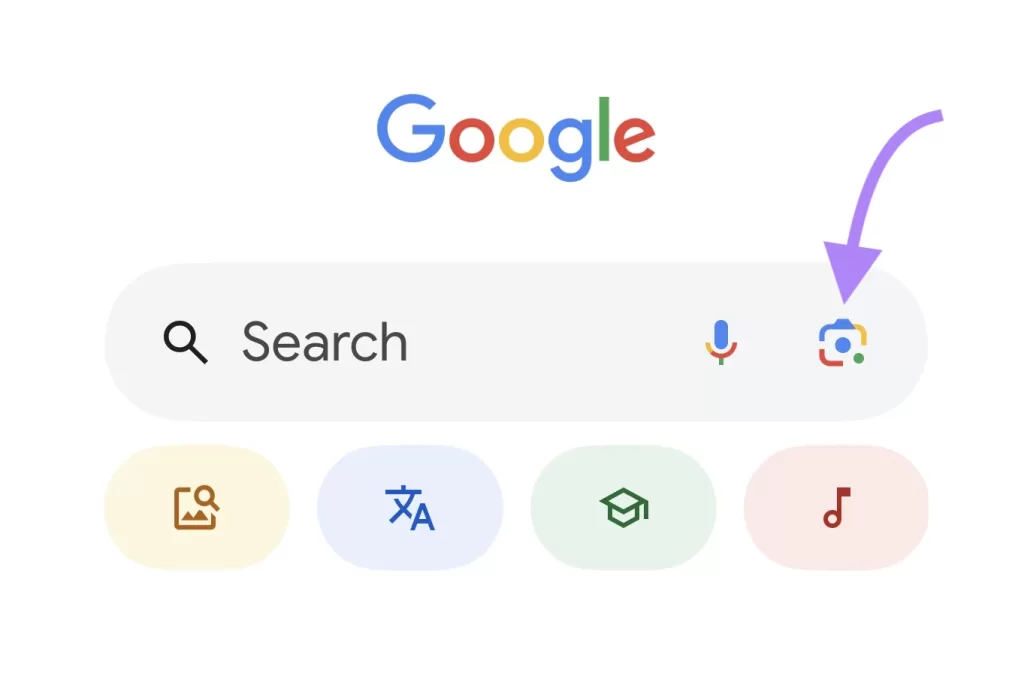
Google Lens ships built into the Google app, Google Photos, and Chrome on both iOS and Android. It leverages the largest image index on the internet and layers AI Overviews on top of results, making it a first-choice tool for casual users and pros alike.
How to reverse image search with Google Lens on any phone
Follow these steps to search using a photo you already have:
- Open the Google app (or google.com in Chrome/Safari)
- Tap the camera icon (Google Lens) inside the search bar
- Choose Take a photo or Upload from gallery
- Drag the crop handles to focus on a specific part of the image
- Scroll through the visual matches, shopping results, and related pages that appear
To search an image you spot inside another app or web page:
- On Android: Long-press the image → tap Search with Google Lens
- In Chrome (iOS or Android): Long-press the image → tap Search image with Google
- In the Google app on iPhone: Tap the three-dot menu → Search screen with Google Lens, then circle the object you want to search
Google Lens shines when you need product identification, translation, or educational context around the object. It also does the heavy lifting for shopping — tap any item in a photo and Lens will surface stores selling it, complete with prices. Before uploading, remember that a sharper source picture always produces better matches, so understanding 4K resolution can help you choose the best file to send.
Method 2: Visual Intelligence on iPhone (iOS 18.2 and Later)
Apple launched Visual Intelligence alongside iOS 18.2 in December 2024, initially exclusive to the iPhone 16 lineup via the new Camera Control button. With iOS 18.4, Apple extended the feature to the iPhone 15 Pro, 15 Pro Max, and iPhone 16e through the Action Button and Control Center. The feature performs on-device object recognition and offloads reverse image lookups to Google when you tap the search action, according to Apple Support.
How to use Visual Intelligence for reverse image search
- On iPhone 16 series: Press and hold the Camera Control button on the side
- On iPhone 15 Pro / 15 Pro Max / 16e: Long-press the Action Button (after mapping it to Visual Intelligence in Settings) or add the control to Control Center
- Point your camera at any object, poster, animal, or plant
- Tap the Image Search icon to run a Google reverse lookup
- Tap Ask to send the same image to ChatGPT for extra context
Visual Intelligence also works beautifully on screenshots. Grab a screenshot, tap the preview, and select Image Search to reverse-search whatever appears on screen — perfect for finding the source of a photo you saw on Instagram or a product in a friend’s story.
Need pixel-perfect cutouts for your online store? Our professional clipping path service delivers flawless outlines that make products pop on any background.
Method 3: Reverse Image Search on iPhone with Safari and Chrome
Google’s mobile site strips out the “upload an image” button that desktop users enjoy. You can bring it back in seconds by requesting the desktop version of the site.
Safari method (iPhone)
- Open Safari and go to images.google.com
- Tap the aA icon in the address bar
- Select Request Desktop Website
- Tap the camera icon that appears in the search bar
- Choose Upload an image and pick a photo from your library
Chrome method (iPhone or Android)
- Open Chrome and visit images.google.com
- Tap the three-dot menu
- Select Request Desktop Site
- Tap the camera icon → Upload a file → select your image
You can also long-press any image inside Chrome on iOS or Android and choose Search Image With Google to run an instant Lens lookup without opening a new tab. This trick alone is the single fastest way to research images you encounter while browsing.
While you refine your search, it also helps to grasp basic photo sizes — Google can prioritize larger, higher-resolution matches when you upload the biggest available version of your image.
Method 4: Reverse Image Search on Android — Multiple Fast Paths
Android devices give you even more reverse-image entry points because Google Lens is baked directly into the operating system.
Option A: From Google Photos
- Open Google Photos
- Tap the picture you want to search
- Tap the Google Lens icon in the toolbar
- Refine the selection area and review results
Option B: Circle to Search
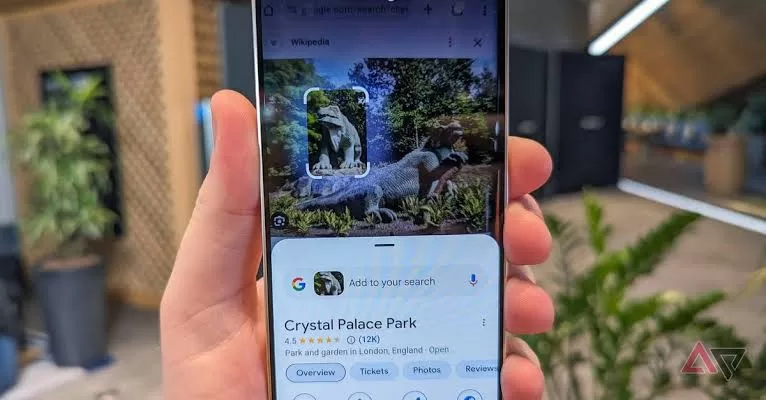
Circle to Search launched on the Samsung Galaxy S24 and Pixel 8 series in January 2024 and has since expanded to more than 100 Android devices, including older Pixels, Samsung mid-rangers, Nothing Phone, and OnePlus flagships:
- Long-press the home button or navigation bar on supported devices
- Draw a circle, tap, or scribble around any image on your screen
- Google returns visual matches instantly without switching apps
Option C: The Google app widget
- Open the Google search widget on your home screen
- Tap the Lens icon next to the microphone
- Snap a new photo or upload one from the gallery
Circle to Search is arguably the fastest reverse image tool on any phone. It works on top of any app — Instagram, TikTok, X, WhatsApp — without forcing you to save the image first. Pair it with a solid editing app and you unlock a productivity superpower for creators and researchers.
Method 5: Bing Visual Search — Google’s Underrated Rival
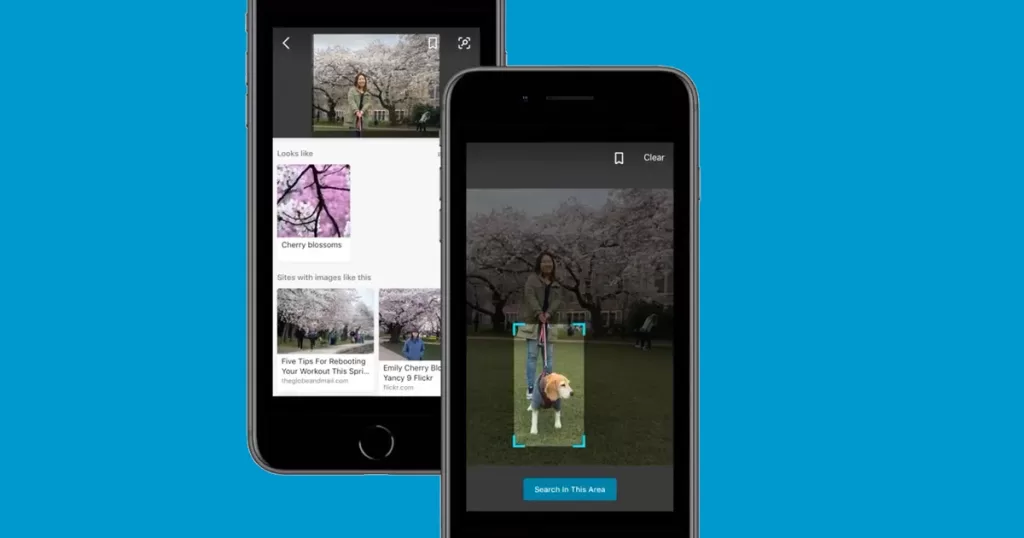
Bing has quietly built a serious visual search product that surfaces shopping results, celebrity identifications, and detailed image metadata. It often finds results Google misses, especially across Western commercial content.
How to reverse image search on Bing from your phone
- Open the Bing app (free on iOS and Android) or visit bing.com/images
- Tap the camera icon in the search bar
- Choose one of the input methods:
- Take a new photo
- Upload from your gallery
- Paste an image URL
- Browse from cloud storage
- Crop the region you want and hit Search
Bing also plugs directly into Copilot chat, so you can ask follow-up questions about your uploaded image in plain English. That combination is genuinely useful for research, shopping comparisons, and homework.
Want e-commerce photos that convert browsers into buyers? Try our detail-oriented photo retouching service for skin, product, and jewelry perfection.
Method 6: TinEye — The Copyright Investigator’s Favorite
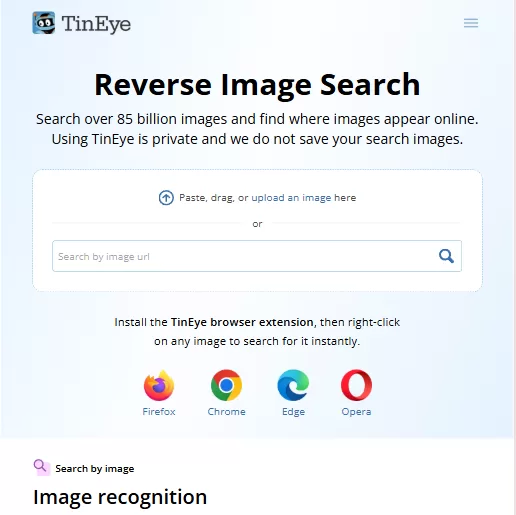
TinEye takes a different approach from Google and Bing. Instead of showing “similar” images, it hunts for exact and modified copies of the picture you upload. It doesn’t try to identify objects, translate, or shop — it just tracks images across the web with surgical precision, and TinEye explicitly promises never to save or index the search images you upload.
Reasons photographers, journalists, and brands love TinEye
- Privacy-first: Uploaded search images stay private and unindexed
- Sort by oldest match to pinpoint the true original source
- Sort by most changed to find edited versions and memes
- 85+ billion images indexed and growing daily
- Compare mode highlights the exact differences between your image and each match
How to use TinEye on mobile
- Open tineye.com in any mobile browser
- Tap the upload (up arrow) icon
- Choose Take Photo, Photo Library, or Browse for cloud files
- Wait a few seconds and scroll through match results
TinEye is the tool photographers reach for when they suspect someone stole their image. If you want to dig deeper into ownership after finding a match, our guide on the copyright check process walks through eight proven verification techniques.
Method 7: Yandex — The Secret Weapon for Faces and Places
Yandex’s image algorithm handles facial recognition and location-based visual clues far more aggressively than Western engines. Open-source investigators, journalists, and genealogists routinely use Yandex Images to identify people, places, and buildings when other tools return nothing.
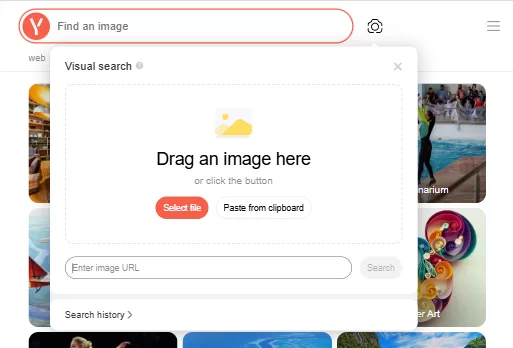
How to reverse search on Yandex from your phone
- Visit yandex.com/images in your mobile browser
- Tap the camera icon on the right side of the search bar
- Upload an image, paste a URL, or take a fresh photo
- Explore matches — Yandex often finds cropped headshots and background-only shots that Google misses
Because Yandex indexes many Eastern European and Central Asian sources, it fills gaps in Western engines’ coverage. Combine Yandex with Google and TinEye for the most complete reverse-search picture.
Method 8: Dedicated Reverse Image Search Apps Worth Downloading
Third-party apps multi-search across engines, edit images before sending, and add features that Google and Bing don’t offer.
- CamFind — Point-and-shoot object identification with instant results and voice search
- Reversee — Runs the same image through Google, Bing, TinEye, and Yandex simultaneously (Pro version)
- Photo Sherlock — Simple interface built specifically for face and profile verification
- Reverse Image Search: Eye Lens — Includes an editor that lets you crop before searching
- PimEyes — Specialized facial search engine for finding photos of yourself online (paid subscription)
- Lenso.ai — AI-powered engine with strong face, place, and product match categories
Multi-engine apps like Reversee save huge amounts of time when you chase down a suspicious image and need coverage across every major index in one shot. If your everyday work involves cutouts and product photos, our team can also handle the professional image masking side of the workflow so you focus on the search.
Ready to give your product shots a professional shadow finish? Explore our realistic shadow creation service for authentic depth and dimension.
Real-World Use Cases: When to Reach for Reverse Image Search
1. Verify a dating profile
Catfishing scams have exploded across dating apps, and stolen influencer photos remain the #1 red flag. A quick TinEye or Google Lens check often reveals the same face on dozens of unrelated accounts or in stock-photo libraries. Security researchers regularly recommend reverse image search as the first defensive move before you agree to meet someone in person.
2. Protect your photography
Photographers upload watermarked previews, only to find them stripped and reposted elsewhere. Running your own portfolio through TinEye every few months exposes copyright infringement fast. If you shoot commercially, our roundup of the best mirrorless cameras pairs perfectly with a monthly reverse-image protection routine.
During breaking events, out-of-context images spread faster than truth. Journalists at Storyful, BBC Verify, and Bellingcat use reverse image search to expose old photos passed off as new — a discipline the Google News Initiative actively teaches to newsrooms worldwide.
4. Shop smarter
Did you see a lamp, jacket, or watch you love in a movie, on Pinterest, or in a friend’s photo? Google Lens surfaces buyable matches with prices in seconds, saving hours of manual searching.
5. Identify anything mysterious
Plants, insects, coins, artworks, book covers, buildings, food dishes — reverse image search is the world’s fastest identification engine, and it fits in your pocket.
6. Track down a higher-resolution version
This use case is perfect for wallpapers, presentations, and print projects where quality matters. Google and TinEye both let you sort by image size to jump straight to the largest available version — extremely useful when preparing files with a transparent background for print or web design.
Pro Tips to Get Better Reverse Image Search Results
- Crop tightly to the subject before uploading — Google Lens weighs the focal area heavily
- Try multiple engines — no single tool wins every category
- Use the highest-resolution version you have available
- Remove distracting backgrounds if you want to match a specific object; clutter throws off results
- Rotate or flip the image and search again if the first attempt returns nothing
- Search a portion of the image (a logo, a face, a texture) rather than the whole frame
- Use text-plus-image search — Google Lens lets you add keywords like “leather jacket brown” alongside the image for laser-targeted results
For extremely challenging searches, chain your tools. Run the image through Google Lens first, then TinEye for exact copies, then Yandex for face and location clues. Different indexes reveal different truths. Understanding file basics like KB vs MB also helps you export smaller compressed copies when you strip metadata before uploading anything sensitive.
Privacy and Safety Considerations
Privacy policies for reverse image search have shifted noticeably in the last year. Google now defaults to saving your Google Lens photos, Search Live recordings, and uploaded pictures inside your Google account so you can revisit them and refine future searches. You can turn this off manually inside My Activity → Web & App Activity, but you must opt out. Bing operates on similar principles and stores uploads for personalization unless you disable history. TinEye remains the strictest of the three and does not save or index anything you upload.
Rules to follow before uploading anything sensitive
- Never upload private photos of family or minors to any engine you don’t trust
- Strip EXIF data using a photo editor before uploading if location metadata concerns you
- Choose TinEye if you specifically want your uploads to stay out of the search index
- Read the privacy policy of any dedicated app before granting camera-roll access
- Turn off cloud backup for images you’re about to upload publicly if you don’t want them living in two places
- Audit your Google account every few months and delete stored Lens searches you no longer need
Selling clothing online? Discover our polished ghost mannequin service — apparel photos with that expensive, invisible-model finish.
Comparison Table: Which Mobile Reverse Image Search Is Best For You?
| Tool | Best For | Strengths | Weaknesses |
|---|---|---|---|
| Google Lens | Everyday all-rounder | Largest index, shopping, translation | Saves uploads by default |
| Visual Intelligence | iPhone users on iOS 18.2+ | Native, fast, uses Camera Control / Action Button | Requires supported iPhone models |
| Bing Visual Search | Shopping and Copilot AI chat | Multi-modal, strong on Western retail | Smaller index than Google |
| TinEye | Copyright and source tracking | Privacy-first, sort by oldest | No object recognition |
| Yandex Images | Faces, places, OSINT | Strong on Eastern content, best for faces | Interface feels dated |
| Reversee (app) | Multi-engine searching | One upload → four engines | Best features are paid |
| PimEyes | Finding photos of yourself | Advanced face matching | Subscription required |
For general users, Google Lens plus TinEye covers about 90% of daily needs. Add Yandex whenever you need a face or place identified fast.
What Reverse Image Search Cannot Do
Reverse image search feels magical, but it has real limits:
- Heavily edited images — thick filters, cropping, or AI enhancement can defeat matching
- Private or gated content — engines only index publicly accessible pages
- Brand-new photos — if the image went online five minutes ago, it may not be indexed yet
- Deep face matches — Google intentionally limits facial recognition; Yandex and PimEyes work better
- Copyrighted stock photos behind paywalls — often invisible to free engines
Combine reverse image search with metadata checks and context clues for reliable investigations, especially when you dig into delicate matters like photo copyright disputes or verifying video frames grabbed from a budget camcorder or DSLR.
Frequently Asked Questions (FAQ)
1. Can I reverse image search directly from my camera roll?
Yes. On iPhone, use Visual Intelligence, Google Lens inside the Google app, or long-press the image in Photos and select Share → Search with Google. On Android, open the picture in Google Photos and tap the Lens icon in the toolbar. Circle to Search also works on any on-screen image on supported Pixel, Samsung, Nothing, and OnePlus devices.
2. Is reverse image search free?
The major engines — Google Lens, Bing Visual Search, TinEye, and Yandex — are all completely free for standard use. Premium services like PimEyes and the Pro tier of Reversee charge subscriptions for face-focused searches or multi-engine convenience features.
3. Which reverse image search finds faces the best?
Yandex and PimEyes lead the pack for face matching. Google intentionally limits facial recognition, so it often returns “similar looking” people instead of exact matches. For open-source investigation work, use Yandex first, then follow up with PimEyes if you have a subscription.
4. Can someone reverse image search a photo of me and find my address?
Not directly. Reverse image search returns web pages where the image appears — so if you posted a photo publicly with your address in the caption or a nearby business tag, that page could surface. Keep social profiles private, strip EXIF data before posting, and audit your public photos periodically to reduce exposure.
5. Why does Google sometimes return no matches for my image?
Common reasons include low resolution, heavy editing, a very new photo not yet indexed, or a background that overwhelms the subject. Try cropping tighter, using a larger version, and testing the same image in TinEye and Yandex for backup.
6. Does reverse image search work on screenshots?
Absolutely. Screenshots are among the best inputs because they’re clean, high-resolution, and easy to crop. Take a screenshot, then use Google Lens, Bing, or Circle to Search directly on it. This is the fastest way to trace Instagram, TikTok, or X images.
7. What is the difference between Google Images and Google Lens?
Google Images is a keyword-based image search — you type words and get pictures. Google Lens is the reverse — you supply a picture and get information, matches, and related content. Both live in the same app, but they solve opposite problems.
8. Can I reverse image search a video?
Not directly, but you can screenshot a distinctive frame and reverse-search that. This is exactly how fact-checkers verify viral video clips. Pause at a clear, characteristic frame, screenshot, and upload to Google Lens or TinEye.
Wrapping It All Up
Reverse image search transforms your phone from a passive camera into an active investigation tool. Whether you vet a stranger’s profile picture, chase down the original source of an inspiring photo, protect your own creative work, or simply identify a curious flower in your neighbor’s yard — the workflow takes seconds and costs nothing.
Start with Google Lens for everyday queries because its index and AI overviews are unmatched for general purposes. Add TinEye to your toolkit whenever privacy or copyright tracking matters most. Reach for Yandex on tough face and location searches where Western engines come up empty. And keep Bing Visual Search or a multi-engine app like Reversee in reserve for the rare cases where the big two both miss.
Master these tools and you’ll never look at a mysterious photo the same way again.
Ready to elevate your entire image workflow? Partner with Clipping Expert Asia for professional photo editing services that keep your brand looking sharp everywhere online.