

How to Get the Polaroid Look Without an Expensive Camera: The Complete 2026 System
October 21, 2026
Best Video Editing Software in 2026: Free & Paid, Compared by Real Cost
October 23, 2026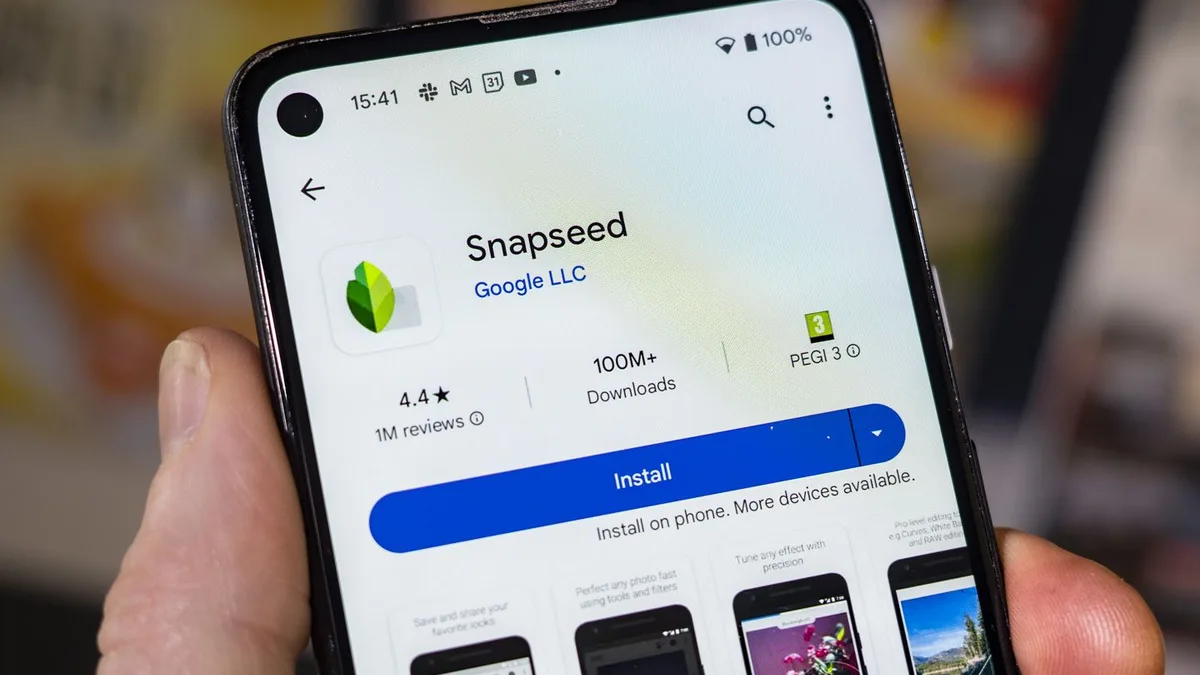
Here’s the honest truth most listicles won’t tell you: the hardest part of finding a free photo editor isn’t finding one — it’s finding one that stays free when you actually hit “save.” Plenty of apps let you edit for free, then stamp a watermark on your export, cap the resolution, or demand a subscription after three edits. We tested 15+ apps in 2026, and these are the ones that genuinely export full-resolution photos with no watermark, no catch.
The quick picks, if you want to stop reading now:
- Best free phone editor overall: Snapseed (Google) — completely free, no ads, no subscription, no watermark, ever.
- Best free phone editor for serious color work: Adobe Lightroom Mobile (free tier) — exports without watermark; premium features are locked but the core is fully usable.
- Best free browser editor (Photoshop alternative): Photopea — opens PSD files, runs in a tab, no watermark on standard exports (ad-supported).
- Best free desktop editor: GIMP — full Photoshop-style power, open source, no paid tier at all.
- Best free RAW developer: darktable (or RawTherapee) — non-destructive, catalog-based, completely free.
- Best free quick fix already on your phone: Google Photos (Android) or Apple Photos (iOS) — no watermark, no install.
The rest of this guide explains the watermark trap, the four-test methodology we used, a side-by-side comparison of all 10 picks, deep dives on each, and — most importantly — the seven apps that look free but watermark your exports, so you don’t waste an evening on one.
- The Watermark Trap: How "Free" Really Works
- The Four-Test Methodology (How We Picked)
- The 10 No-Watermark Free Editors, Side by Side
- Deep Dive: The Picks Worth Installing
- The Trap List: 7 Apps That Look Free But Watermark Your Exports
- How to Pick: By What You're Actually Doing
- A Quick Safety Note
- Frequently Asked Questions
- Final Verdict
The Watermark Trap: How “Free” Really Works
“Free” means four very different things in 2026, and knowing which one you’re signing up for saves a lot of wasted time.
- Free forever, no paid tier. Snapseed, GIMP, darktable, RawTherapee. Nobody is trying to sell you anything later. No ads, no watermark, no resolution cap.
- Free tier of a paid product. Lightroom Mobile, VSCO, Canva. The core editing works and exports without watermark; the fancier features (AI tools, healing, masking, cloud sync, premium filters) are locked behind a subscription.
- Free but ad-supported. Photopea. Every tool is open; there’s just an ad panel beside your canvas. Exports are clean.
- Free with your account or your camera. Google Photos, Apple Photos, Nikon NX Studio, Canon Digital Photo Professional, Sony Imaging Edge. You already paid for it somewhere else.
The 2026 rule to memorize: basic editing is watermark-free almost everywhere; AI features are where the watermark lives. Object removal, AI upscaling, background replacement, and generative fill are increasingly billed as credits or stamped with a watermark on the free tier. A free plan may include the tool and still refuse to run it after a few uses a month. And the single most important test: check the export, not the editor. An app can feel completely free while you edit and only reveal its limits when you save. Before you build a habit around any app, export one full-size test file and look at it. That’s where watermarks, resolution caps, and forced sign-ups appear.
The Four-Test Methodology (How We Picked)
“Best” means nothing without criteria. Every app on this list passed all four tests:
- ✅ Exports at full resolution with no watermark on the free plan. (We actually exported and checked.)
- ✅ Still being updated — every app here shipped a release in 2025 or 2026.
- ✅ Usable long-term — not a seven-day trial that expires into an upsell.
- ✅ Widely available — no specific phone brand required, no workarounds to install.
Apps that failed the export test, or that quietly moved their free plan behind credit limits, were left out even where they’re well known. Our best photo editing software 2026 roundup covers the paid options if you outgrow these.
The 10 No-Watermark Free Editors, Side by Side
| App | Platform | Free model | Watermark? | Best for |
|---|---|---|---|---|
| Snapseed | iOS, Android | Free forever, no ads | None | Serious phone editing |
| Adobe Lightroom Mobile | iOS, Android | Free tier + subscription | None on free exports | Color work, presets |
| Google Photos | iOS, Android (default on Android) | Free with account | None | Quick fixes |
| Apple Photos | iOS (built-in) | Free with iPhone | None | Quick fixes, iOS |
| VSCO | iOS, Android | Free tier + subscription | None | Film-look filters |
| Photopea | Web (any browser) | Free, ad-supported | None on standard exports | PSD files, layers |
| GIMP | Windows, Mac, Linux | Free open source | None | Full desktop editing |
| darktable | Windows, Mac, Linux | Free open source | None | RAW + catalog |
| RawTherapee | Windows, Mac, Linux | Free open source | None | Single-file RAW rescue |
| Camera-maker software (Nikon NX Studio, Canon DPP, Sony Imaging Edge) | Desktop | Free with your camera | None | Colors that match your camera |
Deep Dive: The Picks Worth Installing
Snapseed — the one to install first (phone)
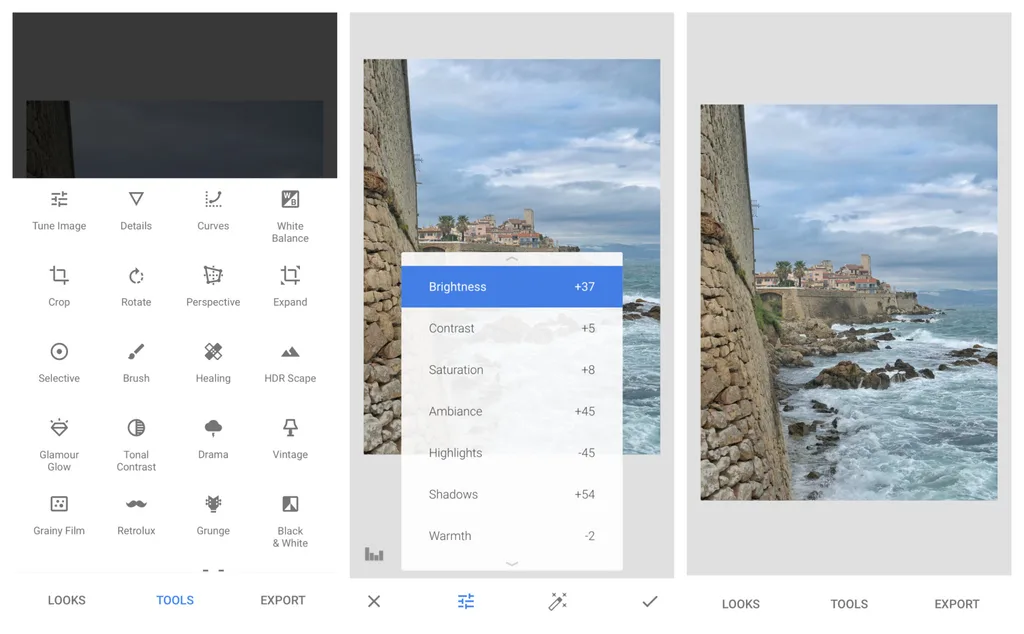
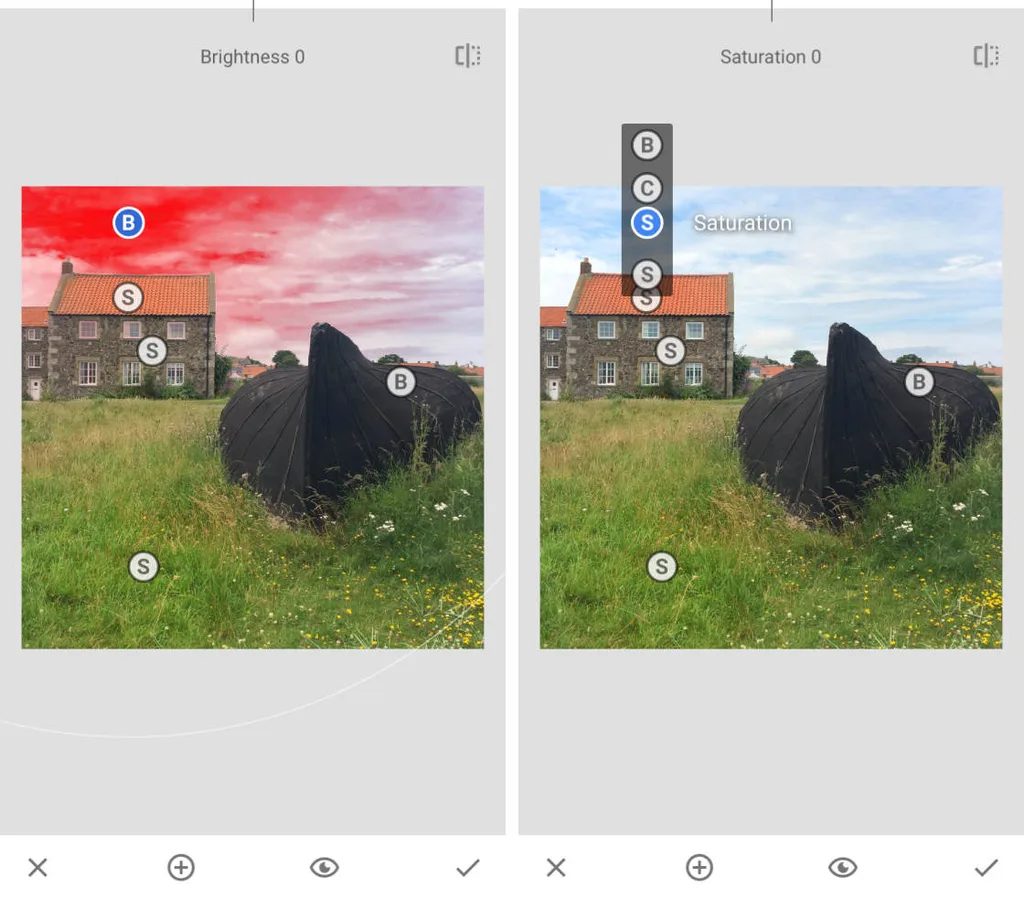
Snapseed is owned by Google and carries no subscription, no in-app purchase, no ads, and no watermark. That has been true for years, and in 2026 it got better instead of quieter: the Snapseed 4.0 rebuild (May 2026) overhauled the interface, added one-touch masking, non-destructive editing, a built-in camera with film emulations, and 30+ tools — all free. 4.1 (July 2026) added RAW support for DNG, ARW, NEF, CR3, RAF, ORF, and PEF files. A free phone editor that reads the RAW files off a real camera was unheard of two years ago. Its U-Point selective adjustment system lets you brighten or darken specific areas with a tap — the kind of local adjustment normally locked behind paid plans. If you install one app from this list, install this one.
Adobe Lightroom Mobile — the pro’s free tier (phone/tablet)
Lightroom is the gold standard on every platform, and its mobile free tier is shockingly generous. You get exposure, contrast, highlights, shadows, color, curves, crop, one-tap presets, and full-resolution exports with no watermark. What you don’t get free: local masking, the healing brush, AI features (Generative Remove), and cloud sync across devices. Premium starts at $6.99/month. It’s the right choice if you already edit in Lightroom on a computer and want the same vocabulary on your phone. If you don’t, Snapseed gives you more for nothing. Our photo editing guide walks the order of operations that applies in any editor.
Google Photos / Apple Photos — the fastest fix (already on your phone)
Neither is a “real” editing app, which is exactly why they’re useful: the photo is already there, so the edit takes seconds. Both export without watermark. Google Photos gives crop, straighten, perspective, filters, brightness/contrast/saturation/warmth, plus Magic Eraser (some features Pixel-only or Google One). Apple Photos gives a full slider set — exposure, brilliance, highlights, shadows, contrast, saturation, warmth, sharpness, noise reduction, vignette — plus copy-paste edits and an AI Clean Up tool that rivals paid apps. For a quick crop or exposure fix, don’t install anything else.
VSCO — the film-look specialist (phone)
VSCO built its reputation on film emulation presets, and a free account still gets a starter set of those plus basic adjustments (exposure, contrast, saturation, crop) with clean exports. The full 200+ preset library and AI tools need membership (~$7.99/month or $29.99/year). Free VSCO is worth keeping for one job: giving a set of photos a consistent look quickly. Just start the trial deliberately — it renews into a yearly charge if you forget.
Photopea — Photoshop in a browser tab (web)
Photopea is a full layer-based editor that runs in your browser with nothing to install. It opens PSD files natively, plus RAW formats, PDF, AI, Sketch, Figma, and dozens more. It runs on your own device rather than uploading your work — which matters if you’re editing client photos on a borrowed machine. It’s free and ad-supported; premium (~$5/month) removes the ads. Standard exports have no watermark. (Some AI-feature exports may differ — run the export test.) This is the answer when you need to open a PSD someone sent you, or when the computer in front of you won’t let you install anything.
GIMP — the full desktop editor, no paid tier (desktop)
GIMP is the closest thing to Photoshop that costs nothing and never will. Layers, masks, selections, curves, clone and heal, batch scripting — the lot. The current stable release is 3.2.4 (April 2026), and the 3.x line brought non-destructive filters and much better color handling, so advice written about GIMP 2 is now out of date. Learning it takes a weekend because it doesn’t copy Photoshop’s layout. If you retouch, composite, or work with layered files regularly, that weekend pays for itself. If you work with portraits, pair it with our portrait retouching techniques and frequency separation retouching guides — both work in any editor.
darktable & RawTherapee — free RAW developers (desktop)
These two solve a different problem from the phone apps: they develop RAW files — the unprocessed data straight off a camera sensor, which holds far more detail in bright skies and dark corners than a JPEG. darktable works like Lightroom’s desktop app: a catalog of your shoot on one side, a develop view on the other, non-destructive. Current version 5.6.0. RawTherapee obsesses over the single file: demosaicing, noise reduction, sharpening, and color with more knobs than most people will ever turn. Version 5.13 (July 2026). Reach for darktable to process a whole shoot; reach for RawTherapee to rescue one difficult file (a group shot with blown highlights, a dim reception frame).
Your camera maker’s software — the free option you probably ignored (desktop)
Every major camera brand gives away software that reads its own RAW files, and it’s the only free option that knows exactly what your camera meant by its colors. Nikon’s NX Studio handles NEF/NRW RAW plus JPEG/TIFF/video, with Picture Control, white balance, exposure, Active D-Lighting, noise reduction, Color Control Points, and a retouch brush — free since 2021. Canon’s equivalent is Digital Photo Professional; Sony ships Imaging Edge. If your camera’s colors look right straight out of the body and wrong everywhere else, this is why — it applies the same picture profile the camera used. For weddings and sports where skin-tone consistency matters, that’s worth more than another slider.
Want your images to look professionally edited, not over-processed?
Achieve natural, high-end perfection with our skilled Photo Retouching Service
The Trap List: 7 Apps That Look Free But Watermark Your Exports
This is the section most listicles skip, and it’s the one that will save you the most time. All of these apps have a free editor — but their free exports come with strings. Always run the export test.
- Fotor: basic edits export clean, but non-HD downloads and AI-feature exports carry a watermark or quality downgrade. (Some 2026 re-tests report the watermark is gone on basic exports — verify on your specific feature.)
- Picsart: no watermark if you use only your own photo and free tools/stock. Use any premium tool or premium stock photo and the final image gets watermarked.
- Pixlr: free plan allows a handful of AI edits per day, watermarked. Standard layered edits are clean.
- Photoroom: background-removal specialist. Free tier has limited weekly exports; some templates watermark. Clean cutouts are possible but quotas bite.
- Remini (AI enhance): free tier watermarks or downgrades output quality depending on platform.
- Meitu / Photoleap: free exports watermarked.
- HitPaw / generic “AI photo enhancer” apps: the strictest — free tier often gives you one enhancement, watermarks it, and won’t let you save clean.
The pattern is consistent: basic editing is watermark-free almost everywhere; AI features are where the stamp lives. If an app’s main selling point is AI, assume its free export is watermarked until proven otherwise.
How to Pick: By What You’re Actually Doing
- A quick fix on a photo already on your phone: Google Photos or Apple Photos.
- Serious editing on a phone, with nothing ever to pay: Snapseed.
- Color and presets, matching a desktop Lightroom habit: Adobe Lightroom Mobile (free tier).
- A consistent film look across a set: VSCO (free tier).
- Layers, PSD files, or a computer you can’t install software on: Photopea.
- Retouching, compositing, a real desktop editor: GIMP.
- Developing a whole shoot of RAW files: darktable.
- Rescuing one difficult RAW file: RawTherapee.
- Colors that match the camera that shot the frame: your camera maker’s software.
- Designing a post or poster around a photo: Canva (free tier — but use only free elements, or it watermarks).
A Quick Safety Note
Free software is safe provided you download it from the official site or an official app store — never a mirror offering a “cracked” or “pro unlocked” version. Also check where your files go: Photopea and GIMP/darktable process images on your own device, while cloud-based editors upload them to a server. When you’re editing client photos, that difference matters — read the privacy policy of anything that stores your work online.
Ready to transform your raw photos into professional assets?
Get a custom, no-obligation quote tailored to your specific volume and needs. Explore Clipping Expert Asia
Frequently Asked Questions
Which photo editing app is completely free with no watermark?
Snapseed, GIMP, darktable, and RawTherapee are completely free with no paid tier — no ads, no subscription, no watermark on export. Your camera maker’s software (Nikon NX Studio, Canon DPP, Sony Imaging Edge) is also free once you own the camera. Lightroom Mobile, VSCO, and Photopea are free tiers of paid products but still export without watermark.
Do free photo editing apps put a watermark on your photos?
The 10 apps in this guide export without a watermark on their free plans. The trap is apps like Fotor, Picsart, Pixlr, Photoroom, Remini, Meitu, and Photoleap — their basic edits may be clean, but AI features and premium assets export watermarked. Always export one full-size test file before committing, because watermarks appear at the save step, not while you edit.
Is Snapseed really 100% free?
Yes. Owned by Google, Snapseed has no subscription, no in-app purchase, no ads, and no watermark. The 2026 4.0 rebuild added masking, non-destructive editing, and 30+ tools; 4.1 added RAW support — all still free.
Does Lightroom Mobile free add a watermark?
No. The free tier exports full-resolution photos with no watermark. Premium features (masking, healing, AI, cloud sync) are locked, but the core editing tools and presets are free.
Can I edit RAW photos for free?
Yes. darktable and RawTherapee are free RAW developers for desktop. Photopea opens RAW formats in a browser. Snapseed 4.1 added RAW support (DNG, ARW, NEF, CR3, RAF, ORF, PEF) on phones. Your camera maker also gives away software that reads its own RAW files with the exact camera color profile.
Is Canva free without a watermark?
Yes, but with a catch: designs using only free elements, free templates, and free stock photos export without watermark. If you use any paid template or paid stock image, the export is watermarked until you upgrade. Check every element is free before you finish the layout.
What’s the best free photo editor for Android and iPhone?
Snapseed on both — no ads, no subscription, no watermark, and the 2026 rebuild added masking, non-destructive editing, and RAW support. Google Photos is better for a fast crop or exposure fix on a photo you already have; Lightroom Mobile suits you if you already use Lightroom on a computer.
Is free photo editing software safe?
Yes, if you download from the official site or official app store — never a “cracked” mirror. Also check whether the editor processes your photos locally (GIMP, Photopea, Snapseed) or uploads them to a server (cloud editors), which matters for client work.
Final Verdict
You don’t need to pay a subscription or accept a watermark to edit photos well in 2026. Install Snapseed on your phone (it’s the only editor here that never asks for anything), add Photopea as a bookmark for PSD and layer work, and keep GIMP (or darktable if you shoot RAW) on your desktop. That trio covers 95% of editing jobs for $0, with zero watermarks. For everything else — AI features, premium filters, cloud sync — expect to pay, and always run the export test first.
Ready to elevate your brand’s visual presence?
Partner with Clipping Expert Asia for fast, secure, and premium image editing starting at just 25¢. Explore all our services