

Best DPI for Printing: The Complete 2026 Guide (Why 300 Isn’t Always the Answer)
October 27, 2026
What Is Framing in Photography? The Complete 2026 Guide (Techniques, Examples & Mistakes to Avoid)
October 30, 2026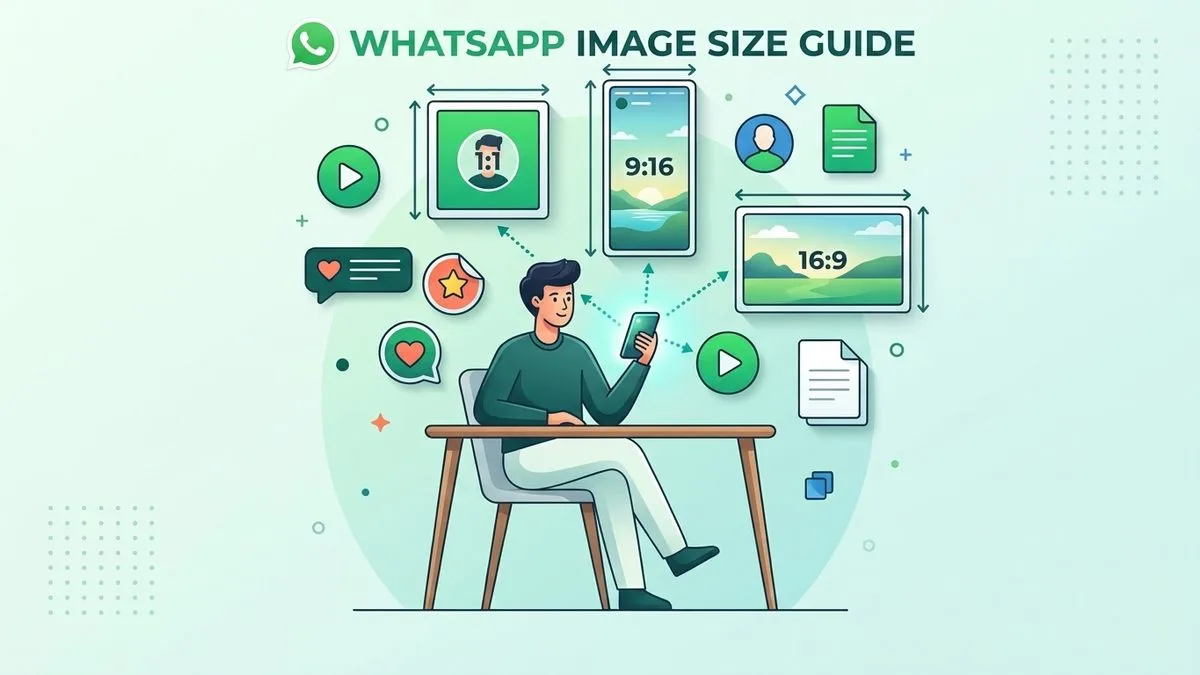
WhatsApp doesn’t have “one” image size — it has three quality tiers, and which one you pick matters more than the pixels. Standard quality crushes every photo down to roughly 1600px on the long side (80–200KB). HD quality preserves up to about 4096px wide but still re-encodes the file. Send as Document is the only zero-loss path — up to 2GB, original file, byte-for-byte identical.
For display sizes: profile picture (DP) is 500×500 minimum, upload 1080×1080, and it gets circle-cropped. Status is 1080×1920 (9:16) with a safe zone in the middle. Stickers must be exactly 512×512, WebP only, under 100KB. WhatsApp Business catalog images are 1080×1080 square. If you remember nothing else, remember this: set your default upload quality to HD, and send anything that actually matters (printing, retouching, archiving) as a Document. Do that and your WhatsApp photos will never look like grain salad again.
- Why Your WhatsApp Photos Look Blurry (And It's Not Your Camera)
- The Master WhatsApp Size Table (Print This One)
- The Three Quality Tiers (The Part Everyone Gets Wrong)
- Profile Photo (DP): The Circle Crop Trap
- Status: 1080×1920 With a Safe Zone Nobody Talks About
- Stickers: The WebP-Only Trap (Silent Failure)
- WhatsApp Business: Catalog, Carousel & Channels
- Link Previews: Why Your Shared Links Look Terrible
- Video, Audio & Video Notes (Don't Overlook These)
- Export Settings by Use Case (So You Don't Have to Guess)
- The Five Mistakes That Make You Look Amateur
- Pre-Send Checklist (Run Through This Before You Hit Send)
- Frequently Asked Questions
- Final Thought
Why Your WhatsApp Photos Look Blurry (And It’s Not Your Camera)
You take a crisp 12MP photo on your phone. You send it. The person on the other end opens it and it looks like it was shot through a screen door. What happened? WhatsApp processes billions of images a day, and to keep mobile bandwidth from melting in countries with spotty networks, Meta compresses aggressively. Your photo goes through a meat grinder: downscaled to 1600px, re-encoded with lossy JPEG compression around 70–80% quality, stripped of all EXIF data (GPS, camera profile, color space), and flattened to sRGB. That 4032×3024 iPhone photo arrives as ~1600×1200 and 150KB. Fine for a quick snapshot. Useless for anything professional.
The good news: you’re not powerless. You can control which tier your photo travels in, and you can pre-size your images so WhatsApp does minimal damage. This guide gives you the exact numbers for every format.
The Master WhatsApp Size Table (Print This One)
| Format | Size (px) | Aspect Ratio | Max File | Notes |
|---|---|---|---|---|
| Profile photo (DP) | 500×500 min, upload 1080×1080 | 1:1 | ~5MB | Circle-cropped; stored at ~640×640 |
| Group / Channel icon | 500×500 | 1:1 | ~5MB | Same rules as DP |
| Status image | 1080×1920 | 9:16 | 16MB | Safe zone ~1080×1350 center |
| Status video | 1080×1920 | 9:16 | 16MB | Up to 90 seconds (extended 2025) |
| Chat photo — Standard | ~1600×1200 max | any | ~16MB | Auto-compressed to 80–200KB |
| Chat photo — HD | up to 4096×2692 | any | ~16MB | Still re-encoded, not original |
| Chat photo — Document | original resolution | any | 2GB | Zero compression, original file |
| Chat video | 1920×1080 or 1080×1920 | 16:9 / 9:16 | 16MB | MP4 H.264; scaled to ~720p |
| Sticker (static) | exactly 512×512 | 1:1 | 100KB | WebP only, transparent bg |
| Animated sticker | exactly 512×512 | 1:1 | 500KB | Animated WebP, ≤10s loop |
| Business catalog image | 1080×1080 (min 500×500) | 1:1 | 5MB | Up to 10 images/videos per product |
| Business API carousel | 1125×600 | 1.91:1 | 5MB/card | Ratio is mandatory |
| Channel header / cover | 1080×360 | 3:1 | 5MB | Banner at top of channel |
| Link preview (og:image) | 1200×630 | 1.91:1 | <600KB | Pulled from website meta tags |
If you’re fuzzy on what KB and MB actually mean for file sizes, a quick KB vs MB explainer will clear it up — it matters more than you’d think when you’re dancing right up against WhatsApp’s limits.
The Three Quality Tiers (The Part Everyone Gets Wrong)
WhatsApp does not have “one” image size for chat photos. It has three delivery modes, and most people never move past the worst one.
1. Standard (the default). Every photo gets re-encoded and downscaled to roughly 1600px on the long side, compressed to 80–200KB. A 4032×3024 phone photo arrives as ~1600×1200. Fine for quick snapshots. Useless for printing or professional sharing.
2. HD (tap the button, or set as default). After you select a photo, tap the HD button at the top of the screen and choose HD Quality. Or set it once and forget it: Settings > Storage and data > Media upload quality > HD quality. HD preserves up to ~4096px wide (4096×2692) and 500KB–2MB. Still re-encoded — not the original file — but visibly sharper when you zoom in.
One caveat: HD is not equal across devices. Independent tests show iPhone preserves up to ~5120px, Mac desktop ~4160px, Android phones ~3120px, and WhatsApp Web only ~2560px. All still re-encode. Only Document mode is truly original on every platform.
3. Document (the only true original). Attach via Document > Browse (not Gallery). WhatsApp does not compress or re-encode documents. The recipient gets the exact original file, up to 2GB. This is the only way to send a photo for printing, retouching, or archiving. The trade-off: no inline preview — the recipient has to download and open the file.
If you’re sending product photos or headshots that will later be retouched, you’ll want them in original quality — and if you’re budgeting for that work, knowing the photo editing cost per image helps you plan.
Profile Photo (DP): The Circle Crop Trap
WhatsApp does not publish a formal DP spec, but observed upload behavior in 2026 is consistent: minimum 192×192, recommended upload 500×500, best quality 1080×1080. WhatsApp stores profile photos at roughly 640×640 and displays them as a circle.
Here is what trips people up: the corners vanish. A square photo gets masked into a circle, so anything near the edges gets cut off. Keep your face or logo within the central 80% of the square — roughly a 512px circle in the middle. Off-center faces get clipped. Also, WhatsApp converts PNG to JPG internally, so transparency is not preserved — flatten your logo onto a solid background before uploading.
Status: 1080×1920 With a Safe Zone Nobody Talks About
WhatsApp Status — the 24-hour disappearing story — is full-screen vertical. Size: 1080×1920 (9:16), max 16MB. Status videos can run up to 90 seconds (extended from 60 in 2025); longer videos get split into 90-second segments automatically.
The catch that 90% of people miss: safe zones. The top ~250px holds the contact name and timestamp. The bottom ~400px holds the reply bar, caption, and progress dots. Text or logos in those zones get covered. Keep important content centered in a safe area of roughly 1080×1350 (some sources say 1080×1420 — either way, keep it in the middle vertical band). Pro move: build a template with marked safe zones in Canva or Figma so your call-to-action never disappears under the reply field.
Status photos get compressed too — upload at exactly 1080×1920 to minimize re-compression. If you’re making Status graphics from your own photography, a light color grading pass before exporting makes them pop on small screens.
Stickers: The WebP-Only Trap (Silent Failure)
WhatsApp stickers have strict, non-negotiable specs — and getting them wrong produces a silent failure:
- Exactly 512×512 pixels. No exceptions.
- WebP format only. Static stickers: ≤100KB. Animated: ≤500KB, Animated WebP, ≤10-second loop.
- Transparent background required. A white-background sticker shows up as a white box.
- Critical: WebP is only supported as a sticker. Sending a WebP file as a regular photo through the API returns error 131053 (media upload error). Convert WebP to JPEG/PNG for regular photo messages.
A sticker pack with your logo, products, or witty brand elements stays saved in your customers’ sticker menu — every time they send one, they see your brand. Free impressions, every day.

WhatsApp Business: Catalog, Carousel & Channels
If you sell through WhatsApp Business, the catalog has its own rules — and getting them wrong makes your products look amateur.
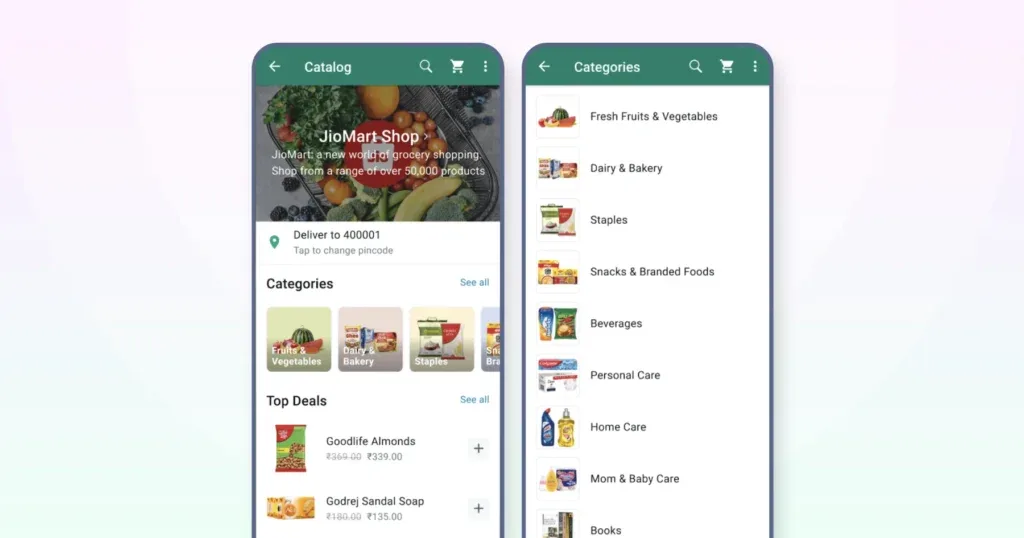
- Catalog product images: 1080×1080 (1:1 square) recommended, minimum 500×500. Other ratios get cropped to square thumbnails — your product gets cut off. JPG/PNG only, max 5MB (some regions 8MB). Up to 10 images or videos per product.
- Main image: show the full product, sharp, centered. Small images under 400×400 look pixelated and may be rejected.
- Business API carousel cards: 1125×600 (1.91:1), 5MB per image — the ratio is mandatory. All cards must use the same ratio. Keep files under 1MB for faster delivery on weak mobile connections.
- Channel header / cover photo: 1080×360 (3:1 banner). This sits at the top of your channel and is the first thing new followers see.
For product photos destined for a catalog, clean white backgrounds and subtle drop shadows make square catalog shots look professional. Solid ecommerce product photo editing before upload is what separates a catalog that sells from one that scrolls past. If you’re also listing those same products on Shopify, a Shopify image size guide keeps you from re-shooting for each platform.
You paste a link into a chat and the preview looks like garbage — tiny image, cut-off text, zero click appeal. That’s your Open Graph tags. WhatsApp pulls the preview image directly from your website’s og:image meta tag — you don’t upload the image in the chat, WhatsApp crawls your site.
Optimal OG image: 1200×630 pixels (1.91:1), under 600KB. JPEG or PNG. WhatsApp center-crops images that don’t match 1.91:1, so keep key text and visuals in the center 80%. The image URL must be absolute, HTTPS, publicly accessible, and not behind a CDN that blocks crawlers. SVG is ignored — it produces a text-only preview. Test your tags with Meta’s Sharing Debugger before using links in campaigns. Nothing kills click-through faster than a broken preview.
Video, Audio & Video Notes (Don’t Overlook These)
Photos get all the attention, but video and audio have their own rules — and getting them right in B2B communication makes you look professional.
- Chat video: MP4 with H.264 video codec and AAC audio. This combo plays on 99% of devices worldwide. Max 16MB. Standard sending scales videos down to ~720p; send as Document for 4K. First frame = thumbnail, so plan accordingly.
- Voice notes: OGG/OPUS codec internally. Technically almost unlimited, but keep under 30 minutes — anything longer exhausts the recipient.
- Audio files (upload): MP3, AAC, WAV, M4A — up to 2GB as a document. Perfect for sending podcast episodes or training audio.
- Video Notes (instant video): Circular 1:1 format, max 60 seconds. These are gold for personal intros, quick product demos, or “thanks for your order” messages — they feel approachable and authentic.
Export Settings by Use Case (So You Don’t Have to Guess)
- Quick snapshot (Standard): No prep needed — WhatsApp compresses it. But if you’re sending from a computer, resize to ~1600px wide first and export at JPEG quality 80 so you control the compression instead of letting WhatsApp do it blindly.
- HD sharing: Export at native resolution, JPEG quality 90, sRGB. Tap the HD button. Expect ~1MB file.
- Original quality (print/pro): Send as Document. No export changes needed — the original file arrives intact.
- Status: Export at exactly 1080×1920, JPEG 85, keep text in the center safe zone.
- DP: Crop square 1:1, face centered, 1080×1080, flatten transparency.
- Stickers: 512×512, WebP, transparent, ≤100KB. Use a WebP converter.
- Catalog product: 1080×1080 square, white or neutral background, product centered with breathing room, no text or watermarks, max 5MB.
The Five Mistakes That Make You Look Amateur
- Sending important photos as Standard (the default). They arrive at ~1600px — too small for printing or zooming. Use HD or Document.
- Thinking HD = original. HD still re-encodes. Only Document mode is lossless.
- Sending WebP as a regular photo. Fails silently (error 131053 on API). WebP is for stickers only.
- Non-square catalog images. Get cropped to square thumbnails — your product gets cut off. Use 1:1.
- Text at the top/bottom of Status images. Gets covered by UI. Keep text in the center ~1080×1350 safe zone.
Pre-Send Checklist (Run Through This Before You Hit Send)
- Correct dimensions for the purpose?
- File size optimized — not too large, not too compressed?
- For Status: important elements in the safe zone?
- For videos: H.264/AAC codec used?
- For links: OG tags tested?
- For carousels: consistent ratio across all cards?
- For stickers: exactly 512×512, WebP, under 100KB?
- For anything that matters: sent as Document, not as a photo?
Frequently Asked Questions
What is the best size for a WhatsApp profile picture?
500×500 pixels minimum; upload at 1080×1080 for best quality. WhatsApp stores it at roughly 640×640 and displays it as a circle. Keep your face or logo within the central 80% of the square — corners are clipped by the circle mask. Max file size is about 5MB.
What size is a WhatsApp Status image?
1080×1920 pixels (9:16 vertical), max 16MB. Status videos can be up to 90 seconds. Keep important text and faces in the center ~1080×1350 safe zone — the top holds the contact name and the bottom holds the reply bar.
How do I send HD photos on WhatsApp?
Select the photo in a chat, tap the HD button at the top of the screen, and choose HD Quality. Or set it as default: Settings > Storage and data > Media upload quality > HD quality. HD preserves up to ~4096px wide but still re-encodes the file. For true original quality, send as Document.
What’s the difference between HD and sending as Document?
HD re-encodes the photo (still compressed, just less) and preserves up to ~4096px. Document mode sends the exact original file with zero compression, up to 2GB. HD resolution also varies by device (iPhone ~5120px, Web ~2560px); Document is identical on every platform.
What is the maximum file size on WhatsApp?
Media (photos and videos sent as gallery attachments): 16MB. Documents (including photos sent as Document): up to 2GB. WhatsApp Business catalog videos: up to 50MB. Animated stickers: 500KB. Static stickers: 100KB.
What size are WhatsApp stickers?
Exactly 512×512 pixels, WebP format only. Static stickers: max 100KB. Animated stickers: max 500KB, max 10-second loop. Transparent background required. WebP is only supported as stickers — sending WebP as a regular photo fails with a media upload error.
What size are WhatsApp Business catalog images?
1080×1080 pixels (1:1 square) recommended, minimum 500×500. JPG or PNG, max 5MB (some regions 8MB). Up to 10 images or videos per product. Non-square images get cropped to square thumbnails. Business API carousel cards must be 1125×600 (1.91:1), 5MB each.
Why do my WhatsApp photos look blurry?
Because Standard quality compresses every photo to ~1600px and 80–200KB. Use the HD button for sharper results, or send as Document for original quality. Also check your default: Settings > Storage and data > Media upload quality — if it’s set to Auto or Data-saver, photos get compressed more aggressively.
Final Thought
WhatsApp sizing boils down to three numbers and three tiers. The numbers: 1080×1080 (DP, circle), 1080×1920 (Status), 512×512 WebP (stickers). The tiers: Standard (~1600px, heavy compression), HD (up to 4096px, still re-encoded), Document (original, zero loss, up to 2GB). For Business catalog, use 1080×1080 square. Set HD as your default for everyday sharing and reach for Document when the photo actually matters — printing, professional work, archiving. Do that, and your WhatsApp photos will never look like they came through a meat grinder again.