

Ghost Mannequin vs Flat Lay vs On-Model Photography: Which Sells More in 2026?
August 18, 2026
Etsy Photo Requirements 2026: Sizes, Specs & Best Practices
August 20, 2026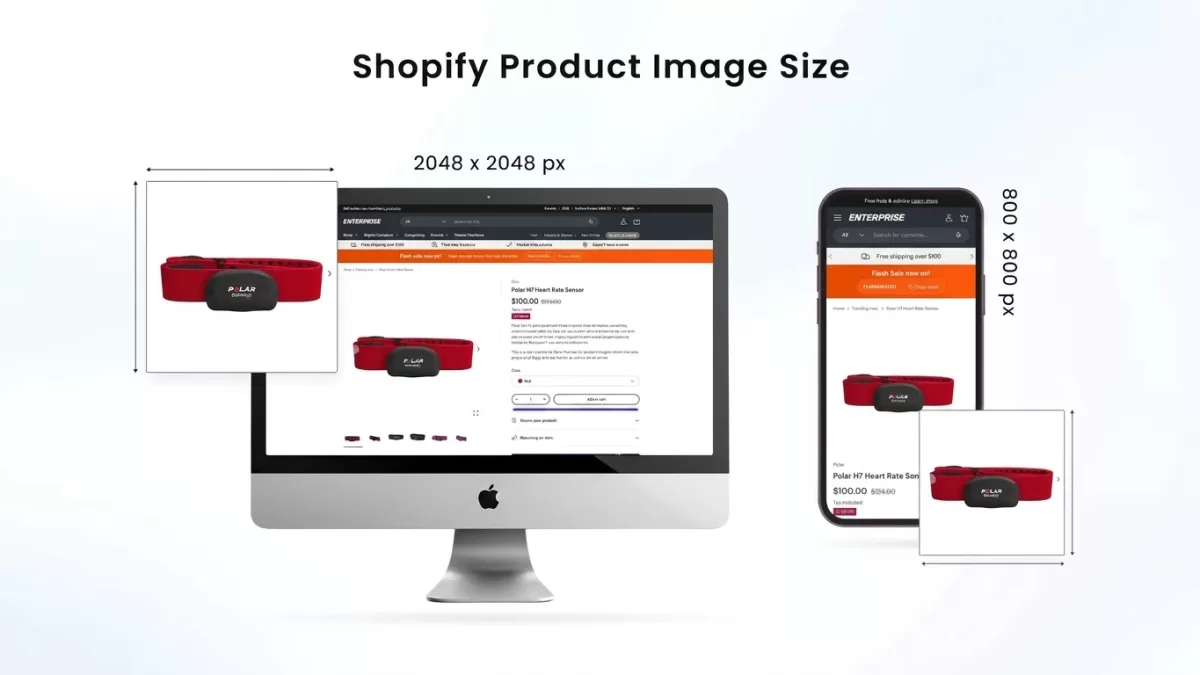
- TL;DR — The Quick Answer
- At a Glance — The One Table Every Shopify Merchant Needs
- The Definitive Shopify Image Rules (Straight From Shopify)
- What Is the Best Shopify Product Image Size in 2026?
- The Complete Shopify Image Size Reference (By Location)
- Which Aspect Ratio Should You Choose?
- File Size and File Format — The Speed Equation
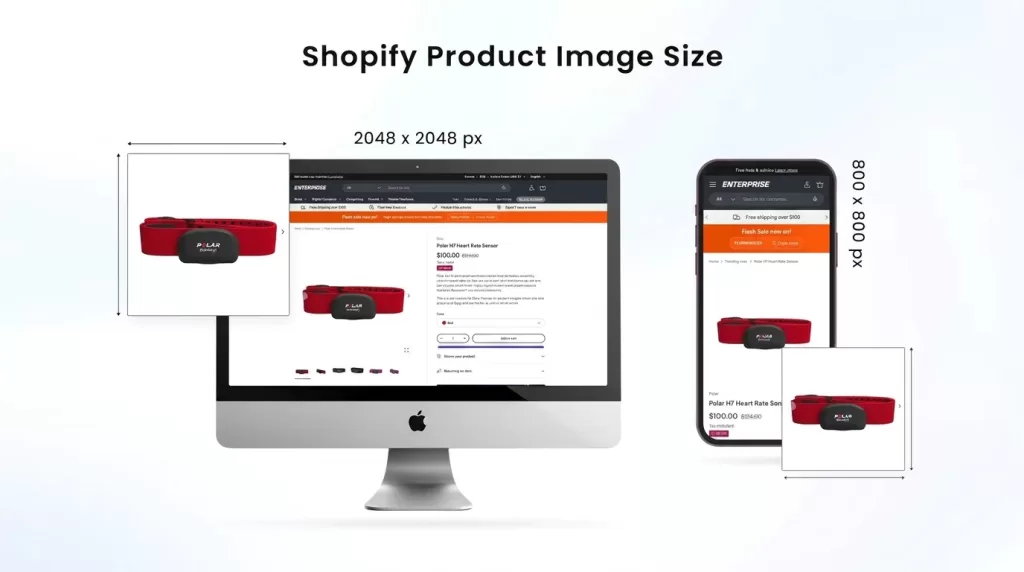
- Why 2,048 × 2,048 Pixels Is the Magic Number
- Shopify’s Automatic Image Handling — What Happens After Upload
- Shopify’s image_url Liquid Filter: The Developer’s Secret Weapon
- Core Web Vitals: The Real Reason Image Size Matters in 2026
- Theme-by-Theme Image Sizes (Horizon, Dawn, and Beyond)
- The Zoom Rule Every Merchant Gets Wrong
- Alt Text: The Accessibility and Search Visibility Rule You Cannot Skip
- How to Prepare a Shopify-Ready Image (Step-by-Step Workflow)
- Shopify to Google Shopping — The Feed Image Crossover
- The 5-Minute Shopify Image Audit Checklist
- Mobile vs Desktop — The Split Nobody Optimizes Enough
- Common Shopify Image Mistakes That Kill Speed and Conversion
- How Many Images Should a Shopify Product Page Have?
- Image Optimization Tools That Actually Work with Shopify
- Product Photography Preparation That Makes Every Image Better
- The 2026 Trends Every Shopify Merchant Should Prepare For
- The One-Page Cheat Sheet
- FAQ — People Also Ask
- Final Thoughts
TL;DR — The Quick Answer
- Best Shopify product image size: 2,048 × 2,048 pixels (1:1 square), which is Shopify’s own Help Center recommendation.
- Maximum upload: 5,000 × 5,000 pixels (25 megapixels) and 20 MB per file.
- Best file format: WebP for speed, PNG for transparency, JPEG for photographs, SVG for logos.
- Target file size for speed: under 100 KB per image, under 70 KB for mobile-critical images.
- Hero banner size: 1,600–1,920 pixels wide (16:9) for desktop, 800 × 1,200 pixels (2:3) for mobile.
- Zoom activation: most themes enable click-to-zoom when the source image exceeds ~800 × 800 pixels; quality improves through 2,048 pixels.
- Aspect ratio: stick to 1:1 for maximum theme compatibility, or 4:5 for mobile-first apparel.
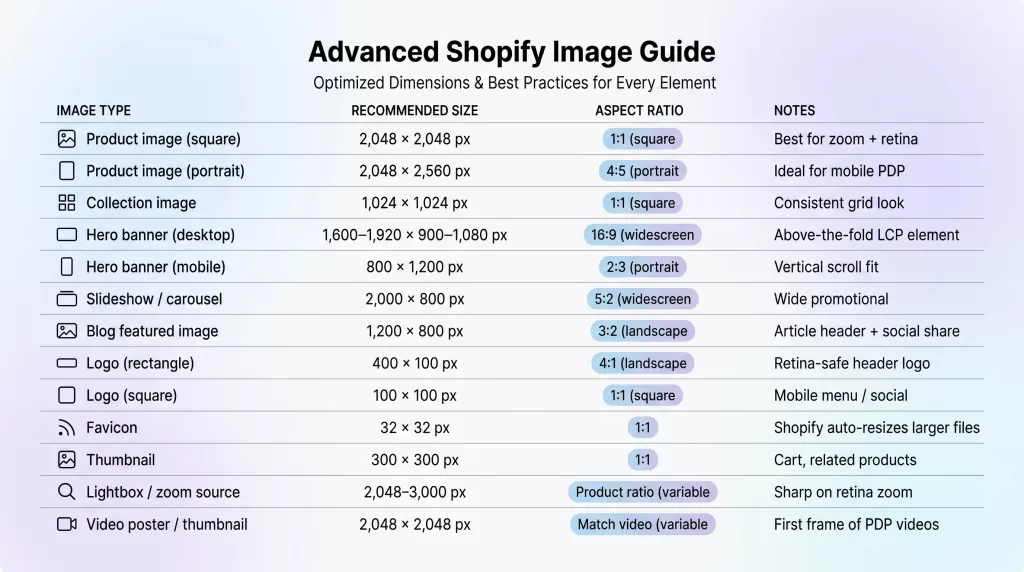
At a Glance — The One Table Every Shopify Merchant Needs
| Image Type | Recommended Size | Aspect Ratio | Notes |
|---|---|---|---|
| Product image (square) | 2,048 × 2,048 px | 1:1 | Best for zoom + retina |
| Product image (portrait) | 2,048 × 2,560 px | 4:5 | Ideal for mobile PDP |
| Collection image | 1,024 × 1,024 px | 1:1 | Consistent grid look |
| Hero banner (desktop) | 1,600–1,920 × 900–1,080 px | 16:9 | Above-the-fold LCP element |
| Hero banner (mobile) | 800 × 1,200 px | 2:3 | Vertical scroll fit |
| Slideshow / carousel | 2,000 × 800 px | 5:2 | Wide promotional |
| Blog featured image | 1,200 × 800 px | 3:2 | Article header + social share |
| Logo (rectangle) | 400 × 100 px | 4:1 | Retina-safe header logo |
| Logo (square) | 100 × 100 px | 1:1 | Mobile menu / social |
| Favicon | 32 × 32 px | 1:1 | Shopify auto-resizes larger files |
| Thumbnail | 300 × 300 px | 1:1 | Cart, related products |
| Lightbox / zoom source | 2,048–3,000 px | Product ratio | Sharp on retina zoom |
| Video poster / thumbnail | 2,048 × 2,048 px | Match video | First frame of PDP videos |
Save this table. Every other decision in this guide traces back to it.
The Definitive Shopify Image Rules (Straight From Shopify)
Before any theme, plugin, or app enters the conversation, six hard rules from Shopify itself define everything else. Every one of these numbers comes directly from Shopify’s own image sizes blog and Help Center documentation.
- Maximum file size: 20 MB per image.
- Maximum dimensions on upload: 5,000 × 5,000 pixels or 25 megapixels.
- Recommended product image size: 2,048 × 2,048 pixels for square, zoom-ready photos.
- Zoom activation: most themes require product images larger than ~800 × 800 pixels for click-to-zoom.
- Supported file formats: WebP, JPEG, PNG, SVG, AVIF, GIF, HEIC, TIFF, BMP, and PSD.
- Max Liquid
image_urlwidth/height parameter: 5,760 pixels — the URL-level ceiling for on-the-fly resizing through Shopify’s CDN.
Everything else — themes, apps, aspect ratios, compression — sits on top of these six specs. Miss any of them and the image uploads but underperforms.
What Is the Best Shopify Product Image Size in 2026?
The recommended Shopify product image size is 2,048 × 2,048 pixels in a 1:1 square aspect ratio. This dimension satisfies retina and high-DPI displays, enables click-to-zoom on every major Shopify theme, and stays well under the 20 MB file limit even before compression.
Merchants using portrait-oriented products (fashion, footwear, home décor) should shoot at 2,048 × 2,560 px (4:5). Portrait aspect ratios dominate mobile PDP conversion because they fill more of the phone screen without scrolling.
The absolute minimum to keep zoom active is around 800 × 800 pixels on most themes. Below that threshold, most Shopify themes disable the magnifier and product detail suffers. A tight color grading workflow across a catalog only pays off when every image sits well above that resolution floor.
Need your images to be marketplace-ready (Amazon, Shopify, etc.)?
Ensure compliance and quality with our professional Photo Retouching
The Complete Shopify Image Size Reference (By Location)
Each area of a Shopify store has its own optimal size. Get these right the first time and you avoid painful re-uploads later.
Product Images
- Square: 2,048 × 2,048 px (1:1)
- Portrait: 2,048 × 2,560 px (4:5)
- Landscape: 2,048 × 1,536 px (4:3)
- Zoom minimum: ~800 × 800 px (varies by theme)
- Zoom “excellent” quality: 2,048 × 2,048 px or higher
Product Variant Images
- Match the resolution and aspect ratio of the parent product image.
- Each variant can have one dedicated image; the theme swaps it on color/size selection.
- Never upload a lower-resolution variant image — the swap will make it look inconsistent next to the main product photo.
Collection Images
- Recommended: 1,024 × 1,024 px (1:1)
- Purpose: category tiles on collection landing pages
- Rule: every collection image should use the same aspect ratio for a clean grid.
Hero and Banner Images
- Desktop hero: 1,600–1,920 px wide × 900–1,080 px tall (16:9)
- Mobile hero: 800 × 1,200 px (2:3)
- Slideshow / carousel: 2,000 × 800 px (5:2)
- The hero banner is almost always the Largest Contentful Paint (LCP) element on your homepage. File size here matters more than anywhere else on the site.
Logo, Favicon, and Cart Icons
- Logo (rectangle): 400 × 100 px (4:1)
- Logo (square): 100 × 100 px (1:1)
- Favicon: 32 × 32 px — Shopify auto-resizes larger files to 32 × 32.
- Cart / mini-cart thumbnails: 150–300 px square
Blog and Article Images
- Blog featured image: 1,200 × 800 px (3:2)
- Blog inline image: 1,200 × 675 px (16:9)
- Social share image (
og:image): 1,200 × 630 px
Video Poster Images
- Match the video’s aspect ratio: 2,048 × 2,048 px for square, 1,920 × 1,080 px for landscape.
- Poster images load as the video’s first frame on the PDP before playback starts.
- Optimize poster images to under 200 KB — they carry the same LCP weight as any hero image.
Which Aspect Ratio Should You Choose?
Aspect ratio is the invisible decision that either makes or breaks catalog consistency. Four ratios dominate Shopify stores.
- 1:1 (square) — the safest default. Works across product grid, PDP, and social media. Shopify’s default recommendation.
- 4:5 (portrait) — the mobile-first winner. Portrait images fill roughly 80% of a phone screen, boosting engagement.
- 4:3 (classic landscape) — good for wide products like sofas, cars, and horizontal artwork.
- 16:9 (widescreen) — ideal for hero banners, lifestyle backgrounds, and product-in-context imagery.
Pick one ratio per product category and apply it across every SKU. Mixing ratios on a collection page produces uneven grids that look amateurish — one of the fastest ways photographers lose clients.
Pro tip: shoot in the ratio you plan to display. Cropping down in post loses pixels and reduces zoom quality; padding up adds fake background that reads as off.
File Size and File Format — The Speed Equation
Dimensions get the attention, but file size determines page speed — and page speed determines rankings and conversion.
Target file sizes for Shopify:
- Product images: under 200 KB ideally, under 100 KB for mobile.
- Hero banners: under 250 KB (LCP is unforgiving here).
- Thumbnails: under 50 KB.
- Blog images: under 150 KB.
Recommended file formats by use case:
| Format | Best For | Why |
|---|---|---|
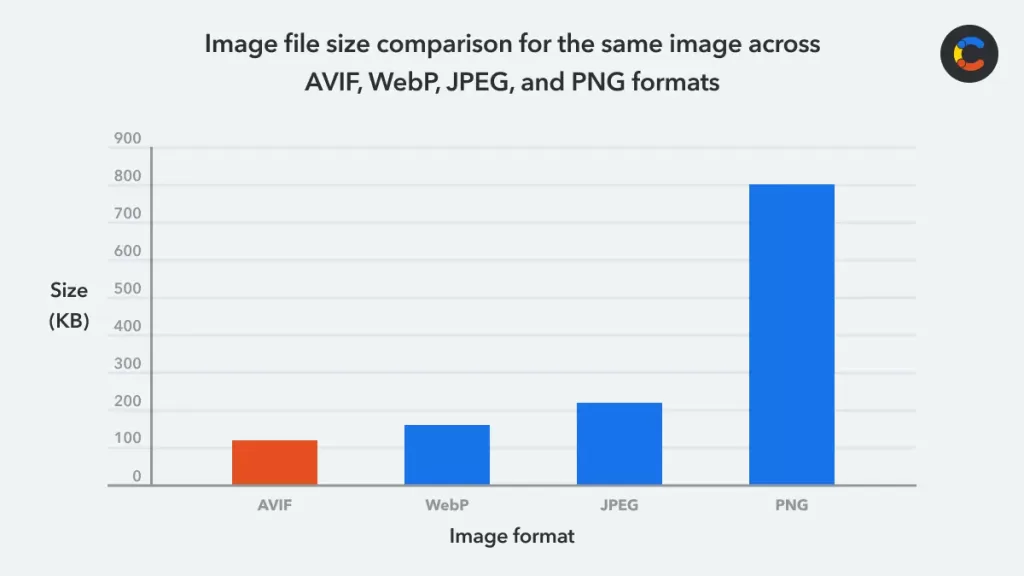
| WebP | Product + hero images | 25–34% smaller than JPEG at equal quality |
| AVIF | Modern hero backgrounds | Even smaller than WebP; broad 2026 browser support |
| JPEG | Photographs, fallback | Reliable universal format |
| PNG | Logos, icons, transparent product cutouts | Lossless, retains transparency |
| SVG | Logos, icons, illustrations | Infinite scalability, tiny file |
| GIF | Simple animations | Avoid for photos |
Google’s own WebP compression study documents the 25–34% file-size savings over JPEG. Shopify’s CDN automatically serves WebP to browsers that support it, so you can upload high-quality JPEG or PNG masters and let the platform serve optimized versions. For a deeper dive across every format, the image format guide breaks down real-world trade-offs.
Why 2,048 × 2,048 Pixels Is the Magic Number
Shopify recommends 2,048 × 2,048 px for reasons rooted in device physics, not brand preference.
- Retina displays (MacBook Pro, iPhone Pro, iPad Pro) render at 2× pixel density. A 1,024 px image looks soft on these screens; a 2,048 px image looks razor-sharp.
- Zoom functionality requires roughly 2× the display container size. Product zoom windows typically render at ~1,000 px, so a 2,048 px source gives clean 2× magnification.
- Future-proofing. Screen resolutions keep rising. 2,048 px handles today’s 4K displays and next year’s 5K without a re-upload cycle.
- File-size sweet spot. A well-compressed 2,048 × 2,048 WebP file lands between 80 KB and 200 KB — small enough for fast load, large enough for detail.
Going above 2,048 px rarely improves shopper experience. Shopify’s CDN serves resized versions anyway, so uploading a 5,000 px master mostly increases upload time and storage cost without visible benefit.
Shopify’s Automatic Image Handling — What Happens After Upload
Shopify does not just store your images — it processes them through a full delivery pipeline.
- CDN delivery. Every image is served from Shopify’s global content delivery network, which caches copies near shoppers for fast load times.
- Automatic WebP and AVIF conversion. Shopify detects the visitor’s browser and serves WebP or AVIF automatically when supported.
- Responsive
srcsetvariants. Themes built on Shopify’simage_tagfilter generate multiple width variants (200, 400, 800, 1,200, 1,600, 2,048 px). The browser picks the smallest one that looks sharp for the shopper’s screen. - Lazy loading. Modern Shopify themes lazy-load below-the-fold images by default, deferring downloads until the shopper scrolls near them.
- No upsampling. Shopify’s Liquid image filters cannot resize an image larger than its uploaded dimensions — a real reason to upload a 2,048 px master even when displayed smaller.
The practical implication: upload one high-quality master image and let Shopify handle the delivery variants. Fighting this system with hand-optimized files usually makes things slower, not faster.
Need your images edited faster without sacrificing quality?
Our streamlined process delivers premium results in as little as 6 hours. Explore our fast-turnaround services
Shopify’s image_url Liquid Filter: The Developer’s Secret Weapon
The image_url Liquid filter is how Shopify themes actually generate delivery URLs. Understanding it gives you fine-grained control over how images are served — which is where most Shopify speed wins live.
Core parameters (documented in the official Shopify Liquid docs):
width— target width in pixels (max 5,760).height— target height in pixels (max 5,760).crop— how to fit the image if the aspect ratio changes. Valid values:top,center,bottom,left,right,region(default iscenter).format— force output format. Valid values:pjpg,jpg. Onlypng → jpg,png → pjpg, andjpg → pjpgconversions are supported.pad_color— hex color used to pad the image if the requested aspect ratio differs from the original.
Example Liquid usage:
{{ product.featured_image | image_url: width: 1200, crop: 'center' }}
Responsive product image with srcset:
<img
  src="{{ product.featured_image | image_url: width: 800 }}"
  srcset="{{ product.featured_image | image_url: width: 400 }} 400w,
          {{ product.featured_image | image_url: width: 800 }} 800w,
          {{ product.featured_image | image_url: width: 1200 }} 1200w,
          {{ product.featured_image | image_url: width: 2048 }} 2048w"
  sizes="(min-width: 990px) 50vw, 100vw"
  alt="{{ product.featured_image.alt | escape }}"
  width="{{ product.featured_image.width }}"
  height="{{ product.featured_image.height }}"
  loading="lazy">
That single block handles device-responsive delivery, prevents CLS (Cumulative Layout Shift) by declaring width and height, and lazy-loads below-the-fold. Every modern Shopify theme built on Dawn or Horizon uses a variation of this pattern.
Core Web Vitals: The Real Reason Image Size Matters in 2026
Google’s Core Web Vitals directly affect Shopify search rankings, and imagery is the biggest contributor on most product pages.
- LCP (Largest Contentful Paint) — measures how long the biggest above-the-fold element takes to render. On Shopify, this is almost always the hero banner or main product image. Google’s “Good” threshold is under 2.5 seconds.
- CLS (Cumulative Layout Shift) — measures visual stability. Images without declared
widthandheightattributes cause the layout to jump as they load, hurting CLS. - INP (Interaction to Next Paint) — measures responsiveness. Oversized images slow the JavaScript that powers galleries, zoom, and add-to-cart.
The three highest-leverage image fixes for Core Web Vitals on Shopify:
- Add
fetchpriority="high"to the hero image tag in your theme’s Liquid file. - Preload the hero image with
<link rel="preload" as="image">in the theme<head>. - Serve responsive images through Shopify’s
image_urlfilter withsizesandsrcsetcorrectly declared.
Test every hero and PDP through Google’s PageSpeed Insights before and after any theme change. LCP delta is where you’ll see the biggest revenue impact.
Theme-by-Theme Image Sizes (Horizon, Dawn, and Beyond)
Different Shopify themes render images at different display sizes. Use this reference to avoid soft or oversized files.
Horizon (Shopify’s new 2025 default free theme):
- Product image: upload at 2,048 × 2,048 px
- Image banner desktop: 1,920 × 1,080 px (16:9)
- Image banner mobile: 800 × 1,200 px (2:3)
- Collection tile: 1,024 × 1,024 px
Dawn (previous default free theme):
- Product image: upload at 2,048 × 2,048 px (display size is smaller, but zoom needs the full resolution)
- Image banner: 1,600 × 1,050 px
- Slideshow: 1,920 × 1,080 px
- Featured collection tile: 800 × 800 px
Sense, Refresh, Craft, Studio, Taste (Shopify’s other free themes):
- Product image: upload at 2,048 × 2,048 px
- Hero banner: 2,000 × 1,000 px
- Collection card: 1,000 × 1,000 px
Premium and custom themes (Impulse, Prestige, Motion, Empire, and Symmetry):
- Product image: 2,048 × 2,048 px (safe universal upload)
- Hero banner: 2,560 × 1,440 px for oversized above-the-fold layouts
- Lookbook and lifestyle: 3,000 × 2,000 px for magazine-style spreads
When in doubt, upload the 2,048 × 2,048 px master. Shopify’s CDN handles the downscale to whatever the theme needs.
The Zoom Rule Every Merchant Gets Wrong
Shopify’s product zoom activates on most themes when the source image exceeds ~800 × 800 pixels — but quality of zoom depends on how far above that threshold the file sits.
- 800–1,200 px: zoom works but looks pixelated.
- 1,200–1,800 px: zoom looks clean on most devices.
- 1,800–2,048 px: zoom looks pin-sharp on retina and 4K screens.
- Above 2,048 px: diminishing returns, larger file sizes, slower load.
Shoppers zoom to inspect stitching, fabric, gemstones, engravings, and technical detail. A 2,048 px source lets them see roughly 2× detail versus display size. Anything less and they leave to check reviews or search competitors.
Products with fine detail — jewelry, watches, embroidery, technical specs — should push toward 2,500–3,000 px source files, always compressed to under 300 KB.
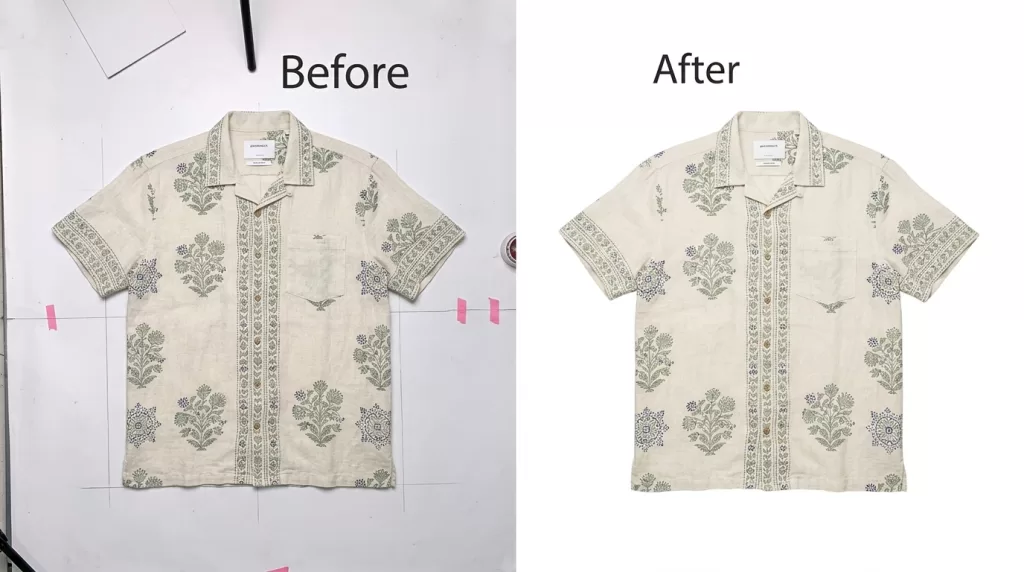
Want to replace messy backgrounds with pure white or custom colors?
Our expert Background Removal Service makes it quick and effortless.
Alt Text: The Accessibility and Search Visibility Rule You Cannot Skip
Alt text is one of the most overlooked image fields on many Shopify stores. It helps people using screen readers understand your images and gives search engines useful context about your products.
Write alt text that:
- Describes what the image actually shows in plain English.
- Runs 8–14 words for product photos.
- Includes a relevant keyword naturally when it fits.
- Distinguishes between similar images, such as front, back, or detail views.
- Avoids phrases like “image of” or “picture of” because screen readers already identify the content as an image.
Alt text examples for a Shopify product:
- ❌
IMG_2384.jpg - ❌
Product image - ❌
Blue shirt blue linen shirt best blue linen shirt Amazon Shopify - ✅
Blue linen button-down shirt front view on white background - ✅
Detail close-up of blue linen shirt buttonhole and stitching
Good alt text can help your product images appear in Google Images and other image-based search experiences while making your store more accessible.
On a 500-SKU catalog with 8 images per product, that means 4,000 alt-text fields. Writing them carefully gives you a large opportunity to improve image discoverability and create a better experience for shoppers using assistive technology.
How to Prepare a Shopify-Ready Image (Step-by-Step Workflow)
The professional workflow for prepping any product image for Shopify:
- Shoot in RAW on a color-calibrated monitor.
- Edit in Photoshop or Lightroom at native resolution. If wrinkles, dust, or blemishes are in the shot, our ecommerce photo editing walkthrough covers the fix order.
- Export as JPEG at 100% quality, sRGB color profile.
- Resize to 2,048 × 2,048 px (or your chosen aspect ratio).
- Compress through TinyPNG, Squoosh, or ImageOptim until the file lands between 100–200 KB.
- Convert to WebP if you want maximum control — Shopify will still serve WebP on capable browsers regardless.
- Name the file with hyphens and target keywords — for example
blue-linen-shirt-front.jpgrather thanIMG_3892.jpg. - Upload to Shopify — the admin, the CDN, and the theme handle the rest.
The whole workflow takes under two minutes per image once dialed in. Batch actions in Photoshop or Lightroom drop that to a few seconds per SKU at scale.
Shopify to Google Shopping — The Feed Image Crossover
Many Shopify merchants push products to Google Shopping through the Google & YouTube channel. Google Merchant Center enforces its own image rules that overlap with, but don’t perfectly match, Shopify’s.
- Minimum image size: 100 × 100 px (non-apparel), 250 × 250 px (apparel).
- Recommended: 800 × 800 px or higher; 1,500 × 1,500 px is the sweet spot.
- July 2026 change: Google Merchant Center now warns on images smaller than 500 × 500 pixels — even if they meet the older minimum.
- File formats: JPEG, PNG, WebP, GIF, BMP, TIFF.
- Max file size: 16 MB.
- Product fill: 75–90% of the frame.
Uploading Shopify products at 2,048 × 2,048 px covers both platforms cleanly — no separate feed images needed. Merchants who shortcut this by uploading small Shopify images to save load time end up with suppressed Google Shopping listings.
The 5-Minute Shopify Image Audit Checklist
Run this checklist across any Shopify store to catch the biggest image problems in five minutes:
- Open PageSpeed Insights with any product page URL. Note the LCP score.
- Check the hero image file size — right-click, inspect, look at Network tab. If it’s above 300 KB, it’s the problem.
- Confirm zoom is working on the PDP. If it isn’t, images are below the ~800 px threshold.
- Check three random product images for
altattributes — if empty, add descriptive text. - Open the homepage on mobile. If the hero banner is a landscape crop of the desktop version, ship a proper 2:3 mobile version.
- Verify collection page grid consistency. All tiles should share the same aspect ratio.
- Test one product image URL with
?width=2048&format=webpappended — confirm Shopify’s CDN is serving optimized responsive versions. - Check that all images have declared
widthandheightattributes in the theme’s Liquid — fixes CLS instantly.
Score 6+ correct: your store is healthy. Score below 5: there’s five-figure revenue hiding in image optimization.
Mobile vs Desktop — The Split Nobody Optimizes Enough
The majority of Shopify traffic today is mobile. That single fact should shape every image decision.
- Mobile browsers render smaller viewports — usually 360–430 px wide on modern phones. Uploading a 4,000 px image just makes it slower without adding sharpness.
- Aspect ratios shift. A 16:9 desktop hero becomes a wasteful skinny strip on mobile. Ship a separate 2:3 or 4:5 mobile version.
- Vertical space matters. Portrait product photos (4:5 or 3:4) convert better on mobile because they fill more of the fold.
- Load budgets tighten. Mobile connections are slower and more variable; 100 KB per image is the practical ceiling for hero and product shots.
Serve different image sizes to different viewports through Shopify’s srcset and sizes attributes. Every modern Shopify theme built on Dawn or Horizon supports this out of the box.
Want to boost your online sales with better product photography?
High-quality images increase conversions by up to 40%. Let us help you get there. See our editing services
Common Shopify Image Mistakes That Kill Speed and Conversion
- Uploading 5,000 × 5,000 px files with no compression. Even Shopify’s CDN can’t fully rescue a 12 MB PNG.
- Mixing aspect ratios across a collection. Grids look broken.
- Uploading Adobe RGB or ProPhoto RGB files. Every browser renders sRGB; other profiles look flat.
- Using PNG for photographs. JPEG or WebP produces 60–80% smaller files at the same visible quality.
- Skipping alt text. Missed SEO, missed accessibility, missed AI-search visibility.
- Ignoring the mobile hero size. A 16:9 desktop banner crops disastrously on 2:3 phone screens.
- Not declaring image
widthandheightin the theme. Causes CLS layout shifts. - Uploading images with visible watermarks or timestamps. Looks unprofessional and can trigger Shopify content flags.
- Using the same product image for every color variant. Kills the variant swap experience.
- Overlaying prices, discount badges, or “SALE” text on Shopify main product images. Marketplaces like Google Shopping will suppress the listing.
- Skipping the video poster image. Product videos show a black frame before play.
- Never re-auditing after a theme migration. New themes require new hero and banner dimensions.
Fix these twelve and your Shopify store immediately joins the top quartile for image performance.
How Many Images Should a Shopify Product Page Have?
Industry testing across hundreds of DTC stores points to a clear range: 7 to 10 images per product page hits the conversion sweet spot for apparel and lifestyle, while 5 to 7 images works for simpler categories like packaged goods or accessories.
The winning image mix on a Shopify PDP:
- 1 main image — the hero shot, on white or clean background.
- 3 alternate angles — front, side, back, or in-context.
- 2 detail close-ups — texture, hardware, stitching.
- 1 lifestyle image — the product in use.
- 1 scale or size reference — model shot or comparison graphic.
- 1 size or feature infographic — data overlaid on a clean shot.
Below five images, shoppers hesitate. Above ten, incremental images do not add conversion. Focus the extra budget on getting the first eight exceptional rather than adding an eleventh mediocre shot.
Image Optimization Tools That Actually Work with Shopify
- Shopify’s built-in CDN + WebP conversion — free, automatic, sufficient for most stores.
- TinyPNG / TinyJPG — lossless compression that shrinks files by 40–70%.
- Squoosh (Google) — browser-based, fine-grained control over format and quality.
- ImageOptim (Mac desktop) — the fastest bulk compressor for prepping shoots.
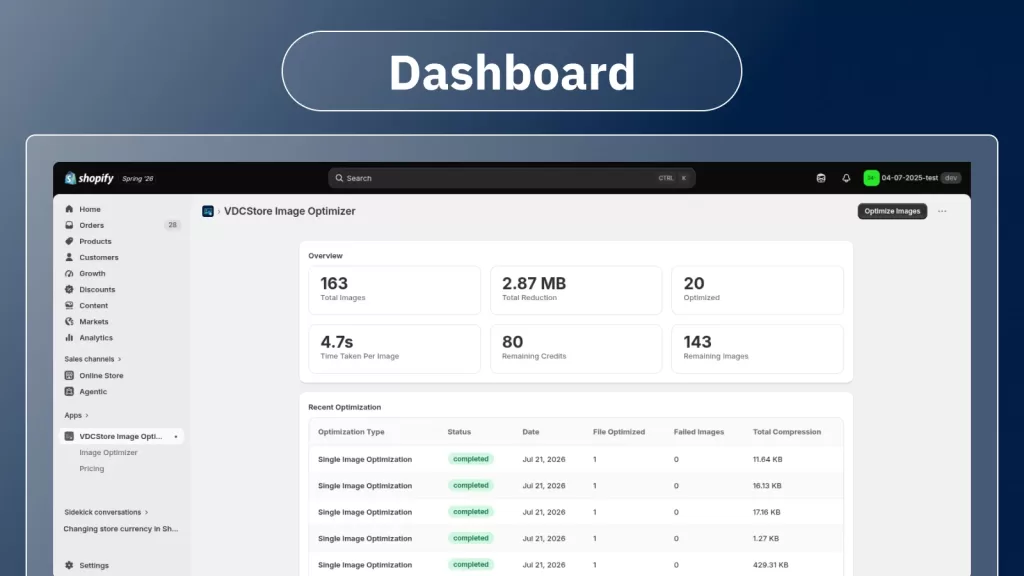
- Shopify apps like TinyIMG, Crush.pics, or Bulk Image Edit — automate compression, WebP conversion, and alt-text updates across a full catalog.
- PageSpeed Insights — Google’s diagnostic tool; run every hero and PDP before launching a new theme.
Avoid apps that promise “image SEO magic” by injecting keywords into alt text automatically — they usually hurt more than they help.
Product Photography Preparation That Makes Every Image Better
The best image compression cannot save a badly shot photograph. Two preparation habits separate professional Shopify catalogs from amateur ones.
- Shoot on a color-managed workflow. Use a grey card and export in sRGB. Consistent white balance across every SKU turns a chaotic catalog into a brand.
- Steam and clean every product before it hits the frame. Wrinkles, dust, and stray threads inflate retouching costs and drag down perceived quality even after edit passes.
Uniform preparation eliminates 60–70% of post-production time and produces the visual rhythm shoppers subconsciously read as premium.
The 2026 Trends Every Shopify Merchant Should Prepare For
- AVIF adoption — smaller than WebP, supported by every major 2026 browser, and served automatically by Shopify’s CDN.
- Portrait-first product pages — 4:5 and 9:16 formats winning mobile PDP tests.
- Video-in-gallery — short 3–6 second product videos alongside stills, boosting time-on-page.
- AI-generated lifestyle backgrounds — synthetic context images replacing costly location shoots.
- Lossless zoom rendering — themes moving toward native browser zoom, requiring true 2,048–3,000 px source files.
- Vertical hero banners — mobile-first heroes replacing landscape as the default hero size.
- AI-assisted alt text at upload — Shopify Winter ’26 Edition previewed AI-generated alt text tools for merchants.
Building your image library at 2,048 px (or higher for hero pieces) future-proofs your catalog against every one of these trends without a mid-year re-shoot.
The One-Page Cheat Sheet
If you take nothing else from this guide, take these ten rules:
- Upload product images at 2,048 × 2,048 px in a 1:1 or 4:5 aspect ratio.
- Keep every file under 200 KB after compression, under 100 KB for mobile-critical pieces.
- Use JPEG or WebP for photos, PNG only for transparent cutouts, SVG for logos.
- Never upload above 5,000 × 5,000 px or 20 MB — Shopify will reject the file.
- Match aspect ratios across all products in the same collection.
- Always use the sRGB color profile for web images.
- Add descriptive alt text with 8–14 natural words per image.
- Ship a separate mobile hero image in 2:3 or 4:5.
- Enable click-to-zoom by keeping product images above 1,200 × 1,200 px.
- Use 7–10 images per product page for maximum conversion.
Pin this to a monitor. Every image decision on your Shopify store maps back to it.
FAQ — People Also Ask
What is the best product image size for Shopify in 2026?
The best Shopify product image size is 2,048 × 2,048 pixels in a 1:1 square ratio. This resolution supports zoom on all themes, looks sharp on retina and 4K displays, and stays comfortably under the 20 MB maximum file size.
What is the maximum image size Shopify allows?
Shopify accepts images up to 5,000 × 5,000 pixels or 25 megapixels, with a maximum file size of 20 MB per image. Files above these limits get rejected at upload.
Does Shopify automatically convert images to WebP?
Yes. Shopify’s CDN automatically serves WebP or AVIF versions of uploaded JPEG and PNG images to browsers that support them, which cuts file size by 25–34% without manual intervention.
What is the best file format for Shopify product images?
JPEG works for standard product photos, PNG for transparent cutouts and logos, and WebP for the fastest load speed. Upload your master in JPEG or PNG and let Shopify’s CDN serve WebP where supported.
What aspect ratio should I use for Shopify product images?
Use 1:1 (square) as the safest default across all product categories. Use 4:5 portrait for mobile-first apparel and lifestyle stores where vertical framing dominates.
Why won’t zoom work on my Shopify product images?
Most Shopify themes only enable click-to-zoom when product images exceed ~800 × 800 pixels. Upload larger source files — 2,048 × 2,048 px is the recommended target for clean zoom on retina displays.
What image file size does Shopify recommend for fast page load?
Keep individual product images under 200 KB (ideally under 100 KB) and hero banners under 250 KB. Google’s PageSpeed Insights consistently recommends staying below 100 KB for images that affect Largest Contentful Paint.
Use 1,600–1,920 pixels wide × 900–1,080 pixels tall (16:9) for desktop and 800 × 1,200 pixels (2:3) for mobile. Always upload a separate mobile version — cropped 16:9 banners look terrible on phone screens.
How many images should a Shopify product page have?
Between 7 and 10 images consistently produces the best conversion rate for most Shopify categories. Include one main shot, three alternate angles, two detail close-ups, one lifestyle image, and one size or feature infographic.
How do I use Shopify’s image_url Liquid filter?
Add parameters like width, height, crop, and format to any image URL. The filter’s max width and height is 5,760 pixels, and Shopify auto-serves WebP or AVIF where supported — you rarely need to force a format manually.
Final Thoughts
Image sizing on Shopify is not a design taste decision. It is a technical foundation that decides how fast your store loads, how well it ranks in Google and AI search, and how many shoppers convert once they arrive.
Every rule in this guide reduces to a simple discipline: upload one 2,048 px master per image in sRGB JPEG or PNG, compress it under 200 KB, name it with hyphens and keywords, write clear alt text, and let Shopify’s CDN handle the delivery. Do that consistently across every SKU, and your store outperforms most Shopify catalogs on speed, SEO, and conversion — with no additional apps and no theme customization.
Ready to transform your raw photos into professional assets?
Get a custom, no-obligation quote tailored to your specific volume and needs. Explore Clipping Expert Asia