
Monochrome vs Black and White Photography: Zone System, Film & Conversion
October 21, 2026
Best Free Photo Editing Apps Without Watermark (2026 Tested Guide)
October 22, 2026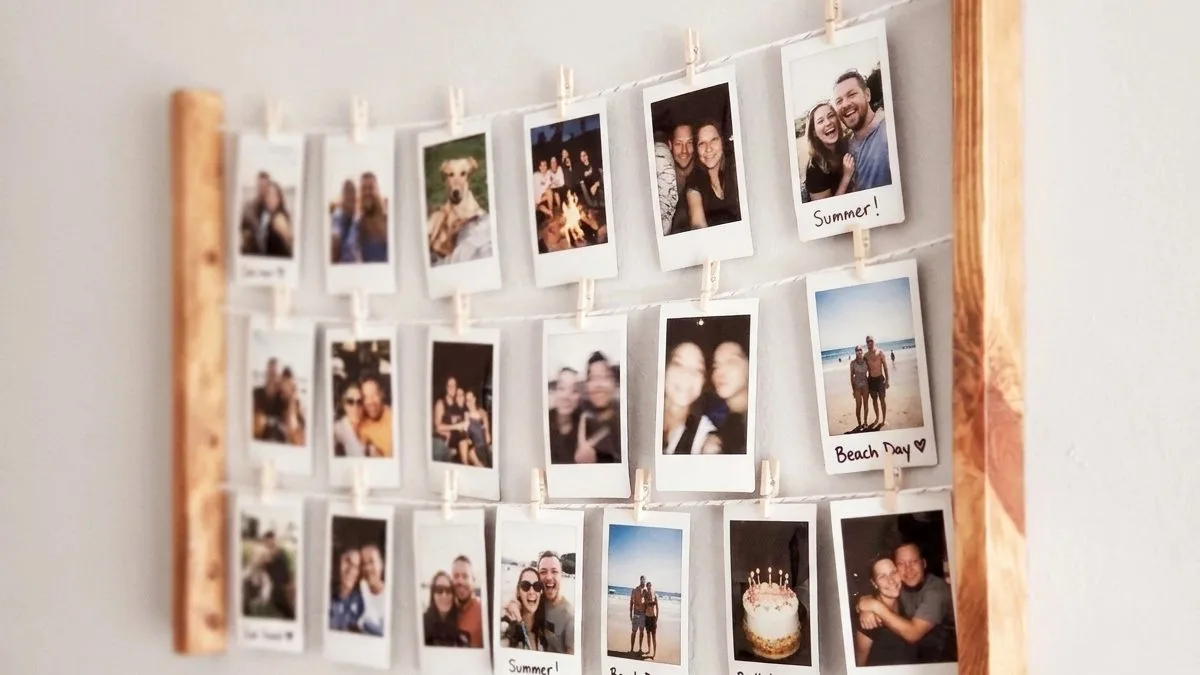
If you only remember one thing, remember this: you do not need a Polaroid camera to get polaroid-style photos. You need any digital photo, a white frame with a thicker bottom strip, faded warm tones, and a printer or an app. The real question is which of the four paths fits your budget and how you want to display the result — and the math makes the case clearer than any argument.
Here’s what 100 photos actually costs in 2026:
| Method | Cost per photo | 100 photos | Notes |
|---|---|---|---|
| Real Polaroid i-Type film | ~$2.10–$2.40 | $210–$240 | Can’t delete bad shots; camera cost extra |
| Fujifilm Instax Mini film | ~$0.70–$0.91 | $70–$91 | Smaller credit-card size |
| Retro print service (any photo) | ~$0.30–$0.80 | $30–$80 | You choose which photos; any source |
| DIY home print (matte paper) | ~$0.10–$0.25 | $10–$25 | You trim them yourself |
| Digital only (app/social) | Free | $0 | No physical print |
A real Polaroid camera plus a year of film costs more than most people’s phone. And here’s the kicker: with a camera, every bad shot costs you money. With the no-camera method, you print only the photos you love — from your phone, your DSLR, even your grandma’s scanned 1970s snapshots. Adobe’s make-a-picture-look-like-a-Polaroid guide covers the editing mechanics; this guide covers the decision system and the exact measurements most posts get wrong.
- Anatomy of an Authentic Instant Print (The Exact Numbers Most Fakes Get Wrong)
- The Decision Tree: Which of the Four Paths Is Right for You?
- Path 1: Digital-Only (Apps, Canva, and AI Generators)
- Path 2: The Pocket Printer (Print Real Instant Film From Your Phone)
- Path 3: The DIY Photoshop Recipe (Maximum Authenticity)
- Path 4: Pro Lab / Retro Print Service (The No-Hassle Physical Print)
- Display Ideas (Because Half the Fun Is Showing Them)
- The Seven Mistakes That Make Fake Polaroids Look Cheap
- Frequently Asked Questions
- Final Verdict
Anatomy of an Authentic Instant Print (The Exact Numbers Most Fakes Get Wrong)
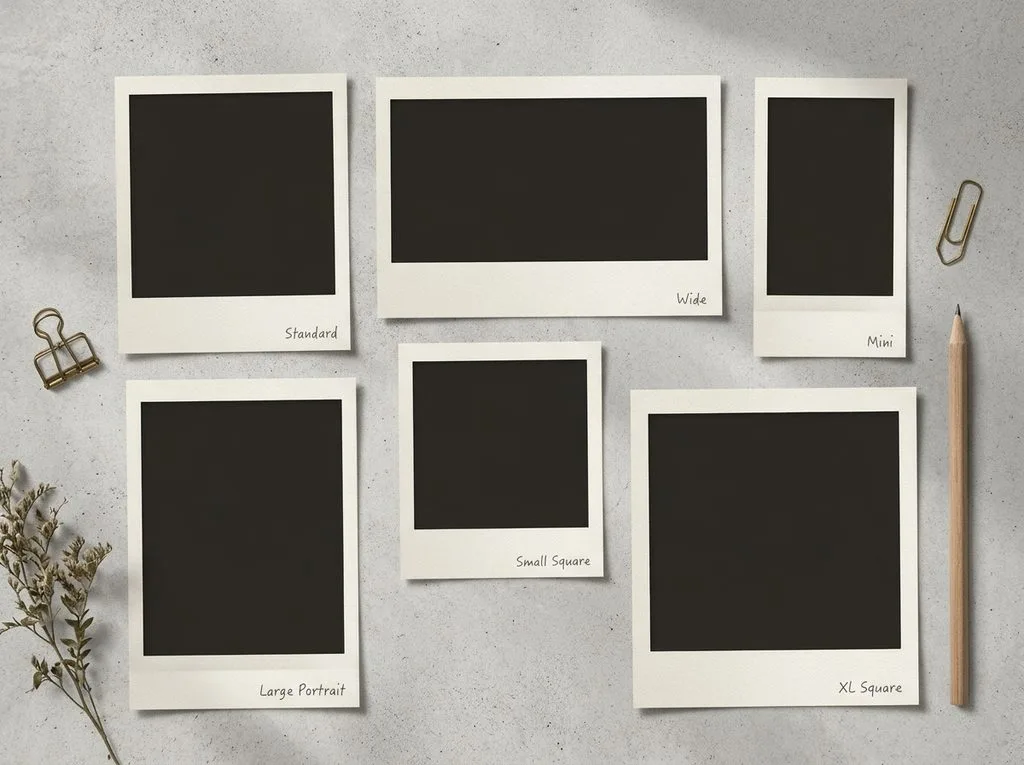
A fake polaroid looks fake because of one detail: the border proportions. A real Polaroid i-Type/600/SX-70 print measures 88 × 107 mm (3.5 × 4.2 in) overall, with a square image area of 79 × 79 mm (3.1 × 3.1 in). That means the top and side borders are only about 4–5 mm (roughly 5% of the width), while the bottom strip — where the developer pod lived — is about 24 mm (roughly 15–18%, about five times thicker). Most templates and apps use a uniform border, and that’s the instant tell.
Here’s the full measurable recipe. Copy these numbers and your print will be indistinguishable from the real thing:
- Canvas (classic Polaroid, print-ready): 1045 × 1270 px at 300 dpi. For Instagram/social: 1080 × 1296 px (4:5).
- Border color: off-white, not pure white — #F5F3EE or similar. Pure white looks digital.
- Border ratios: 5% top, 5% left, 5% right, 15% bottom (the caption/writing strip).
- Image area: square, centered horizontally, sitting in the upper 80% of the frame.
- Tone: lift blacks slightly (no true black), warm the white balance +5 to +10, drop saturation 10–15%.
- Softness: 0.5–1 px Gaussian blur at 20–30% opacity — just enough to remove the digital edge.
- Grain: monochromatic, 3–6% amount, 20–40% layer opacity. Colored noise is the #1 fake tell.
- Drop shadow (for digital mockups): 6px down, 4px right, low opacity — never a hard black shadow.
If you’re matching Instax Mini instead: overall 54 × 86 mm (2.1 × 3.4 in), image area 46 × 62 mm (1.8 × 2.4 in), with a ~20 mm bottom strip.
The Decision Tree: Which of the Four Paths Is Right for You?
Stop reading random tutorials — pick your path once based on what you actually want.
| Your goal | Best path | Time per photo | Cost per print |
|---|---|---|---|
| Instagram/social posts only | Path 1: App / Canva | 30 sec – 2 min | Free |
| Physical small prints at parties, from your phone | Path 2: Pocket printer | 1 min | $0.60–$0.90 |
| Maximum authenticity, print-ready files, any size | Path 3: Photoshop / GIMP DIY | 5–10 min | $0.10–$0.25 (home print) |
| Wall art, gifts, large quantities, no hassle | Path 4: Retro print service / pro lab | Upload only | $0.30–$0.80 |
Most people end up using two: Path 1 for digital sharing, and Path 2 or 4 when they want something physical.
Path 1: Digital-Only (Apps, Canva, and AI Generators)
This is the fastest route, and for social media it’s all you need. The pro move is to split the job between two tools: one for the faded film tone, one for the frame. One-tap apps that do both usually get at least one wrong.
- Canva (free or Pro): Search “polaroid” templates. Drop in your photo, adjust the border color, add handwritten-style text on the bottom strip. Best for collages and Instagram carousels.
- VSCO / Lightroom Mobile: Apply a faded film preset first (A6, C1, or Fuji 400H emulation work well), then export and add the frame in Canva or a frame app.
- Snapseed (free): Use the Grain + Frames tools. More control than most one-tap apps.
- Dedicated polaroid-frame apps: Look for ones that let you adjust border thickness — the fixed-ratio ones are the ones getting the proportions wrong.
- AI generators (Kling, etc.): If you want a polaroid of a scene that never happened, describe the look: “white border with wider bottom strip, warm faded colors, fine grain, direct flash.” Useful for creative projects, not for your real memories.
Our best photo editing software roundup covers free desktop alternatives if you want to go beyond apps.
Path 2: The Pocket Printer (Print Real Instant Film From Your Phone)
This is the best of both worlds: you choose which photos to print (no wasted shots), but you get a real physical instant print. Four printers dominate in 2026:
| Printer | Print tech | Cost per print | Battery life | Best for |
|---|---|---|---|---|
| Fujifilm Instax Mini Link 2 | Real Instax Mini film | ~$0.70–$0.90 | ~100 prints/charge | Best overall — real film look, app with frames/filters |
| HP Sprocket (2nd ed.) | ZINK zero-ink, 2×3 sticky-back | ~$0.40–$0.55 | ~35 prints/charge | Parties, AR features, sticky prints |
| Canon Ivy 2 Mini | ZINK, 2×3 | ~$0.40–$0.55 | ~20 prints/charge | Easy setup, compact |
| Kodak Mini 2 Retro | 4PASS dye-sub, 2×3 | ~$0.50–$0.70 | ~20–25 prints | Durable, fingerprint-resistant prints |
| Kodak Step | ZINK, 2×3 sticky-back | ~$0.35–$0.50 | ~25 prints | Budget pick |
The Instax Mini Link 2 is the editor’s choice for most people because it prints on real Instax film — the texture and border are authentic. ZINK printers are cheaper per print but the paper feels different from real instant film. If you want the sticky-back feature for journals and laptops, go Sprocket.
Path 3: The DIY Photoshop Recipe (Maximum Authenticity)
This is the method that produces print-ready, pixel-perfect files. Save it as an action after the first run and it’s one click forever.
- Canvas: 1045 × 1270 px, 300 dpi, background fill #F5F3EE (off-white).
- Place your photo. Size it to ~930 × 930 px (square). Position it centered horizontally, with ~5% margin on top/left/right and the remaining ~15% as the bottom strip. Crop your photo square before placing — a wide photo in a square frame looks wrong.
- Tone it. Add a Curves layer: drag the black input slider right slightly (lift shadows), drag the white input slider left slightly (lower highlights). Add a Photo Filter layer: Warming Filter (85), density 10–15%. Drop saturation 10–15%. Our what is color grading guide explains the tone logic.
- Soften. Duplicate the photo layer, Gaussian Blur 0.5–1 px, set that layer to 20–30% opacity.
- Grain. New layer, fill 50% gray, blend mode Overlay. Filter > Noise > Add Noise: 3–6%, Gaussian, Monochromatic checked. Layer opacity 20–40%.
- (Optional) Light leak / vignette. A soft warm leak in one corner at low opacity, or a faint vignette, sells the vintage feel. Keep it subtle.
- (Optional) Drop shadow. For digital mockups only — not on the print file itself.
- Export. JPG quality 90, sRGB. If printing at home, use matte or soft-gloss paper — glossy fights the vintage feel. Our photo editing guide covers export and sharpening (and why you should not over-sharpen these).
If you don’t have Photoshop, Photopea (free, browser-based) and GIMP do the exact same steps.
Want your images to look professionally edited, not over-processed?
Achieve natural, high-end perfection with our skilled Photo Retouching Service
Path 4: Pro Lab / Retro Print Service (The No-Hassle Physical Print)
If you want wall art, gifts, or 50+ prints, skip the home printer and upload to a retro print service. They print on real photo paper with the border built in, in sizes like 2×2.75, 3.25×4, and 4×5 inches, for $0.30–$0.80 each. What to check before ordering:
- Paper finish: matte or soft-gloss, not high-gloss.
- Border color: off-white/cream, not pure white.
- Size options: match the real format you’re emulating (square for Polaroid look, credit-card for Instax look).
- Bulk pricing: most drop sharply at 50+ prints, which is when this method crushes real film on cost.
Display Ideas (Because Half the Fun Is Showing Them)
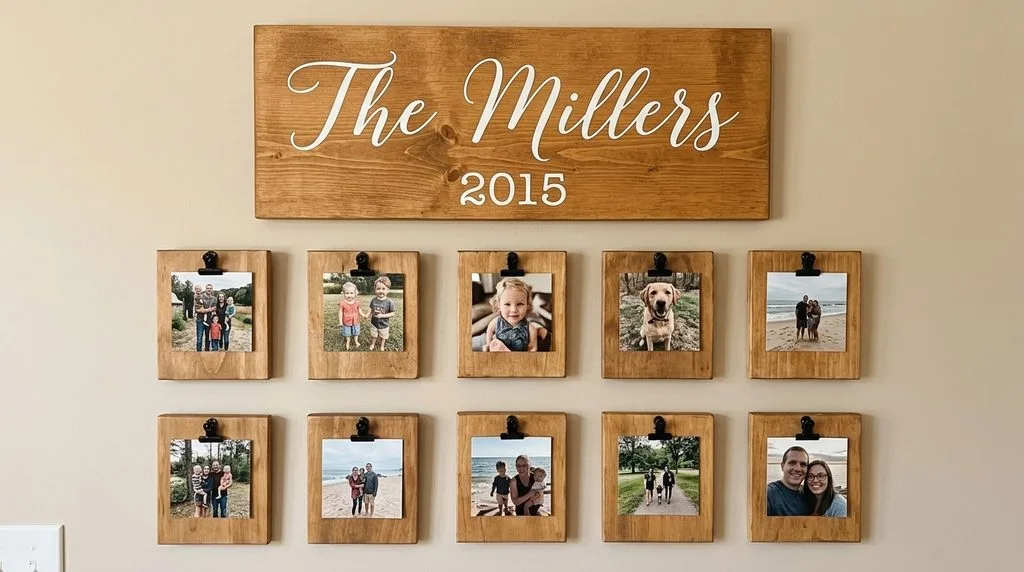
- String + clothespins across a wall — cheap, rearrangeable, classic.
- Large framed grid on linen or cork backing — looks intentional, not messy.
- Pegboard or bulletin board for a rotating display.
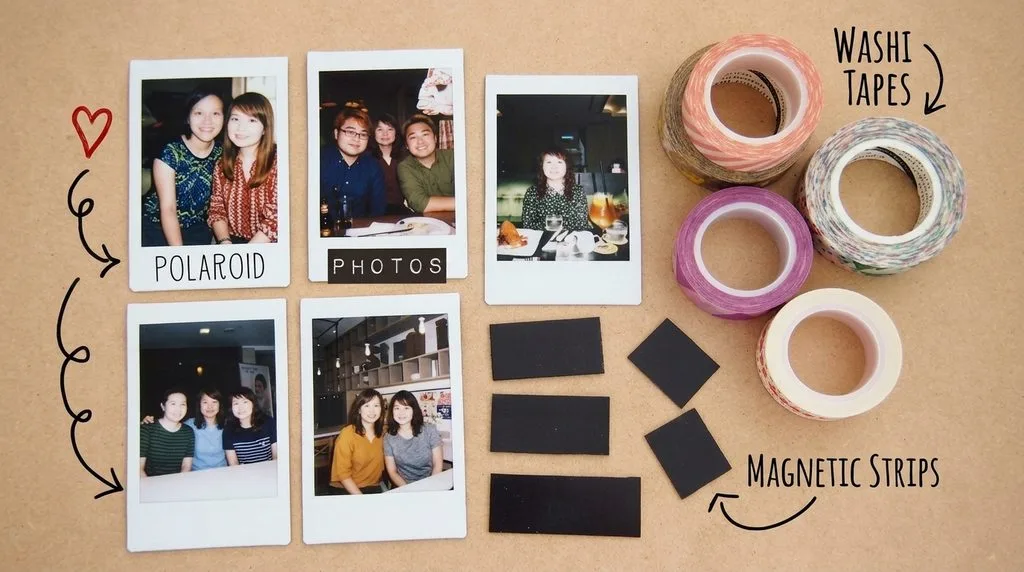
- Journal/scrapbook with washi-tape corners and handwritten dates on the bottom strip.
- Wedding/party guest book: guests write messages on the bottom border.
- Fridge / locker: sticky-back ZINK prints or tape.
Ready to transform your raw photos into professional assets?
Get a custom, no-obligation quote tailored to your specific volume and needs. Explore Clipping Expert Asia
The Seven Mistakes That Make Fake Polaroids Look Cheap
- Uniform border. The bottom strip must be ~5× thicker than the sides. This is the #1 tell.
- Pure white border. Use off-white (#F5F3EE). Real paper is never pure white.
- True black shadows. Lift the blacks — real instant film never reaches pure black.
- Colored noise. Grain must be monochromatic. Colored digital noise screams “phone filter.”
- Over-sharpened photos. Soften slightly. Crisp digital sharpness pasted into a retro frame looks wrong.
- Wrong aspect ratio. Crop your photo square (or near-square) first — a wide 16:9 shot in a square frame looks cropped and sad.
- Hard drop shadows. If you add a shadow for a mockup, keep it soft and low-opacity. Hard black shadows look like 2005 clip art.
Frequently Asked Questions
How do I make a polaroid-style photo without a camera?
Add an off-white border (5% on three sides, 15% at the bottom), faded warm tones, slight softness, and monochromatic grain to any photo using an app, Canva, or Photoshop, then either share it digitally or print it for $0.30–$0.80.
What are the exact polaroid frame dimensions?
Classic Polaroid i-Type/600/SX-70: 3.5 × 4.2 in (88 × 107 mm) overall, 3.1 × 3.1 in square image. Print-ready: 1045 × 1270 px at 300 dpi. For social: 1080 × 1296 px. Instax Mini: 2.1 × 3.4 in overall, 1.8 × 2.4 in image.
How much cheaper is it than real polaroid film?
Real Polaroid film is ~$2.10–$2.40 per shot; Instax Mini is ~$0.70–$0.91. Retro prints from any photo cost $0.30–$0.80, and home prints cost $0.10–$0.25 — plus you only print the photos you love.
Which pocket printer makes the most realistic polaroids?
The Fujifilm Instax Mini Link 2 prints on real Instax Mini film, so the border and texture are authentic. HP Sprocket and Canon Ivy use ZINK paper (cheaper per print, sticky-backed, but different texture).
How do I make a polaroid frame in Photoshop?
Create a 1045×1270 px canvas at 300 dpi, fill with off-white (#F5F3EE), place a square photo with 5% margins on top/sides and a 15% bottom strip, warm and fade the tones, soften slightly, then add monochromatic grain on an Overlay layer.
Can I print polaroid-style photos at home?
Yes — use matte or soft-gloss photo paper, print at photo quality, and trim to size. For quantities over 20, a retro print service is usually cheaper and looks better.
What’s the difference between Polaroid and Instax?
Polaroid makes larger square prints with a thick white border and visible grain, but film is expensive (~~$2+/shot). Fujifilm Instax is cheaper (~~$0.70–$1.20/shot), comes in Mini/Square/Wide, and exposes more reliably. Both are instant film.
Should I buy a polaroid camera at all?
Buy one if you love the ritual, the surprise, and the party moment. Skip it (and use the methods in this guide) if you want the look on your best photos — phone shots, vacation photos, old scans — without paying for every bad frame. Most people do both.
Final Verdict
The polaroid look is a recipe, not a camera. Get the border proportions right (5% sides, 15% bottom), warm and fade the tones, soften a touch, add monochromatic grain, and then pick your path: app for digital, pocket printer for instant physical prints, Photoshop for pixel-perfect files, or a print service for wall art and gifts. Do that, and you’ll get all the nostalgia for a fraction of the film cost — with zero wasted shots.
Ready to elevate your brand’s visual presence?
Partner with Clipping Expert Asia for fast, secure, and premium image editing starting at just 25¢. Explore all our services