


35+ Best ChatGPT Photo Editing Prompts for 2026
September 18, 2026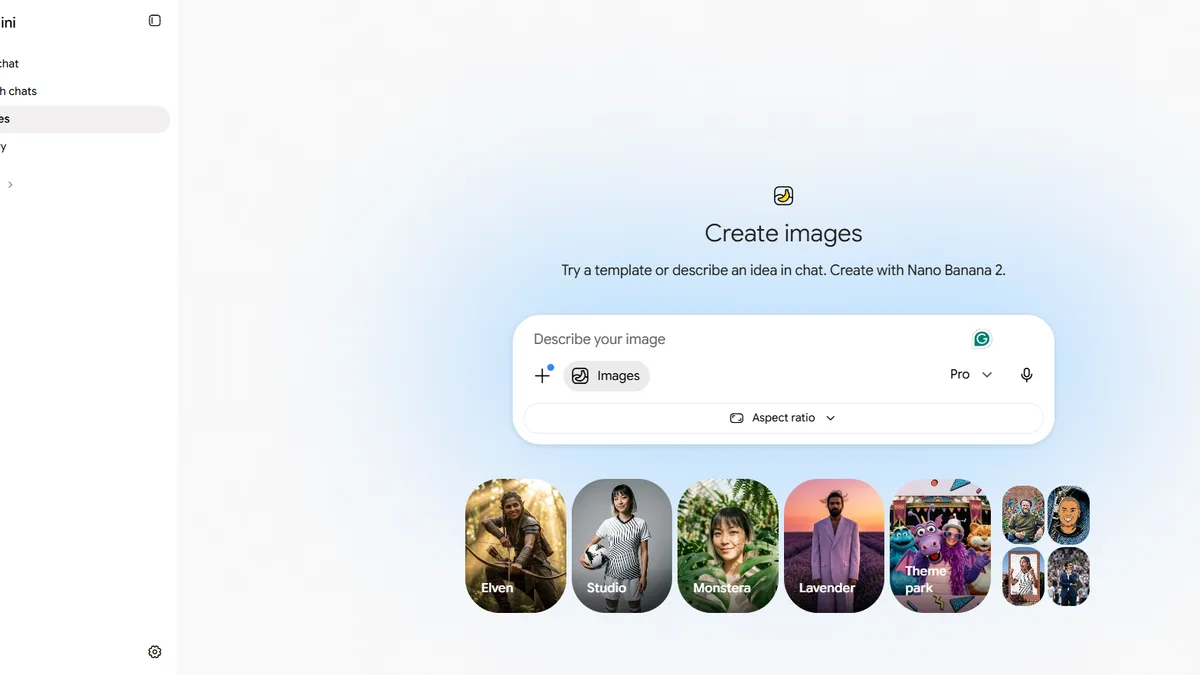
You do not need Photoshop skills to get scroll-stopping photos anymore. You need the right words. Since Google rolled out Nano Banana (the nickname for Gemini’s image model) and its bigger sibling Nano Banana Pro / Gemini 3 Pro Image in late 2025, a single well-written sentence can now retouch skin, swap backgrounds, colorize a 1950s family photo, or turn your selfie into a boxed action figure in under 30 seconds.
This guide gives you 35+ copy-paste Gemini AI photo prompts that actually work in 2026, plus the exact prompt formula Google’s own team recommends, a step-by-step workflow, and fixes for the classic “why did Gemini change my face?” problem. Whether you want a LinkedIn headshot, a cinematic reel, a viral 3D figurine, or clean e-commerce shots, you will find a prompt below that you can literally paste into the Gemini app right now.
- Why Gemini AI Photo Prompts Are Different in 2026
- The Perfect Gemini Photo Prompt Formula
- How to Use These Gemini Prompts (6-Step Workflow)
- Professional Headshot Gemini Prompts (LinkedIn, Resume, Corporate)
- Cinematic Portrait Prompts (Movie-Poster Vibes)
- Trending Viral Gemini Prompts (2026 Editions)
- E-Commerce & Product Photo Prompts
- Photo Editing & Restoration Prompts
- Creative & Artistic Style Prompts
- Advanced Composition & Multi-Image Prompts
- Pro Tips: How to Get Consistently Better Results
- Common Mistakes That Ruin Your Gemini Prompts
- Quick-Reference Prompt Categories at a Glance
- Frequently Asked Questions
- Final Thoughts
Why Gemini AI Photo Prompts Are Different in 2026
Google’s image model went through two massive upgrades in a single year. First came Gemini 2.5 Flash Image, publicly nicknamed Nano Banana, which turned Gemini into the most-downloaded AI photo app worldwide. Then on November 20, 2025, Google DeepMind launched Nano Banana Pro (Gemini 3 Pro Image), its state-of-the-art image generation and editing model built on Gemini 3 Pro reasoning.
Here is what changed for you as a user, straight from Google’s official announcement:
- Legible, multilingual text inside images — perfect for posters, thumbnails, and mockups.
- Blend up to 14 reference images and keep the resemblance of up to 5 people consistent.
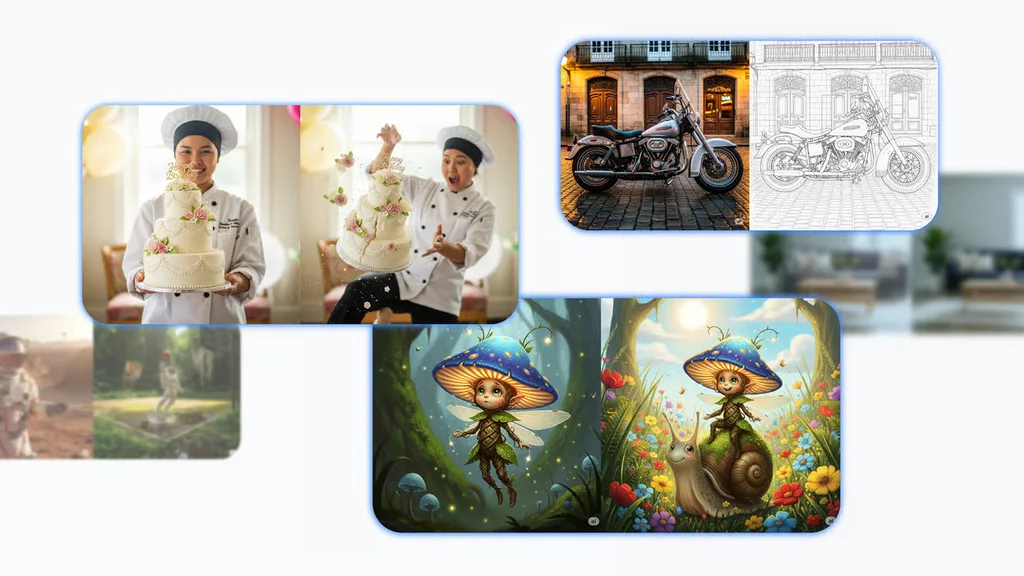
- Localized edits — change lighting from day to night, swap camera angle, apply color grading to a specific region.
- True 2K and 4K output for print-quality results.
- SynthID invisible watermark on every image for authenticity.
Because the model reasons with real-world knowledge, your prompts can now be conversational and descriptive instead of a robotic list of keywords. That is the single most important shift you need to internalize before you paste anything.
If you are new to writing AI instructions in general, our beginner-friendly prompt engineering guide covers the mental model that makes every prompt below click faster.
The Perfect Gemini Photo Prompt Formula
Google Cloud’s official prompting guide for Nano Banana recommends a five-part structure that works for both text-to-image and photo editing. Memorize this once and you will never stare at a blank prompt box again.
Formula: [Subject] + [Action/Task] + [Location or Context] + [Composition] + [Style]
For a photo you are editing, add a sixth part at the end: “What must stay unchanged.”
Why this order matters
Gemini processes prompts sequentially. Leading with the subject and the task, not the style, gives you far more predictable results. The style keywords at the end act like a filter over an already-locked scene.
The high-value keywords Gemini responds to
- Lighting: golden hour, soft daylight, three-point softbox, Rembrandt chiaroscuro, neon glow, volumetric fog, catchlight in the eyes.
- Camera & lens: 85mm f/1.8, macro lens, wide-angle 24mm, low angle, aerial view, shallow depth of field, bokeh.
- Color grading: cinematic teal-and-orange, muted pastel, 1980s Kodak color, high-saturation editorial.
- Texture: natural skin texture with visible pores, brushed metal, matte plastic, oil-paint impasto.
- Quality anchors: 4K, ultra-realistic, hyper-detailed, editorial magazine grade.
Use “positive framing.” Instead of writing “no cars,” write “an empty, deserted street.” Gemini follows what you describe, not what you negate — a rule confirmed in the Google developer prompting guide.
How to Use These Gemini Prompts (6-Step Workflow)
Before we dive into the copy-paste library, here is the exact workflow that yields the highest success rate:
- Open the Gemini app (mobile or web) or Google AI Studio.
- Upload a high-quality reference photo — sharp, well-lit, single subject if possible.
- Paste the prompt and swap any bracketed placeholders with your details.
- Generate and let Gemini think for a few seconds.
- Refine conversationally — say things like “Keep the face identical but warm the lighting.”
- Save, export, or download the 2K/4K result.
If a character’s face drifts after several edits, start a fresh conversation and re-upload the original. This resets the model’s memory and locks identity again.
Professional Headshot Gemini Prompts (LinkedIn, Resume, Corporate)
A real photo studio session runs $200–$500 in most cities. A Gemini AI photo prompt now delivers a comparable headshot for essentially free — as long as you feed it a good selfie.
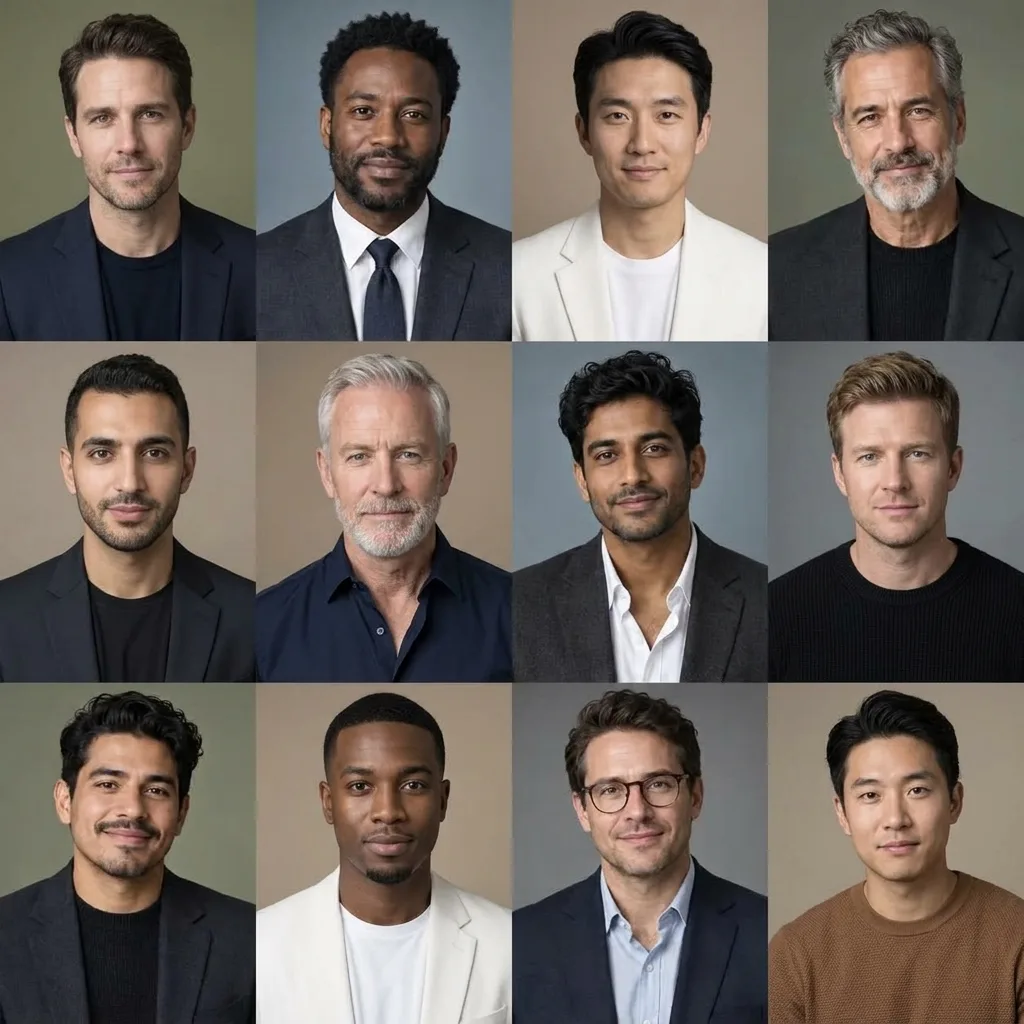
1. The classic LinkedIn headshot (copy-paste)
“Generate a 1:1 ultra-realistic 4K corporate headshot from the uploaded photo. Keep the person’s face, skin tone, and hairline exactly the same. Dress the subject in a navy business suit with a crisp white shirt. Solid neutral studio background (#141414). Bright, soft, diffused key light from front-left at 45 degrees, subtle catchlight in the eyes. Shot on an 85mm f/1.8 lens with shallow depth of field. Preserve natural skin texture with visible pores — no beauty smoothing. Confident, approachable expression.”
2. The modern creative-professional headshot
“Convert the uploaded photo into a modern professional portrait. Subject wears a heather-gray henley with rolled sleeves, casually leaning at a 3/4 angle. Solid dark charcoal background. Bright, airy softbox lighting with a warm cinematic grade. 85mm portrait lens, chest-up framing, ample headroom above the head. Exact facial features preserved. Atmosphere: innovation and accessibility.”
3. The therapist / coach warmth headshot
“First ask me for a selfie. Convert my selfie into a therapist’s headshot that immediately puts clients at ease. Soft window light coming from the left, warm off-white background, oatmeal-colored knit sweater. Genuine half-smile, relaxed shoulders. 50mm lens, shallow depth of field, natural skin texture. Preserve my identity precisely.”
4. The editorial black-and-white portrait
“Create a high-end black-and-white portrait from my selfie. Keep every facial detail, freckle, and texture — no retouching, no smoothing. Dramatic split lighting with strong shadow contrast that sculpts the cheekbones. Blurred studio background with a subtle gradient. Vertical 9:16 frame, centered composition, timeless editorial mood.”
Pro tip: For consistency across a full LinkedIn refresh, generate one hero headshot first, then feed that image back with new prompts (change outfit, background, angle) rather than starting from your original selfie each time. This is the same portrait retouching principle photographers use — always work from your best exposure.
Cinematic Portrait Prompts (Movie-Poster Vibes)
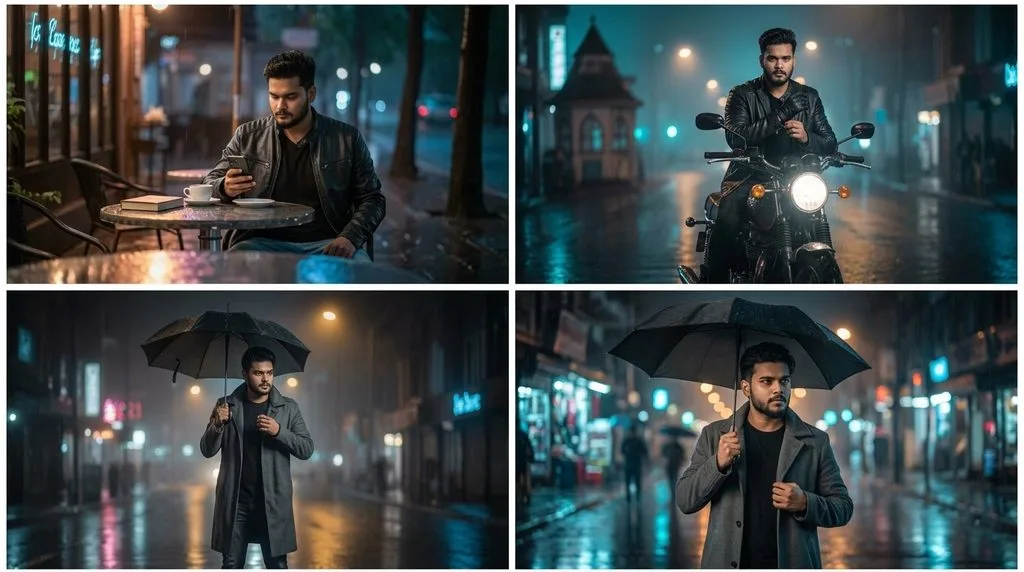
Cinematic prompts are where Gemini truly shines because it understands filmmaking vocabulary. Blend a location, a mood, and one specific film-camera term and the results feel like a still from a Netflix show.
5. Neon rain, stormy noir
“Ultra-cinematic portrait of me standing under a red neon sign at night in a rain-soaked alley. Wearing a dark oversized coat, hair damp, water droplets on the face, a serious expression. Reflective wet asphalt, atmospheric fog, cool blue shadows with warm neon key light. Shot on a 35mm anamorphic lens, shallow depth of field, filmic grain, stormy noir aesthetic, 8K.”
6. The frozen-motion crowd shot
“Profile shot of me walking through a rushing metro-station crowd. Everyone else is motion-blurred with trailing streaks, while I remain in razor-sharp focus with a serious expression, wearing a long trench coat. Cool blue tones dominate, ambient light from train signs, 35mm film aesthetic, portrait 4:3.”
7. Golden-hour hillside melancholy
“A moody, cinematic portrait of a young person sitting alone on a windy hillside at golden hour. Warm rim light behind the head, soft haze catching the sun, tall dry grass moving in the wind. 85mm lens, shallow depth of field, muted teal-and-orange grade, high-end cinematic color, poster-style composition.”
8. Rooftop confessional
“A dreamy, soft-focus portrait of me exhaling a plume of pastel smoke on a city rooftop at blue hour. Distant skyline out of focus, warm string lights bokeh, ethereal atmosphere. Elegant emotional aesthetic, cinematic color grading with pink and teal highlights.”
For a deeper dive into the artistic side, this quick primer on color grading explains why “teal-and-orange” produces that instantly cinematic look.
Trending Viral Gemini Prompts (2026 Editions)
These are the exact formats that pushed Gemini to the top of the app stores. Copy, personalize, post.
“Create a realistic product photo of a collectible action figure of me in plastic blister-pack packaging. The packaging header says ‘[YOUR NAME]’ in bold retro font, with ‘INCLUDES: [3 funny personal accessories — e.g., laptop, coffee cup, headphones]’ printed at the bottom. Toy-store shelf lighting, photorealistic plastic reflection, Hasbro/Mattel-grade design, front-facing display.”
10. The 90s Bollywood retro-saree edit
“Create a retro vintage grainy but warmly lit image of the reference person draped in a red translucent saree, wearing gold jhumkas and a bindi. 90s Bollywood film poster aesthetic — soft golden lighting, dreamy soft focus, subtle film grain, faded edges. Preserve the exact facial features. Portrait 4:3.”
11. The Studio Ghibli style transfer
“Transform the uploaded photo into a scene from a Studio Ghibli anime film. Maintain the exact composition and subject positions. Apply hand-painted watercolor skies, fluffy Ghibli clouds, warm nostalgic lighting, and soft cel-shading. Keep faces recognizable but stylized in Ghibli fashion.”
12. The dramatic movie poster of a mundane moment
“Turn this photo of me [drinking coffee / brushing my teeth / commuting] into an ultra-dramatic action-thriller movie poster. Add cinematic teal-and-orange grade, moody rim lighting, motion blur around the edges, dramatic title text at the bottom reading ‘[FUNNY TITLE]’ in bold blockbuster font. Poster-grade composition, 2:3 vertical.”
13. The Renaissance oil-painting portrait
“Reimagine the uploaded portrait as a Dutch Golden Age oil painting. Use Rembrandt-style chiaroscuro lighting with strong light-and-shadow contrast. Give the skin realistic oil-paint texture with visible brushstrokes. Deep warm brown and black background. Museum-grade finish.”
14. Yearbook photo from an alternate decade
“Create a 1980s high-school yearbook portrait of me. Feathered hair, pastel shirt, laser-beam blue background, warm studio lighting, subtle grain and color fading typical of 1980s film. Small yearbook-style caption ‘[NAME] — Class of ‘85’ in the corner. Preserve my exact facial features.”
E-Commerce & Product Photo Prompts
If you sell online, one paragraph in Gemini can replace an hour of tabletop shooting. Combine these prompts with a proper background workflow — our guide on ecommerce product editing covers the finishing touches many sellers still miss.
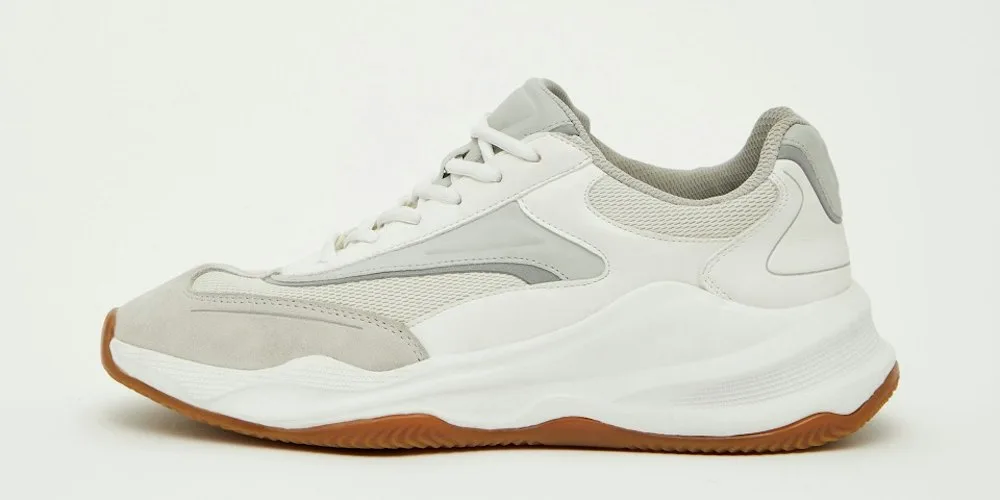
15. Clean white-background hero shot
“Professional product photograph of [describe product] on a pure white seamless background. Large softbox key light from above-right, white bounce reflector on the left. Sharp focus throughout, subtle contact shadow only, no props, no color cast. Product placed at a slight 3/4 angle showing [key features]. Shot at f/11, 100mm macro lens. Amazon-ready e-commerce style.”
16. Lifestyle context shot
“Place the uploaded product inside a warm, sunlit modern kitchen scene on a light oak counter. Soft window light from the left, blurred plants in the background, faint steam rising from a coffee cup nearby. Photorealistic, editorial lifestyle mood, 50mm lens, shallow depth of field. Product remains sharp and centered.”
17. The e-commerce texture polish (edit an existing shot)
“Polish this product shot for a high-end catalog. Sharpen the micro-textures of the material — whether leather, brushed metal, or fabric — so it feels tactile. Neutralize any yellow color cast from indoor lighting. Add a soft, natural reflection beneath the product to convey weight. Do not change the product’s shape, color, or logo.”
18. Packaging mockup with legible text
“Design a photorealistic packaging mockup for
. Matte black tube with gold foil typography reading ‘[BRAND NAME]’ vertically. Minimalist front label with tagline ‘[TAGLINE]’. Studio lighting, floating shadow, editorial commercial style. Text must be crisp and readable — no typos, no distortion.”
Nano Banana Pro’s improved text-rendering makes this last prompt reliable — earlier models often produced gibberish letters, which the Google Cloud prompting guide explicitly calls out as a fixed limitation.
Photo Editing & Restoration Prompts
This is where Gemini AI photo editing quietly replaces a lot of manual work.
19. Background cleanup
“Remove every distracting element from the background of this photo — the parked car, the trash bin, and the crowd behind the subject. Replace with a clean natural extension of the existing wall so the edit is seamless. Keep the subject, lighting, and shadows unchanged.”
20. Skin blemish and stray-hair fix (natural)
“Retouch the subject’s face gently. Remove temporary blemishes, small pimples, and stray flyaway hairs. Preserve pores, freckles, moles, and natural skin texture. Do not smooth, whiten, or slim the face. The person should still look exactly like themselves.”
21. Restore a faded vintage photo
“Restore this faded 1960s photograph. Repair tears, scratches, and missing corners. Rebalance the exposure and remove the yellow color cast. Sharpen the faces without inventing new details. Keep the original composition and clothing exactly as they are.”
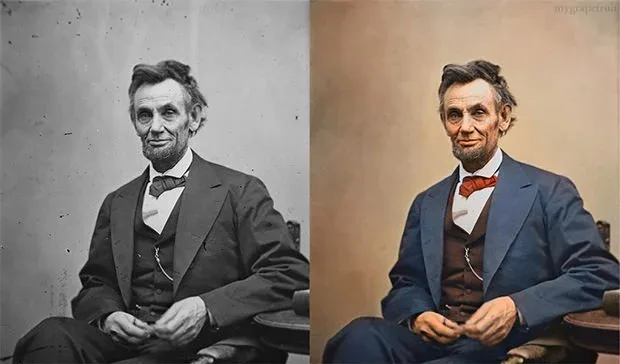
22. Colorize a black-and-white photo
“Colorize this black-and-white photograph with historically accurate, natural tones for the 1940s. Warm skin tones, muted period-correct clothing colors, soft daylight. Do not saturate. Preserve every original grain and detail.”
23. Remove a person from a group photo
“Remove the person on the far right from this group photo. Naturally reconstruct the background — the beach and sky — where they were standing. Keep everyone else and their shadows unchanged.”
24. Fix a blurry photo
“Sharpen this blurry photo without introducing halos, over-sharpening artifacts, or plastic skin. Recover fine details in the eyes and hair. Preserve the original color palette and lighting.”
For deeper manual work — heavy retouching, complex composites, or wedding shoots — human editors still outperform AI on subtle finish, as detailed in this photo editing guide. Gemini handles 80% of routine tasks; the last 20% still belongs to trained retouchers.
Creative & Artistic Style Prompts

25. Tilt-shift miniature world
“Apply a realistic tilt-shift miniature effect to this cityscape. Create a sharp horizontal focus band through the center, with a pronounced blur gradient above and below. Boost saturation and contrast slightly to mimic the vivid colors of a painted model. Add a warm sunny midday light.”
26. 1970s found-film aesthetic
“Make this photo look like it was just developed from a film camera found in a 1970s attic. Add subtle film grain, slight color fading at the edges, a small warm light leak in one corner, and slightly milky faded blacks. Keep the subject sharp. It should feel like a found memory.”
27. Double-exposure portrait
“A surreal double-exposure portrait of the uploaded subject in side profile. Overlay a dense pine forest silhouette across the face and shoulders. Muted earthy tones, soft golden hour light, minimalist beige background, poster-grade composition, 8K.”
28. Dynamic motion added to a static dancer
“Add explosive motion to this photo of a dancer. Simulate realistic motion blur trailing from the hands and the edge of the dress, as if they just spun. Keep the face and core body sharp as the focal point. Add subtle out-of-focus light streaks in the background.”
29. Watercolor children’s-book illustration
“Transform this pet photo into a soft watercolor children’s-book illustration. Hand-painted textures, gentle pastel palette, loose paper edges, warm storybook lighting. Keep the pet’s colors and expression recognizable.”
30. Cyberpunk neon-glasses portrait
“Ultra-realistic close-up portrait of the uploaded subject wearing bright yellow neon rectangular glasses. Reflections of a rainy Tokyo street glow in the lenses. Cool cyan and magenta rim lighting on the face, moody atmosphere, sharp bokeh in background.”
Advanced Composition & Multi-Image Prompts
Nano Banana Pro now supports up to 14 reference images in a single prompt, which unlocks results the older model couldn’t touch.
31. Outfit swap from two photos
“Take the blue floral dress from the first image and let the woman from the second image wear it. Preserve the woman’s facial features, hair, and skin tone exactly. Match the dress lighting to her original photo. Professional e-commerce fashion look, clean studio background.”
32. Consistent character across scenes
“Using this reference character, generate three new images: (1) the same character in a coffee shop with morning light, (2) the same character on a mountain trail at golden hour, (3) the same character in a nighttime library. Keep face, outfit, and body identical across all three images.”
33. Product on a lifestyle model
“Place the sneaker from image 1 on the feet of the model in image 2. Match the sneaker’s angle to her walking pose, add realistic contact shadow, and blend into the sunlit sidewalk background of image 2. Preserve the sneaker’s design and colorway exactly.”
Pro Tips: How to Get Consistently Better Results
These are the small habits that separate the “wow” edits from the “why did it change my face?” edits.
- Use narrative, not a keyword list. Descriptive paragraphs outperform comma-separated tags every time.
- Say what to keep unchanged. Explicitly write “keep the face, eye color, and hairline identical.” This single sentence prevents 90% of face-drift complaints.
- Iterate conversationally. After the first result, tell Gemini “warmer skin,” “softer shadow on the right,” or “move the light more from behind.” It edits in place.
- Give it a job title. Start with “Act as a high-end fashion retoucher” or “Act as a Hollywood colorist.” The role primes better output.
- Break big requests into smaller ones. Change background first, then wardrobe, then color grade — not all at once.
- Aspect-ratio hack: If you upload multiple images, Gemini adopts the aspect ratio of the last image. Order matters.
- Restart the chat if the face drifts. A fresh conversation with the original photo re-anchors identity.
Common Mistakes That Ruin Your Gemini Prompts
- Writing negative commands (“no cars,” “not blurry”) — describe the positive scene instead.
- Uploading low-resolution or poorly lit selfies — trash in, trash out.
- Stacking twelve edits into one prompt — Gemini gets overwhelmed and hedges.
- Vague adjectives like “nice,” “better,” or “cool” — use concrete photographic language.
- Ignoring copyright and likeness — never generate images of real celebrities, minors you do not know, or copyrighted characters for commercial use.
- Forgetting the SynthID watermark — every Gemini image is invisibly watermarked, so declare AI use where required.
Quick-Reference Prompt Categories at a Glance
- Professional / LinkedIn: prompts #1–#4
- Cinematic movie-poster: prompts #5–#8
- Trending viral: prompts #9–#14
- E-commerce & product: prompts #15–#18
- Editing & restoration: prompts #19–#24
- Artistic styles: prompts #25–#30
- Multi-image / composition: prompts #31–#33
Bookmark this list, screenshot it, or save it to your notes app so you always have a starting point.
Frequently Asked Questions
Is Gemini image generation free to use?
Yes. The core Gemini app on web and mobile offers free image generation and editing daily, powered by Nano Banana (Gemini 2.5 Flash Image). Nano Banana Pro (Gemini 3 Pro Image) is available with higher usage caps on Google AI Pro and Ultra plans, and through the Gemini API for developers.
Why does Gemini change my face when I ask for an edit?
Face drift happens when the prompt does not lock identity or when too many iterative edits accumulate. Fix it by (a) explicitly writing “keep the exact facial features, eye color, and hairline of the uploaded person,” (b) using a sharp, well-lit reference photo, and © starting a fresh chat if drift appears mid-session.
What is the difference between Nano Banana and Nano Banana Pro?
Nano Banana is the everyday model — fast, free, and excellent for social edits. Nano Banana Pro is built on Gemini 3 Pro reasoning and adds legible multilingual text rendering, up to 4K output, blending of up to 14 images, and consistent likeness across up to 5 people. Choose Pro for posters, marketing assets, and multi-person compositions.
Can I use Gemini AI photo prompts for commercial and client work?
Yes, within Google’s usage policies. Images generated by paid Gemini plans generally allow commercial use, but you should always verify the current terms, disclose AI generation where required, and avoid replicating real people, trademarks, or copyrighted characters without permission.
How long should a good Gemini photo prompt be?
Aim for 40–120 words of clear, descriptive narrative. Shorter prompts leave too much to chance; prompts over 200 words start to confuse the model and produce averaged results. Follow the Subject + Task + Location + Composition + Style formula and you will rarely need more.
Which is better for photo prompts — Gemini or ChatGPT?
Both are strong. Gemini currently leads on identity preservation, multi-image blending, and text-in-image accuracy since the Nano Banana Pro launch. ChatGPT’s image tools excel at surreal illustration and typography-heavy design. Many creators use both — you can compare workflows in our roundup of the best photo editing software 2026.
Can Gemini edit text inside an existing image?
Yes, and this is a headline strength of Nano Banana Pro. Ask directly: “Change the text on the sign from ‘OPEN’ to ‘CLOSED’ in the same font and lighting.” For heavy typography edits, generate at 2K or 4K to keep letters crisp.
Do I need to credit Gemini when I post the image?
Google embeds an invisible SynthID watermark into every Gemini-generated image, and many platforms (Instagram, TikTok, LinkedIn) now auto-label AI-generated content. Best practice: label the post as AI-generated when the image depicts realistic people or events, especially in journalism, advertising, or educational contexts.
Final Thoughts
The gap between “I wish I could edit like a pro” and “I just edited like a pro” is now roughly one well-written paragraph. The 35+ Gemini AI photo prompts above cover almost every scenario a creator, marketer, seller, or hobbyist runs into — from LinkedIn glow-ups to viral 3D figurines to grandma’s colorized wedding portrait.
Save this page, pick one prompt, open Gemini, and generate your first image in the next five minutes. The best prompt library is the one you actually use.