


Best Binoculars With Camera 2026: Top 10 Picks & Buying Guide
June 17, 2026
10 Best Cameras Under $3000 in 2026 (Tested, Ranked Picks)
June 18, 2026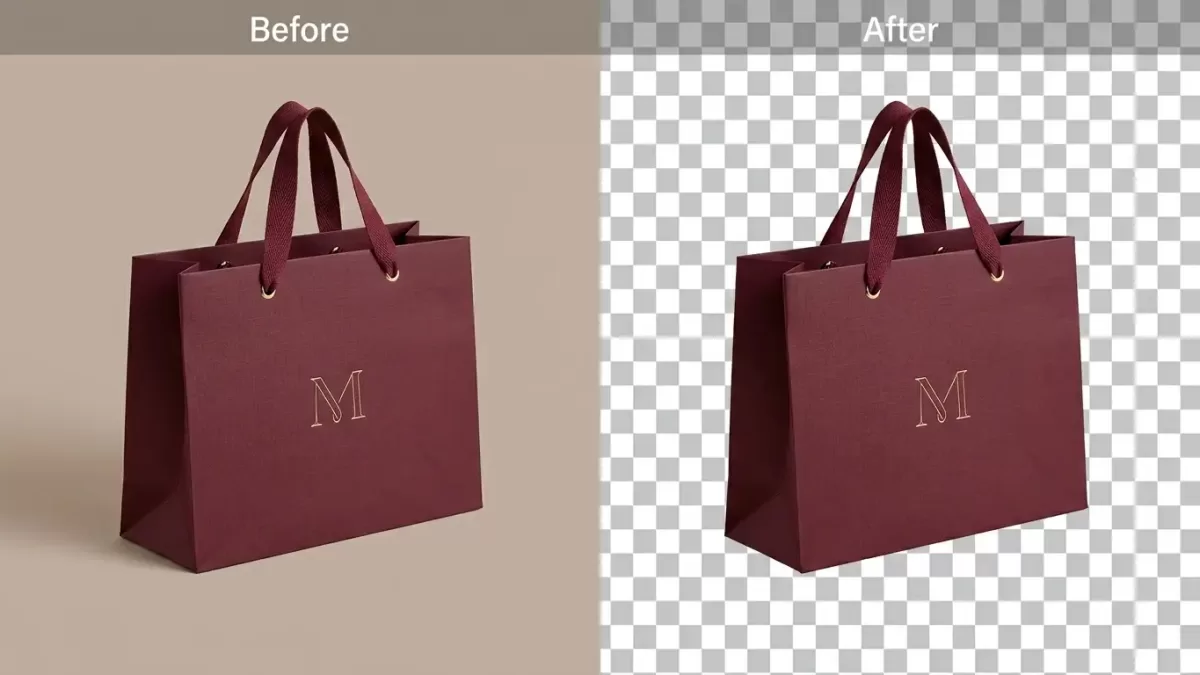
Open any polished website, scroll through a luxury ecommerce store, or glance at a brand logo floating cleanly on a colored banner — you are looking at the quiet magic of a transparent background. Designers rely on it every day. Marketers demand it for every campaign. E-commerce sellers simply cannot live without it. Yet many people still treat it as a mysterious checkbox inside Photoshop or an export option they accidentally clicked.
A transparent background, in plain language, means an image carries no visible color or layer behind its main subject. The empty space behind the product, model, or graphic acts essentially “see-through,” so the artwork drops onto any color, photograph, or web layout without an ugly white box around it. The transparent area technically consists of pixels that hold an opacity value of zero, which tells the screen to render whatever sits behind them instead.
In this guide, we unpack the meaning of transparent backgrounds, the file formats that support them, how the alpha channel actually works, how to create one inside popular tools, and where they deliver the biggest impact in 2026. We also tackle common mistakes, share humanized examples, and answer the questions that come up most often inside design teams and small-business chats.
Tired of fighting messy edges and white halos? Try our background removal service for crisp, pixel-perfect transparent PNGs today.
- What Is a Transparent Background? The Plain-English Definition
- What Does a Transparent Background Actually Look Like?
- How Does a Transparent Background Work? The Alpha Channel Explained
- File Formats That Support a Transparent Background
- Transparent Background vs. White Background: Which Should You Use?
- When Should You Use a Transparent Background? Top Real-World Use Cases
- How to Create a Transparent Background: 6 Methods Compared
- How to Save and Export a Transparent Background Correctly
- Common Transparent Background Mistakes (and How to Avoid Them)
- Web Performance Benefits of Transparent Backgrounds
- Transparent Backgrounds in Branding, Print, and Packaging
- Color Correction and Retouching Work Alongside Transparency
- How Transparent Backgrounds Streamline Marketing Workflows
- Tools and Resources to Master Transparent Backgrounds
- FAQs: Transparent Backgrounds Explained
- Final Thoughts: Transparency Is the Quiet Superpower of Modern Design
What Is a Transparent Background? The Plain-English Definition
A transparent background means the absence of a visible backdrop in a digital image, allowing the underlying webpage, slide, or design canvas to show through the empty area. Instead of showing a white, black, or colored block behind the subject, the file reveals whatever your design places beneath the image.
In practical terms, a transparent background delivers:
- No solid color blocks surrounding your subject.
- No square outline when you place the image on a colored web banner.
- Total flexibility to drop the image onto any new background — a navy header today, a beige product shot tomorrow.
- Cleaner composites, because layers blend instead of stacking like postage stamps.
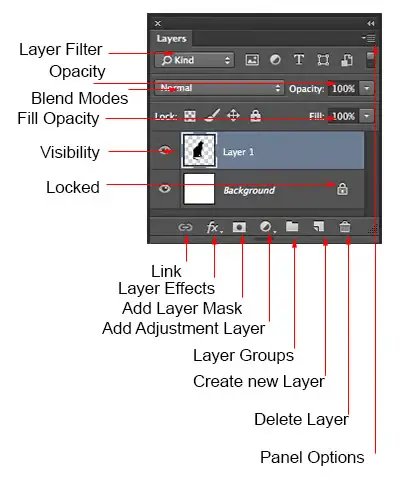
When you open a transparent image in Photoshop, Illustrator, GIMP, or Figma, the empty area appears as a checkered pattern of light and dark gray squares. That checkerboard never forms part of the image itself; editing software simply uses it as a visual cue to signal “this area has no pixels you can see.” Adobe popularized the convention years ago, and almost every major editor now follows it.
What an Image with a Transparent Background Is Called
Designers and developers throw around several interchangeable terms for these files:
- Transparent PNG — the most common label, because PNG remains the most popular format that supports transparency.
- Cutout image — referring to the way an editor has “cut out” the subject from its original background.
- Knockout — a print and prepress term for an image with no background.
- Alpha image or image with an alpha channel — the technical name for the data layer that controls invisibility.
If a client or vendor asks you for a “PNG cutout with alpha,” they simply mean the same thing: a clean image whose background has gone away. Beginners exploring this workflow often start with mobile tools — our roundup of the best photo editing apps covers the simplest entry points.
What Does a Transparent Background Actually Look Like?
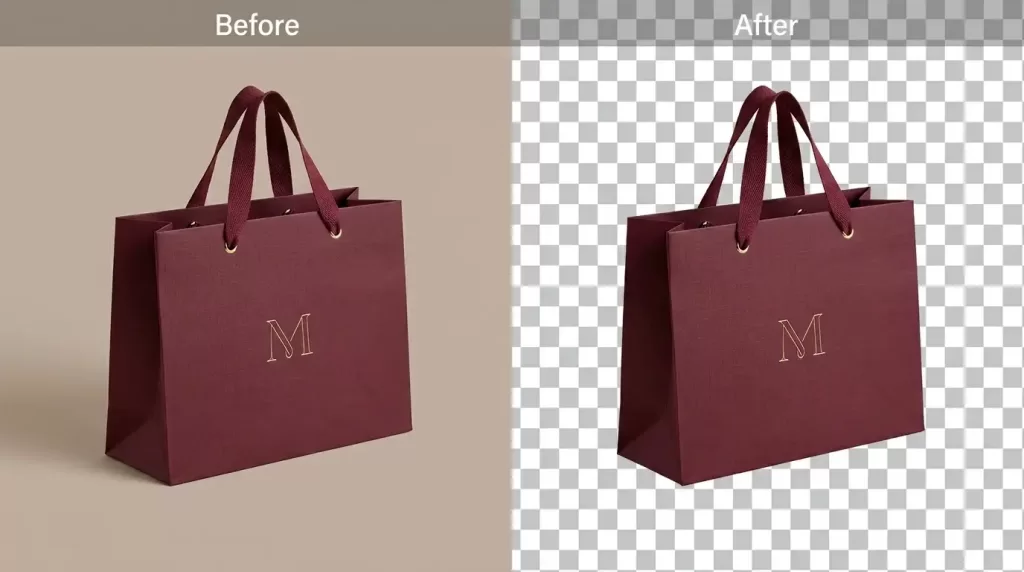
To the untrained eye, a transparent image can look identical to one on a white background — until you place it on a colored layout. Then the difference becomes dramatic.
Here is what to look for when you receive a file:
- In editing software: The empty area displays a gray-and-white checkerboard pattern, which only lives on screen and never appears in your final exported image.
- On a web preview: The image lies seamlessly on top of any color or photo behind it, with no visible square border.
- In a file browser thumbnail: Many operating systems still display transparent areas as white, so always preview the file inside a design tool before judging it.
- In a PowerPoint or Canva slide: Drag the image onto a colored slide. If the background disappears and only the subject remains, the file is genuinely transparent.
Designers often joke that the checkerboard is the most reassuring pattern in graphic design — it means the heavy lifting of background removal finally ended. For a deeper dive into why this pattern became universal, this short piece on the history of the transparency checkerboard traces its surprisingly fascinating origin.
How Does a Transparent Background Work? The Alpha Channel Explained
Every digital image stores pixels arranged in a grid. A standard JPEG stores three pieces of information per pixel — Red, Green, and Blue — known as the RGB channels. Transparent images add a fourth channel: Alpha.
The alpha channel does not store color. Instead, it stores opacity — a number between 0 and 255 (or 0 % to 100 %) for every pixel. The alpha value behaves as follows:
- 0 → the pixel turns fully transparent; whatever sits behind shows through completely.
- 255 → the pixel stays fully opaque; you see the original color.
- Anything in between → the pixel becomes partially transparent, blending with the background like colored glass.
This 254-step gradient allows soft edges, semi-transparent shadows, glowing highlights, smoke, and the wispy strands of hair around a model’s head to render naturally on any backdrop. The Wikipedia overview of transparency in computer graphics offers a deeper technical reference for engineers and curious designers alike.
Why Alpha Matters for Edge Quality
Without an alpha channel, you get only two options per pixel: visible or invisible. That binary cutoff produces jagged “stair-step” edges, especially on curves and fine details. Modern formats such as PNG, WebP, and TIFF use the full alpha channel so designers can preserve clean anti-aliasing — the smooth, blended pixels around the edge of a subject. This explains the difference between a logo that looks polished on a blue header and a logo that looks like someone cut it out with safety scissors.
Adobe’s “Remove Background” command, AI tools like remove.bg, and our own image masking service all rely on intelligent alpha-channel generation to keep those edges crisp around hair, fur, glass, and translucent fabrics.
Want your product photos to look effortlessly professional?
Let us handle the tricky edges with our reliable Image Masking Service
File Formats That Support a Transparent Background
Not every image format can carry transparency. Picking the wrong format ranks among the most common reasons a “transparent” PNG accidentally exports with a white box. Here is the quick-reference list for 2026.
Formats That Support Transparency
- PNG (Portable Network Graphics) — the gold standard. Supports a full 8-bit alpha channel, lossless compression, and works universally with browsers, design tools, and marketplaces.
- SVG (Scalable Vector Graphics) — vector-based, infinitely scalable, and natively transparent. Ideal for logos, icons, and UI elements.
- WebP — Google’s modern format. Smaller file sizes than PNG while still supporting transparency and animation. Excellent for fast-loading product pages.
- GIF — supports only binary (on/off) transparency. Good for simple graphics, but edges may look jagged.
- TIFF — used in print and high-end photography workflows; supports alpha channels but produces large files.
- PSD — Photoshop’s native format; preserves layers and transparency for ongoing editing.
- AVIF — newer than WebP, even smaller file sizes, full alpha support, though adoption still grows.
Formats That Do NOT Support Transparency
- JPEG / JPG — the most popular photo format, but it flattens any transparency into a solid (usually white) background. Never export a logo or cutout as a JPEG if you need transparency. Shopify’s practical breakdown of PNG vs JPG for online stores makes the trade-offs crystal clear.
- BMP (in most uses) — generally treated as opaque outside of niche workflows.
Choosing the right format also affects storage planning, since transparent PNGs sit larger on disk than their flattened JPEG cousins. Our breakdown of the best cloud storage options helps teams archive heavy PNG libraries without slowing down their daily workflows.
Transparent Background vs. White Background: Which Should You Use?
This ranks as the single most common question we receive from new ecommerce sellers. The short answer: you usually need both, though for very different reasons.
| Feature | Transparent Background | White Background |
|---|---|---|
| File format | PNG, WebP, SVG | JPEG, PNG, WebP |
| Flexibility | Drops onto any color or scene | Locked to a white canvas |
| File size | Slightly larger (PNG) | Smaller (JPEG) |
| Marketplace use | Banners, lifestyle composites | Amazon, eBay, Walmart main images |
| Logo use | ✓ Always preferred | ✕ Avoid |
| ✓ Excellent for layering | ✓ Standard for catalogs | |
| Web Performance | Good if compressed | Good and lighter |
Amazon, for example, demands a pure white background (RGB 255, 255, 255) for main product images. Yet the same seller still needs transparent PNG versions for A+ Content, Shopify hero banners, email campaigns, and social ads. Producing both versions from the same shoot remains standard practice — and exactly what professional editing teams handle at scale every single day.
When Should You Use a Transparent Background? Top Real-World Use Cases
A transparent background does not just sit in the “nice-to-have” pile. In modern digital workflows, it often becomes the only correct choice. Here is where it earns its keep across industries.
1. Logos and Brand Identity
A logo embedded in a white square looks unprofessional the moment it lands on a colored business card, dark website header, or branded merch. Transparent PNG and SVG logos sit cleanly on any surface, preserving the brand’s visual integrity across thousands of contexts. Most agencies deliver brand kits with four lockups — full color, monochrome, reversed, and transparent — so teams can pick the right version for every layout.
2. E-commerce Product Photography
Removing the background from product photos lets sellers do far more with a single shoot:
- Place the same product on white, lifestyle, or color backgrounds without reshooting.
- Build season-specific banners (Black Friday red, Christmas green, Valentine’s pink) in minutes.
- Reuse one master image across Amazon, Shopify, Instagram, Pinterest, and printed catalogs.
- Reduce returns by giving shoppers cleaner, more focused product views.
For complex shapes — jewelry chains, mesh sneakers, or transparent glass bottles — manual editing tools and our multiple clipping path service deliver edges that AI tools still struggle to match.
3. Apparel and Ghost Mannequin Photography
Clothing brands often photograph garments on mannequins, then digitally remove the mannequin to create a “ghost” 3D effect. The transparent inner neck, sleeves, and hem rely entirely on accurate alpha channels. That combination delivers a layout-ready effect that mixes fashion styling with crisp transparency, perfect for marketplaces and brand catalogs alike.
4. Graphic Design and Advertising
Designers building posters, brochures, social ads, and pitch decks combine dozens of cutout elements on a single canvas. Transparency unlocks several practical wins:
- Drop shadows fall on the canvas, not on a white square.
- Subjects can overlap headlines and other graphics.
- Layered compositions look polished without messy outlines.
- Realistic shadow creation and reflections anchor the subject naturally.
5. Web and App UI Design
Icons, buttons, illustrations, and decorative shapes almost always live as transparent SVG or PNG files. Without transparency, every UI element would lock to a single backdrop color, making responsive design nearly impossible across light and dark themes.
6. Video and Motion Graphics
Lower-thirds, logos in corners, animated stickers, and overlay graphics ship with alpha channels so editors can drop them onto any footage without rectangular bounding boxes ruining the shot. It’s worth running a browser-based webcam check before you hit record — sharp source footage makes transparent overlays sit far more convincingly on top.
7. Print and Packaging
Knockout images on packaging mockups, magazine layouts, and catalogs all lean on transparency to integrate photography with typography and design backgrounds. Sizing matters here too — quick guides on common formats like the 4×6 photo size help teams plan resolution before exporting transparent assets for print production.
Want a professional 3D apparel look without live models?
Create seamless, neck-joint perfection with our expert Ghost Mannequin Service
How to Create a Transparent Background: 6 Methods Compared
You can produce transparent images in dozens of ways, ranging from one-click AI tools to painstaking manual masking. Here is how the most-used methods stack up in 2026.
Method 1: Adobe Photoshop (Professional Standard)
Photoshop offers both AI-driven and manual approaches.
Quick AI route:
- Open your image and unlock the background layer.
- Click Window → Properties.
- Under Quick Actions, click Remove Background.
- Refine using a layer mask if needed.
- Save as PNG to preserve transparency.
Manual route — use the Pen Tool to draw clean vector paths around the subject, then convert the path into a selection and mask the background. For complex edges, combine with Select and Mask or paint directly into the alpha channel. Adobe’s own Photoshop transparent background tutorial covers each step in detail for anyone who wants the official walkthrough.
Method 2: Adobe Illustrator (Vector Logos)
Illustrator handles transparency natively. As long as you avoid placing a rectangle behind your art, exporting as SVG or transparent PNG keeps the background empty. Beginners often slip up on cropping vector art — our walkthrough on Illustrator cropping covers the safe approach that protects transparency.
Method 3: GIMP (Free Alternative)
GIMP supports alpha channels through a simple menu path. Add an alpha channel via Layer → Transparency → Add Alpha Channel, then use Fuzzy Select or Foreground Select to delete the background. Always export as PNG — never JPEG — to keep transparency intact in the final file.
Method 4: Canva, Adobe Express, Photoroom, remove.bg
One-click AI tools have become remarkably good for clean studio shots. Alongside the well-known names, browser-based options such as this free online background remover let creators knock out a subject in seconds without installing anything. They work brilliantly for:
- Plain backgrounds (white, gray, sky)
- Solid-edged products
- Headshots with clear separation
They still struggle with:
- Flyaway hair and fur
- Transparent or reflective items (glass, jewelry, sunglasses)
- Busy or cluttered backgrounds
- Color spill and shadow recovery
Method 5: Mobile Apps
iOS and Android both ship with native background removal (long-press a subject in Photos on iPhone, or tap “Cutout” in Samsung Gallery). Specialized apps such as Snapseed, PicsArt, and Photoroom handle bulk product work on the go, which suits creators who edit on the move.
Method 6: Professional Editing Services
For high-volume ecommerce catalogs, marketplace compliance, and luxury brand standards, manual editing by humans still wins on quality. Skilled editors use Photoshop’s Pen Tool to draw pixel-perfect paths and layer masks, then deliver consistent results across thousands of SKUs without losing fidelity at the edges.
Need pristine cutouts at scale? Our clipping path service provider team hand-draws every edge for marketplace-ready transparent PNGs.
How to Save and Export a Transparent Background Correctly
Even after a perfect cutout, the wrong export setting silently destroys your transparency. Watch out for these recurring traps:
- Choose the right format: Save as PNG-24, WebP, or SVG. Avoid JPEG at all costs.
- Disable “matte” colors: Some export dialogs ask you to choose a matte (a fallback color for partially transparent pixels). Pick None unless you know your final background color.
- Watch for flattening: Saving as JPEG, BMP, or “flattened” PDF discards the alpha channel entirely.
- Preserve layer masks: When archiving a working file, save as PSD or TIFF so your masks remain editable.
- Optimize file size: Tools like TinyPNG, Squoosh, or ImageOptim keep transparent PNGs lean for the web. If you also need to scale the artwork to platform-specific dimensions before compressing, a free online image resizer handles the resize step in the browser.
- Verify in a browser: Drag the exported file onto a colored HTML page. If you see a white square, the export failed.
Even the smallest mismatch in export settings can ruin hours of careful editing, so build a quick verification step into every workflow before you ship files to a client or marketplace.
Common Transparent Background Mistakes (and How to Avoid Them)
Even experienced designers fall into these traps. A quick audit of your image library will likely reveal at least one of them hiding in plain sight.
- Saving as JPEG: Strips transparency and bakes in a white background. Always confirm the export format before you hit save.
- Ignoring fringe pixels: Gray or white halos around the subject become obvious on dark backgrounds. Refine the mask edge with feathering and decontamination tools.
- Hard-edge cutouts on soft subjects: Hair, fur, and feathers demand alpha-channel masking, not pen-tool only.
- Color spill from the original backdrop: A green studio backdrop can leave a subtle green tint along the edges; manual color decontamination fixes it.
- Missed reflections and shadows: Removing a product’s original shadow without replacing it makes the image float unrealistically. Rebuild it with a realistic shadow edit to anchor the subject on its new background.
- Forgetting marketplace specs: Some platforms require pure white, not transparent, for main product photos. Maintain both versions in your master folder.
- Over-compression: Crushing a PNG too aggressively destroys subtle alpha gradients and creates banded edges.
If you accidentally lose a working PSD before exporting, this practical guide on recovering deleted photos covers recovery options before you redo the cutout from scratch.
Web Performance Benefits of Transparent Backgrounds
A transparent background does not only deliver an aesthetic upgrade — it also shapes how search engines and shoppers experience your site. The benefits compound across every page of a modern catalog.
- Faster page loads — well-optimized transparent PNGs and WebP files can run smaller than full-bleed JPEGs because they skip the busy background data.
- Better Core Web Vitals — leaner images improve LCP (Largest Contentful Paint), which boosts both SEO and conversion.
- Higher engagement — cleaner visuals reduce bounce rates and increase time on page.
- Improved accessibility — transparent product images deliver consistent contrast and focus, helping screen readers and visual users alike.
- Cross-channel consistency — one transparent master file becomes your ad, email banner, marketplace listing, and printed catalog asset, reinforcing brand recall across every touchpoint.
For sellers running large catalogs, even a 20 KB reduction per image multiplies into seconds of total page-load savings — directly affecting Google rankings and revenue.
Transparent Backgrounds in Branding, Print, and Packaging
Beyond the digital screen, transparent backgrounds carry equal weight in print production. Designers leaning into print rely on transparency to keep visuals flexible across many media.
- Magazine and brochure layouts: Cutout products and models float on colored typography spreads.
- Packaging mockups: Designers need transparent product renders to wrap them around bottles, boxes, and pouches.
- Stickers and decals: Cut lines follow the alpha edge, so a clean transparent PNG remains essential.
- Vehicle wraps and signage: Transparent vector logos guarantee crisp output at any size.
- Trade show graphics: Banners and pop-ups combine multiple transparent elements into a single, layered hero design.
Whether the final deliverable is a glossy magazine spread or a vinyl banner, transparency serves as the connective tissue that lets photography and graphic design speak the same visual language.
Color Correction and Retouching Work Alongside Transparency
A transparent background rarely sits as the only edit a product photo needs. Most professional workflows combine background removal with several complementary edits:
- Color correction to match brand swatches.
- Skin retouching for fashion and beauty shots.
- Object color changes — for example, showing the same shoe in five colorways without reshooting. A quick walkthrough on object color editing helps designers swap colorways cleanly, and the dedicated color change service handles it at scale.
- Dust and dent removal through high-end retouching.
- Shadow rebuilding to anchor the subject naturally on its new background.
Layering these edits on top of a clean transparent cutout multiplies the value of every shoot. One properly retouched master file can power dozens of campaigns without ever returning to the studio.
Need your images to be marketplace-ready (Amazon, Shopify, etc.)?
Ensure compliance and quality with our professional Photo Retouching
How Transparent Backgrounds Streamline Marketing Workflows
The hidden ROI of transparent images shows up in the time you do not spend reshooting. Once a single master cutout exists, marketing teams unlock several efficiencies at once.
- Roll the same product into every campaign across the year.
- Localize creative for different countries and seasons in hours instead of weeks.
- Empower social media teams to create on-brand graphics without disturbing the design lead.
- Quickly A/B test backgrounds, lifestyle scenes, and color palettes.
- Plug assets into automated tools like Canva templates, Figma libraries, and design systems.
This compounding efficiency explains why mid-market brands and agencies outsource batch cutouts to specialists — a single afternoon of professional editing saves dozens of marketing hours every month.
Tools and Resources to Master Transparent Backgrounds
Whether you sit at the beginner stage or operate as a power user, these resources sharpen your work fast. Most teams mix two or three depending on the volume and complexity of each project.
- Adobe Photoshop & Express — gold standard for both manual and AI editing.
- GIMP & Krita — powerful free alternatives.
- remove.bg, Photoroom, Canva — fast AI removal for clean studio shots.
- Figma & Sketch — for UI design with transparent assets.
- TinyPNG, Squoosh — for compressing PNG/WebP without losing alpha.
- Pexels, Pixabay, PNGTree — sources for ready-made transparent images.
Pick the tool that matches your volume, skill level, and budget. Many teams blend approaches — for example, AI tools for first-pass cutouts and Photoshop for premium touch-ups before final delivery.
FAQs: Transparent Backgrounds Explained
1. What is a transparent background in simple words?
A transparent background means an image carries no visible color or layer behind its subject, allowing whatever sits underneath — a webpage, slide, or design — to show through naturally.
2. Which file format works best for a transparent background?
PNG remains the most widely supported choice. SVG wins for logos and icons, while WebP delivers smaller file sizes for the web with full transparency support.
3. Why can’t I save a transparent JPEG?
JPEG handles compressed opaque photos by design and lacks an alpha channel. Any transparent area collapses into a solid (usually white) color the moment you export.
4. What does the checkerboard pattern in Photoshop mean?
Photoshop and most other editors use the checkerboard as a visual cue to represent transparent pixels on screen. The pattern never appears in the exported file itself.
5. Can I make a JPEG image transparent?
You can open a JPEG and remove its background, but you must save the result as PNG, WebP, or SVG. Saving back to JPEG erases the transparency.
6. Do transparent images take more storage space?
Transparent PNGs usually run larger than equivalent JPEGs because they use lossless compression and store an extra alpha channel. WebP and AVIF reduce this overhead significantly.
7. How do I know if my image really has a transparent background?
Open it in Photoshop, GIMP, or any modern image editor. If the checkerboard pattern appears instead of a solid color behind your subject, the file truly is transparent. You can also drop it onto a colored slide in Canva or PowerPoint to confirm.
8. Should I use AI tools or hire professionals for background removal?
AI tools handle quick, simple subjects beautifully. For high-volume catalogs, premium ecommerce, jewelry, hair, fur, transparent glass, or compliance-heavy marketplaces, professional editors deliver consistently superior edges.
Final Thoughts: Transparency Is the Quiet Superpower of Modern Design
A transparent background looks simple, yet it shapes how millions of brands, marketers, and creators move pixels around the internet every day. It explains why your favorite logo looks crisp on a dark hoodie, why a sneaker can appear on five different banner colors in a single afternoon, and why a small Etsy seller can compete visually with global retailers.
Master the alpha channel, choose the right format, avoid the common pitfalls, and you unlock a creative flexibility that JPEG-bound competitors simply cannot match. Whether you outsource the work or do it yourself, transparency belongs at the heart of any serious 2026 visual strategy.
Need your images edited faster without sacrificing quality?
Our streamlined process delivers premium results in as little as 6 hours. Explore our fast-turnaround services