

Photojournalism Editing: Rules, Workflow & Ethics Explained
October 14, 2026
What Is ISO in Photography? Camera Sensitivity, Noise & Settings Explained
October 16, 2026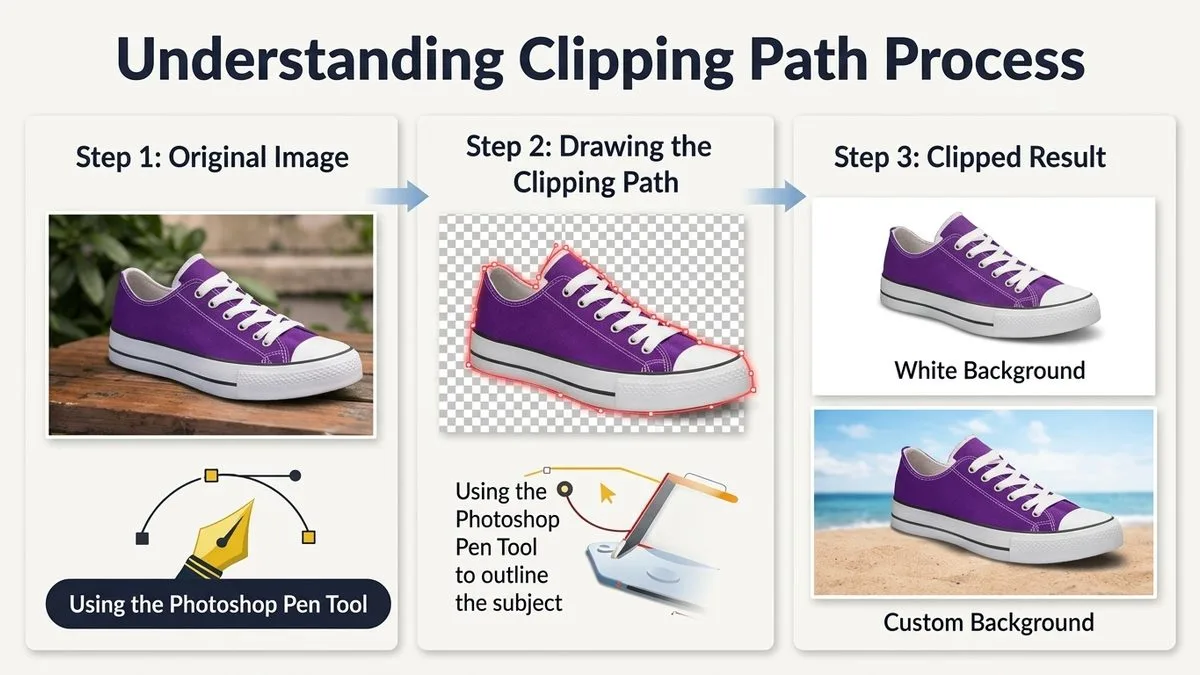
- Let's Start With the Short Version
- Okay, So What Is a Clipping Path, Really?
- The Five Difficulty Tiers (and What You Should Pay)
- How a Pro Actually Draws One (Step by Step)
- Clipping Path vs Masking vs AI: Which One Do You Actually Need?
- Why This Matters for Your Store (It's Not Just Vanity)
- The Quality Check: How to Tell a Good Cutout From a Bad One
- Should You DIY or Outsource?
- The Five Mistakes That Make Cutouts Look Amateur
- Frequently Asked Questions
- The Bottom Line
Let’s Start With the Short Version
If you’ve ever uploaded a product photo and thought, why does the edge look fuzzy and why is there a weird white halo around it? — that’s exactly what a professional clipping path fixes. A clipping path is a hand-drawn outline, traced around your product with Photoshop’s Pen Tool, that cuts it out of the background with edges so sharp they stay clean at any size — from a tiny phone thumbnail all the way up to a billboard. It’s the reason big-brand catalogs look crisp and yours might look a little soft.
Here’s what you actually need to know: professional hand-drawn paths start at 30¢ per image for simple products. Studios sort every photo into five difficulty levels — basic, simple, medium, complex, and super-complex — and the price climbs with how fiddly the product is. You use a clipping path for hard, clean edges (shoes, bottles, boxes, phones, jewelry); you use image masking for fuzzy or see-through stuff (hair, fur, glass, veils); and you use AI background removers only for quick, low-stakes batches — because they still leave halos and miss details on anything tricky.
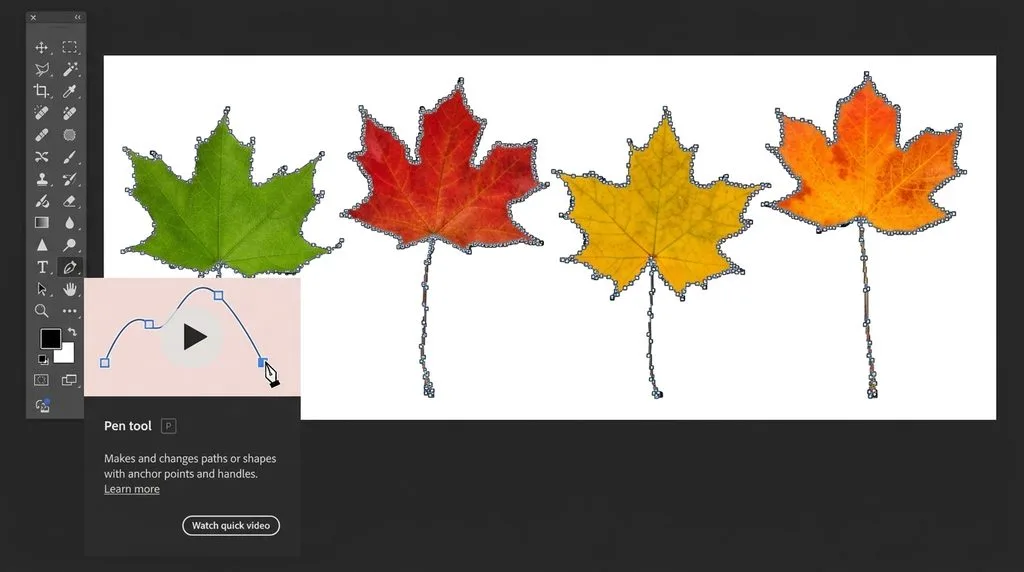
In this guide I’ll walk you through exactly what a clipping path is, how a pro draws one (step by step), what each tier should cost, when to DIY vs. outsource, and the five dumb mistakes that make even an expensive cutout look amateur. If you want the tool mechanics, Adobe’s official Pen Tool guide is the reference our editors keep bookmarked.
Okay, So What Is a Clipping Path, Really?
Forget the jargon for a second. Imagine you took a pair of very tiny, very precise scissors and cut your product out of the photo by hand, following every curve perfectly. That’s a clipping path — except the “scissors” are anchor points and curves drawn on the computer, and because it’s vector math instead of pixels, the cut never gets blurry no matter how much you blow it up. That last part is the whole secret. AI tools and Magic Wand select pixels, and pixels get jaggy when you scale them. A hand-drawn path is math, and math stays sharp forever.
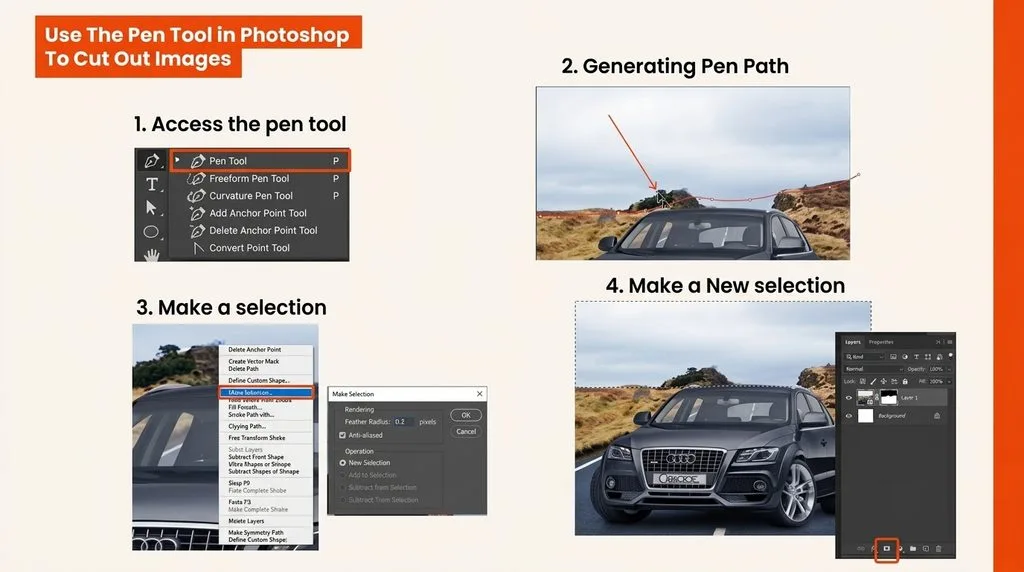
Here’s how a pro actually draws one. They zoom in to 200–400% (because edges that look fine at normal size are full of little wobbles up close), grab the Pen Tool, and place points around your product — corner points on sharp bends, smooth curve points on rounded edges. They drag little handles to make the curve hug the product exactly. And here’s a trick most beginners miss: they draw the path 1–2 pixels inside the real edge of the product. Why? Because if you trace right on the edge, you leave a tiny sliver of the old background — that’s the white or colored halo you’ve seen on cheap cutouts. Going 1–2px inside kills it completely.
If you’re curious about all the different ways businesses use this, our clipping path service hand-draws every path (never AI) starting at 30¢ an image, and our guide on what a clipping path is lists 20 real-world uses — from catalogs to color swaps.
The Five Difficulty Tiers (and What You Should Pay)
This is where most people get confused — and where a lot of studios quietly overcharge. Not every cutout is the same job. A cardboard box takes about a minute. A bicycle wheel with 48 spokes? That’s an hour. So studios sort images into tiers, and the tier sets the price.
| Tier | How fiddly it is | Time per photo | Price | You’ll see this on |
|---|---|---|---|---|
| Basic | Simple shapes, few curves | 30 sec – 2 min | $0.25 – $0.50 | Boxes, books, mugs, plain bottles, phones |
| Simple | Mild curves, one object | 2 – 5 min | $0.49 – $0.99 | T-shirts, watches, one handbag, simple sunglasses |
| Medium | More curves, maybe a hole or two | 5 – 15 min | $0.99 – $1.99 | Shoes, sleeves, single-strand jewelry, chairs |
| Complex | Lots of separate parts | 15 – 40 min | $2.49 – $3.99 | Bicycles, group shots, spoke-back chairs, wire baskets, layered necklaces |
| Super-complex | Fine detail, tons of holes | 40 – 90+ min | $4 – $10+ | Chains, nets, wicker, detailed motorbikes, anything with mesh |
Two special types come up a lot, and they’re worth knowing by name:
- Multiple clipping path (or “color path”): separate outlines for each part of a product — the shirt body, the collar, the buttons — so you can recolor each one independently. If you sell the same shirt in ten colors, this one photo does the work of ten. Our multi-clipping path service starts at $1.19 per image.
- Compound path: a clipping path plus image masking, used when a product has both hard and fuzzy parts — think a doll with hair, or a model in a lace dress. Our clipping path vs image masking guide explains exactly when you need which.
Want to keep your image editing costs low without sacrificing quality?
Enjoy premium, hand-drawn Clipping Path services starting at just 30¢ per image.
How a Pro Actually Draws One (Step by Step)
I won’t lie to you — drawing a great clipping path is tedious, and that’s exactly why most people outsource it. But if you want to know what you’re paying for (or try it yourself), here’s the real workflow our editors follow on every single image:
- Open and prep. Full resolution, duplicate the layer (never, ever edit the original), check the color space — sRGB for web, wider gamut for print.
- Zoom way in. 200–400%. If you can’t see individual pixels, you can’t trace them accurately.
- Place anchor points with the Pen Tool. Corners get corner points; smooth curves get curve points. The mark of a good editor is fewer points, not more — too many points make wobbly curves.
- Shape the curves. Drag the Bezier handles until the line sits exactly on the product. For symmetrical stuff, draw half and mirror it.
- Nudge it 1–2px inside. This is the halo-killing step I mentioned earlier.
- Save and output. Save the path in the Paths panel, turn it into a selection, and deliver the file the way you need it — PSD or TIFF with the path embedded (so designers can clip it in InDesign), PNG-24 with transparency, or JPG on pure white.
- Check at 100%. Every edge, every corner, every hole. This is where cheap studios cut corners.
If you want to try it at home, our clipping path Photoshop tutorial walks the Pen Tool technique with screenshots.
Clipping Path vs Masking vs AI: Which One Do You Actually Need?
This is the question that saves you the most money, because picking the wrong one means either overpaying or getting garbage results. Here’s the simple version:
| Method | What it does | Use it for | Don’t use it for |
|---|---|---|---|
| Clipping path | Hand-drawn hard outline | Sharp, solid edges — shoes, bottles, boxes, phones, furniture, jewelry | Hair, fur, glass, veils, smoke |
| Image masking | Soft edge selection via alpha channels | Fuzzy or see-through — hair, fur, lace, glass, feathers, mesh | Simple hard products (overkill, costs more) |
| AI background removal | Neural network guesses the edge | Simple products, social posts, quick previews | Hero images, print, glass, reflective metal, dark-on-dark products |
Be honest with yourself about AI. In 2026 it’s great on a plain mug on a white background — seconds per image, basically free. But it still chews up fine hair strands, freaks out on glass (because it’s see-through), mangles reflective metal, and completely falls apart when a dark product sits on a dark background. For your homepage hero shot, your Amazon main image, or anything going to print, a human still does it better. Most smart studios use AI as a first pass and have a person clean it up — that hybrid approach is the real 2026 workflow. We tested the big AI tools head-to-head in our Remove.bg vs PhotoRoom vs Canva vs manual comparison, and the quality gap on complex products is bigger than you’d think.
Struggling with complex hair or fur edges?
Let our experts deliver flawless, natural cutouts with our advanced Image Masking Service
Why This Matters for Your Store (It’s Not Just Vanity)
I know, I know — it’s just a background. But here’s the thing: Amazon and most marketplaces require pure white backgrounds on your main product images, and fuzzy, halo-y cutouts make your whole store look low-rent. Clean, consistent cutouts do three concrete things for you:
- They look sharp everywhere. Mobile thumbnails, zoom views, print catalogs — same clean edge.
- They make your catalog consistent. Every product sits on the same white, same margin, same shadow. Inconsistent editing is the #1 reason clients leave a studio — it just looks unprofessional. Our ecommerce product photo editing workflow covers the whole pipeline.
- They’re reusable. One cutout goes on white, on a lifestyle background, in a composite, in an ad. A JPG with the background deleted is permanent. A path-embedded file is forever.
- They let you recolor. One multi-path photo = every color variant.
- They make ghost mannequin possible. Apparel shot on a mannequin, cut out, and composited to look like an invisible model is wearing it. Our ghost mannequin photography guide walks you through it.
The Quality Check: How to Tell a Good Cutout From a Bad One
Before you pay an invoice (or call your own edit done), zoom to 100% and run this checklist:
- No halo. If you see a faint white or colored fringe around the edge, the path was drawn on the edge instead of 1–2px inside. Send it back.
- Smooth curves, crisp corners. No jaggy wobbles.
- Holes are actually holes. Straps, handles, gaps between spokes — if they’re filled with background, the editor got lazy.
- No stray specks. Little bits of background trapped inside the product shape.
- Right file format. Pure white (#FFFFFF) or true transparency, sRGB for web, embedded path for print.
- Consistent sizing. Products in the same catalog should sit at the same scale and margin.
Should You DIY or Outsource?
If you’ve got three images and an evening, DIY is fine and it’s a good skill to learn. Grab the Pen Tool, zoom in, and practice on something simple like a mug. If you’ve got 50 images and a store to run? Do the math. At 30¢ per basic image, outsourcing costs less than the coffee you’d drink while doing it yourself — and the edges will be better. Our how to outsource photo editing guide walks the whole handoff, and every order comes with unlimited free revisions and 24-hour turnaround, so there’s really no risk.
Want to test our quality before committing to a large order?
Try our Image Background Removal Services risk-free with a free trial.
The Five Mistakes That Make Cutouts Look Amateur
- Too many anchor points. Beginners drop a point every few pixels. Pros use the minimum — fewer points = smoother curves.
- Tracing exactly on the edge. Leaves that 1px halo. Go 1–2px inside. Always.
- Forgetting the holes. Straps, handles, spokes, gaps — if it’s see-through, it gets cut out too.
- Using AI on the important stuff. AI is for previews. Hand-drawn is for hero images, print, and anything people zoom into.
- Saving JPG when you needed transparency. If the background might change later, deliver PNG-24 or a PSD/TIFF with the path embedded. JPG flattens everything.
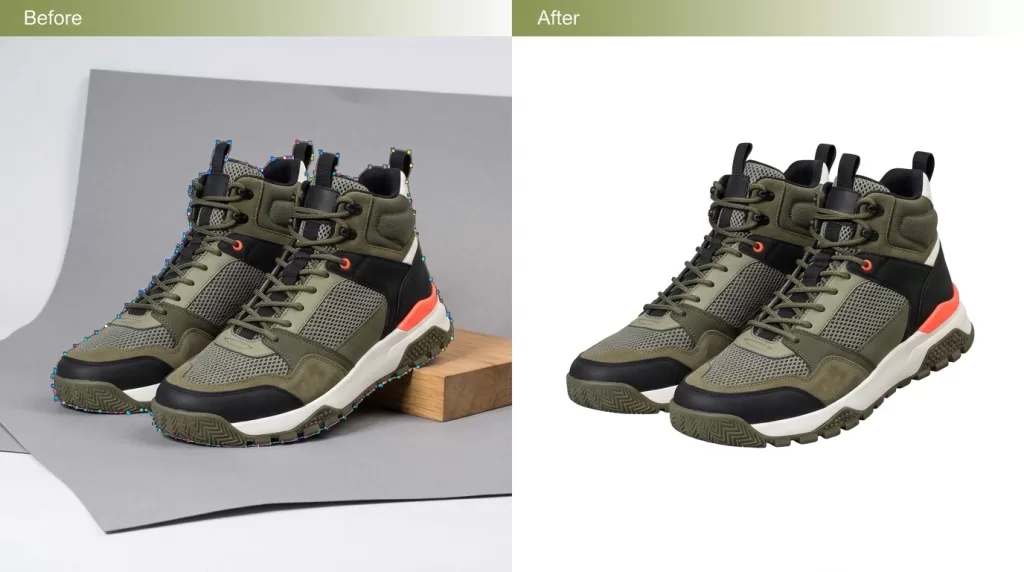
Do automated tools fail on your multi-part products?
Rely on 100% hand-drawn precision with our Multiple Clipping Path Service
Frequently Asked Questions
What is a clipping path?
It’s a hand-drawn outline — usually with Photoshop’s Pen Tool — that cuts your product out of its background. Because it’s vector-based, the edges stay sharp at any size, which is why it’s the professional standard for ecommerce and print cutouts.
How much does a professional clipping path cost?
Basic products start at 30¢ per image. Medium complexity runs $0.99–$1.99. Complex runs $2.49–$3.99. Super-complex stuff like chains and nets runs $4–$10+. Multi-path for color changes starts at $1.19. Bulk orders usually get 20–40% off.
What’s the difference between a clipping path and image masking?
A clipping path is a hard, sharp outline for solid edges — shoes, bottles, boxes. Image masking preserves soft or see-through edges — hair, fur, glass, veils. A lot of tricky products need both, which is called a compound path.
Can AI replace clipping path services?
For simple products and quick batches, yes — AI is fast and cheap. For hero images, print, complex edges, glass, reflective metal, or dark products on dark backgrounds, hand-drawn paths still win. Most studios use AI as a first pass and have a human clean it up.
What is a multiple clipping path?
It’s a separate outline for each part of a product — shirt body, collar, cuffs, buttons — so you can recolor each part independently. It’s how apparel stores sell the same item in ten colors from one photo.
What software do professionals use?
Adobe Photoshop with the Pen Tool is the industry standard. Illustrator is used for vector-native output. Affinity Photo and GIMP are cheaper alternatives. Pros deliver PSD, TIFF with embedded path, PNG-24 with transparency, or JPG on white.
How long does a clipping path take?
Basic: under two minutes. Simple: 2–5. Medium: 5–15. Complex: 15–40. Super-complex: 40–90+ minutes. A 100-image batch usually turns around in 24 hours; rush jobs come back in 6–12.
When should I use a clipping path instead of just deleting the background?
Any time you want a cutout you can reuse — ecommerce main images, print catalogs, billboards, composites, anything that might go on a different background later. A flattened JPG is permanent; a path-embedded file is flexible forever.
The Bottom Line
A professional clipping path is still the best way to get a clean cutout in 2026, because a hand-drawn vector edge stays sharp at any size and doesn’t leave the halos and missed details that AI does. Match the difficulty tier to your product, use masking for fuzzy stuff and AI for simple batches, draw the path 1–2px inside the edge, and deliver the right file format. Do that, and every product photo in your catalog will look clean, consistent, and ready to sell.