

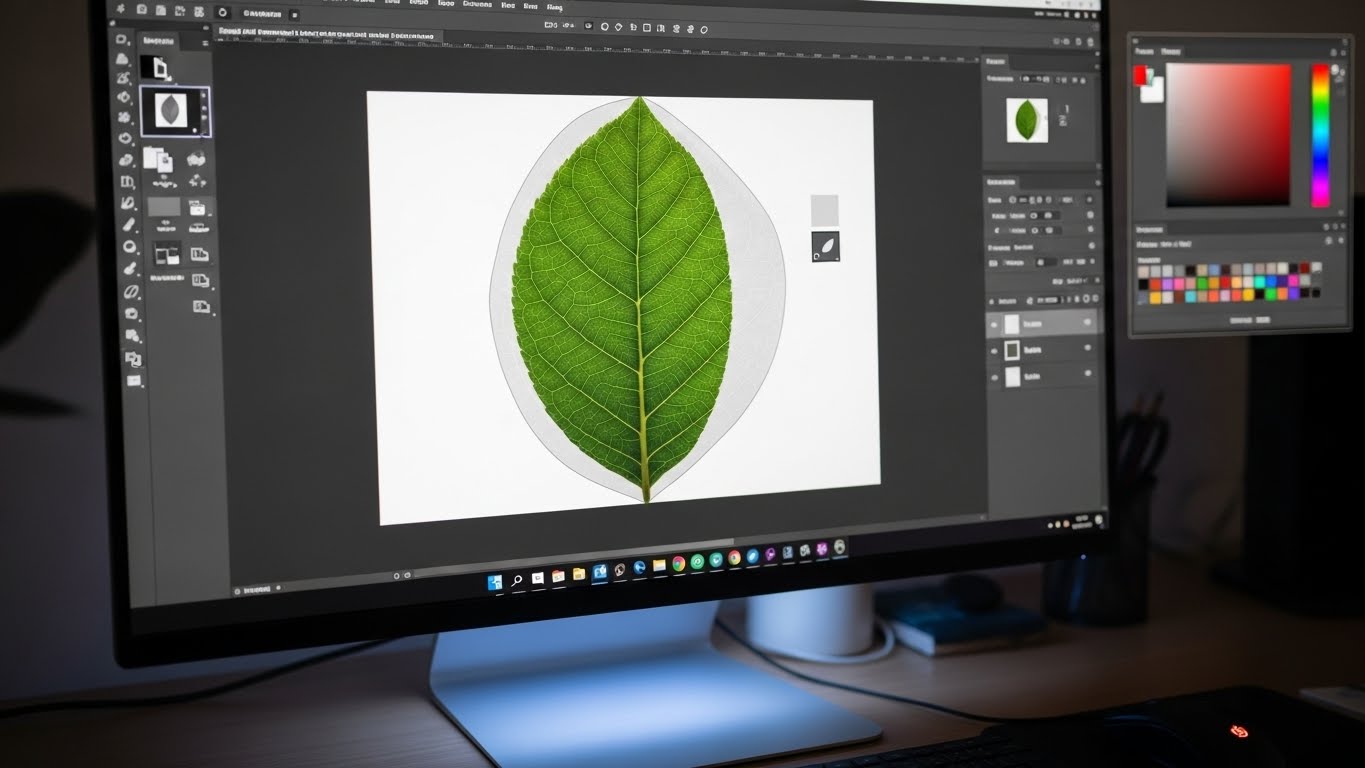
Unlocking the Power of Bitmap Masking in Digital Editing
January 19, 2026
Photography Editing Tips: How to Get Professional Results Without Being a Pro
January 22, 2026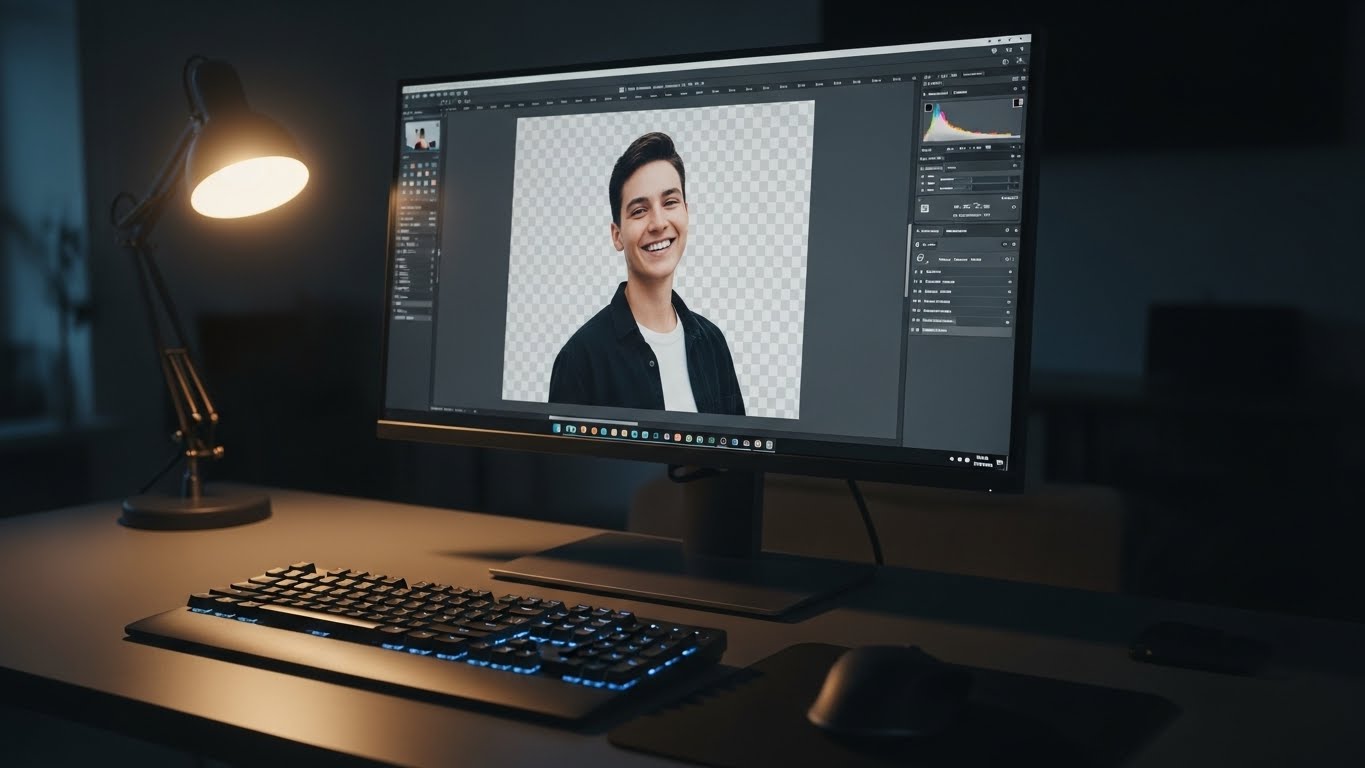
People remove background from image for many reasons. E-commerce sellers need white or transparent backgrounds for listings on platforms like Amazon or Shopify. Content creators want subjects to pop in thumbnails or collages. Designers layer elements seamlessly in presentations or logos.
Modern AI background removal handles complex edges automatically, saving hours compared to manual work. Tools now process high-resolution files quickly, support batch editing, and integrate into workflows.
- Best Free Online Tools to Remove Background from Picture
- How to Remove Background in Canva (Free & Pro Options)
- How to Remove Background in Photoshop (Professional Method)
- Best Free Offline Methods: GIMP and More
- Paid Tools and Advanced Options for Precision
- How to Remove Background in Illustrator (Vector-Friendly Approach)
- Tips for Perfect Background Removal Every Time
- Conclusion: Choose Your Best Method in 2026
- FAQs
Best Free Online Tools to Remove Background from Picture
Online tools lead the way in 2026 because they require no installation and work on any device. Here are the top free options that deliver excellent results.
Remove.bg stands out for its speed and accuracy. Upload your photo, and the AI instantly isolates the subject. It excels with portraits and products, handling fine details well. Download as a transparent PNG for free (with some resolution limits on the basic version). Many users prefer it for quick one-click jobs.
Pixelcut offers super-fast processing and high-quality cutouts. It supports batch removal in paid tiers, but the free version handles single images perfectly. Great for e-commerce users who need clean product shots.
Photoroom shines for mobile users and sellers. It removes backgrounds instantly and lets you add new scenes or shadows. The free tier includes generous exports, making it ideal for social media creators.
Adobe Express provides a professional-grade free background remover. Drag your image in, and the tool creates a clean cutout. You can then add filters, shapes, or new backgrounds right in the editor. For transparent PNG exports, the background eraser delivers watermark-free results powered by the same AI technology used in Photoshop.
EzRemove.ai gives reliable results with no sign-up needed. It handles portraits, objects, and even some tricky edges, outputting transparent PNGs quickly.
These tools make how to remove background from picture effortless, just upload and download.
How to Remove Background in Canva (Free & Pro Options)
Canva remains a favorite for beginners and designers. The Background Remover tool (under Magic Studio) works automatically.
Follow these steps for how to remove background in Canva:
- Open Canva and start a new design or upload your photo.
- Click the image, then select “Edit photo.”
- Choose “BG Remover” (available in free trials or Pro accounts for unlimited use).
- The AI processes it in seconds, creating a transparent background.
- Fine-tune edges if needed, then add new backgrounds from Canva’s library.
Pro users enjoy unlimited removals, higher quality, and extra features like background generation. Even free users can try it occasionally. This makes Canva perfect for quick social posts, flyers, or presentations.
How to Remove Background in Photoshop (Professional Method)
Adobe Photoshop delivers unmatched control for how to remove background in Photoshop. In 2026, AI features make it faster.
Here’s a simple workflow:
- Open your image in Photoshop.
- Go to the Properties panel or use the Discover panel (search “Remove Background”).
- Click the “Remove Background” Quick Action, Photoshop uses AI to isolate the subject and create a mask.
- Refine edges with the Brush tool, Refine Edge Brush, or Select Subject for complex areas.
- Export as PNG to keep transparency.
This method suits pros who need pixel-perfect results. For finer control, combine it with the Object Selection Tool or Pen Tool. While it requires a subscription, the precision justifies it for high-end work.
Best Free Offline Methods: GIMP and More
Offline tools give you full privacy and no internet needed. GIMP (free, open-source) remains a strong choice.
How to remove background in GIMP:
- Open your image.
- Use the Fuzzy Select Tool (magic wand) or Foreground Select Tool for AI-like selection.
- Refine with layer masks and brushes.
- Delete the background layer and export as PNG.
GIMP offers powerful manual control without any cost. Photopea (browser-based but works offline-like) provides similar features with an AI background remover option in premium.
These options work great when you handle sensitive images or need no limits.
Paid Tools and Advanced Options for Precision
When free tools fall short, paid solutions step up.
remove.bg premium unlocks high-res downloads, batch processing, and API access.
Photoroom Pro adds unlimited HD exports, custom backgrounds, and mobile optimization.
Pixelcut Pro (around $10/month) provides better resolution and batch features.
Adobe Photoshop (subscription) combines AI with manual tools for ultimate flexibility.
These tools save time on bulk work or demanding projects like e-commerce catalogs.
How to Remove Background in Illustrator (Vector-Friendly Approach)
Adobe Illustrator works best for logos or graphics. Use the Image Trace feature or Pen Tool for vectors.
Steps for how to remove background in Illustrator:
- Place your raster image.
- Use Image Trace to convert to vector (adjust presets for clean edges).
- Expand and ungroup, then delete the background.
- Or manually trace with Pen Tool for full control.
This method creates scalable results perfect for branding.
Tips for Perfect Background Removal Every Time
Follow these tips to get flawless results:
- Use high-contrast photos, the subject stands out easier.
- Choose high-resolution originals to avoid pixelation.
- Refine edges manually if AI misses fine hair or fur.
- Test multiple tools on the same image to find the best fit.
- Save as PNG to preserve transparency.
- Batch process for large projects with paid tools.
These habits ensure professional-quality images consistently.
Conclusion: Choose Your Best Method in 2026
Removing backgrounds from pictures has never been easier. Free online tools like remove.bg, Pixelcut, and Photoroom handle most tasks instantly. Canva suits quick designs, while Photoshop and GIMP offer deep control offline or professionally.
Pick based on your workflow, speed for casual use, precision for business. Experiment with a few options today, and watch your images transform.
FAQs
1. What is the easiest way to remove background from picture for free?
The easiest free method uses online AI tools like remove.bg or Pixelcut. Upload your image, let the AI process it in seconds, and download the transparent PNG, no skills required.
2. Can I remove background in Canva without paying?
Yes, you can try the Background Remover for free occasionally. For unlimited use, upgrade to Canva Pro, which unlocks it fully along with extra editing features.
3. Does Photoshop still require manual work for background removal in 2026?
No, Photoshop’s AI Quick Actions remove backgrounds automatically with one click. You refine edges manually only for complex images.
4. Which tool works best for removing background from images with hair or fur?
Tools like remove.bg, Photoroom, and Photoshop’s AI handle fine details like hair well. They use advanced models to preserve edges accurately.
5. Are offline tools like GIMP completely free for background removal?
Yes, GIMP is 100% free and open-source. It provides powerful selection tools and masks, though it involves more manual steps than AI online options.