

How to Remove Background from Picture Online & Offline: Best Free and Paid Methods in 2026
January 19, 2026
Best Photo Retouching Software in 2026
January 24, 2026
You snap a great shot, but it falls flat when you look closer. Colors seem off, lighting lacks punch, or distractions clutter the frame. That’s where photography editing tips come in handy. Even if you’re not a seasoned expert, simple tweaks can transform your images into polished gems that wow viewers. This guide breaks down practical steps to achieve those pro-level outcomes right from your laptop or phone.
Many folks think editing requires fancy degrees or expensive gear. Not true. With the right approach, anyone elevates their work. Start by focusing on core elements like exposure and color balance. These photography editing tips build confidence fast, turning average pics into standout pieces. You’ll learn tools, techniques, and tricks that pros swear by, all without overwhelming complexity.
- Why Editing Matters in Your Photography Journey
- Choosing the Best Tools for Beginner Editors
- Mastering Exposure: The Foundation of Great Edits
- Perfecting Contrast for Dynamic Images
- Color Correction: Bringing Vibrancy to Life
- Cropping and Composition: Framing Your Story
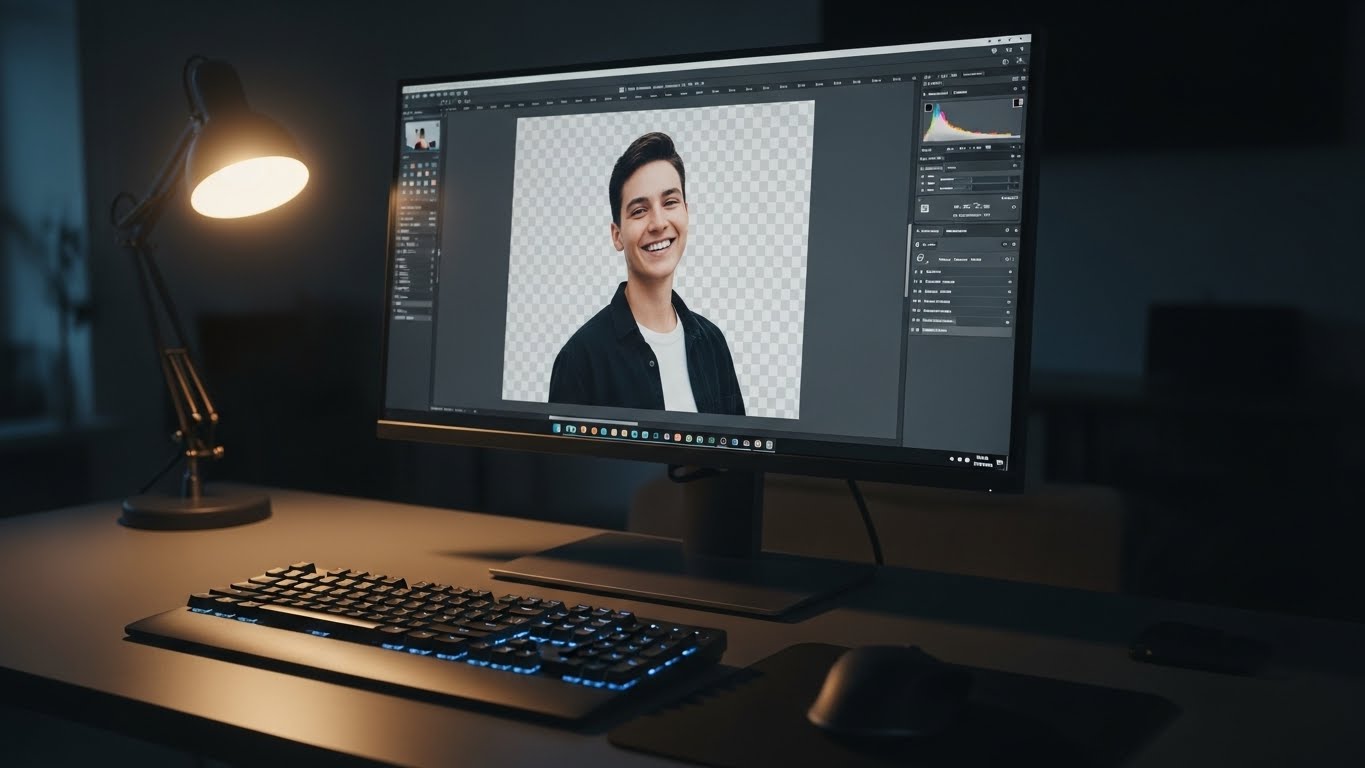
- Removing Backgrounds for Clean, Focused Shots
- Sharpening Techniques to Add Crisp Details
- Reducing Noise for Smoother Results
- Layering and Masks: Advanced Yet Accessible Control
- Adding Creative Effects for Unique Flair
- Building an Efficient Editing Workflow
- Common Mistakes to Avoid in Photo Editing
- Integrating Editing with Shooting Habits
- Exploring Free vs. Paid Editing Software
- Editing for Different Genres: Portraits vs. Landscapes
- Mobile Editing: Pro Results on the Go
- Final Thoughts on Elevating Your Photography
- FAQs
Why Editing Matters in Your Photography Journey
Editing isn’t just fixing mistakes; it enhances what your camera captures. Cameras don’t always see the world like our eyes do. They might wash out skies or dull vibrant hues. Applying smart photography editing tips bridges that gap, making images pop with life.
Pros use editing to tell stories better. A slight crop draws eyes to the subject, while boosting contrast adds drama. Beginners often skip this step, but embracing it unlocks creativity. Think of it as polishing a rough diamond – the raw material shines brighter after some care.
You’ll notice immediate differences. Friends comment on your improved shots, and social shares increase. Plus, it saves time in the long run by teaching you to shoot with editing in mind. Dive into these photography editing tips, and watch your portfolio grow.
Choosing the Best Tools for Beginner Editors
Start with user-friendly software that doesn’t intimidate. Free options like GIMP offer powerful features without cost. It handles layers, masks, and adjustments seamlessly. For mobile users, apps like Snapseed provide quick edits on the go.
Paid tools step it up. Adobe Lightroom shines for organizing and batch editing photos. Its presets speed up workflows, letting you apply pro looks instantly. Explore resources to learn more about editing like a professional through helpful tutorials.
Consider your needs. If you edit portraits, look for skin-smoothing tools. Landscape lovers benefit from horizon straightening. Test a few programs to find your fit. The right tool makes photography editing tips easier to apply daily.
Mastering Exposure: The Foundation of Great Edits
Exposure sets the tone for every image. Too dark, and details hide in shadows; too bright, and highlights blow out. Adjust brightness first to reveal hidden elements. Use histograms in your software – they guide you to balanced levels.
Slide the exposure bar gradually. Watch how midtones come alive. Pair it with highlights and shadows sliders for fine control. This prevents flat-looking photos. Pros always nail this step early in their process.
Practice on underexposed shots. Boost them without adding noise. Over time, your eye sharpens, making decisions quicker. These photography editing tips on exposure turn drab images into vibrant ones effortlessly.
- Check histogram for clipped areas.
- Adjust whites and blacks for depth.
- Use curves tool for precise tweaks.
Perfecting Contrast for Dynamic Images
Contrast makes elements stand out. Low contrast flattens scenes; high contrast adds punch. Increase it to separate subjects from backgrounds. But overdo it, and photos look harsh.
Use the contrast slider sparingly. Combine with clarity for texture without artifacts. This works wonders on landscapes, emphasizing skies against foregrounds.
For portraits, softer contrast flatters skin. Experiment with local adjustments – brush on contrast where needed. Photography editing tips like these create depth that draws viewers in.
Color Correction: Bringing Vibrancy to Life
Colors evoke emotions, so get them right. White balance fixes tints from lighting. Warm up cool shots or cool down overly orange ones. Use eyedropper tools on neutral grays for accuracy.
Saturation boosts hues, but subtlety wins. Over-saturate, and images scream unnatural. Vibrance targets muted colors, leaving skin tones realistic.
HSL panels let you tweak individual colors. Dial down distracting reds or enhance blues in skies. These photography editing tips ensure colors pop naturally, mimicking pro results.

Cropping and Composition: Framing Your Story
Cropping refines focus. Remove distractions to guide eyes to the main subject. Follow the rule of thirds – place key elements off-center for balance.
Straighten horizons for professionalism. Rotate slightly if lines tilt. This simple fix elevates amateur shots.
Experiment with aspect ratios. Square crops suit social media; wide ones enhance panoramas. Photography editing tips on composition turn good photos into compelling narratives.
- Use grid overlays for alignment.
- Crop to eliminate clutter.
- Preserve resolution for prints.
Removing Backgrounds for Clean, Focused Shots
Sometimes backgrounds distract from the star of the show. Isolate subjects for impact. Tools like selection brushes make this doable for beginners.
Manual methods work for simple edges. Trace outlines carefully, then delete or mask the rest. For complex subjects, advanced techniques save time.
Learn the best methods to remove background from image through reliable guides. This creates versatile images for composites or products.
Apply feathering to edges for seamless blends. Practice on portraits or objects. These photography editing tips open doors to creative freedom.
Sharpening Techniques to Add Crisp Details
Sharpening brings out textures without overdoing it. Apply it last to avoid amplifying noise. Use unsharp mask for control over amount and radius.
Focus on eyes in portraits – they draw attention. For landscapes, sharpen foliage or rocks subtly.
High-pass filters offer another way. Duplicate layers, apply the filter, then blend. Photography editing tips like sharpening make prints look razor-sharp.
Reducing Noise for Smoother Results
Noise grains appear in low-light shots. Reduce it early to clean up images. Sliders target luminance and color noise separately.
Over-reduce, and details soften. Balance is key. Use masks to apply noise reduction only where needed, like shadows.
Tools in Lightroom handle this well. For more options, check out Denoise features in Photoshop. These steps ensure pro-quality smoothness.

Layering and Masks: Advanced Yet Accessible Control
Layers let you edit non-destructively. Stack adjustments without altering originals. Masks hide or reveal parts, perfect for selective edits.
Brush on masks for precision. Soften edges with feathering. This targets skies or skin without affecting the whole image.
Start simple: duplicate your background layer. Apply effects, then mask out unwanted areas. Photography editing tips with layers build complexity gradually.
Adding Creative Effects for Unique Flair
Effects personalize your style. Black and white conversions strip color to emphasize form. Use them for moody portraits.
Vignettes darken edges, focusing on centers. Apply lightly to avoid obviousness.
Split toning adds warmth to highlights and cool to shadows. Experiment to find your vibe. These photography editing tips spark creativity.
- Try presets for quick starts.
- Adjust opacity for subtlety.
- Save custom effects for reuse.
Building an Efficient Editing Workflow
Workflow streamlines your process. Organize files first – rename and tag them. This saves hunting later.
Batch edit similar shots. Apply adjustments to one, sync to others. Tools like Lightroom excel here.
Set keyboard shortcuts for speed. Review at 100% zoom for details. Consistent workflows make photography editing tips second nature.
For inspiration, explore free editing tutorials on YouTube. Practice daily to refine your routine.
Common Mistakes to Avoid in Photo Editing
Over-editing ruins authenticity. Step back often to check realism. Fresh eyes spot excesses.
Ignoring calibration leads to inconsistent colors. Use monitor profiles for accuracy.
Skipping backups risks lost work. Save versions as you go. These photography editing tips prevent headaches.
- Don’t crush blacks or blow highlights.
- Avoid trendy filters that date quickly.
- Balance global and local edits.
Integrating Editing with Shooting Habits
Great edits start in-camera. Expose properly to give yourself room. Shoot RAW for more data.
Compose with cropping in mind. Leave space for adjustments. This synergy amplifies photography editing tips.
Review shots on larger screens post-shoot. Note edits needed for next time. It sharpens both skills.
Exploring Free vs. Paid Editing Software
Free tools like Darktable mimic pro features. They handle RAW processing well.
Paid ones offer cloud sync and AI-assisted edits – wait, skip that word – advanced auto-adjustments. Weigh costs against needs.
For beginners, start free. Upgrade as skills grow. Resources like GIMP tutorials build foundations.
Editing for Different Genres: Portraits vs. Landscapes
Portraits demand skin retouching. Smooth blemishes gently, preserve texture.
Landscapes need wide dynamic range. Bracket exposures, merge for balance.
Tailor photography editing tips to genres. Wildlife shots sharpen eyes; food photos boost appetizing colors.
Mobile Editing: Pro Results on the Go
Apps like VSCO offer filters and tools. Adjust curves anywhere.
Sync with desktop for seamless workflows. Cloud storage helps.
These portable options make photography editing tips accessible anytime.
Final Thoughts on Elevating Your Photography
Wrapping up, these photography editing tips empower anyone to achieve professional results without years of training. Practice consistently, experiment boldly, and refine your eye. Your images will transform, captivating audiences with their polish and story. Remember, editing enhances your vision – embrace it fully.
FAQs
- What basic software should I start with for photo editing?
Begin with free options like GIMP or mobile apps such as Snapseed. They offer essential tools for adjustments without overwhelming beginners. - How do I fix overexposed photos quickly?
Lower the highlights and exposure sliders in your editor. Use histograms to guide balances, ensuring details return without flattening the image. - Is it possible to edit photos professionally on a phone?
Yes, apps like Lightroom Mobile provide pro-level controls. Sync with desktops for advanced tweaks, making on-the-go edits effective. - Why do my edited colors look different on other screens?
Monitor calibration varies. Use color profiles and test on multiple devices to ensure consistency across views. - How can I remove unwanted objects from photos?
Use clone or healing tools to sample nearby areas. For backgrounds, masking techniques isolate subjects cleanly. - What’s the best way to sharpen images without noise?
Apply sharpening selectively with masks. Use unsharp mask at low radii, checking at full zoom for natural results. - Should I always shoot in RAW format for editing?
Absolutely, RAW files hold more data for flexible adjustments. It allows better recovery of details in post-processing. - How often should I back up my edited photos?
Back up after every session. Use cloud services or external drives to prevent loss from unexpected issues.