


How to Remove Red Eye in Photos: Lightroom, Photoshop & Free Tools
October 8, 2026
How to Blur a Picture in Photoshop: Background, Edges & Faces
October 9, 2026
If you notice that photos or videos are missing from your GoPro SD card, the best thing you can do is stop using the card. Recording new footage could overwrite the files you want to recover.
Copies saved to your phone, computer, or cloud storage are worth checking first. If those don’t cover what’s missing, the next option is GoPro file recovery on Windows. This guide walks through both routes, including what to do when recovered videos won’t play.
What to Do Before You Start
Before you connect the card to your computer, prepare a card reader and a folder on another drive for the recovered files. Your computer’s internal drive is fine if it has enough free space.
Before you scan the card, take these precautions:
- Dismiss any request to format the card. Windows may show this message when it cannot read the file system. You don’t need to format the card before scanning it.
- Leave repair tools alone for now. CHKDSK and Windows error checking can change the card’s file system, which may complicate recovery.
- Check the destination drive. Allow enough space for the files you want to recover. For videos larger than 4 GB, use an NTFS or exFAT drive rather than FAT32.
If you don’t remember deleting anything, check this guide to why photos disappeared from an SD card. It explains possible causes and ways to find or recover the missing files.
If the card is visibly damaged or repeatedly disconnects, stop the attempt and consider a data recovery service.
Recover Deleted GoPro Photos and Videos with Recovery Software
Start recovery as soon as you can, before the card is used again and new recordings overwrite deleted files. Recovery software can search your GoPro SD card for photos and videos whose data is still present. Disk Drill is a lost media recovery tool with file previews and a dedicated Advanced Camera Recovery mode that can also recover deleted photos from GoPro or other cameras.
GoPro videos can be stored in separate fragments across the card. A general scan may find parts of a recording without putting together a playable video. Advanced Camera Recovery is designed to locate these fragments and reconstruct the recording. You can read more about this approach in a forum discussion on recovering deleted videos from an SD card. Disk Drill also provides access to an online video repair service for damaged clips.
You can scan and preview files for free, but the Windows version limits free recovery to 100 MB. Larger recoveries require a paid license. You can also check Reddit reviews for other users’ experiences before buying.
Step 1. Install Disk Drill and Connect the Card
Download the Windows installer from CleverFiles and install it on your computer. Remove the microSD card from the GoPro, insert it into a card reader, and connect it to your PC. Open Disk Drill.
Step 2. Select the Card
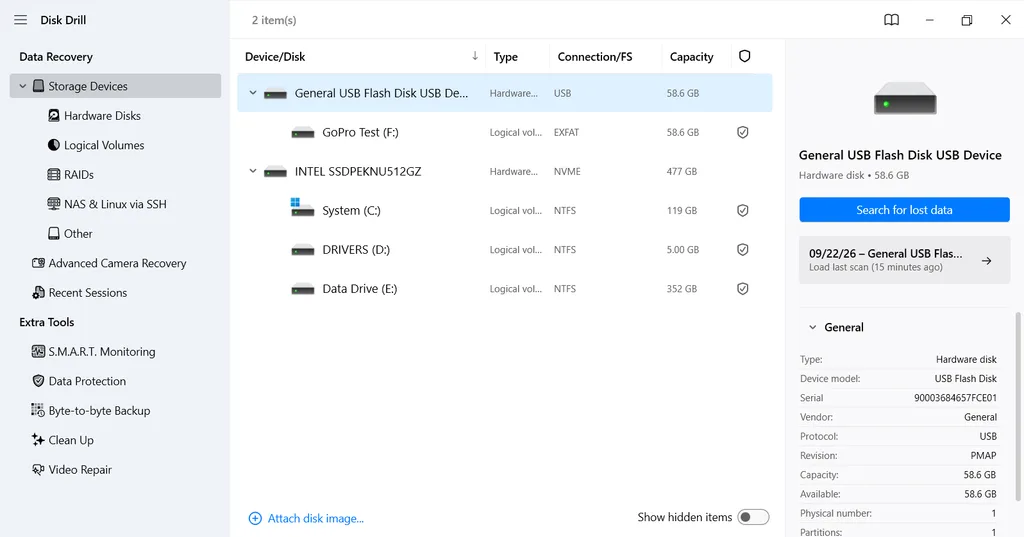
Find the card in the device list using its name and capacity. Select the physical card rather than just a partition.
Step 3. Set Up Advanced Camera Recovery
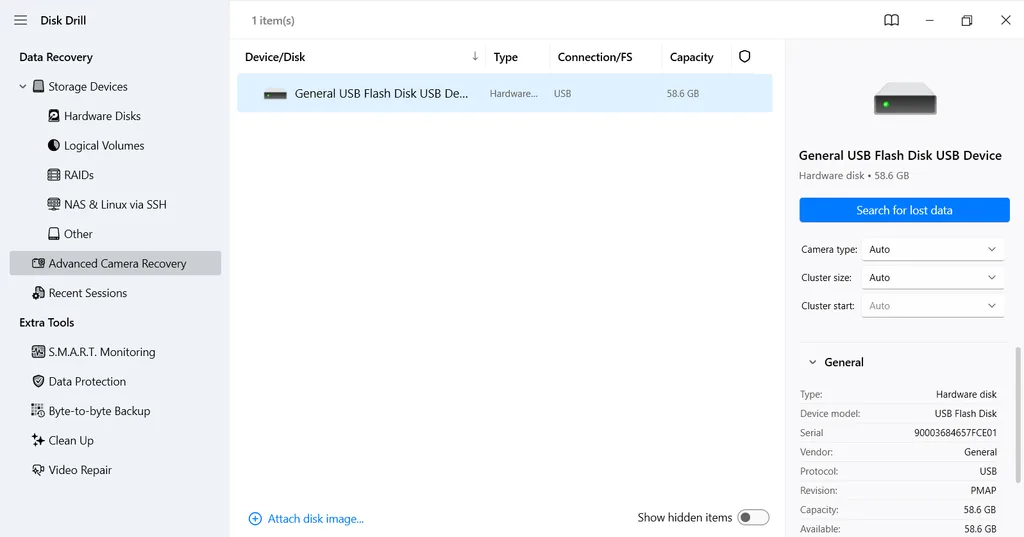
To recover deleted GoPro videos, open Advanced Camera Recovery in the left sidebar and select your SD card. In the Camera type menu, choose the GoPro option that matches your camera, or leave Auto selected if you’re unsure. Leave Cluster size and Cluster start on Auto unless you know the original values.
Step 4. Run the Scan and Review the Results
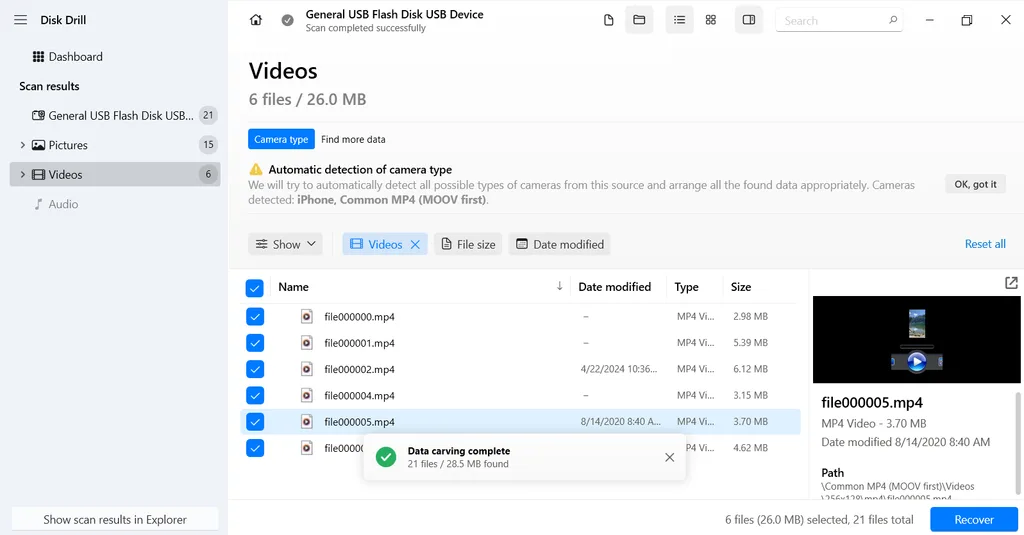
Click Search for lost data and let the scan finish. Use photo or video filters to narrow the results, then preview the files you want to keep. Search by filename if you know it, but also check reconstructed files, which may have different names. Select the relevant clips.
Step 5. Save the Recovered Files
To recover deleted GoPro files, click Recover and choose the destination folder you prepared on another drive.
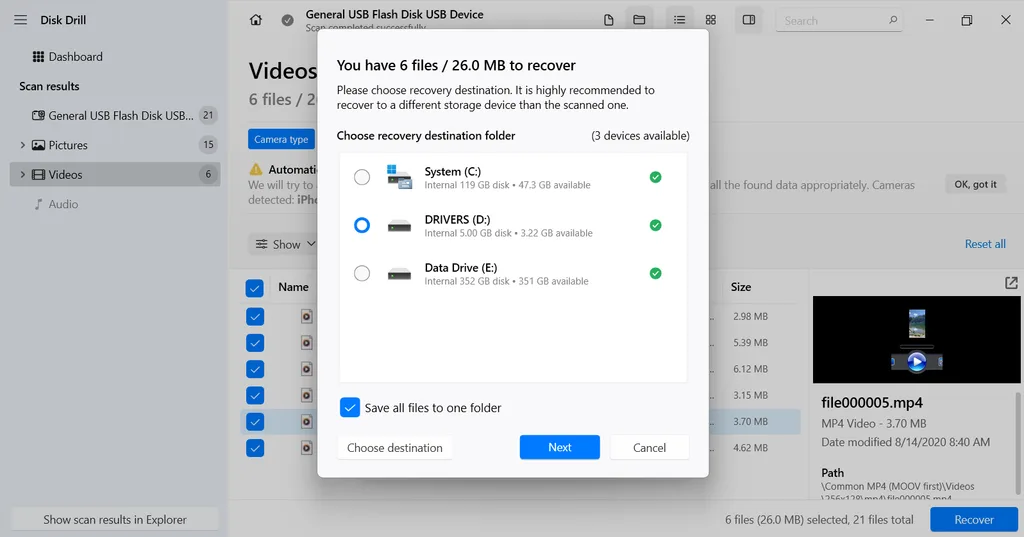
Click Next to start recovery. Once it finishes, open the saved photos and check the videos for playback, sound, and missing sections. Keep the original card unchanged until you have checked the results.
Note: If you’d prefer to try another recovery tool, including a fully free option, community software lists can help you explore what’s available. For GoPro videos, check whether a tool supports fragmented camera recordings before trying it.
Restore Photos and Videos from Existing Backups
If some photos or videos are still missing after recovery, check whether you saved copies during the trip. Start with the devices you used to view, edit, or share your footage.
Step 1. Check Your Phone and Quik
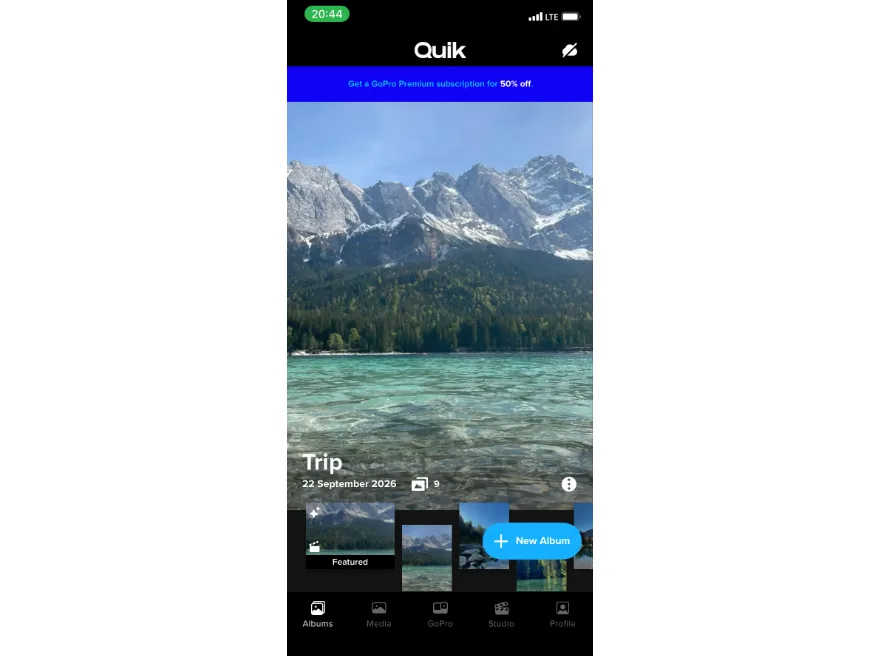
Look for media you previously imported into Quik, then check your phone’s gallery for anything you exported. Disconnect the camera while checking: you want files saved on the phone, not previews of files still on the SD card. If your gallery backs up to Google Photos or iCloud Photos, check there too, including Recently Deleted or Trash if you removed a copy.
Step 2. Look Through Previous Transfers
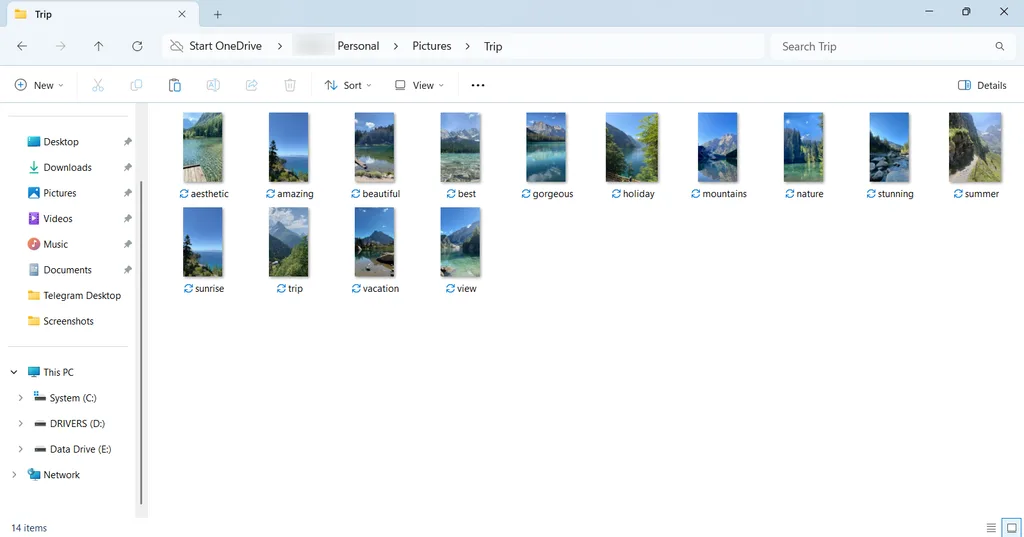
On your computer, check the folders where you imported the trip’s photos and videos, along with any external drive you used. If a transferred copy was later deleted, check the computer’s Recycle Bin or an existing backup. Ask anyone you shared footage with whether they kept the originals; a messaging app may only have a compressed version.
Step 3. Check Your GoPro Cloud Library
If you used GoPro cloud backup, you may be able to recover GoPro footage that finished uploading before it was deleted from the card:
- Sign in to your GoPro account in a browser and open your media library.
- Browse the dates of your trip and find the missing photos and clips.
- Select the files and download them to your computer, choosing original quality if offered.
- Open the downloads to check that the photos display correctly and the videos play with sound.
Keep any copies you find. If they cover only part of the trip, scan the SD card for the remaining files.
What to Do If GoPro Videos Won’t Play
If a recovered clip won’t open, try a player that supports its codec, such as GoPro Player for HEVC footage. A playback error does not necessarily mean the file is damaged.
A video can also become unplayable if the camera loses power or crashes during recording, before it finishes saving the file. The recorded footage may still be present, but the information needed to play it may be incomplete.
In this case, open Video Repair in Disk Drill to access the online repair service and upload a copy of the affected clip from your computer. If requested, provide a working video recorded with the same GoPro and settings as a reference. Download the repaired file and check that it plays correctly. Repair may fix an unfinished file, but it cannot recreate footage that was never recorded or has been overwritten.
FAQ
Can I Recover GoPro Files After Formatting the SD Card?
Sometimes. If formatting left the file contents intact, recovery software may still find them. A format that overwrites the card’s data leaves nothing for software to retrieve from those areas. Recording new footage afterward can also overwrite older files. GoPro video recovery after formatting therefore depends on what remains on the card, not just whether the format finished successfully.
Can I Recover Deleted GoPro Videos Without Removing the SD Card?
You can retrieve previously saved copies from Quik or your GoPro cloud library without removing the SD card. To scan the card for deleted videos, however, you need a card reader.
Connecting the GoPro directly to your computer with a USB cable may let you transfer existing files, but it does not give recovery software direct access to the card’s sectors, where deleted video data may remain. Remove the microSD card from your GoPro, insert it into a card reader, and connect the reader to your computer.
Can GoPro LRV Files Replace Missing MP4 Videos?
An LRV file is a low-resolution video copy used for previews. If one survives, it may let you keep a watchable version of a missing clip. It cannot replace the original MP4 at full quality, though, and changing its extension does not restore lost detail. Keep any LRV files you find until you know whether the original recordings can be recovered.