

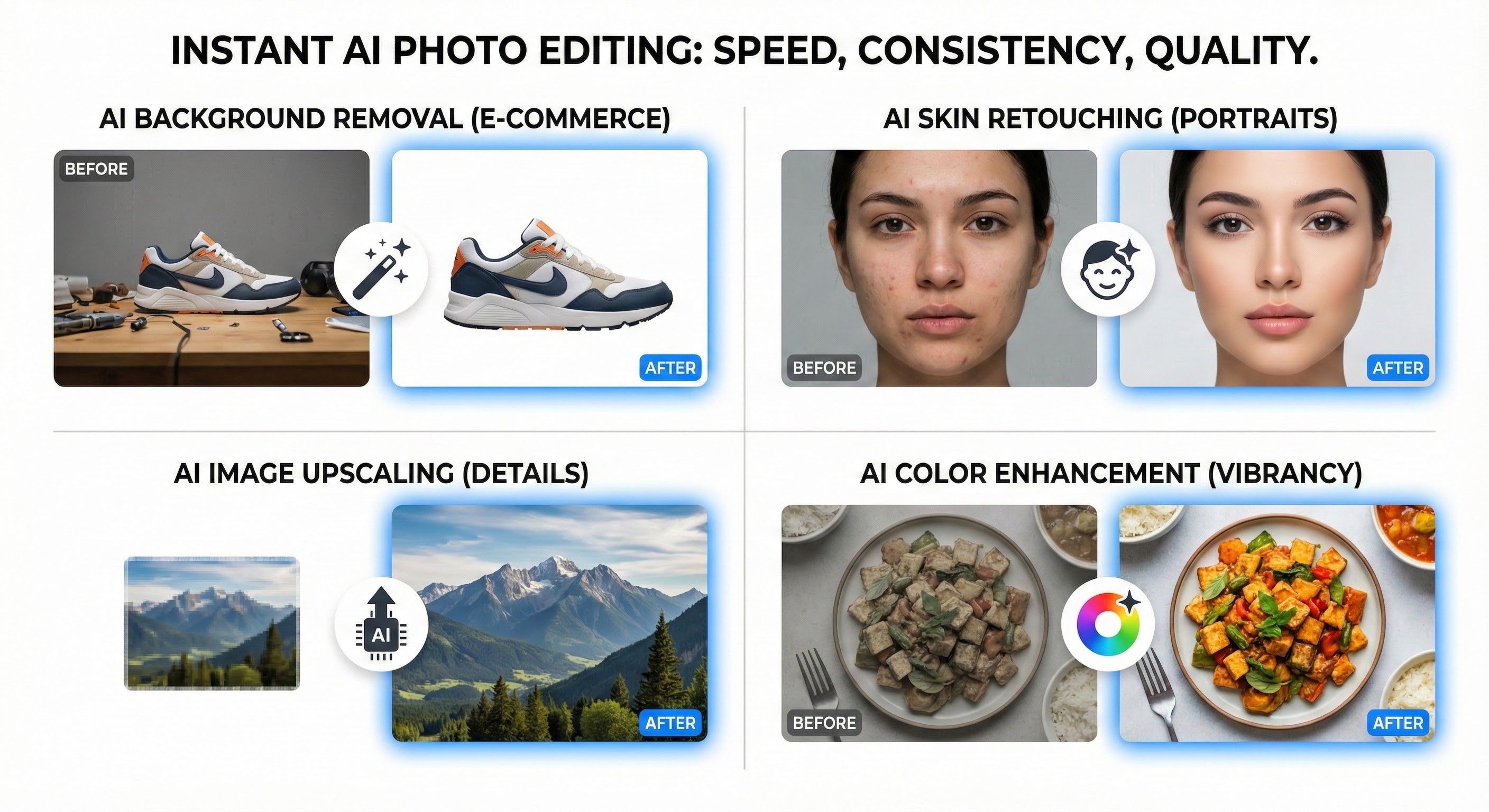
AI Photo Editing: Enhance Your Images with AI-Powered Tools
October 20, 2025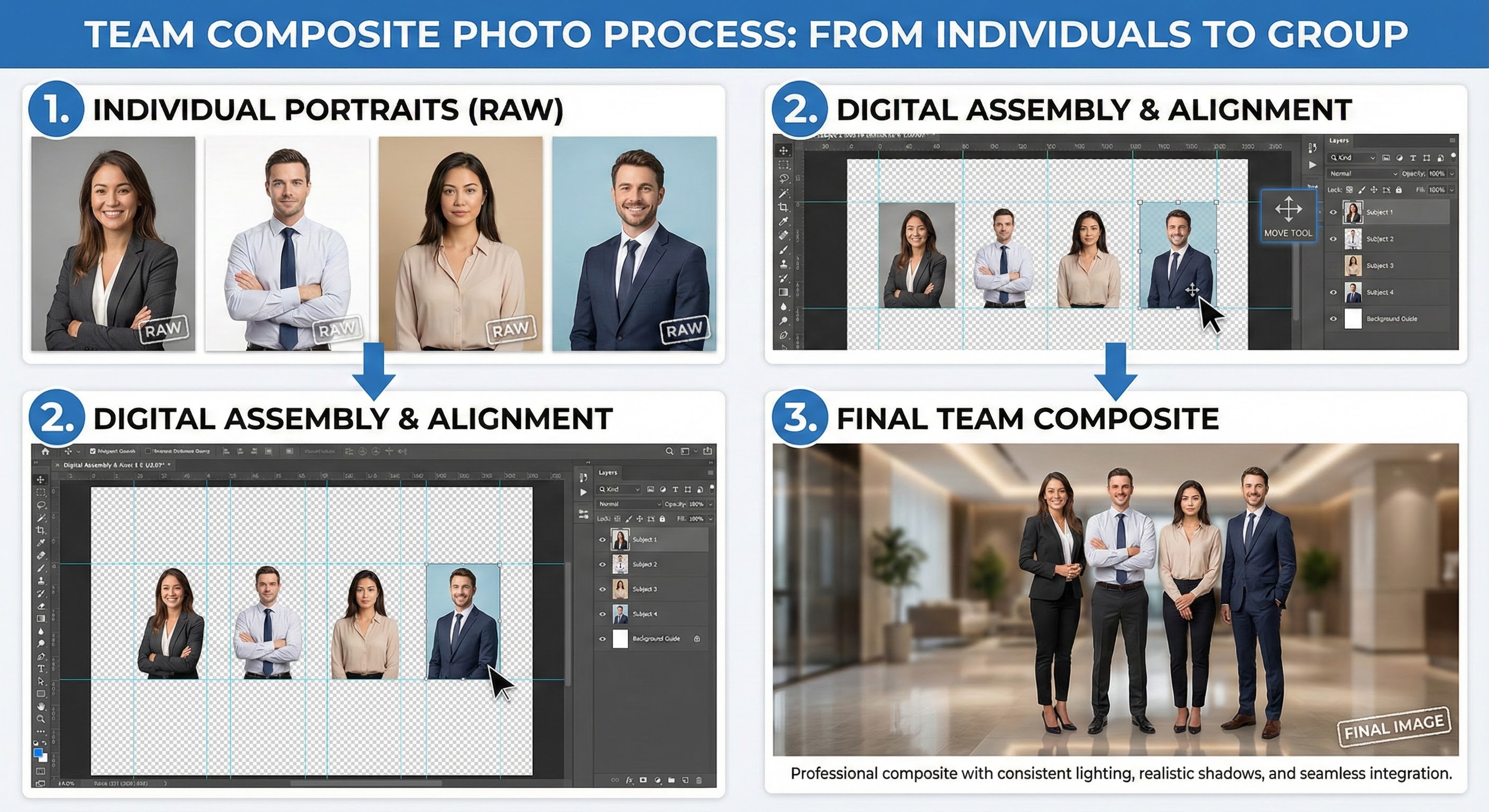
Team Composite Photos: Easy Tips & Step-by-Step Guide
October 20, 2025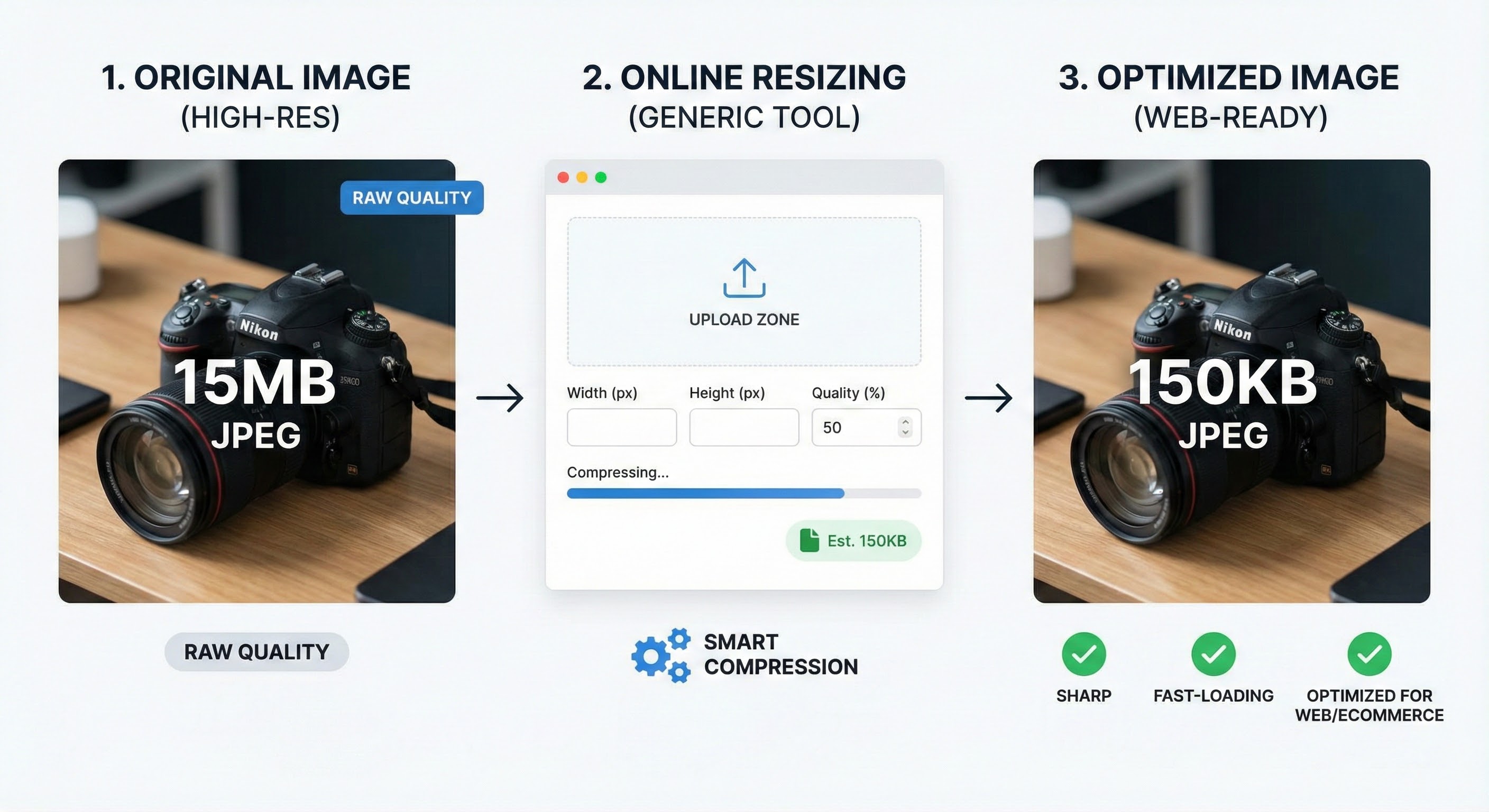
Image Resizing Guide: Maintain Quality Every Time
When it comes to digital photos, image size plays a huge role in quality, loading speed, and user experience. Whether you are preparing product photos for an ecommerce store, optimizing headshots for LinkedIn, or compressing images for your website, one big concern always remains: how do you resize an image without losing quality?
In this guide, we’ll explore the best methods for resizing images in Photoshop and online tools. We’ll also cover smart tips for ecommerce photos, headshots, and outsourcing options to save time and get professional results.
Preparing for Image Resizing
Before jumping into Photoshop or online tools, it’s important to prepare your images correctly. Proper preparation ensures that resizing won’t damage clarity.
- Work with high-resolution files → Always start with the original file to preserve detail.
- Choose the right format → PNG or TIFF for high-quality needs, JPEG for web-optimized images.
- Know your target dimensions → Define exact width and height before resizing.
- Check image purpose → Web, print, ecommerce, or social media — each requires different sizes.
By planning ahead, you reduce the risk of pixelation and blurry results.
How to Reduce Image Size in Photoshop: Shortcut
Photoshop offers quick shortcuts for resizing without losing quality.
- Open your image in Photoshop.
- Press Ctrl + Alt + I (Windows) or Cmd + Option + I (Mac) → this opens the Image Size dialog box.
- Enable Resample and select Preserve Details 2.0.
- Adjust dimensions (width/height) while keeping resolution balanced.
This shortcut is perfect for quick edits when you don’t want to spend too much time on settings.
How to Reduce Image Size in Photoshop: Export
For web and ecommerce, the Export As option works best.
- Go to File → Export → Export As.
- Select JPEG or PNG.
- Adjust width, height, and quality percentage.
- Preview file size before saving.
This method ensures the best balance between size and quality — ideal for websites that need fast-loading images without looking pixelated.
Image Resizing Tools
If you don’t have Photoshop, plenty of online tools can resize images without losing quality. Some popular options include:
- TinyPNG / TinyJPG → Great for compressing images while keeping them sharp.
- Canva → User-friendly for batch resizing and editing.
- Pixlr → A Photoshop alternative with advanced resizing features.
- GIMP → Free desktop software with powerful scaling options.
- Fotor & Kapwing → Quick online solutions for social media-ready images.
These tools are especially useful for beginners and businesses who want fast results without complex software.
Tips for Resizing Ecommerce Photos
Ecommerce platforms like Amazon, Shopify, and eBay often have strict image guidelines. To keep your products looking professional:
- Use square images (1000x1000px or higher) for product clarity.
- Keep file size under 200KB for faster page loads.
- Maintain white or neutral backgrounds for marketplace approval.
- Always resize from the original product photo, not a screenshot.
- Use sharpening filters after resizing to keep edges clear.
High-quality ecommerce images can improve trust and conversion rates.
Tips for Resizing Headshots
Headshots need to look sharp and professional, especially for resumes or LinkedIn.
- Standard LinkedIn size: 400 x 400px.
- Avoid over-compression — keep details visible in hair, eyes, and clothing.
- Use subtle background blur if cropping makes it look noisy.
- Save in PNG for crisp edges, especially if background is transparent.
A properly resized headshot can create a lasting first impression.
Outsource Your Image Resizing Needs
If you have hundreds or thousands of photos, resizing manually can be time-consuming. Many businesses choose to outsource their image editing.
Professional services like Clipping Path, Background Removal, and Bulk Resizing save both time and effort. By outsourcing, you ensure:
- Consistent sizing across all images.
- Fast turnaround for large volumes.
- Professional retouching and optimization.
- More focus on your business rather than editing.
Agencies like Clipping Expert Asia specialize in ecommerce photo editing, ensuring your images are resized, polished, and web-ready.