


Portrait Photography Explained: Types & Examples
February 2, 2026
How to Make a Clipping Path in Illustrator
February 4, 2026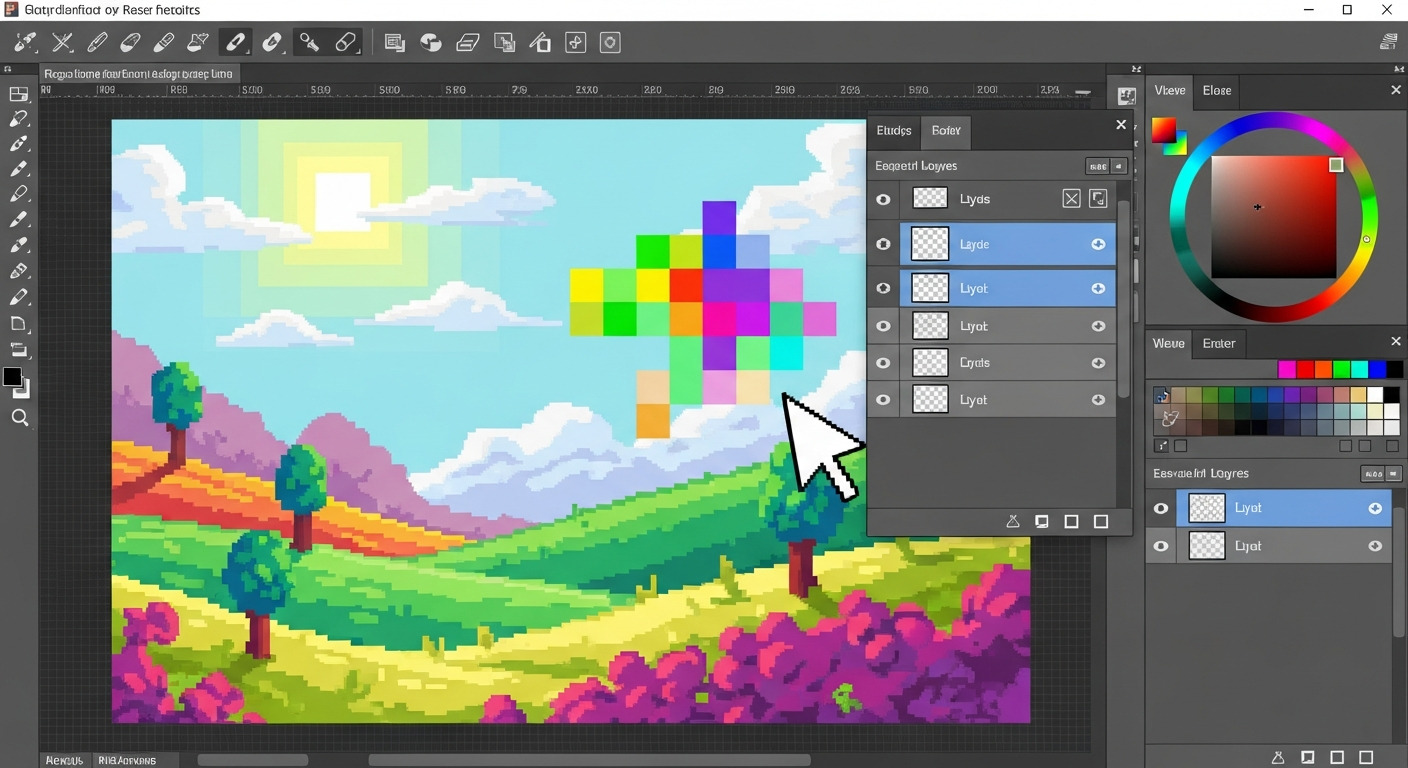
In the world of digital image manipulation, professionals and hobbyists alike turn to powerful tools that handle pixel-based designs with precision. Raster graphics editor software stands out as a cornerstone for tasks like photo retouching, background removal, and creating detailed illustrations. These programs allow users to dive deep into images at the pixel level, making them indispensable for e-commerce product photography, graphic design, and creative projects. Whether you run a small business or work in a creative agency, selecting the right software can streamline your workflow and elevate the quality of your visuals.
As technology evolves, more options emerge that cater to different skill levels, budgets, and operating systems. This guide explores some of the top choices available today, highlighting their features, strengths, and potential drawbacks. By understanding these tools, you can make informed decisions that align with your specific needs, such as editing high-resolution images for online stores or crafting custom artwork.
Raster editors are powerful – but slow for bulk work. Try our clipping path service free
- Understanding Raster Graphics Editors
- Raster Graphics vs. Vector Graphics: Key Differences
- Top Raster Graphics Editor Software Options
- Advantages and Challenges of Using Raster Graphics
- How to Select the Right Raster Graphics Editor for You
- Emerging Trends in Raster Graphics Editing
- Integrating Raster Editors into Your Workflow
- Case Studies: Real-World Applications
- Empower Your Creativity
- FAQs
Understanding Raster Graphics Editors
Professionals use raster graphics editors to manipulate images composed of tiny pixels, each holding color and brightness information. These tools excel in handling photographs and complex visuals where subtle gradations and details matter. Unlike simpler drawing programs, they offer advanced features like layer management, masking, and filter applications.
You start by importing an image file, such as a JPEG or PNG, into the software. From there, you adjust elements pixel by pixel or apply broader changes across selections. This approach suits tasks requiring fine control, like removing imperfections from product shots or enhancing colors in portraits.
Experts in fields like clipping path services rely on these editors daily. They enable precise selections and edits that maintain image integrity, ensuring outputs look professional and polished.
- Core Capabilities: Pixel-level precision for retouching, color correction, and compositing.
- Common File Formats: JPEG, PNG, TIFF, PSD – widely supported for import/export.
- Best Use Cases: Photo editing, digital art, e-commerce image optimization.
For a deeper dive into the fundamentals, check out this comprehensive overview on raster graphics editors.
Raster Graphics vs. Vector Graphics: Key Differences
Designers often choose between raster and vector formats based on project requirements. Raster graphics rely on a grid of pixels, which makes them perfect for detailed, photo-realistic work. You zoom in and see individual squares of color, allowing intricate edits like blending shades or adding textures.
In contrast, vector graphics use mathematical paths to define shapes and lines. Creators scale them infinitely without losing quality, ideal for logos, icons, and illustrations that need resizing. However, vectors fall short when dealing with complex color variations or photographic elements.
You might use raster tools for editing a model’s skin tones in a fashion shoot, while switching to vector for creating scalable branding elements. Many professionals combine both in their workflows, exporting rasters for web use and vectors for print.
- Raster Strengths: Rich color depth, photorealism, ideal for photos and textures.
- Raster Limitations: Pixelation on enlargement, larger file sizes.
- Vector Strengths: Infinite scalability, smaller files for simple shapes.
- When to Choose Raster: Heavy photo manipulation or detailed shading needed.
This distinction helps you pick the right software. If your work involves heavy photo manipulation, raster editors provide the necessary depth.
Top Raster Graphics Editor Software Options
A variety of raster graphics editor software exists to meet diverse needs, from free open-source alternatives to premium professional suites. Below, we break down some of the best options, focusing on their core features, usability, and value. This list draws from user feedback, industry standards, and practical testing to offer balanced insights.
To give you a quick overview, here’s a comparison table of key aspects:
| Software | Platform | Pricing Model | Key Strengths | Ideal For |
|---|---|---|---|---|
| Adobe Photoshop | Windows, Mac, iPad | Subscription (~$22.99/mo) | Advanced AI tools, layers | Professionals, photo editing |
| Affinity Photo | Windows, Mac, iPad | One-time or free via Canva | PSD compatibility, live edits | Budget-conscious pros |
| GIMP | Windows, Mac, Linux | Free | Customizable, plugins | Beginners, open-source fans |
| Corel Painter | Windows, Mac | One-time (~$429) or sub | Vast brush library | Digital artists, painters |
| Krita | Windows, Mac, Linux | Free | Brush stabilizers, animation | Illustrators, concept artists |
| paint.NET | Windows | Free | Simple interface, effects | Hobbyists, quick edits |
| Pixelmator Pro | Mac | One-time (~$39.99) | ML enhancements, non-destructive | Mac users, photo retouchers |
| Pixlr | Web-based | Free with premium (~$7.99/mo) | Online access, filters | Casual users, mobile edits |
You don’t need to master every tool. Let our image masking experts handle complex selections
Adobe Photoshop: The Industry Standard
Adobe Photoshop dominates the market as the go-to for professional raster editing. Users create composites, retouch portraits, and design web graphics with ease. It offers neural filters powered by AI, which intelligently enhance faces or remove backgrounds in seconds.
Pros:
- An extensive plugin ecosystem expands functionality dramatically.
- Cloud syncing allows seamless work across desktop, web, and mobile devices.
- Regular updates introduce cutting-edge tools, such as generative fill and expand.
Cons:
- Subscription model adds up over time (around $22.99/month for a single app).
- Steep learning curve challenges newcomers initially.
Key Features:
- Generative AI for content-aware fills and object removal.
- Advanced selection tools with improved precision.
- Integration with other Creative Cloud apps for full workflows.
Pricing starts at approximately $22.99 per month as part of individual plans. Ideal for agencies and freelancers handling high-volume projects. For more details, please visit the official Adobe Photoshop website.
Affinity Photo: Affordable Powerhouse
Affinity Photo challenges premium options with strong features and flexible access. Designers appreciate its non-destructive editing, where adjustments remain editable without altering the original file. It supports RAW processing, HDR merging, and 360-degree photo editing.
Pros:
- One-time purchase or free through Canva for core tools.
- Excellent PSD compatibility for easy transitions from other software.
- Batch processing saves time on multiple image edits.
Cons:
- Some advanced AI features require Canva Premium subscription.
- Occasional performance tweaks needed on older hardware.
Key Features:
- Live filters and adjustments for real-time previews.
- Unlimited layers with blend modes and masks.
- Hardware-accelerated GPU support for faster rendering.
It delivers professional results without ongoing costs for most users. Great for those seeking value in clipping path or retouching work.
GIMP: Free and Flexible Open-Source Choice
GIMP empowers users with a no-cost alternative that rivals paid software. Enthusiasts customize it extensively through scripts and plugins, extending functionality for specific needs like animation or advanced color correction.
Pros:
- Completely free with no hidden fees.
- Highly customizable interface and plugin support.
- High-bit-depth editing for precise professional color work.
Cons:
- The default interface feels less intuitive for beginners.
- Lacks some built-in AI tools found in commercial options.
Key Features:
- Layers, masks, and paths for complex compositing.
- Community scripts add niche tools quickly.
- Cross-platform support, including Linux.
For budget-restricted creators, it provides immense value. Learn more about open-source alternatives from the GIMP official website.
Corel Painter: For Artistic Expression
Corel Painter targets digital artists who seek realistic painting experiences. The program boasts over 900 brushes that simulate traditional media like oils, watercolors, and pastels. Users adjust brush behavior for natural strokes, enhanced by pressure-sensitive stylus support.
Pros:
- Unmatched brush realism for painterly digital art.
- Perspective guides and color mixing palettes.
- Strong performance on large canvases.
Cons:
- Higher pricing focuses more on painting than general photo editing.
- Less emphasis on photography-specific tools.
Key Features:
- Natural media brushes with texture and flow control.
- Additional content packs for specialized styles.
- Layered workflow for building complex pieces.
Artists value its depth for creating raster artwork from scratch.
Krita: Open-Source Gem for Illustrators
Krita stands out among free raster graphics editors for its emphasis on digital painting and animation. Creators benefit from brush stabilizers that smooth shaky lines, ideal for hand-drawn work. The wrap-around mode aids in seamless pattern creation.
Pros:
- Free with powerful painting and animation tools.
- Excellent brush engine and resource management.
- Cross-platform and community-supported.
Cons:
- Weaker in pure photo retouching compared to dedicated tools.
- Interface may require customization for photo work.
Key Features:
- Stabilizers and dynamic brush settings.
- Frame-by-frame animation timeline.
- Tag-based organization for brushes/textures.
It’s a top pick for concept artists and comic creators.
paint.NET: Simple Yet Effective for Beginners
paint.NET appeals to those starting out in raster editing with its straightforward design. Users apply effects like blurring or sharpening quickly, thanks to an intuitive toolbar. Layer support allows non-destructive compositing similar to advanced tools.
Pros:
- Lightweight and fast on most systems.
- Easy learning curve with helpful plugins.
- Free with automatic updates.
Cons:
- Limited advanced features for pro-level work.
- Text and selection tools feel basic.
Key Features:
- Curves, levels, and gradient adjustments.
- Plugin extensions from the active community.
- Simple layer and effect stacking.
It serves well for hobbyists tackling basic retouching.
Pixelmator Pro: Mac-Optimized Innovation
Pixelmator Pro leverages machine learning to automate tasks in a clean Mac interface. Editors upscale images without quality loss or denoise photos intelligently. Non-destructive tools let you revisit changes anytime.
Pros:
- Sleek, intuitive design tailored for Mac users.
- ML-powered enhancements speed up workflows.
- Great value with a one-time purchase.
Cons:
- Mac-exclusive, limiting cross-platform use.
- Requires compatible Apple hardware for best performance.
Key Features:
- Automatic layer organization and presets.
- Apple Pencil support for precise edits.
- Integration with the macOS ecosystem.
It offers great value for those in the Apple ecosystem.
Pixlr: Web-Based Convenience
Pixlr brings raster editing to browsers and mobile devices, eliminating installation needs. Users access tools for cropping, adjusting, and adding effects from anywhere with internet. The premium version unlocks advanced features like AI cutouts.
Pros:
- No download required – works on any device.
- Quick edits with filters and overlays.
- Cloud saving for easy access.
Cons:
- Relies on a stable internet connection.
- Advanced features behind a paywall.
Key Features:
- AI-assisted cutouts and enhancements.
- Mobile-friendly interface.
- Real-time collaboration options.
It’s perfect for quick edits without heavy commitments.
Advantages and Challenges of Using Raster Graphics
Raster graphics shine in scenarios demanding rich detail and color depth. Editors achieve photorealistic results by manipulating individual pixels, enabling subtle enhancements like skin smoothing or color grading.
These formats support a wide array of file types, ensuring compatibility across platforms. High-resolution outputs suit print and digital media alike.
- Advantages: Superior detail in photos, vast toolsets for precision.
- Challenges: File size bloat, loss of quality on upscaling.
On the flip side, enlarging rasters often leads to pixelation, reducing sharpness. Large files consume storage space, prompting compression techniques. Balancing quality and size becomes key in workflows.
How to Select the Right Raster Graphics Editor for You
You evaluate several factors when choosing software. Consider your budget: Free options like GIMP or Krita work for starters, while subscriptions suit enterprises.
- Budget Check: Free vs. one-time vs. subscription.
- Skill Level: Beginner-friendly interfaces vs. pro depth.
- Platform Needs: Cross-platform, Mac-specific, or web-based.
- Must-Have Features: AI tools, brushes, batch processing.
Assess your skill level. Beginners prefer user-friendly interfaces in paint.NET or Pixlr, whereas experts leverage Affinity Photo’s depth.
Think about hardware compatibility. Mac users favor Pixelmator Pro, and cross-platform needs point to GIMP.
Factor in specific features. Artists prioritize brush variety in Corel Painter or Krita, while photographers seek RAW support in Photoshop.
Test trials were available to ensure the tool fits your style. Reading reviews and joining communities helps gauge long-term satisfaction.
Emerging Trends in Raster Graphics Editing
Innovation drives raster graphics editor software forward. AI integration automates repetitive tasks, such as object removal or style transfers, freeing creators for artistic decisions.
- AI Dominance: Generative fills, upscaling, smart selections.
- Cloud & Collaboration: Real-time team editing.
- Mobile Expansion: Full-featured apps on tablets/phones.
Cloud collaboration allows teams to edit simultaneously, boosting productivity in agencies. Mobile versions extend capabilities to tablets, enabling fieldwork edits.
Sustainability features, like efficient rendering to reduce energy use, gain traction. Open-source communities accelerate development, introducing niche tools faster than commercial updates.
You stay ahead by following industry blogs and attending webinars. These trends promise more intuitive, powerful editing experiences.

Integrating Raster Editors into Your Workflow
You incorporate raster graphics editors into daily routines for maximum efficiency. Start with importing raw files and organizing assets in libraries.
- Daily Steps: Import → Organize → Edit → Export optimized files.
- Efficiency Tips: Use shortcuts, automate batches, and combine with other tools.
- Pro Tip: Outsource complex tasks (like advanced neck joint merging for ghost mannequin effects in apparel photography) to specialists for focus on creativity.
Use keyboard shortcuts to speed up selections and adjustments. Automate batches for repetitive jobs, like resizing product images.
Combine with other tools, such as vector software for hybrid designs. Export optimized files for web or print, considering compression without quality loss.
Training sessions or online courses build proficiency. Agencies outsource complex edits to specialists, focusing internal efforts on creativity.
Case Studies: Real-World Applications
Photographers transform raw shots into polished portfolios using Photoshop’s healing tools. E-commerce sellers enhance product visuals with Affinity Photo’s batch processing, increasing sales.
Illustrators craft book covers in Krita, leveraging its animation for dynamic previews. Graphic designers prototype ads in Pixelmator Pro, iterating quickly on Mac setups.
These examples demonstrate how raster editors address practical challenges across various industries.
Empower Your Creativity
Raster graphics editor software unlocks endless possibilities for visual creators. From Adobe Photoshop’s comprehensive suite to GIMP’s free versatility, options abound to match any need. You invest in the right tool to boost efficiency, produce high-quality work, and stay competitive.
Experiment with demos and build skills through practice. As you refine your techniques, these editors become extensions of your vision, turning ideas into impactful images.
Software is just a tool – results matter. Get a free quote for professional photo retouching
FAQs
- What defines a raster graphics editor?
A raster graphics editor manipulates pixel-based images, allowing detailed edits to colors, textures, and compositions in formats like JPEG or PNG. - How does raster differ from vector editing software?
Raster software works with fixed pixels for photo-realistic details, while vector software uses scalable paths for shapes and lines without quality loss on resizing. - Which free raster graphics editor is best for beginners?
GIMP or paint.NET offer solid starting points with essential tools, tutorials, and no cost, making them accessible for learning basics. - Can I use raster editors for professional photo retouching?
Yes, tools like Adobe Photoshop and Affinity Photo provide advanced features for skin smoothing, color correction, and background removal in commercial work. - What should I consider when choosing paid vs. free options?
Evaluate features like AI support and compatibility against your budget; free ones suffice for hobbyists, but paid versions offer efficiency for pros. - Are there mobile-friendly raster editors?
Apps like Pixlr and Affinity Photo’s iPad version enable editing on the go, with touch controls for precise adjustments. - How do AI features enhance raster editing?
AI automates tasks such as upscaling, object selection, and content-aware fills, saving time and improving results in modern software. - What file formats do raster editors commonly support?
Most handle JPEG, PNG, TIFF, and PSD, ensuring flexibility for importing, editing, and exporting across different projects.