


How to Vectorize an Image: The Complete 2026 Guide (4 Methods That Actually Work)
November 5, 2026
Corporate Headshots: Poses, What to Wear, Backgrounds & the Retouching Line You Shouldn’t Cross
November 10, 2026
- First, Take a Breath — and Stop Using the Device
- How Long Do You Actually Have?
- Recovering Deleted Photos From an iPhone
- Recovering Deleted Photos From an Android Phone
- Recovering From a Windows PC or Laptop
- Recovering From a Mac
- Recovering Photos From a Camera SD Card
- What to Do When It's Really, Truly Gone
- The Mistakes That Kill Your Chances (Don't Do These)
- How to Make Sure This Never Happens Again
- Frequently Asked Questions
- Final Thought
First, Take a Breath — and Stop Using the Device
If you just deleted photos you didn’t mean to, here’s the most important thing I can tell you: stop taking new photos, stop downloading apps, stop using the phone or card right now. When you “delete” a photo, it doesn’t actually vanish. The device just marks that space as “available to overwrite.” Every new photo you take, every app you install, could write over the space where your deleted photo is still sitting, recoverable. The longer you use the device, the lower your chances.
So put the phone down. Read the rest of this on another device if you can. Then work through the steps below in order — easiest and most likely to work first, harder stuff last. Most deleted photos come back from a trash folder you didn’t even know existed. Let’s start there.
How Long Do You Actually Have?
Every platform keeps deleted photos in a trash or recently deleted folder for a set window. Miss that window and it gets much, much harder. Here’s the clock you’re racing.
| Platform | Where deleted photos go | How long they stay |
|---|---|---|
| iPhone / iPad (Photos app) | Recently Deleted album | 30 days |
| iCloud Photos (iCloud.com) | Recently Deleted | 30 days |
| Google Photos (Android & iOS) | Trash / Bin | 30 days |
| Samsung Gallery (Samsung phones) | Recycle Bin | 15 days |
| OneDrive (personal) | Recycle bin | 30 days |
| Dropbox (Plus / Family) | Deleted files | 30 days (180 for Pro/Business) |
| Windows PC | Recycle Bin | Until you empty it |
| Mac | Trash | Until you empty it |
| Camera SD card | No trash — gone from listing immediately | Still recoverable until overwritten |
Two things to note. First, if you deleted the photo from the trash folder on purpose — or emptied the trash — that timer doesn’t apply, and you’re into the harder recovery methods. Second, Google Photos will also delete content if you’re inactive for two years or more, so if you haven’t touched the account in a while, that’s a factor.
Recovering Deleted Photos From an iPhone
If you have an iPhone, start here. The official iPhone recovery steps are straightforward, and most people find their photos in the first place they look.
Step 1: Check the Recently Deleted album. Open the Photos app, swipe up, and tap “Recently Deleted” under Utilities. You’ll need Face ID or Touch ID to open it. If your photos are there, tap Select, pick the ones you want, and tap Recover. Done. They go straight back to your library.
Step 2: Check iCloud.com. If you use iCloud Photos, deleted items sync across devices. Go to iCloud.com on any browser, sign in, open Photos, and check Recently Deleted in the sidebar. Sometimes a photo shows up here even when it doesn’t on the phone — especially if you deleted it from one device but not the cloud.
Step 3: Check a Mac or iPad you own. If you have another Apple device signed into the same iCloud account, check its Recently Deleted album too. Sync can lag, and the photo may still be sitting on one device.
Step 4: Restore from a backup. If you back up your iPhone to iCloud or your computer, you can restore the phone to a backup from before the deletion. This is nuclear — it wipes everything on the phone and replaces it with the backup — so only do it if the photos are worth losing everything new since that backup. If you go this route, back up the phone’s current state first to a computer, so you can restore back afterward.
Step 5: Check other cloud apps. If you used Dropbox, OneDrive, Google Drive, or Amazon Photos to back up the photos, check their trash folders. People often forget they have a second backup somewhere.
Recovering Deleted Photos From an Android Phone
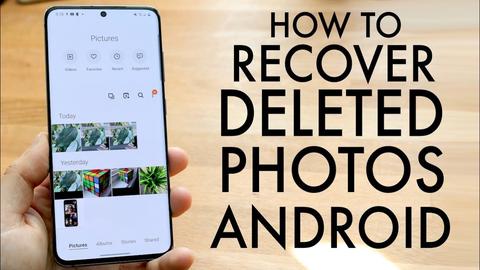
Android is more fragmented, which means more places to check — and more chances your photos are still somewhere.
Step 1: Check Google Photos Trash. Open Google Photos, tap Library at the bottom, then Trash. Photos stay here 30 days. The official restore guide walks through it. Touch and hold the photos you want, then tap Restore. They go back to your library and your phone’s gallery.
Important Google Photos trap: If you delete a photo from Google Photos while backup is turned on, it deletes from your phone too. A lot of people lose photos this way — they’re cleaning up cloud storage and don’t realize it wipes the local copy. If this happened to you, the trash is still your first stop.
Step 2: Check your phone’s gallery trash. Samsung, Google Pixel, OnePlus, and most Android makers have their own gallery app with a trash or recycle bin. Samsung’s Recycle Bin keeps deleted items 15 days. Open your default gallery app, look for a menu (usually three dots), and find Trash, Bin, or Recently Deleted.
Step 3: Check Samsung Cloud. If you have a Samsung phone and turned on Samsung Cloud, deleted photos may sit in the Samsung Cloud Recycle Bin for 15 days. You can access it through Settings → Accounts and backup → Samsung Cloud → Gallery sync.
Step 4: Check OneDrive, Dropbox, and Google Drive. If any of these backed up your photos, their trash folders keep items 30 days (longer for paid Dropbox). Log in on a browser and check.
Step 5: Try Google Takeout. This is a long shot but worth mentioning — some people have reported that Google Takeout (takeout.google.com) includes deleted photos in the export, even years later. It takes hours to days to generate, and it’s not guaranteed, but if you’ve exhausted everything else, it’s free to try.
Step 6: Data recovery software (last resort). If nothing worked and the photos are truly gone from cloud and trash, you can try Android data recovery software. Be aware: on modern Android (11+), apps can’t scan internal storage without root access, and rooting your phone voids the warranty and opens security risks. Most “Android recovery” apps you see advertised can only recover from an SD card or from cached thumbnails — not from internal storage. If you go this route, use a reputable desktop tool and connect the phone via USB, and don’t pay upfront for anything that promises results it can’t guarantee.
Recovering From a Windows PC or Laptop
If you deleted photos from your computer, the odds are in your favor.
Step 1: Check the Recycle Bin. Open it (it’s on your desktop). If the photos are there, right-click and Restore. They go back to wherever they were deleted from.
Step 2: Check File History. If you turned on Windows’ File History backup, you can right-click the folder where the photos lived, select “Restore previous versions,” and pick a version from before the deletion. This works even if you emptied the Recycle Bin.
Step 3: Check cloud sync trash. If you use OneDrive or Google Drive on the PC, deleted files may be in their online recycle bins (30 days for OneDrive personal).
Step 4: Use recovery software. If the Recycle Bin was emptied and you have no backup, file recovery software can scan the drive for deleted files that haven’t been overwritten yet. The catch: you should install the software to a different drive (a USB stick or external drive) — installing it to the same drive can overwrite the very photos you’re trying to recover.
Recovering From a Mac
Step 1: Check the Trash. Click the Trash icon in the dock. If the photos are there, drag them back out or right-click and Put Back.
Step 2: Check Time Machine. If you back up with Time Machine, open the folder where the photos were, click the Time Machine icon in the menu bar, and browse back to a snapshot before the deletion. Select the photos and click Restore.
Step 3: Check the Photos app’s Recently Deleted. If you use Apple Photos on the Mac, deleted photos sit in Recently Deleted for 30 days — same as the iPhone. Open Photos, look in the sidebar under Utilities.
Step 4: Recovery software. Same as Windows — install to a different drive, scan the main drive, and hope the files haven’t been overwritten.
Recovering Photos From a Camera SD Card
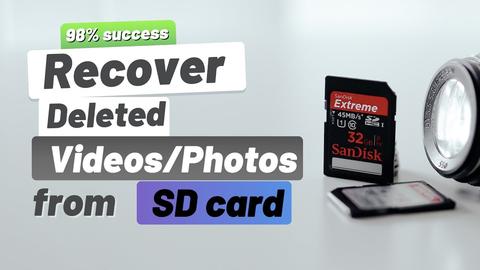
This is where recovery software shines, because SD cards don’t have a trash folder — when you delete or format, the files are just marked as gone, and until you take new photos over them, they’re fully recoverable.
The golden rule: stop shooting on that card immediately. Pop it out of the camera, put it in a safe place, and don’t take another photo on it until you’ve run recovery.
Step 1: Try recovery software. These SD card recovery tools are the standard options in 2026:
| Tool | Price | Platform | Best For |
|---|---|---|---|
| Disk Drill | Free preview, paid recovery | Windows + Mac | Most user-friendly, high success rate |
| Recuva | Free (basic) | Windows only | Quick, free, simple jobs |
| PhotoRec | Completely free, open source | Windows + Mac + Linux | Power users, no GUI but very effective |
| Stellar Photo Recovery | Paid | Windows + Mac | Corrupted cards, RAW photo formats |
| EaseUS Data Recovery | Free tier + paid | Windows + Mac | Deep scans, various file types |
Insert the SD card into your computer via a card reader, run the software, and scan the card. You’ll usually see thumbnails of recoverable photos. Select what you want and restore them to a different drive — never back to the same SD card.
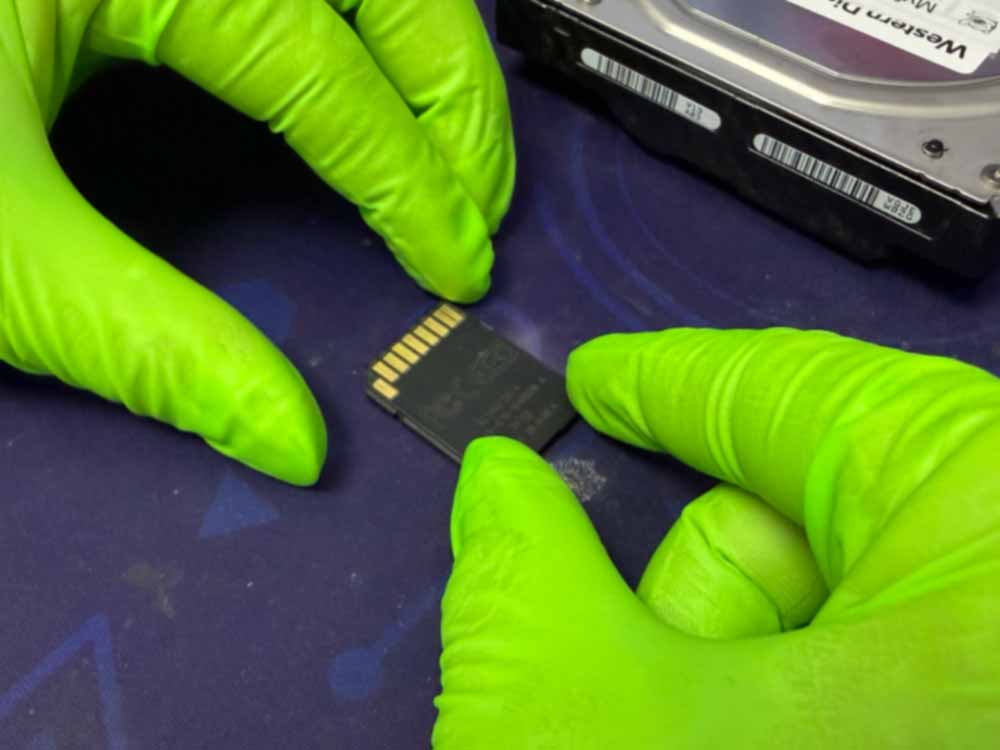
Step 2: If the card is physically damaged or corrupted. If the computer can’t read the card at all, or it was snapped or water-damaged, you’re into professional data recovery territory. A lab can open the card in a clean room and read the raw chips. It’s expensive — usually $100–$1,000+ — but for irreplaceable photos (a wedding shoot, a once-in-a-lifetime trip), it’s sometimes worth it.
What to Do When It’s Really, Truly Gone
If you’ve checked every trash folder, every backup, and every cloud service, and the photos aren’t there, here’s the honest truth: on a modern encrypted smartphone, permanently deleted photos are almost certainly unrecoverable by normal means. Full-disk encryption on iPhones and modern Android phones means deleted data can’t be scanned the way it can on an SD card. Police and forensic labs have tools, but they’re not available to consumers, and even they often can’t get past modern encryption.
What you can do:
- Check for thumbnails and caches. Sometimes smaller versions of photos survive in app caches, messaging apps (WhatsApp, Telegram, Messenger), or email attachments. Search your chats — people often send photos you’ve lost.
- Ask friends and family. If the photos were from a shared event, someone else almost certainly has copies. This sounds obvious, but it’s how a lot of “lost” photo collections get rebuilt.
- Check social media. If you posted the photo to Instagram, Facebook, or even a story, a lower-resolution version may still be there. You can download it. It won’t be the original quality, but it’s something.
- Accept and move on — and set up backups so it never happens again. I know that’s not what you want to hear, but after a certain point, the best thing you can do is make sure it can’t happen twice.
The Mistakes That Kill Your Chances (Don’t Do These)
A lot of people make recovery harder by panicking. Avoid these.
- Don’t keep using the phone or card. Every new photo, app install, or update can overwrite the deleted data. Airplane mode is your friend while you work through recovery.
- Don’t install recovery apps directly to the drive you’re recovering from. Install to a different drive or USB stick.
- Don’t factory reset the phone. A factory reset on a modern encrypted phone makes recovery essentially impossible. It’s the last thing you should ever do.
- Don’t pay for “guaranteed” recovery from sketchy apps. If an app promises it can recover anything from a modern phone without root or a backup, it’s lying. Read reviews, stick to known names.
- Don’t root your Android phone as a first step. Rooting can trigger a factory reset (which wipes everything) and voids your warranty. It’s a last resort, not a first move.
- Don’t format the SD card “to fix it.” Formatting doesn’t erase the data, but it does reset the file table, which makes recovery harder. If a card asks to be formatted, say no and run recovery software first.

How to Make Sure This Never Happens Again
The best recovery is not needing it. Set this up once and you’ll never panic-delete again.
- Turn on automatic cloud backup. Google Photos (free, with quality compression or paid for original quality), iCloud Photos (built into iPhone), or Amazon Photos (free with Prime). Pick one and leave it on. It backs up in the background.
- For cameras: back up SD cards immediately after a shoot. Copy the files to a computer and an external drive before you format the card. The 3-2-1 rule: three copies of your data, on two different media, one offsite (cloud).
- For phones: turn on both cloud backup and occasional local backup. Once a month, plug your phone into a computer and copy the photos folder over. It takes five minutes and gives you a second copy.
- Don’t delete from the cloud to free up phone space. If you need space on the phone, use the “free up space” option in Google Photos or “optimize storage” on iPhone — these keep the full-resolution copy in the cloud and only remove it from the phone. Deleting from the cloud app deletes it everywhere.
Once you’ve recovered your photos, if they’re old or damaged, you might want to clean them up — a good restore old photos process can bring faded or scratched prints back to life, and solid photo editing software can fix color and exposure. If you’re sending batches out for professional work, the photo editing cost per image is usually far less than you’d guess.

Frequently Asked Questions
1. Are permanently deleted photos gone forever? Not always. “Permanently deleted” usually means removed from the trash folder. On SD cards and computers, the data often still exists until overwritten, and recovery software can get it back. On modern encrypted smartphones (iPhone, Android 11+), it’s essentially unrecoverable without a backup. Always check backups first.
2. How long do deleted photos stay in the trash? Google Photos and Apple Photos keep them 30 days. Samsung Gallery’s Recycle Bin keeps them 15 days. OneDrive and Dropbox keep deleted files 30 days (longer for paid Dropbox plans). Windows Recycle Bin and Mac Trash keep them until you empty them.
3. Can I recover deleted photos after 30 days? If they’ve passed the trash window and you have no backup, it’s very hard on a phone. On an SD card or computer, yes — recovery software can still find them if the space hasn’t been overwritten. The sooner you act, the better.
4. Do free photo recovery apps actually work? Some do. Recuva (Windows) and PhotoRec (cross-platform) are legitimate free tools that work well on SD cards and computer drives. On modern phones, most free apps can only recover cached thumbnails, not full-resolution photos from internal storage. Be skeptical of any app that promises full recovery from a phone without root.
5. Can I recover photos after a factory reset? On modern iPhones and Android phones with full-disk encryption, essentially no — a factory reset wipes the encryption key, making the data unrecoverable. On older, unencrypted phones (pre-2015 or so), forensic tools sometimes can. If you have a cloud backup, you can restore from that after the reset.
6. How do I recover photos from a water-damaged phone? Don’t try to turn it on. Put it in a dry, safe place and take it to a professional data recovery service. They can sometimes desolder the memory chip and read it directly. It’s expensive ($300–$1,500) but works for irreplaceable photos.
7. Will rooting my Android phone let me recover deleted photos? Rooting gives deeper access, but the process often triggers a full wipe (which destroys the data you’re trying to recover). It also voids the warranty and creates security risks. Try all other methods first, and only consider rooting if the photos are irreplaceable and you understand the risks.
8. Can I recover photos that were deleted years ago? From an SD card or hard drive that hasn’t been used much since, sometimes yes — the data just sits there. From a phone that’s been in daily use, almost certainly no — the storage has been overwritten thousands of times. Cloud backups and Takeout exports are your only real long-shot options.
Final Thought
Losing photos feels awful because they’re not just files — they’re memories. The good news is that most “deleted” photos aren’t actually gone. They’re sitting in a trash folder somewhere, waiting for you to find them. Work through the steps in order, act fast, and don’t make things worse by panicking. And once you get them back, set up automatic backup. Five minutes of setup now saves you from ever feeling this panic again.