


How Much Does It Cost to Hire an Image Retouching Expert? (2026 Price Guide)
October 24, 2026
WhatsApp Image Size: The Complete 2026 Guide (DP, Status, HD, Stickers & Business)
October 28, 2026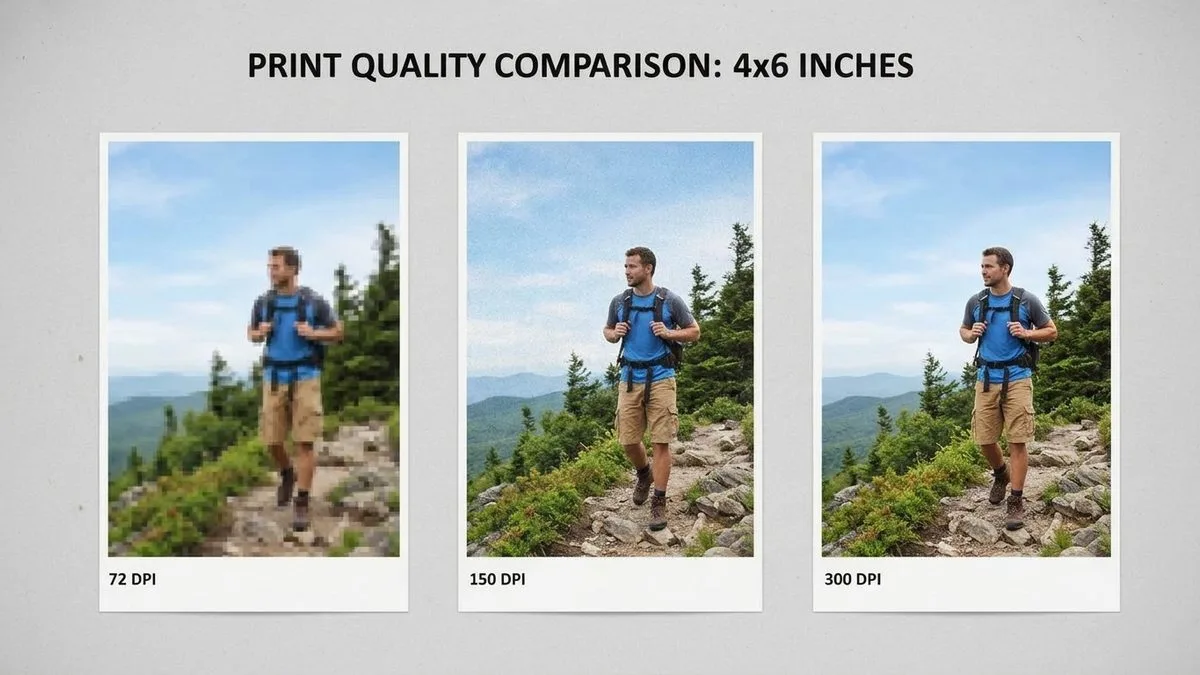
You designed something beautiful on screen. It looked razor-sharp, vibrant, flawless. Then you hit print — and the business cards came back fuzzy, the poster looks pixelated, and the product photo on your brochure has that telltale stair-step jaggedness along every edge.
Sound familiar? Nine times out of ten, the culprit is the same: you got the DPI wrong.
Here’s the frustrating part — almost everyone tells you “just use 300 DPI” and calls it a day. But that advice is incomplete, sometimes flat-out wrong, and it costs people real money in reprints every single week. A billboard at 300 DPI creates a 5-gigabyte file that looks identical to one at 50 DPI from the street. A web image tagged “300 DPI” still prints pixelated because it only has 1080 pixels. And a logo rasterized at 300 DPI will look soft next to one kept in vector format.
This guide fixes all of that. We’ll break down exactly what DPI means (and what it doesn’t), when 300 is the right number and when you should go lower or higher, how to calculate pixel requirements for any print size, the right way to adjust resolution in Photoshop, and the full checklist that professional prepress teams use before sending anything to press.
- The Short Answer: What DPI Should You Use?
- DPI vs PPI vs Resolution: Stop Using These Interchangeably
- Why 300 DPI Became the Standard (It's Not Arbitrary)
- The Viewing Distance Rule: The Real Driver of Print Quality
- DPI by Print Type: A Product-by-Product Breakdown
- The Math: Convert Pixels to Print Size (It's One Formula)
- The 72 DPI Myth: Why That Number Means Almost Nothing
- How to Check and Change DPI in Photoshop (The Right Way)
- When You Need More Than 300: Text, Line Art, and Vector Graphics
- Can AI Upscaling Save a Low-Resolution Image for Print?
- Color Mode and File Format: DPI Isn't the Only Thing That Ruins Prints
- Bleed, Trim, and Safe Zone: The Other Half of Print Prep
- The 7 Most Common DPI Mistakes (And How to Avoid Them)
- The Print-Ready Checklist: Run Through This Every Time
- Frequently Asked Questions
- Conclusion: DPI Is About Distance, Not a Magic Number
The Short Answer: What DPI Should You Use?
If you want the quick version before we dive deep, here it is in one table. Save this, screenshot it, tape it to your monitor.
| What You’re Printing | Viewing Distance | Recommended DPI | Minimum Acceptable |
|---|---|---|---|
| Business cards, flyers, brochures | 12–18 inches | 300 DPI | 250 DPI |
| Photo prints (4×6 to 11×14), albums | 1–2 feet | 300 DPI | 240 DPI |
| Posters (18×24 to 24×36) | 2–4 feet | 200–300 DPI | 150 DPI |
| Canvas wraps, framed wall art | 3–6 feet | 150–200 DPI | 120 DPI |
| Trade-show banners, backdrops | 4–8 feet | 100–150 DPI | 75 DPI |
| Outdoor banners, billboards | 8+ feet | 35–100 DPI | 15 DPI |
| Text, logos, line art, barcodes | Any | 600–1200 DPI (or vector) | 400 DPI |
The pattern jumps out immediately: the farther away people stand, the less DPI you need. That single principle drives every decision on this page. We’ll explain why the human eye works this way, and how to use it to your advantage.
DPI vs PPI vs Resolution: Stop Using These Interchangeably
Before we go further, we need to clear up the three terms everyone mixes up. Getting them straight will save you from hours of confusion.
DPI (Dots Per Inch) describes your printer. It measures how many tiny droplets of ink the machine physically lays down in one inch of paper. A professional photo printer might spray 1440, 2880, or even 4800 dots per inch. You don’t control this number — your printer does.
PPI (Pixels Per Inch) describes your digital file. It measures how many pixels from your image get packed into each inch of the final print. This is the number you actually set in Photoshop, Lightroom, or your design software.
Resolution is the total pixel count of your image — something like 6000×4000 pixels. It’s fixed. It doesn’t change when you tweak the DPI setting.
Here’s the punchline: when someone says “send me a 300 DPI file,” they really mean “send me a file with enough pixels so that at the final print size, it works out to 300 pixels per inch.” The industry says DPI, but they’re asking about PPI. And the only thing that truly matters is whether your pixel count is high enough for the size you want to print.
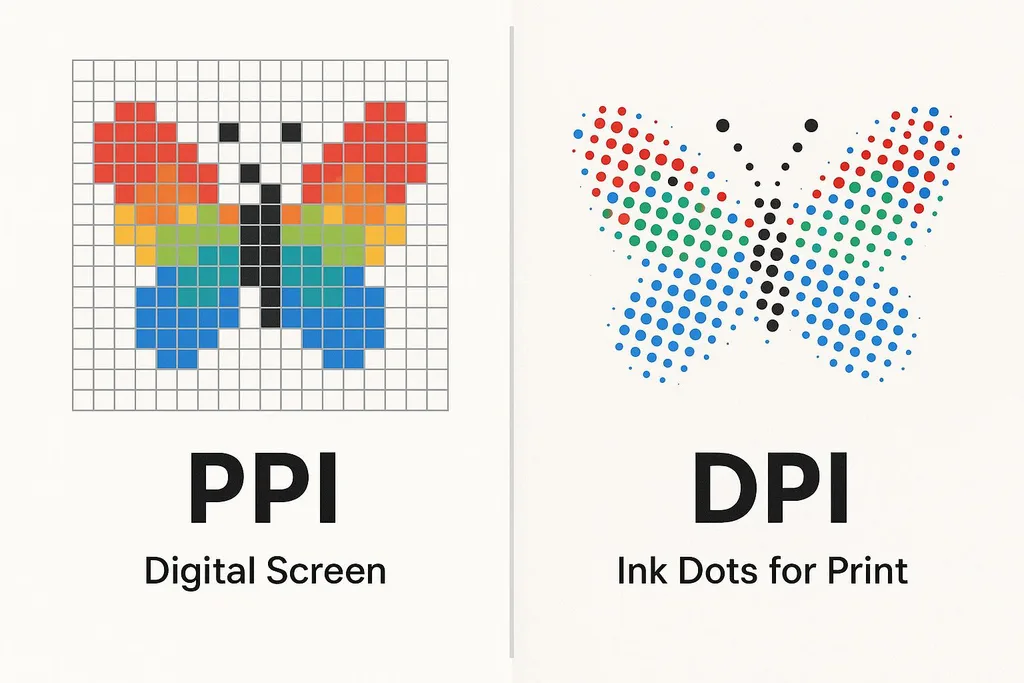
Think of it like this: your image is a bucket of pixels. PPI decides how densely you pour those pixels onto the paper. Pour them densely (300 per inch) and you get a small, sharp print. Pour the same pixels sparsely (75 per inch) and you get a larger print with softer detail. The bucket never changes — only the spread does.
Why 300 DPI Became the Standard (It’s Not Arbitrary)
You’ve heard “300 DPI” so many times it feels like a law of nature. It’s not — but it does come from real physics and printing engineering. Two things converge at 300.
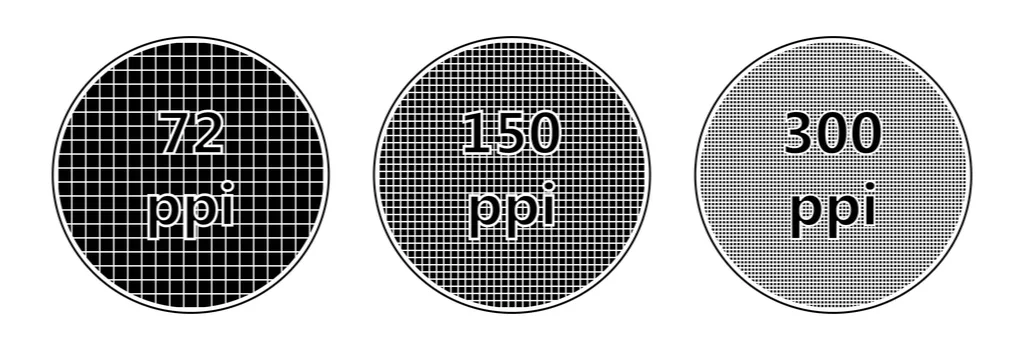
First, the human eye. At a normal reading distance of about 12 inches, the average person can resolve detail down to roughly one arcminute. That works out to about 300 pixels per inch before individual pixels become invisible. Go above 300 and you’re adding detail the eye literally cannot see. Go below 300 and individual pixels start to show.
Second, the offset printing press. Commercial printers reproduce photographs using a halftone screen — a grid of tiny dots that vary in size to fake shades of gray and color. The standard screen ruling for quality magazine and brochure printing is 150 lines per inch (lpi). The industry rule, documented in Adobe’s print production guidelines and taught in every graphic design program, is that your image resolution should be twice the halftone screen ruling. Two times 150 lpi equals 300 dpi. That gives the printer’s Raster Image Processor (RIP) enough data to calculate clean halftone dots without visible artifacts.
So 300 isn’t a marketing number — it’s where human vision and printing technology meet. But it only applies to things you hold close. Step back from the print, and the math changes entirely.
The Viewing Distance Rule: The Real Driver of Print Quality
Here’s the secret most “300 DPI for everything” guides miss: required resolution drops as viewing distance increases. It’s that simple.
Stand 12 inches from a print and your eye can pick out 300 dots per inch. Stand 6 feet away — the distance from which you’d view a poster on a wall — and that same eye can only resolve about 50–100 dots per inch. Stand across the street from a billboard and 15–30 DPI is more than enough. The dots blend together.
HP’s large-format printing team publishes a widely referenced table that matches this principle exactly, and it lines up with what every trade-show printer and billboard company will tell you.
This matters for two huge reasons. First, you can stop wasting time and storage on gigantic files that bring zero visible benefit. A 300-DPI billboard file might be 50 times larger than a 50-DPI version and look identical from the road. Second, you can stop panicking when your image “only” has 150 DPI — if it’s a poster viewed from across a room, that might be perfectly fine.
DPI by Print Type: A Product-by-Product Breakdown
Let’s get specific. Here’s what you actually need for the things people print most often.
Business Cards, Postcards, and Flyers
These are small, cheap to print, and people hold them inches from their face. Cut corners here and everyone notices. Use 300 DPI for all photos and raster graphics. For text and logos, keep them vector (PDF, AI, EPS) — if you must rasterize, go to 600 DPI minimum. A soft-edged logo on a business card screams “amateur.”
Brochures, Catalogs, and Booklets
Same 300 DPI baseline for photography. If your brochure has fine text or subtle gradients, bump raster elements to 400 DPI or keep them vector. Always print a proof on the actual paper stock before a full run — coated stock reveals detail that uncoated paper hides.
Photo Prints (4×6 Through 11×14)
300 DPI is the target, but 240–250 DPI is often indistinguishable to the naked eye. If you’re printing from a 12MP phone photo and the math gives you 260 DPI at 8×10, don’t lose sleep over it — it will look great. The absolute floor is around 150 DPI; below that, faces and fine detail turn mushy.
Posters (18×24 to 24×36)
Posters hang on walls. People look at them from a few feet away. 150–200 DPI usually delivers excellent results, and you can push to 300 if your file has the pixels. A 24MP camera (6000×4000 pixels) gives you exactly 250 DPI at 24×16 — plenty sharp for a dorm-room or office poster.
Canvas Wraps and Framed Wall Art
Canvas has texture that naturally softens detail. You can comfortably go as low as 150 DPI for large canvas prints viewed from several feet back. Many professional canvas printers prefer 150–200 because the texture masks any softness.
Trade-Show Banners and Backdrops
These live in convention halls where people stand 4–8 feet away. 100–150 DPI at full size is the industry standard. Trade-show lighting can be harsh, so if your file size allows, aim for the higher end of that range — especially for logos and text.
Billboards and Building Wraps
From 30 feet away or more, the eye can’t resolve fine detail at all. Billboard files routinely run at 15–50 DPI at full scale. A 40-foot billboard at 30 DPI needs only about 14,400 pixels across — a number even a mid-range camera can hit. The design priorities here are bold contrast, large type, and simple graphics, not pixel density.
The Math: Convert Pixels to Print Size (It’s One Formula)
You don’t need a calculator app or a fancy tool. Two formulas answer every DPI question you’ll ever have:
Maximum print size (inches) = Pixel dimension ÷ Target PPI
Required pixels = Print size (inches) × Target PPI
Let’s run through a real example. You have a 6000×4000 pixel photo (24MP) and want an 8×10 print at 300 DPI. Required pixels: 8 × 300 = 2400 wide, 10 × 300 = 3000 tall. Your photo has 6000×4000 — way more than enough. You could actually print that same photo at 20×13 inches and still hit 300 DPI.
Here’s a quick reference chart for common print sizes at 300 DPI:
| Print Size | Pixels Needed (300 DPI) | Megapixels | A 12MP Phone Photo? |
|---|---|---|---|
| 4×6 | 1200 × 1800 | 2.2 MP | Yes, easily |
| 5×7 | 1500 × 2100 | 3.2 MP | Yes |
| 8×10 | 2400 × 3000 | 7.2 MP | Yes |
| 11×14 | 3300 × 4200 | 13.9 MP | Yes (tight crop) |
| 16×20 | 4800 × 6000 | 28.8 MP | No — upscale or print at 150 DPI |
| 24×36 | 7200 × 10800 | 77.8 MP | No — print at 150 DPI (3600×5400) |
Notice something? A modern 12MP phone camera has enough pixels for almost every standard print size up to 11×14. The reason people get blurry prints usually isn’t a lack of megapixels — it’s that they grabbed a compressed copy from Instagram, Facebook, or a website that shrank the file down to 1080 pixels wide. Always go back to the original.
If you want to check the math on your own files in seconds, an image resizer with a built-in print-size mode handles the conversion instantly for inches, centimeters, and any DPI from 72 to 1200.
The 72 DPI Myth: Why That Number Means Almost Nothing
This is the single most misunderstood concept in all of digital imaging. Let’s kill it once and for all.
“72 DPI” comes from 1984. The original Apple Macintosh screen displayed 72 pixels per inch, and the number stuck as a default tag in image files. Four decades later, people still panic when they see “72 DPI” on an image and assume it can’t print.
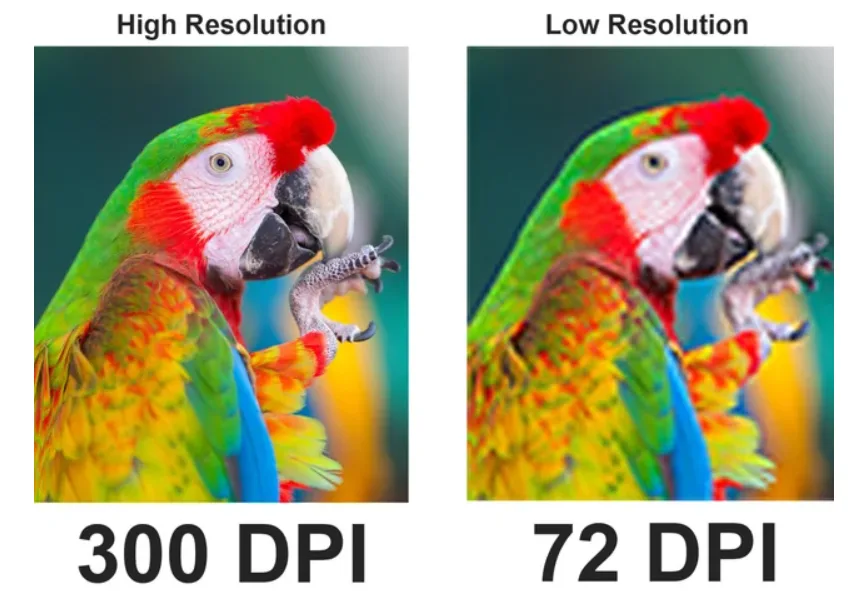
Here’s the truth: the DPI number stored in your file is just metadata — a tiny instruction tag. It does not change a single pixel. A 6000×4000 pixel image tagged at 72 DPI contains exactly the same pixels as one tagged at 300 DPI. It will print exactly the same quality. The only difference is what physical size the printer will assign by default.
Change that tag from 72 to 300 without resampling (we’ll cover what that means next) and you haven’t improved quality at all — you’ve just told the printer to pack those same pixels more densely, which makes the print smaller. If the file has enough pixels, it prints well regardless of the tag. If it only has 1080 pixels, tagging it “300 DPI” won’t magically add detail.
So the next time someone says “this image is 72 DPI so it won’t print,” ignore the number and check the pixel dimensions instead. That’s where the real answer lives.
How to Check and Change DPI in Photoshop (The Right Way)
Adobe’s own documentation walks through this, but most people skip the critical step. Here’s the correct workflow.
- Open your image in Photoshop.
- Go to Image → Image Size (or press Alt+Ctrl+I on Windows / Option+Cmd+I on Mac).
- Look at the pixel dimensions at the top — this is your raw material, the number that never lies.
- Uncheck the “Resample” box. This is the move 90% of people miss. With Resample off, changing the resolution number does NOT add or remove pixels — it only changes the physical print size.
- Set Resolution to 300 pixels/inch (or whatever your target is).
- Watch the Width and Height fields. They’ll show you the largest size you can print at that resolution without losing quality.
- If the size is big enough, click OK and save. If it’s too small, you have a real pixel shortage — and we’ll cover your options in the next section.
Resampling: With vs Without — The Critical Distinction
Leaving Resample unchecked is safe. You’re just rearranging instructions. Checking Resample is where things get risky.
- Resample OFF (recommended for prep): Pixel count stays identical. Print size changes. Quality does not change. Use this to find your maximum print size or to set the correct PPI tag.
- Resample ON (upsampling): Photoshop invents new pixels to make the image larger. Downsampling (making smaller) is fine and lossless in practice. Upsampling (making larger) means software guesses what the new pixels should be. Traditional upsampling (Bicubic) produces soft, blurry results. Modern AI upsampling does dramatically better — but it still invents detail. It cannot recover information that was never captured.
Rule of thumb: never upsample more than 2× without AI help, and always keep the original file untouched. If you’re preparing product photos for print catalogs and need consistent sharpness, a professional image sharpening workflow applied before upscaling preserves detail better than upscaling a soft original.
When You Need More Than 300: Text, Line Art, and Vector Graphics
Photographs have soft, organic edges — 300 DPI handles them beautifully. Text, logos, line art, and barcodes have hard, crisp edges that demand more.
At 300 DPI, a thin serif letter or a fine line in a logo will show slightly soft edges on close inspection. Bump to 600 DPI and those edges snap into sharpness. For truly critical line work — technical illustrations, tiny legal text, QR codes that must scan reliably — go to 1200 DPI.
But here’s the pro move that beats any DPI number: keep text and logos as vector graphics. Vector files (AI, EPS, SVG, PDF with vector data preserved) are built from mathematical paths, not pixels. They scale to any size — business card to billboard — with perfectly sharp edges and zero quality loss. A vector logo in a PDF will print sharper than a 1200 DPI raster version, and it will produce a smaller file.
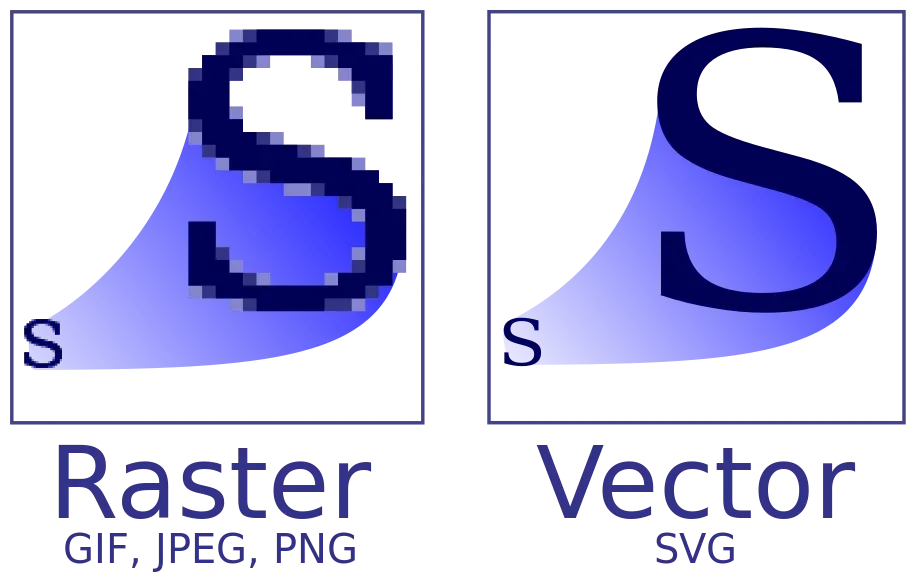
When you export your final print file as PDF/X-4 or PDF/X-1a, vector elements stay vector and only your photographs carry the DPI burden. That’s the format professional printers prefer for a reason.
Can AI Upscaling Save a Low-Resolution Image for Print?
Short answer: sometimes, partially, and you should always verify the result.
AI upscalers like Topaz Gigapixel AI, Photoshop’s Generative Upscale (with Firefly or Topaz models), and Magnific AI analyze patterns in your image and intelligently guess what missing detail should look like. At 2× enlargement, the results can be genuinely impressive — good enough for many poster and canvas applications. At 4× or beyond, they start inventing textures and details that may not match your subject. Faces and text are the hardest; always inspect AI-upscaled results at 100% before sending to print.
Topaz Gigapixel AI remains the benchmark for photographic fidelity because it prioritizes preserving real detail over inventing new detail. For AI-generated art (Midjourney, Stable Diffusion output), tools that invent detail more aggressively can be a better fit. Either way, treat AI upscaling as a band-aid, not a replacement for a high-resolution original. Nothing beats going back to the raw file or reshooting at higher resolution.
Color Mode and File Format: DPI Isn’t the Only Thing That Ruins Prints
You can nail the DPI perfectly and still get disappointing prints if you get the color mode or file format wrong. These go hand-in-hand with resolution in the prepress checklist.
RGB vs CMYK
Your screen uses RGB (Red, Green, Blue) — an additive color model that emits light. Your printer uses CMYK (Cyan, Magenta, Yellow, Key/Black) — a subtractive model that absorbs light on paper. RGB has a wider color gamut; some bright, saturated colors you see on screen simply cannot be reproduced with ink.
- Offset printing (magazines, packaging, commercial press): Convert to CMYK before sending. If you send RGB, the printer will do an automatic conversion that may shift colors in ways you don’t like.
- Consumer photo labs (Walgreens, Shutterfly, online print services): Most prefer sRGB. Send in sRGB and you’ll get predictable results.
- Pro labs and fine art printing: Ask for their specific ICC profile and soft-proof using it. Some accept Adobe RGB.
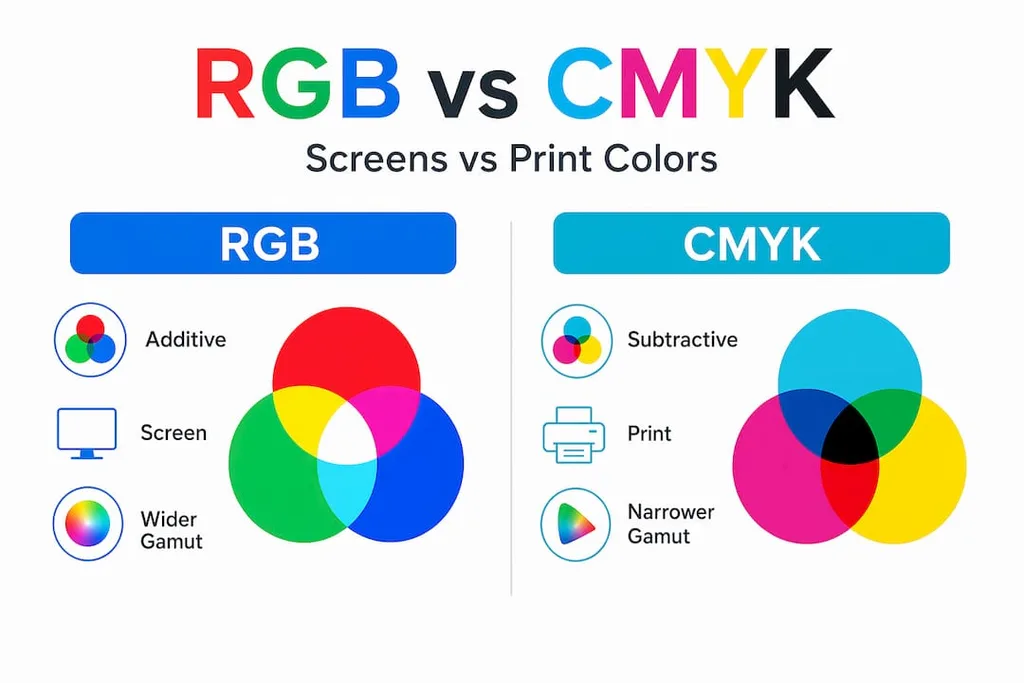
If you’re preparing product photography for print catalogs or e-commerce listings, getting color right matters as much as resolution — consistent professional photo retouching ensures your prints match your brand colors across every run.
File Formats for Print
| Format | Best For | Why |
|---|---|---|
| PDF/X-4 or PDF/X-1a | Most commercial print jobs | Preserves vectors, embeds fonts, enforces CMYK, cross-platform |
| TIFF (LZW compression) | Fine art photography, high-res photos | Lossless, no quality loss from repeated saves |
| High-quality JPEG (quality 90+) | Consumer photo labs, large format | Smaller files, acceptable quality if not re-saved repeatedly |
| PNG | Only if transparency needed | Generally avoid for print — can cause color shifts |
| GIF / low-res JPEG | Never for print | Compression artifacts and low pixel count |
Bleed, Trim, and Safe Zone: The Other Half of Print Prep
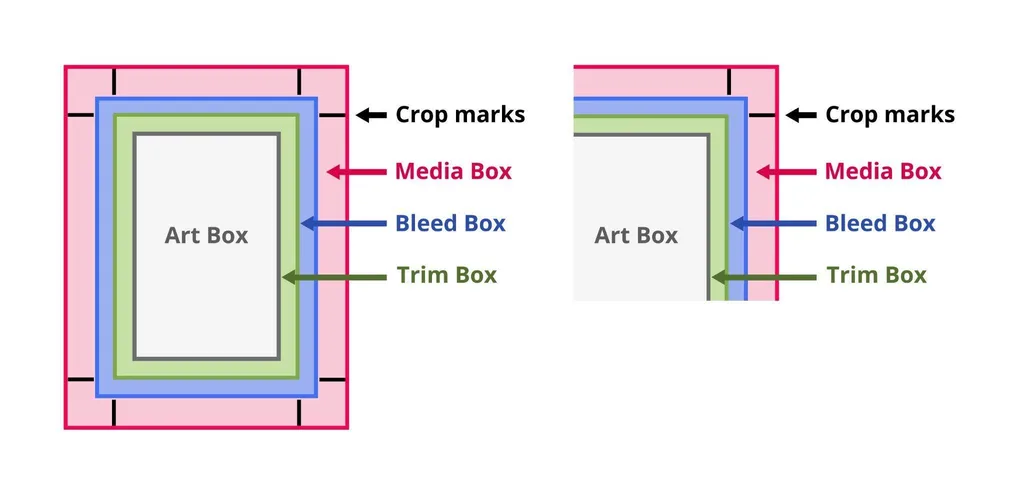
DPI gets all the attention, but these three margins cause just as many reprints. If your design reaches the edge of the paper, you need bleed.
- Bleed: Extend your background and full-bleed images 0.125 inches (3mm) past the trim line on all sides. If the cutting blade is off by a hair — and in mass production, it always is — you won’t get a thin white strip along the edge. For banners and fabric, extend bleed to 0.25–0.5 inches.
- Trim line: This is the final cut size. Your document dimensions (say, 3.5×2 inches for a business card) define the trim.
- Safe zone: Keep all text, logos, and important content at least 0.125–0.25 inches inside the trim line. If something important sits on the edge, a slight cutting error will slice through it.
The 7 Most Common DPI Mistakes (And How to Avoid Them)
Even experienced designers fall into these traps. Run through this list before you hit “send to printer.”
- Panicking over the 72 DPI tag instead of checking pixel count. The tag is metadata. Pixels are reality. Check dimensions first.
- Upsampling a web image to 300 DPI and expecting sharpness. Software can’t create detail that was never captured. Find the original file.
- Using 300 DPI for a billboard or large banner. You’ll create a massive file that slows everything down with zero visible benefit. Match resolution to viewing distance.
- Flattening text and logos into a raster image. Keep them vector. A 300-DPI rasterized logo will look soft next to vector text.
- Scaling an image up in InDesign or Illustrator without checking effective PPI. A 300-DPI image scaled to 200% becomes 150 DPI. Use the Links panel’s Effective PPI column to catch this.
- Sending RGB to an offset press. Colors will shift. Convert to CMYK (or use the printer’s profile) and soft-proof first.
- Forgetting bleed on full-bleed designs. That 0.125-inch margin prevents white edges after trimming.
The Print-Ready Checklist: Run Through This Every Time
Before you send any file to a printer, confirm every item on this list. It’s the same checklist professional prepress teams use.
- Resolution: 300 PPI at final print size for close-view items; 150 PPI minimum for large format viewed from distance.
- Pixel count verified: Check actual pixel dimensions, not just the DPI tag.
- Text and logos vector: Or rasterized at 600+ DPI if vector isn’t possible.
- Bleed: 0.125″ (3mm) on all sides for full-bleed designs.
- Safe zone: Text and logos at least 0.125–0.25″ inside trim.
- Color mode: CMYK for offset press; sRGB for consumer labs.
- File format: PDF/X-4 preferred; TIFF for fine art; high-res JPEG for labs.
- Fonts embedded or outlined: No missing fonts at the printer.
- Soft proof done: Viewed with the printer’s ICC profile to catch color shifts.
- Original preserved: Never overwrite your master file.
This comprehensive resolution guide echoes these exact steps and adds a useful camera-megapixel-to-print-size table if you want to cross-check your math.
Frequently Asked Questions
What is the best DPI for printing photos?
For anything you hold close — 4×6 prints, 8×10s, photo albums, portfolios — 300 PPI at the final print size is the gold standard. 240–250 PPI is often indistinguishable from 300, and 150 PPI is the absolute floor before pixelation becomes obvious. For large prints viewed from across a room (posters, canvas), 150–200 PPI is plenty.
Is 72 DPI good for printing?
“72 DPI” by itself tells you nothing. It’s just a metadata tag. What matters is pixel count. A 6000×4000 pixel image tagged at 72 DPI has exactly the same data as one tagged at 300 DPI and prints identically. A 1080-pixel-wide web image tagged at 300 DPI will still print pixelated. Always check pixel dimensions, not the DPI number.
How many pixels do I need for an 8×10 print?
At 300 PPI: 2400×3000 pixels (7.2 megapixels). At 200 PPI (still acceptable): 1600×2000 pixels (3.2 MP). Any modern phone or camera exceeds this. If your file falls short, check whether you’re using a compressed social-media copy — go back to the original.
What’s the actual difference between PPI and DPI?
PPI (pixels per inch) describes your digital file — how many pixels you have per inch of print. This is what you control in Photoshop. DPI (dots per inch) describes the printer’s ink output — photo printers use 1440–2880 DPI. Everyone says “DPI” when they mean “PPI.” When preparing files, set PPI; the printer handles DPI.
Can I increase DPI without losing quality?
Yes — if you change DPI without resampling (uncheck Resample in Photoshop’s Image Size dialog). The pixel count stays identical; only the print size changes. If you need more pixels for a larger print, you must upsample. AI tools help at 2–4× enlargement but invent detail — they can’t recover what was never captured.
Is 150 DPI okay for printing a poster?
For a poster viewed from 3–6 feet away, yes — 150 DPI is often perfectly fine. The human eye can’t resolve finer detail from that distance. For a poster people will walk up to and inspect closely, aim for 200–300 DPI. The key question is always: how close will people stand?
What DPI do I need for text and logos?
600–1200 DPI. Photos have soft edges where 300 is plenty, but text and line art have hard edges that show softness at 300. Better yet: keep text and logos as vector in a PDF. Vector stays sharp at any size and produces a smaller file.
Do I need to worry about DPI for web images?
No. Browsers display images by pixel dimensions and ignore the DPI tag entirely. A 1200-pixel-wide image renders at 1200 pixels whether it’s tagged 72 or 300 DPI. For web and social media, size your images in pixels and forget DPI exists.
Conclusion: DPI Is About Distance, Not a Magic Number
If you remember three things from this guide, let it be these:
- 300 DPI is for things you hold close. Business cards, brochures, photo prints — yes. Billboards and banners — no. Let viewing distance set the number.
- Pixel count beats the DPI tag. A 6000×4000 image at “72 DPI” prints beautifully. A 1080-pixel image at “300 DPI” doesn’t. Always check dimensions.
- Never upsample blindly. Change resolution without resampling first. If you genuinely need more pixels, use AI upscaling at 2× maximum and verify at 100%.
Get those three right, add bleed and the right color mode, keep your text vector, and your prints will come back sharp every single time. The 300-DPI rule isn’t wrong — it’s just incomplete. Now you have the full picture.