

Placing an Image Inside of Another With Photoshop: Complete Step-by-Step Guide
February 18, 2026
Mastering the Color Replacement Tool in Adobe Photoshop for Precise Photo Editing
February 21, 2026
People turn to free Photoshop substitutes for various reasons. Some dislike ongoing subscriptions, while others prefer open-source communities that foster innovation. These alternatives often run lighter on system resources, appealing to users with older hardware. Photographers benefit from built-in RAW processing, and illustrators enjoy specialized brushes for digital painting. Small businesses save money by using these tools for marketing materials, social media graphics, and website visuals. Students and educators access them without institutional budgets, promoting creativity in classrooms. The rise of remote work amplifies the need for accessible software that performs across devices. Users value cross-platform compatibility, ensuring smooth transitions between desktops and laptops. Community-driven updates keep these programs fresh, addressing bugs and adding features based on real feedback. Environmental considerations play a role too, as lighter software reduces energy consumption compared to resource-heavy suites. Ultimately, these free options empower creators to focus on their craft rather than costs.
No download, no subscription – just upload and get results. Start with a free demo
- Why Choose a Free Alternative to Photoshop?
- Key Features to Look for in a Photoshop Substitute
- Top Free Photoshop Alternatives Reviewed
- Photopea: Browser-Based Editing Convenience
- Krita: Ideal for Digital Artists and Illustrators
- Affinity Photo: Professional Features Now Free
- Paint.NET: Simple Yet Powerful for Windows Users
- Pixlr: Quick Online Edits with AI Touches
- Fotor: User-Friendly with Templates
- Comparing the Best Free Photo Editing Software
- Tips for Switching from Photoshop to Free Alternatives
- When to Consider Professional Photo Editing Services
- Conclusion
- FAQs
Why Choose a Free Alternative to Photoshop?
Subscriptions add up fast, especially for casual users. Adobe charges recurring fees for its full creative ecosystem, including Photoshop and linked apps. Most creators only need essential features like cropping, color correction, layer blending, and basic adjustments.
Free Photoshop alternatives deliver these core tools completely without any ongoing costs. They eliminate vendor lock-in by supporting standard export formats such as PSD, PNG, and JPEG. Security-focused users favor open-source options, where transparent code minimizes hidden risks.
These programs often pair smoothly with other free software, enabling streamlined workflows for video, 3D, or graphic projects. Beginners enjoy more approachable interfaces that highlight everyday tasks. Professionals value extensibility via scripts, plugins, and custom tools tailored to fields like fashion, architecture, or e-commerce.
Vibrant global communities provide tutorials, forums, and ready-made templates, speeding up learning. Economically, free tools create equal opportunities for creators in developing countries.
Key Features to Look for in a Photoshop Substitute
Strong alternatives mimic Photoshop’s strengths while adding unique twists. Layers form the backbone, allowing users to stack elements non-destructively. Masks enable precise control over visibility, essential for compositing. Brushes and pens support custom strokes for painting and selections. Color tools like curves, levels, and hue adjustments refine tones accurately. Healing and cloning stamps remove imperfections seamlessly. Filters apply effects like blur, sharpen, and distortion creatively. Text tools handle typography with kerning and styles. Support for plugins extends functionality, from noise reduction to batch processing. RAW compatibility appeals to photographers, preserving detail from camera sensors. Cross-platform availability ensures accessibility. User interfaces prioritize workflow, with customizable panels and shortcuts. Community resources provide presets and actions, speeding up repetitive tasks. Security updates protect against threats, maintaining reliability. These features combine to create versatile environments for image manipulation.
Performance matters equally. Fast rendering prevents frustration during complex edits. Low memory usage accommodates multitasking. Export options include high-resolution formats for print and web. Integration with hardware like tablets enhances precision. Accessibility features, such as color-blind modes, broaden appeal. Documentation guides users through advanced techniques. Regular updates introduce trends like vector integration or 3D support. Scalability suits solo creators and teams alike. These criteria help evaluate which tool best matches your needs.
Top Free Photoshop Alternatives Reviewed
Creators have plenty of choices in 2026. The following sections dive into the best options, highlighting strengths, weaknesses, and ideal use cases. Each tool stands out for specific reasons, from robust community support to browser-based convenience.
GIMP: The Versatile Open-Source Powerhouse
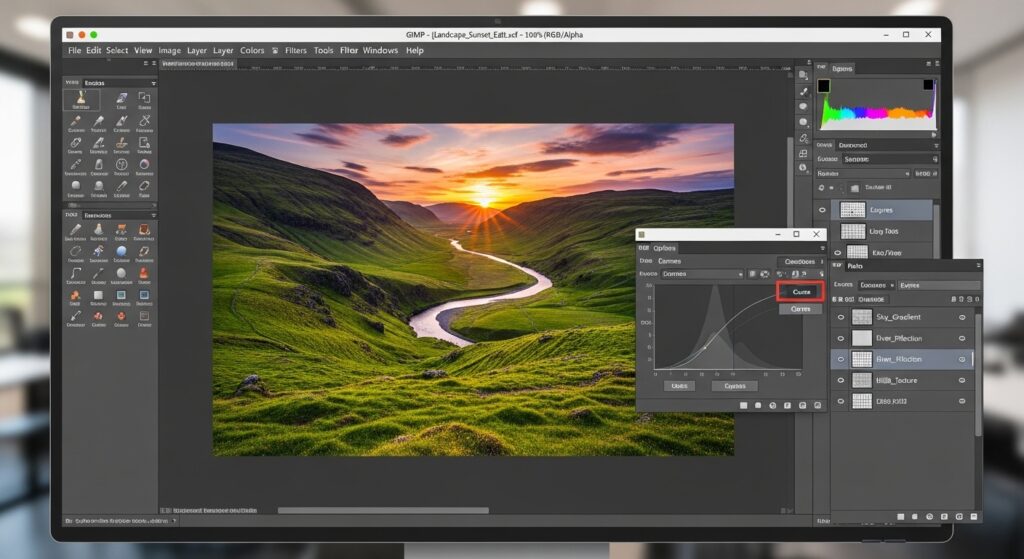
GIMP leads the pack as a free photo editing software staple. Developers maintain it through community contributions, ensuring constant improvements. Users download it from the official GIMP website and install it on multiple platforms. The interface resembles Photoshop, with toolboxes, layers, and history panels. Beginners start with basic adjustments like brightness and contrast. Advanced users leverage scripts for automation, such as batch resizing. Photographers appreciate the GEGL engine for non-destructive operations. Artists create custom brushes for digital illustration. The program handles CMYK for print preparation, a rarity in free tools. Plugins expand capabilities, adding features like resynthesis for content-aware fill.
GIMP excels in precision tasks. The path tool draws bezier curves for accurate selections. Foreground select isolates subjects intelligently. Color management ensures consistent output across devices. Users export to various formats, including animated GIFs. The community forum offers solutions to common issues. Tutorials cover everything from photo retouching to graphic design. Drawbacks include a steeper learning curve for Photoshop veterans. Some features require add-ons, like PhotoGIMP for familiar layouts. Performance shines on modern hardware, handling large canvases smoothly. GIMP suits hobbyists, professionals, and educators seeking a no-cost solution.
GIMP is powerful – we’re faster. Let our photo retouching team handle everything
Photopea: Browser-Based Editing Convenience
Photopea runs entirely in your web browser, eliminating downloads. Access it via Photopea.com and start editing immediately. The layout mirrors Photoshop closely, easing transitions. Layers, masks, and adjustments work identically. Users open PSD files natively, preserving edits. Smart objects support vector shapes. Filters include liquify and puppet warp. Text editing offers advanced styling. The tool processes RAW files online, a boon for quick tweaks.
Photopea appeals to mobile users, functioning on tablets and phones. Collaboration happens in real-time via shared links. No installation means IT-friendly use in restricted environments. Ads appear in the free version, but a premium removes them. Offline mode caches assets for travel. Community scripts add extras like auto-coloring. Limitations include browser dependency, potentially slowing on weak connections. Storage relies on cloud services. Photopea fits travelers, students, and casual editors needing quick access.
Krita: Ideal for Digital Artists and Illustrators
Krita focuses on painting and illustration, distinguishing it from general editors. Download it from Krita.org and explore its brush engine. Stabilizers smooth strokes for inking. Multibrush creates symmetrical patterns. Layers support animation frames. Color wheels aid precise picking. Users import Photoshop brushes seamlessly. The resource manager organizes assets efficiently.
Krita handles comics and concept art superbly. Wrap-around mode tiles canvases for patterns. Perspective grids assist drawing. HDR painting expands dynamic range. Plugins add vector tools. The interface customizes via docker panels. Community art shares inspire users. Drawbacks involve weaker photo editing compared to rivals. File sizes grow with complex projects. Krita serves artists prioritizing creativity over retouching.
Affinity Photo: Professional Features Now Free
Affinity Photo recently became free, exciting the community. Sign up with a Canva account at Affinity’s site to access it. Non-destructive editing protects originals. RAW development includes lens corrections. Panorama stitching merges shots flawlessly. Frequency separation refines skin textures. Macros automate workflows. The app combines raster and vector editing.
Affinity outperforms in speed, processing edits fluidly. Batch jobs handle multiple files. Export personas switch modes quickly. Users appreciate the one-time learning investment. Limitations stem from Canva integration for premium AI. No subscription appeals broadly. Affinity targets photographers and designers seeking pro-level tools gratis.
Paint.NET: Simple Yet Powerful for Windows Users
Paint.NET offers straightforward editing for Windows. Get it from GetPaint.net and enjoy its clean interface. Layers enable compositing. Effects include glow and oil painting. Curves adjust tones precisely. Plugins community expands options. Users clone stamps for repairs.
Paint.NET runs lightweight, suiting older PCs. Unlimited history undoes mistakes easily. Selections tools include magic wand. Drawbacks limit it to Windows. Advanced features require add-ons. It fits beginners and intermediate users focusing on efficiency.
Pixlr: Quick Online Edits with AI Touches
Pixlr provides web and app versions. Visit Pixlr.com for instant access. AI cutouts remove backgrounds automatically. Templates speed social media creation. Layers and masks support pro edits. Filters enhance moods.
Pixlr suits quick tasks like meme making. Mobile apps extend usability. Free tier includes ads. Premium unlocks stock images. Limitations involve internet reliance. Pixlr attracts social creators and marketers.
Fotor: User-Friendly with Templates
Fotor emphasizes ease. Access it at Fotor.com online or via apps. One-click enhancements fix exposures. Collage makers arrange photos. Beauty retouch smooths portraits. HDR merges brackets.
Fotor streamlines workflows for non-experts. Cloud sync shares edits. Free version watermarks exports. Premium removes limits. It lags in advanced masking. Fotor helps bloggers and influencers produce visuals fast.
Comparing the Best Free Photo Editing Software
Each alternative shines in different areas. GIMP offers the most extensibility for power users. Photopea provides unmatched convenience without installs. Krita dominates digital art creation. Affinity Photo delivers pro features freely. Paint.NET keeps things simple on Windows. Pixlr adds AI for speed. Fotor prioritizes templates for quick results.
Consider your workflow when choosing. Photographers lean toward RAW-capable tools like Affinity or GIMP. Artists pick Krita for brushes. Casual users enjoy Pixlr or Fotor. Test multiple to find the fit. Community feedback guides decisions, with forums discussing updates.
Tips for Switching from Photoshop to Free Alternatives
Transition smoothly by exporting PSD files first. Learn keyboard shortcuts to maintain speed. Install plugins for missing features. Join communities for tips. Practice common tasks like masking. Backup projects regularly. Experiment with unique tools in each alternative.
Customize interfaces to match habits. Use tutorials for advanced techniques. Integrate with other software like vector editors. Monitor updates for new capabilities. Share feedback to improve tools. Switching boosts skills through adaptation.
When to Consider Professional Photo Editing Services
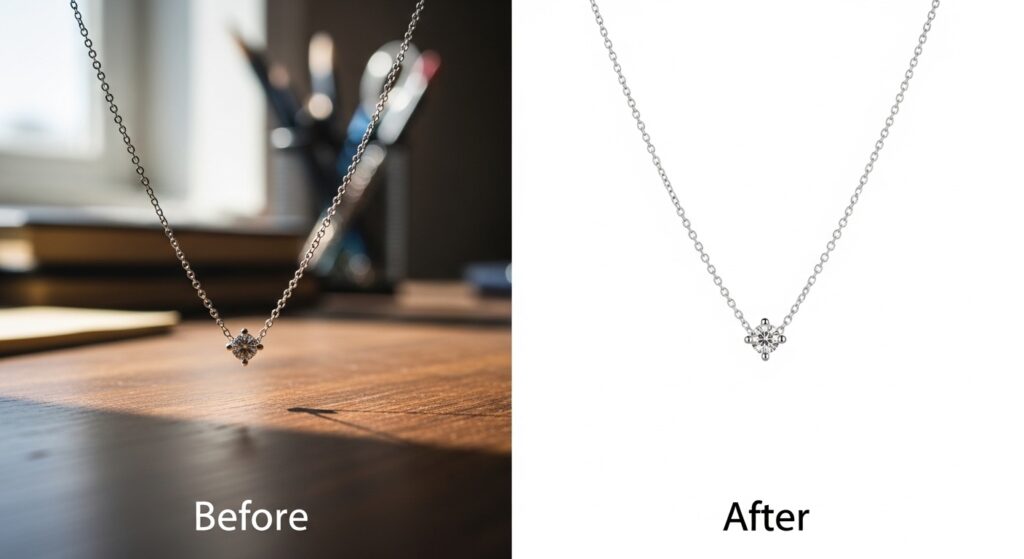
Sometimes, outsourcing saves time. Services handle bulk edits efficiently. Clipping Expert Asia specializes in clipping paths, background removal, and retouching for e-commerce. Their experts deliver pixel-perfect results starting at low prices. Photographers use them for sports images, while businesses enhance product shots.
Professionals tackle complex tasks like ghost mannequins. Turnaround times fit tight deadlines. Quality assurance ensures satisfaction. Combine services with free tools for hybrid workflows. This approach maximizes efficiency for high-volume needs.
Conclusion
Free Photoshop alternatives empower creators in 2026. GIMP, Photopea, Krita, and others provide robust features without costs. Explore them to enhance your editing skills. Communities and updates keep them relevant. Whether you edit photos, design graphics, or illustrate digitally, these tools deliver. Start with one that matches your needs and expand from there. Creativity thrives when barriers drop.
Stop learning new tools. Get a free quote for background removal – upload, we edit, you download
FAQs
What is the closest free alternative to Photoshop?
Photopea closely mimics Photoshop’s interface and features, running in browsers for easy access.
Is GIMP as good as Photoshop for professional work?
GIMP handles professional tasks like retouching and compositing effectively, though it requires plugins for some advanced features.
Can I use these free tools for commercial projects?
Most free alternatives allow commercial use, but check licenses for specifics like plugins or assets.
Do any free Photoshop substitutes support PSD files?
Tools like GIMP, Photopea, and Affinity Photo open and edit PSD files with good compatibility.
Which alternative is best for digital painting?
Krita excels in digital painting with its advanced brush engine and stabilizers.
Are there mobile versions of these free editors?
Pixlr and Fotor offer mobile apps, while Photopea works on mobile browsers.
How do I learn to use these alternatives quickly?
Use official tutorials, YouTube guides, and community forums to master shortcuts and workflows.